



Joplin 3.6 brings a more polished editing experience, a much improved OneNote importer, and a clearer view of what's happening when the app syncs. Mobile also gains a number of features that previously were only available on desktop.
Improvements across desktop and mobile
A more visual Markdown editor
The Markdown editor now renders formatting directly in the editor by default, which means headings, bold and italic text, links, images and other elements now appear styled as you type, instead of as raw Markdown. This brings the editing experience much closer to the final rendered note, while keeping all the speed and predictability of plain Markdown.

In addition, inline HTML such as colored text, superscript, subscript and strikethrough is now rendered live, and YAML frontmatter blocks are displayed as a clean styled block rather than raw text. Code block highlighting in the editor has also been brought closer to what you see in the viewer.
Markdown formatting commands such as bold or italic now also apply correctly across multi-line selections, formatting each line individually rather than wrapping the whole block at once.
Embedded videos and media time ranges
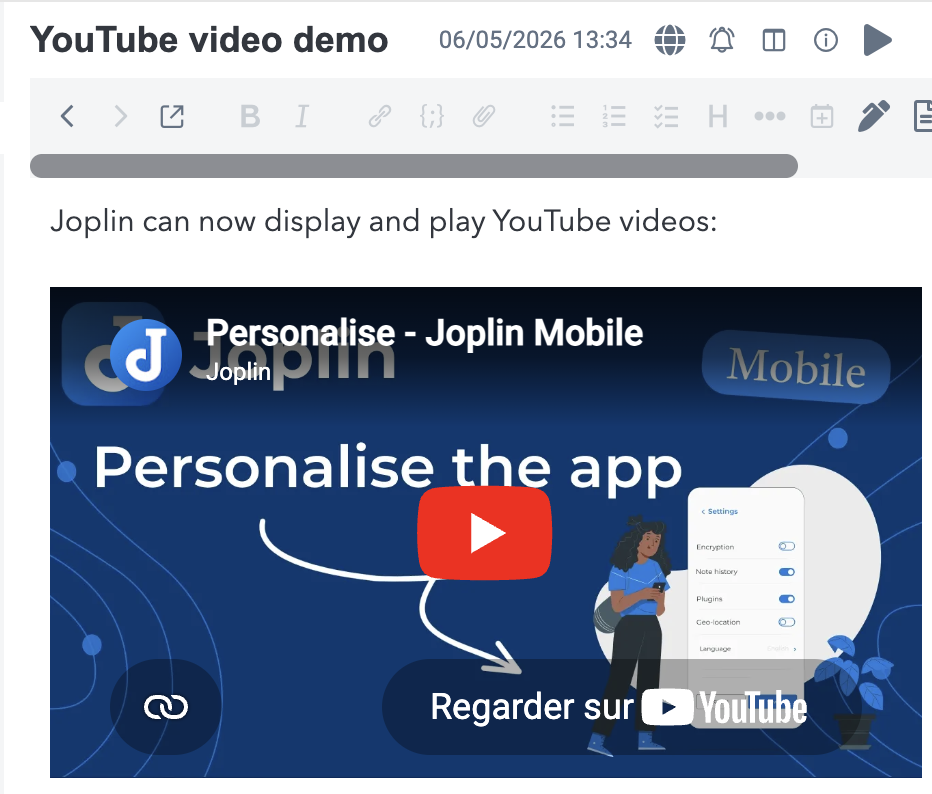
It is now possible to embed external content directly in notes, with YouTube videos being the most visible example - paste a link and the video plays inline.
Audio, video and PDF attachments can now also be linked to a specific section using start and end times, making it easy to point readers to a particular passage instead of the full file.
Significantly improved OneNote import
The OneNote importer received a large amount of work this cycle. Importing .onepkg files now works on Linux and macOS, not just Windows, and large .one files with many attachments are now handled correctly. Handwriting and ink import has been substantially improved, with better positioning, scaling and support for nested ink containers.
Many smaller fidelity issues have also been fixed: bold and italic now convert properly to Markdown, fonts are handled more sensibly when Calibri is unavailable, PDF printouts are imported correctly, cross-page links are preserved, and notebooks with non-ASCII characters in their titles no longer fail to import. Overall, migrating from OneNote to Joplin should now be noticeably smoother and more faithful to the original content.
Fewer unexpected sync conflicts
Several long-standing causes of unexpected conflicts have been addressed, including conflicts that could appear during sync, after a full sync, or due to resource duplication. Resource processing in read-only shared notebooks has also been made more reliable.
Desktop-specific improvements
Clearer sync status
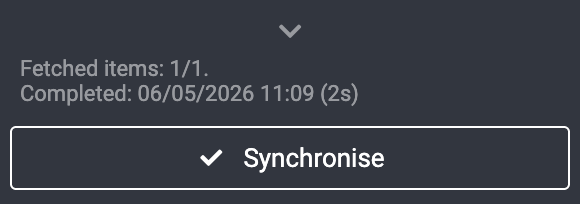
The sidebar now includes a sync status icon and a collapsible sync report, giving you a clear view of what Joplin is doing without having to open the log. A new toggle button also lets you hide or show the sync panel at any time. Together these changes make sync activity much more transparent in day-to-day use.
Quality of life: zoom, shortcuts and viewer copy
A number of small improvements add up to a more comfortable desktop experience:
- A full-screen shortcut (Ctrl+Cmd+F) and a global show/hide Joplin shortcut have been added.
- On Windows and Linux, a Close Window shortcut and menu item are now available.
- Toolbar button tooltips now include keyboard shortcuts.
- Copy and Select All "Edit" menu items now work in the note viewer and in read-only mode.
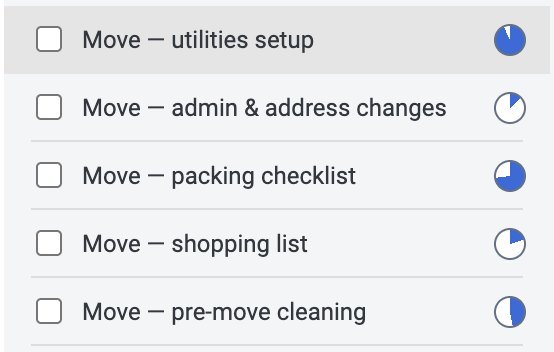
- The detailed note list now displays the percentage completion of checkbox lists.
- Editor settings have been moved to a dedicated section in the preferences screen, making them easier to find.
Accessible PDF export and OCR improvements
Exported PDFs now include accessibility information, and OCR'd PDFs gain a text layer that makes them searchable and screen-reader friendly. OCR also now supports Chinese and Norwegian.
Mobile-specific improvements
Per-notebook sorting
It is now possible to set a separate sort order for each notebook on mobile, matching the behaviour that has long been available on desktop. This is particularly useful when different notebooks need different sorting (e.g. a journal sorted by date, a reference notebook sorted alphabetically).
A dedicated attachments management screen
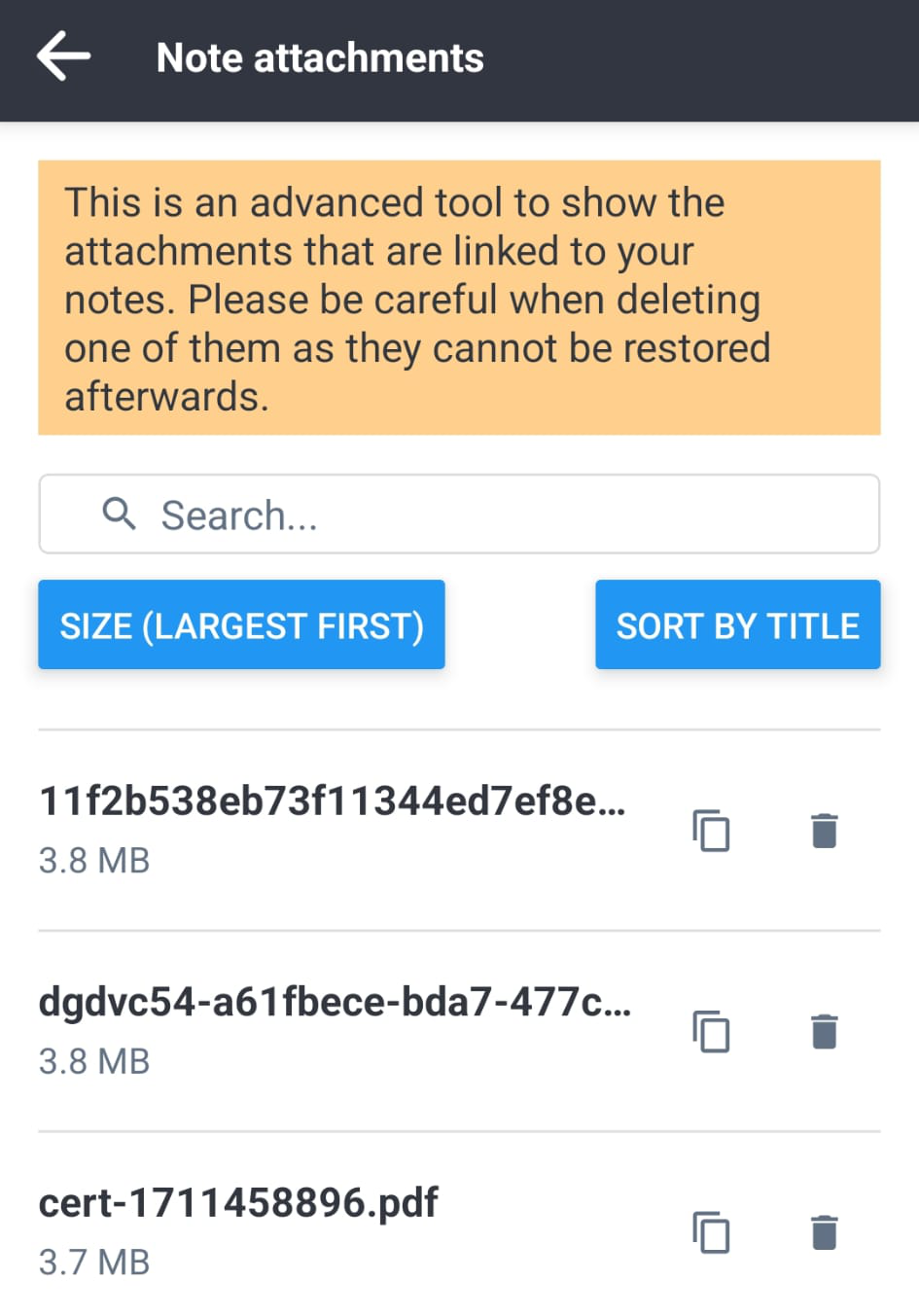
A new screen lists all attachments across your notes, making it much easier to review what's stored, find a specific file, or delete attachments you no longer need. It's available from Configuration → Tools → Note attachments.
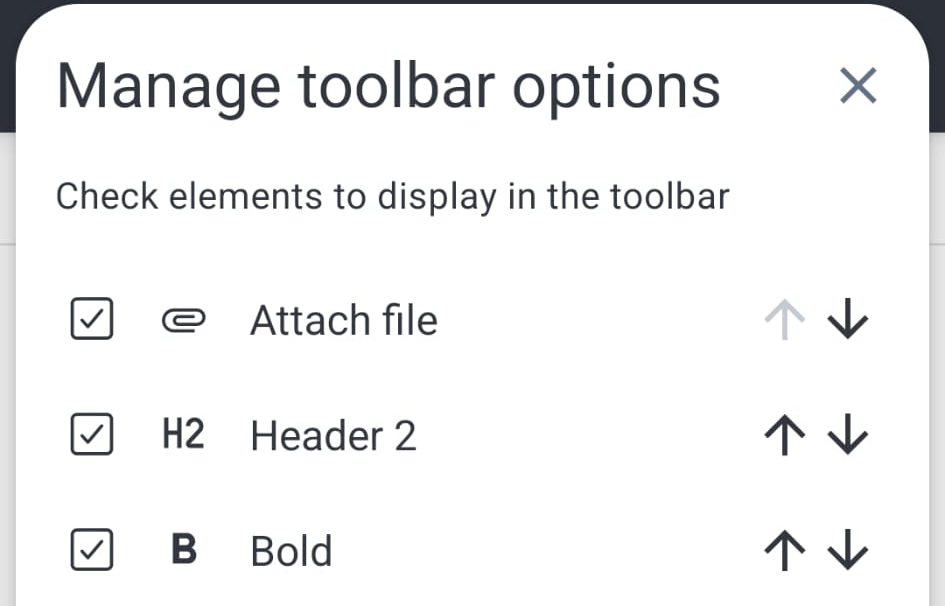
A more capable editor toolbar
Two improvements make the mobile editor toolbar more flexible:
- New "Go to start of note" and "Go to end of note" buttons make navigating long notes much faster.
- The toolbar buttons can now be reordered using up/down arrows, so you can put the actions you use most within easy reach.
Other mobile improvements
A few additional changes worth mentioning:
- Joplin now remembers whether you were viewing or editing each note, instead of always reopening in view mode.
- A new "Reveal in notebook" option helps you locate a note in the sidebar from a search result or any other view.
- Plain text
.txtfiles can now be imported directly on mobile.
Bug fixes and security fixes across platforms
Joplin 3.6 also includes a large number of bug fixes across desktop and mobile, addressing issues in editing, syncing, importing, rendering and general stability. Several security-related improvements have also been made, including a stronger Content Security Policy on desktop.
For the full list of changes, see the desktop changelog and the mobile changelog.