

Code block utilities for the Markdown editor and viewer: language autocomplete, copy buttons, line numbers, and a command to insert or toggle code blocks
| Links: | |
|---|---|
| Maintainers: | bwat47 |
| Version: | 1.6.0 |
| Minimum app version: | 3.3 |
| Downloads: This version: | 166 |
| Last updated: | 2026-09-26T19:11:09Z |
[!note] This plugin was created entirely with AI tools
Codeblock Utils adds tools for working with fenced code blocks in Joplin:
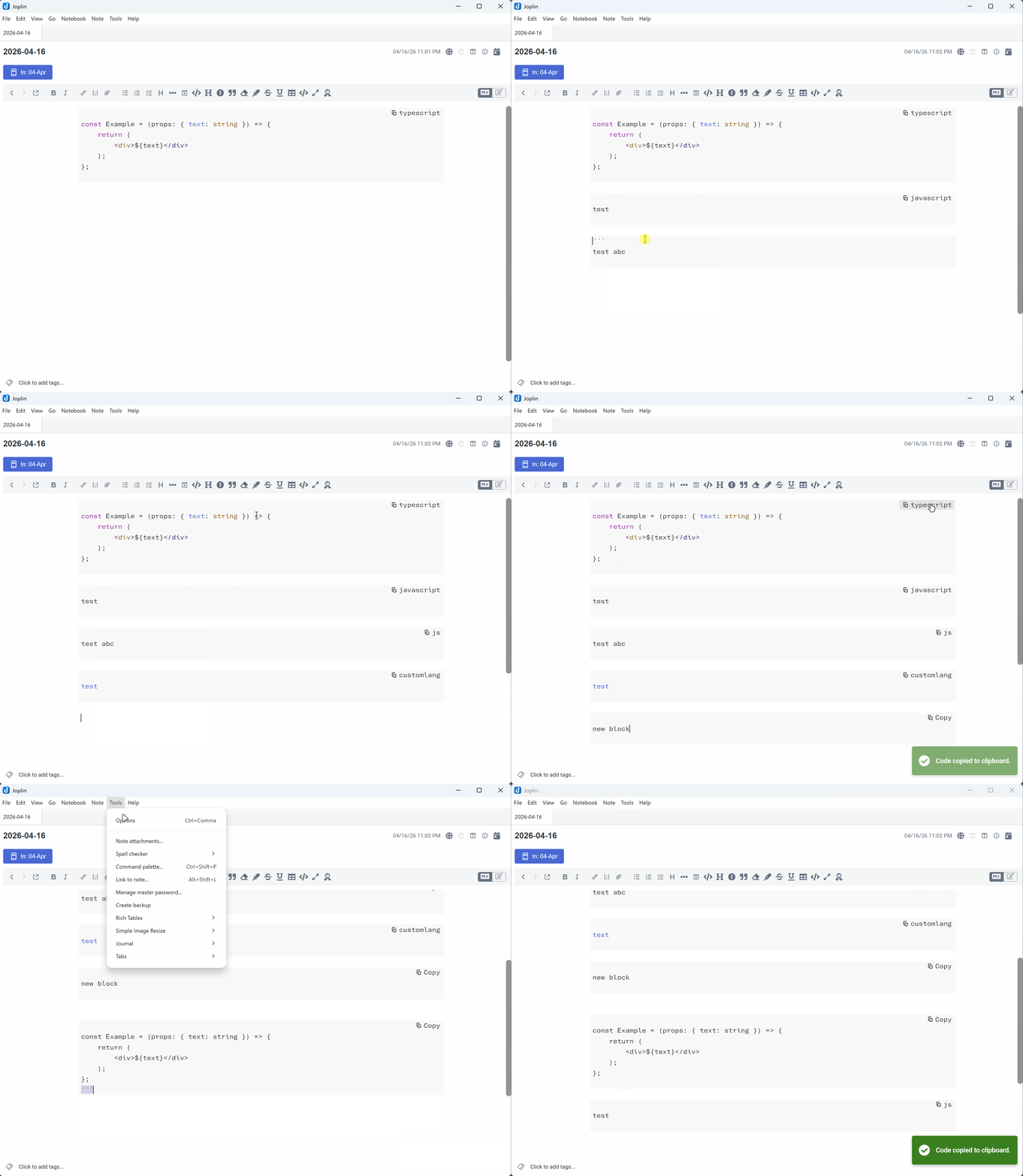
Typing an opening fence (three+ backticks or three+ tildes) will trigger the auto-complete list by default. Selecting a language will complete the code block (adding the language and closing fence).
Specifying a lanauge that's not in the list (and has no matches) will show "Custom language" and will use the specified language as-is.
Supports nested code blocks (when the autocomplete languages dropdown is enabled): enter more than three fence characters will close the block with the same number of fence characters as the opening block.
If language auto-complete is disabled, typing exactly three backticks or tildes immediately inserts the closing fence and leaves the cursor at the end of the opening fence so you can type a language or press Enter.
An insert code block command is available via a formatting toolbar icon, Edit menu entry, and keyboard shortcut (by default CmdOrCtrl + Alt + `).
The command supports multiple cursors and selections, and is line-aware (e.g. cursor on line with no selection > invoke command > wraps entire line in code block). Invoking it with a cursor or selection inside an existing fenced code block removes the surrounding fence lines.
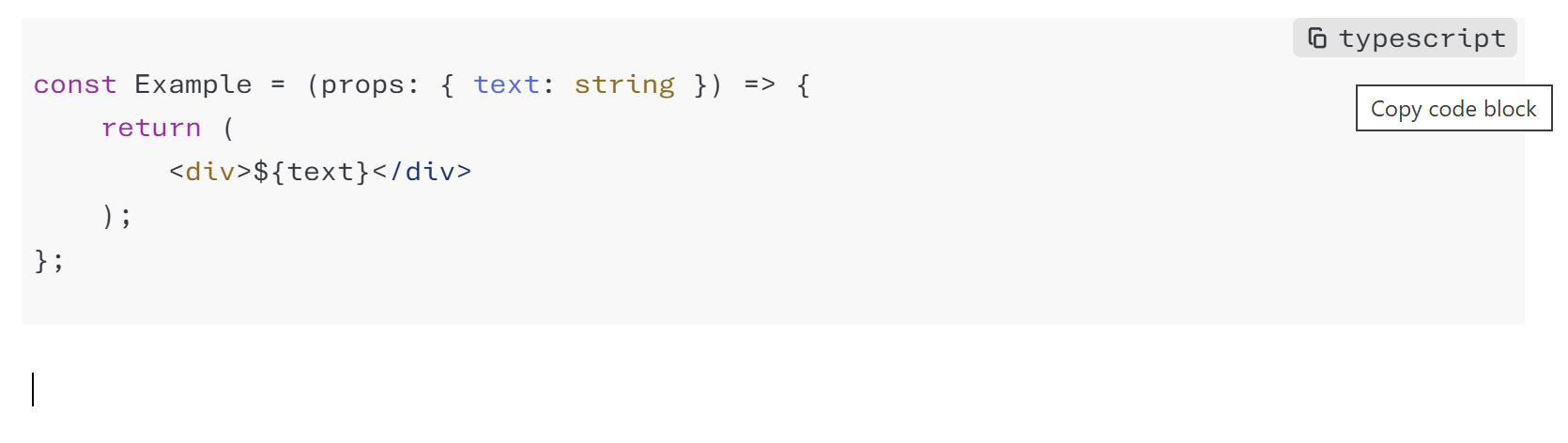
If the copy widget is enabled, you will see the code fence language rendered as a clickable copy button on the top-right of the code block (when the cursor isn't on the opening fence line).
Clicking the copy button will copy the code block contents to your clipboard. If the code fence doesn't have a language specified, it will display a generic "Copy" label instead of the language.
If line numbers are enabled, each line inside a fenced code block in the Markdown editor is numbered, starting from 1 on the line after the opening fence. The fence lines are shifted to stay aligned with the code but are not numbered.
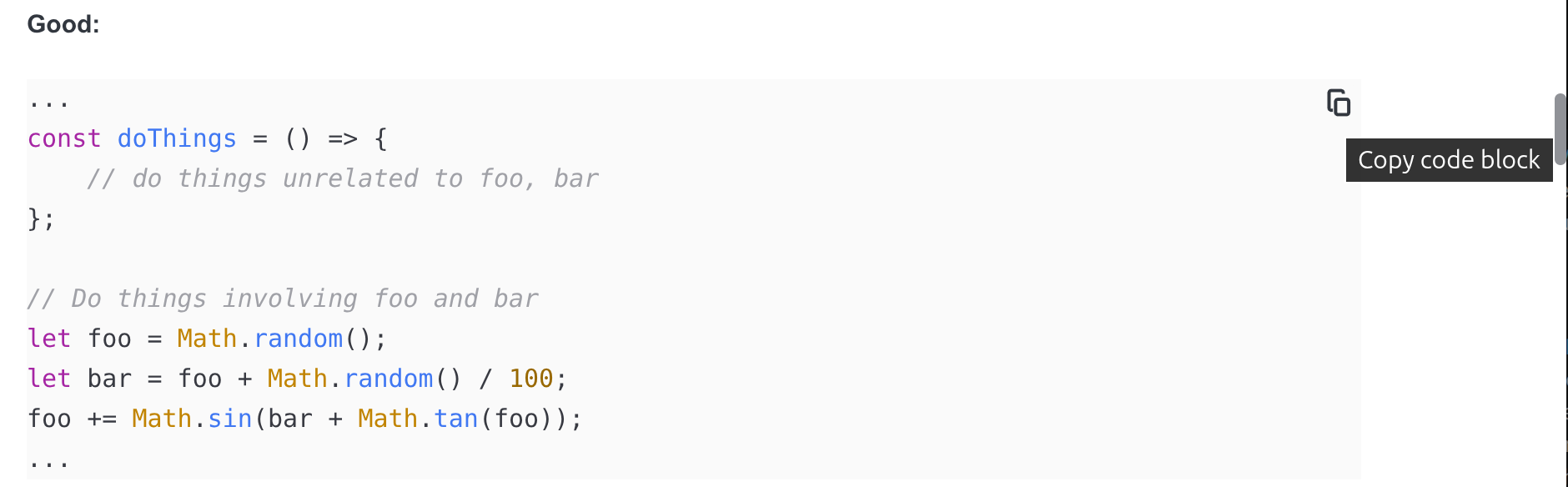
The Markdown viewer has a separate copy-widget setting. When enabled, hovering over a rendered fenced code block shows an icon-only copy button in its top-right corner. The button remains visible on touch devices and can also be reached with the keyboard.
Clicking the button copies the fenced code contents and displays a success toast. Indented code blocks, inline code, raw HTML code blocks, and fences that Joplin renders as something other than code (Mermaid, ABC notation, Fountain) are not changed.
[!note] This setting also enables a working copy button in the desktop rich text editor (TinyMCE).
It technically works in the mobile (prosemirror) rich text editor as well, however, the prosemirror editor places its own "edit" button on the top right, so the two buttons overlap.
Enable the viewer line-number setting to number each logical line of fenced code, starting from 1 for each block. Highlighting is preserved, and copying code excludes the numbers. This setting is independent of editor line numbers and viewer copy buttons. Diagram blocks are not numbered.
Enable language auto-complete - Toggle the language dropdown for code fences. When disabled, typing exactly three backticks or tildes inserts a closing fence immediately without opening the dropdown.
Enable Markdown editor copy widget - Show a copy button on fenced code blocks in the Markdown editor and hide the opening-fence language text when the cursor is not on that line.
Show line numbers in Markdown editor code blocks - Number the lines inside fenced code blocks in the Markdown editor.
Enable Markdown viewer copy widget - Show a copy button when hovering over fenced code blocks in the Markdown viewer.
Show line numbers in Markdown viewer code blocks - Number the lines inside fenced code blocks in the Markdown viewer.
Autocomplete languages - Comma-separated list of language identifiers to show in the autocomplete menu.