
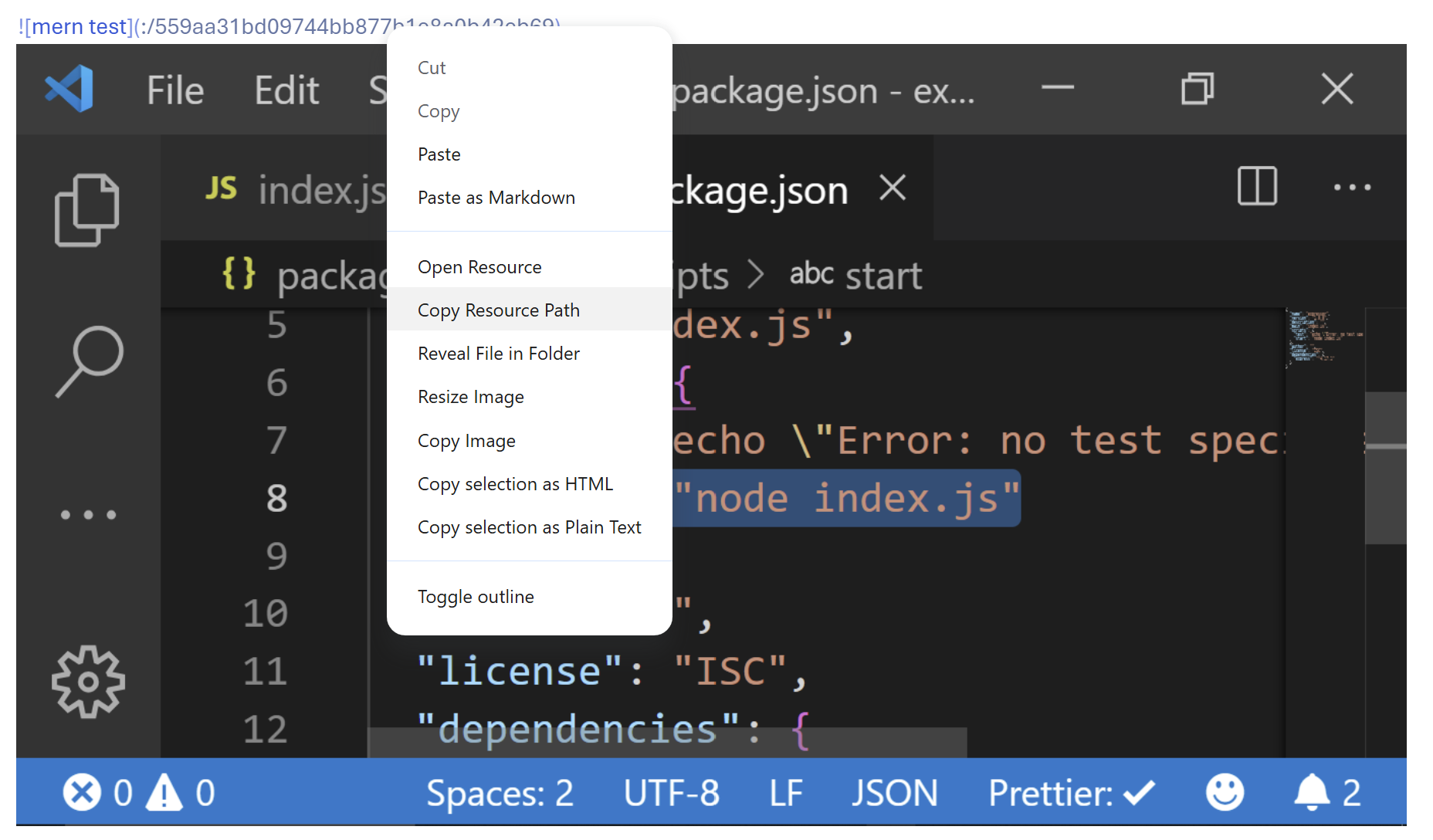
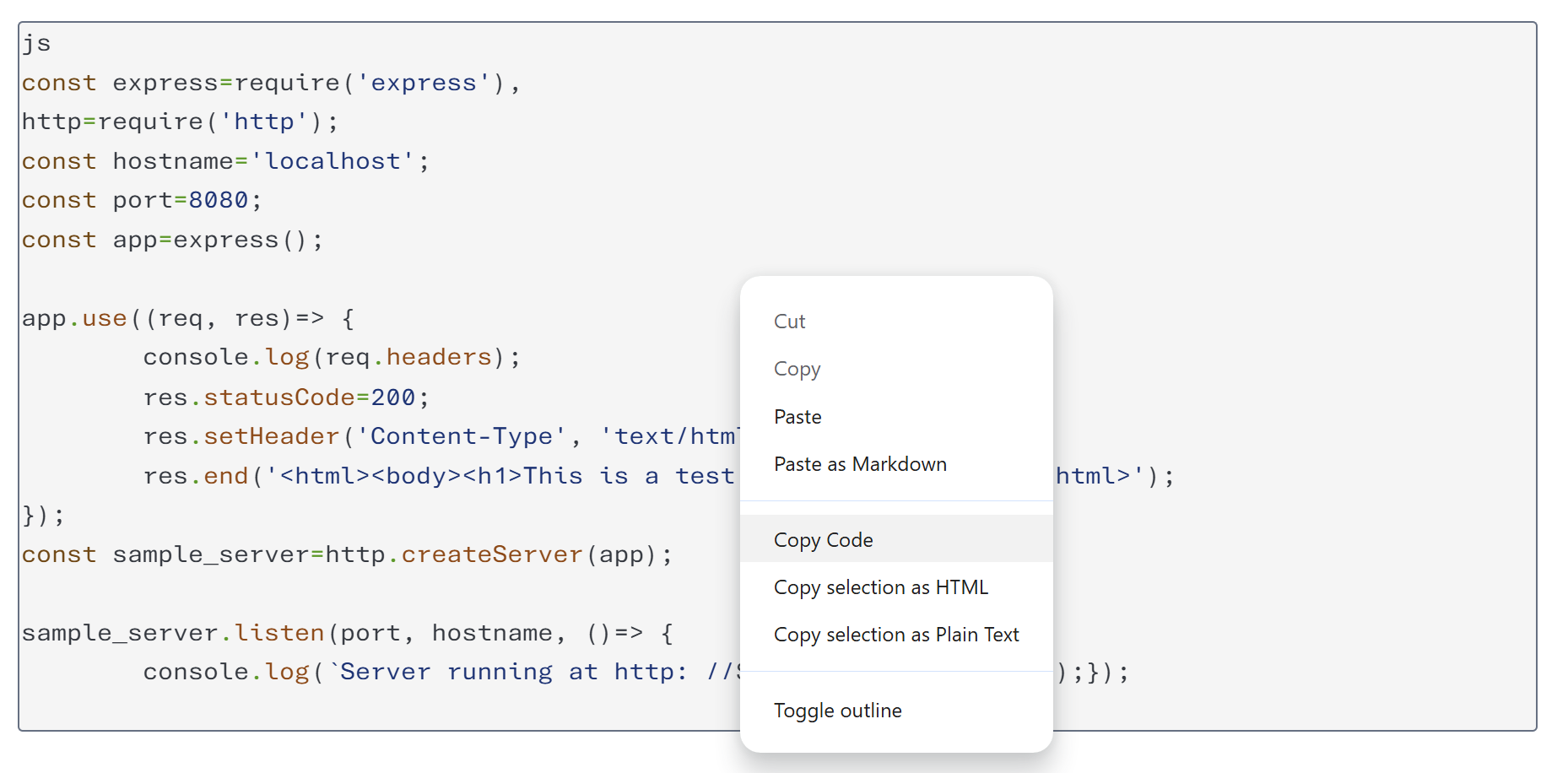
Adds various options to the right-click context menu in the Markdown Editor, provides commands for toggling task list items, contextual copy, and fetching link titles and enhanced pasting inside lists.
| Links: | |
|---|---|
| Maintainers: | bwat47 |
| Version: | 1.9.2 |
| Minimum app version: | 3.3 |
| Downloads: This version: | 59 |
| Last updated: | 2026-09-25T22:50:31Z |
[!note] This plugin was created entirely with AI tools.
[!note] This plugin only supports the markdown editor (codemirror 6). The legacy editor is not supported.
Context Utils is a Joplin plugin that adds various options to the right-click context menu in the Markdown Editor and commands for toggling task list items, contextual copy, and fetching link titles.
Open Link/Send Email - Open external URLs in browser or open mailto: links in default mail client.
Open All Links - Opens all detected HTTP(S) links in the current text selection, in selection order.
Add External Link - Insert a hyperlink at the cursor
Add Link to Note - Insert a link to another note at the cursor
Copy URL/Copy Email - Copy URL to clipboard, or copy email address from mailto: link.
Copy Code - Copy code from inline code or code block to clipboard.
Copy Heading Link - Display options to copy a markdown link to the heading at the cursor (internal anchor or external note link)
Copy Quote - Display option to copy block quote contents without quote markers
Toggle Task(s) - Toggle task on selected line or Toggle all tasks in selection(s).
CmdOrCtrl+Shift+Space by default).Go to Footnote - Scroll editor to defintion associated with the selected Footnote reference.
Go to Heading - Scroll editor to specified heading when right clicking on internal anchor link (e.g. [Test](#test))
Open Note as Pinned Tab - Allows you to right click a link to another joplin note and pin it to a tab (requires the Note Tabs plugin)
Fetch Link Title(s) - Fetches the title of a URL and updates markdown link to include the title (or converts to a markdown link if its a bare URL). Operates on the single link at the cursor, or every link in the selection.
linkpreview.net API key is configured in plugin settings, the plugin tries linkpreview.net first and falls back to direct page fetching if needed.The Custom link title rules (JSON) setting holds a JSON array of rules. When a rule's regex matches a link's URL, "Fetch Link Title" uses that rule's title template as the link text instead of fetching the page. Rules are tried in order; the first matching rule that produces a non-empty title is used. If no rule produces a title, the normal fetch behavior applies.
Each rule is an object:
| Field | Required | Description |
|---|---|---|
pattern |
yes | Regex source tested against the full URL. |
title |
yes | Template for the link text. $1–$9 insert capture groups; $& inserts the whole match. |
flags |
no | Regex flags, e.g. "i" for case-insensitive. |
Example — title a helpdesk ticket link from its track= query parameter so that https://helpdesk.example.com/ticket.php?track=7QF-MZP-9KD2 becomes 7QF-MZP-9KD2:
[{ "pattern": "^https?://helpdesk\\.example\\.com/.*[?&]track=([^&#]+)", "title": "$1", "flags": "i" }]
The default value ships a rule for Jira issue links (e.g. …/browse/PROJ-123 → PROJ-123), you can edit or remove it.
[!note] Joplin settings are a single-line field, so the value must be minified (one line) JSON. Rules use your own regular expressions, so a pathological pattern could make fetching hang — keep patterns simple and anchored.
A "Contextual Copy" command is provided that will copy the innermost copyable context at the current cursor position. For example:
This can be assigned a keyboard shortcut and uses CmdOrCtrl+Shift+X by default.
When you paste a list after an existing list marker, this setting prevents duplicate bullets, numbers, or task boxes. For example, pasting - foo on a - line produces - foo instead of - - foo.
It also adjusts the pasted list to the current list's indentation and style, and renumbers numbered items when needed. Nested items keep their structure.
linkpreview.net API key setting for link title fetching.