
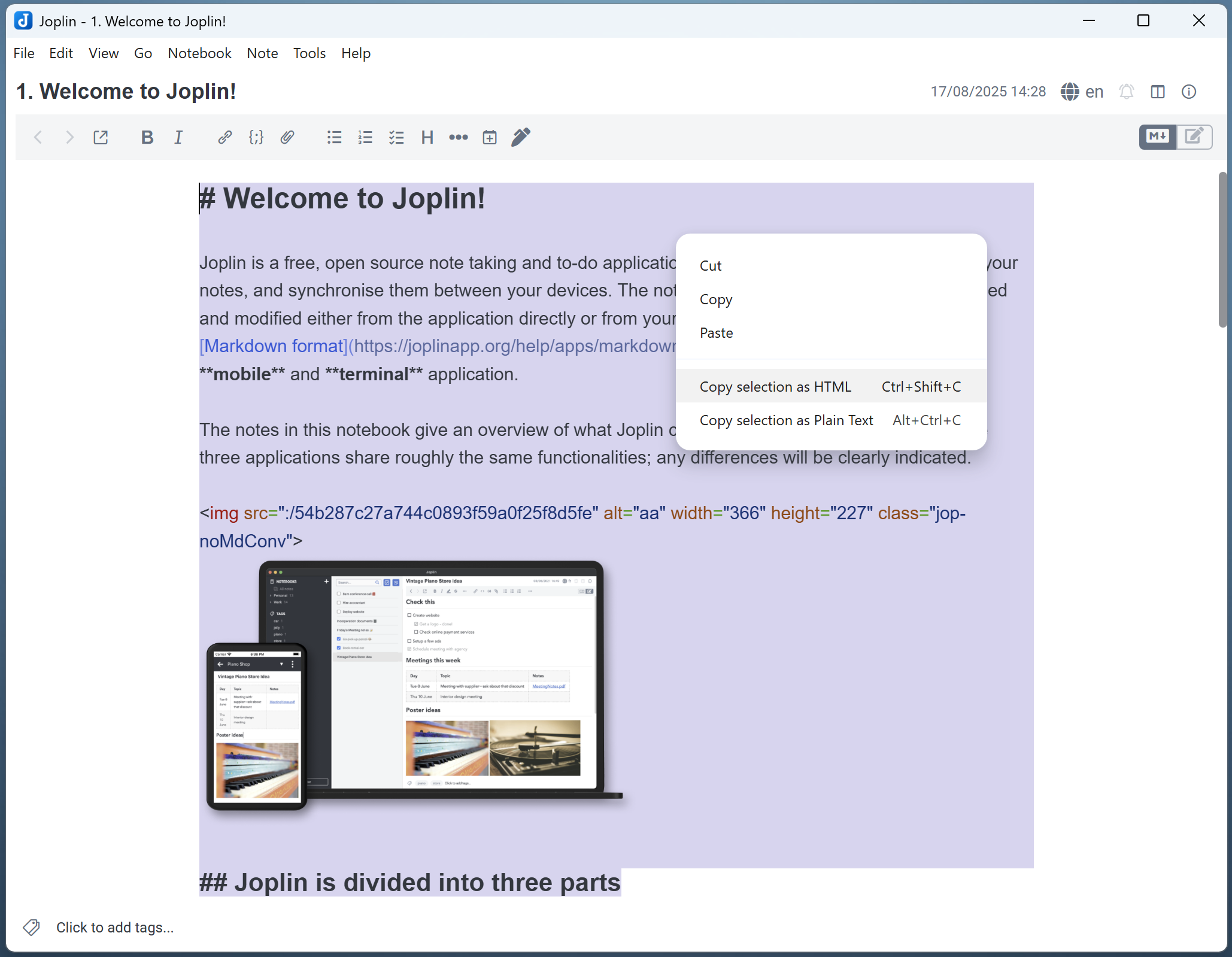
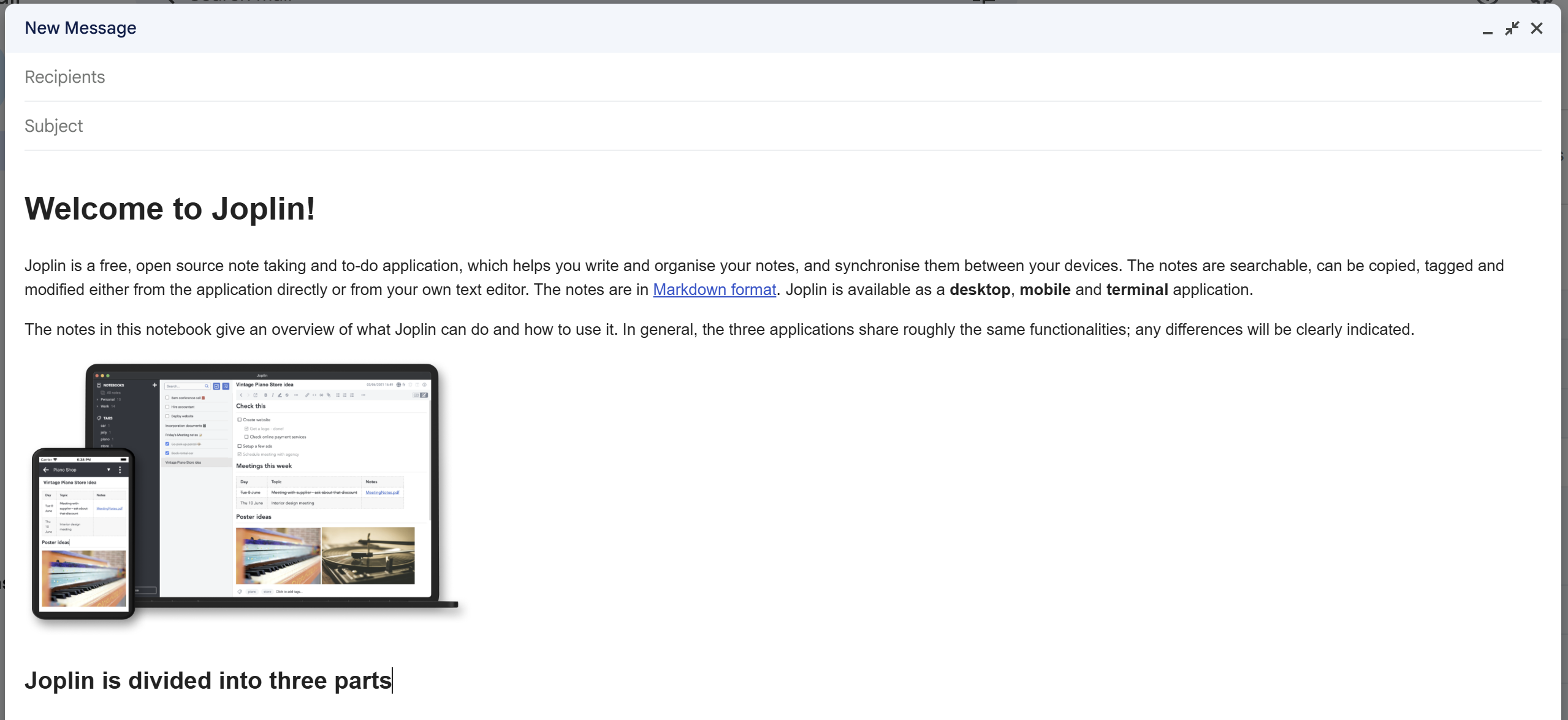
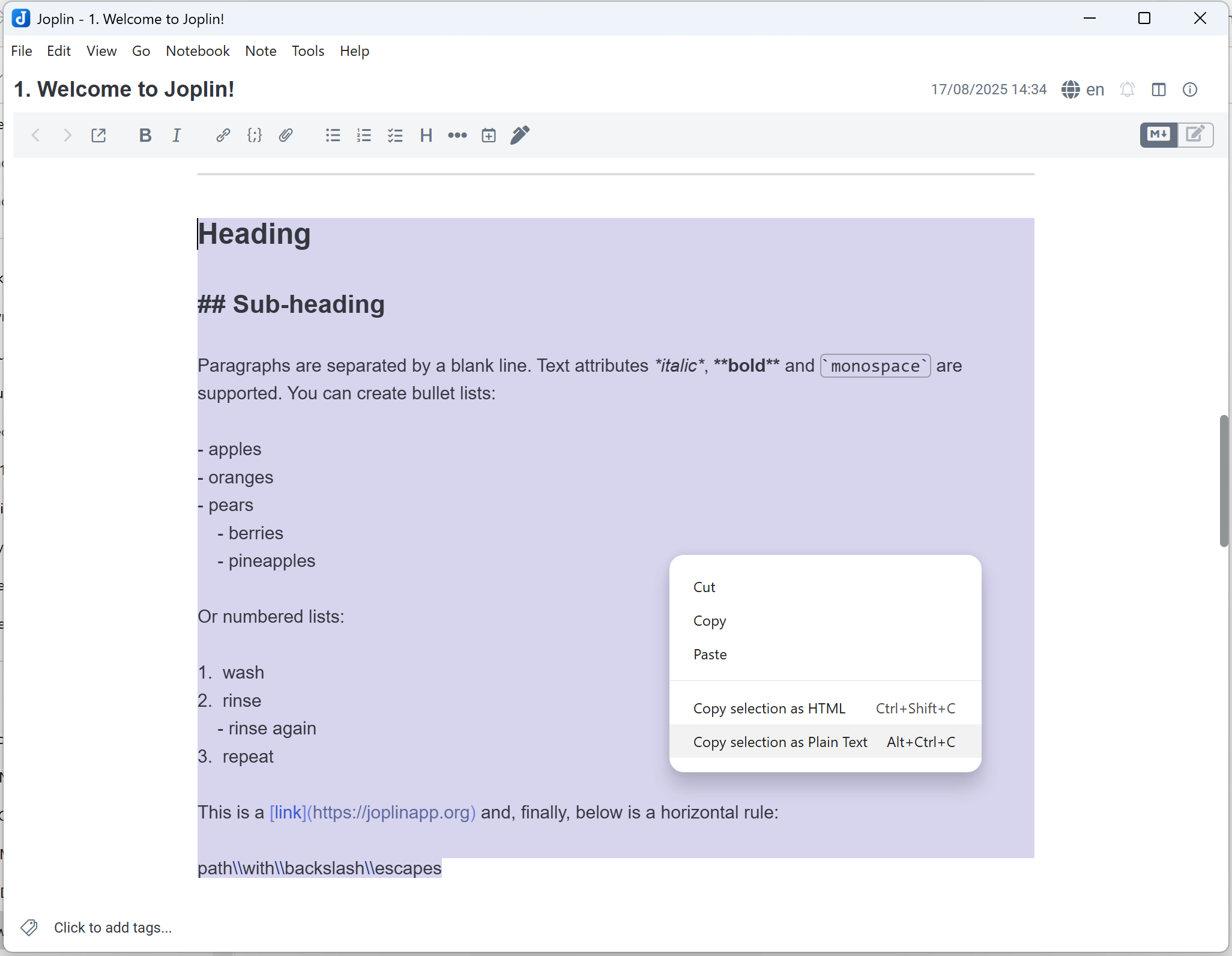
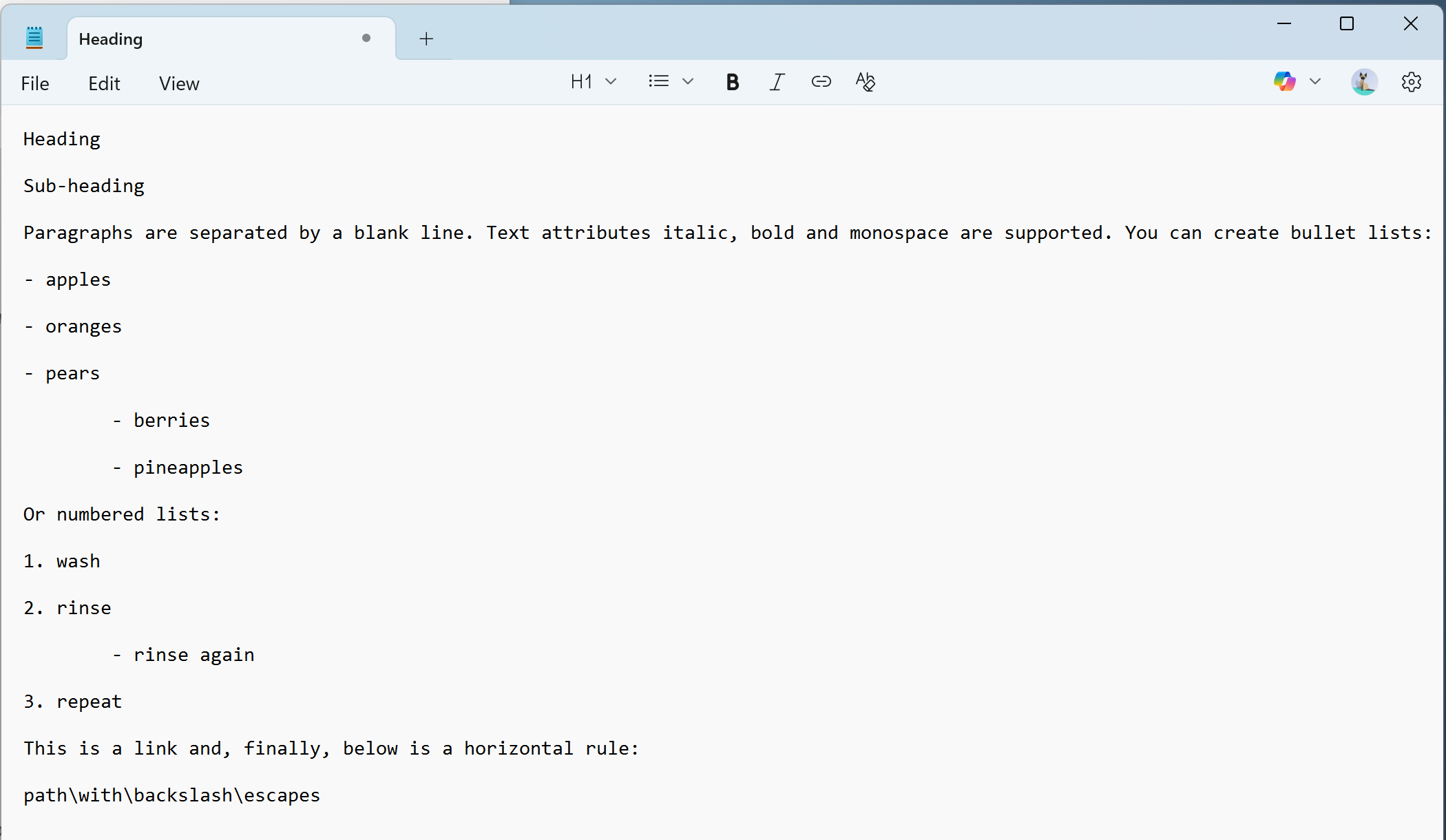
Allows you to copy text with HTML (rich text) formatting from the markdown editor (including images). Also allows you to copy as plain text (without markdown formatting)
| Links: | |
|---|---|
| Maintainers: | bwat47 |
| Version: | 1.6.8 |
| Minimum app version: | 3.5.11 |
| Downloads: This version: | 31 |
| Last updated: | 2026-10-28T04:15:46Z |
Copy selected Markdown from Joplin as formatted HTML or readable plain text. Paste into apps such as Outlook and Gmail, with optional image embedding and customizable plain text output.
| Command | Default shortcut |
|---|---|
| Copy selection as HTML | Ctrl+Shift+C |
| Copy selection as Plain Text | Ctrl+Alt+C |
Copy selection as HTML puts both formatted HTML and a plain text fallback on the clipboard. The destination app determines which format to use. Copy selection as Plain Text copies only plain text.
The plain text options apply to both the plain text command and the HTML command's fallback.
Configure the plugin in Joplin's settings under Copy as HTML.
Local Joplin images are embedded as base64 by default, allowing you to paste text and images together. Both Markdown images and HTML <img> tags are supported.
| Setting | Default | Behavior |
|---|---|---|
| Embed images as base64 | On | Embeds local Joplin images in the HTML. Turning this off removes local Joplin images from the output. |
| Download and embed remote images | Off | Downloads and embeds remote HTTP/HTTPS images when image embedding is enabled. Otherwise, remote images remain linked to their original URLs. |
| Convert SVG images to PNG | On | Converts embedded SVG images to PNG for compatibility with editors and email clients. |
Successfully embedded remote images can be viewed without internet access. If a download fails, the original image URL is retained.
Drawings from Freehand Drawing, Excalidraw, and Drawio are supported when stored as Joplin image resources (embedded like any other image resource).
To use custom CSS, create copy-as-html-user.css in your Joplin profile directory. Open Help > Open profile directory to locate it. The custom stylesheet replaces the bundled stylesheet and is used only when Export as full HTML document is enabled.
HTML output follows Joplin's Markdown rendering settings, including options such as footnotes, highlighting, and tables.
==mark==)~sub~)^sup^)++Insert++)Plain text output removes Markdown formatting markers and images while preserving paragraphs, list markers, nested list indentation, readable tables, footnotes, and link text. It parses Markdown independently of Joplin's HTML rendering settings.
| Setting | Default | Options |
|---|---|---|
| Plain text hyperlink behavior | Link Title | Keep link text, show the URL, or preserve Markdown link formatting. Applies to Markdown links with HTTP/HTTPS URLs. |
| List indentation type | 4 Spaces | Indent nested lists with four spaces or tabs. |
| List spacing | Loose | Loose adds blank lines between list items; Tight omits them. |
| Display emojis | On | Converts emoji shortcodes such as :white_check_mark: to Unicode (✅). |
| Preserve table pipes | Off | Retains Markdown pipe separators in tables. |
You can also preserve superscript, subscript, emphasis, bold, heading, quote, strikethrough, highlight, and insert markers, horizontal rules, and code backticks. These options are off by default and appear when you enable Show advanced settings in the plugin's settings section.
[!NOTE] This plugin was created entirely with AI tools.