Description
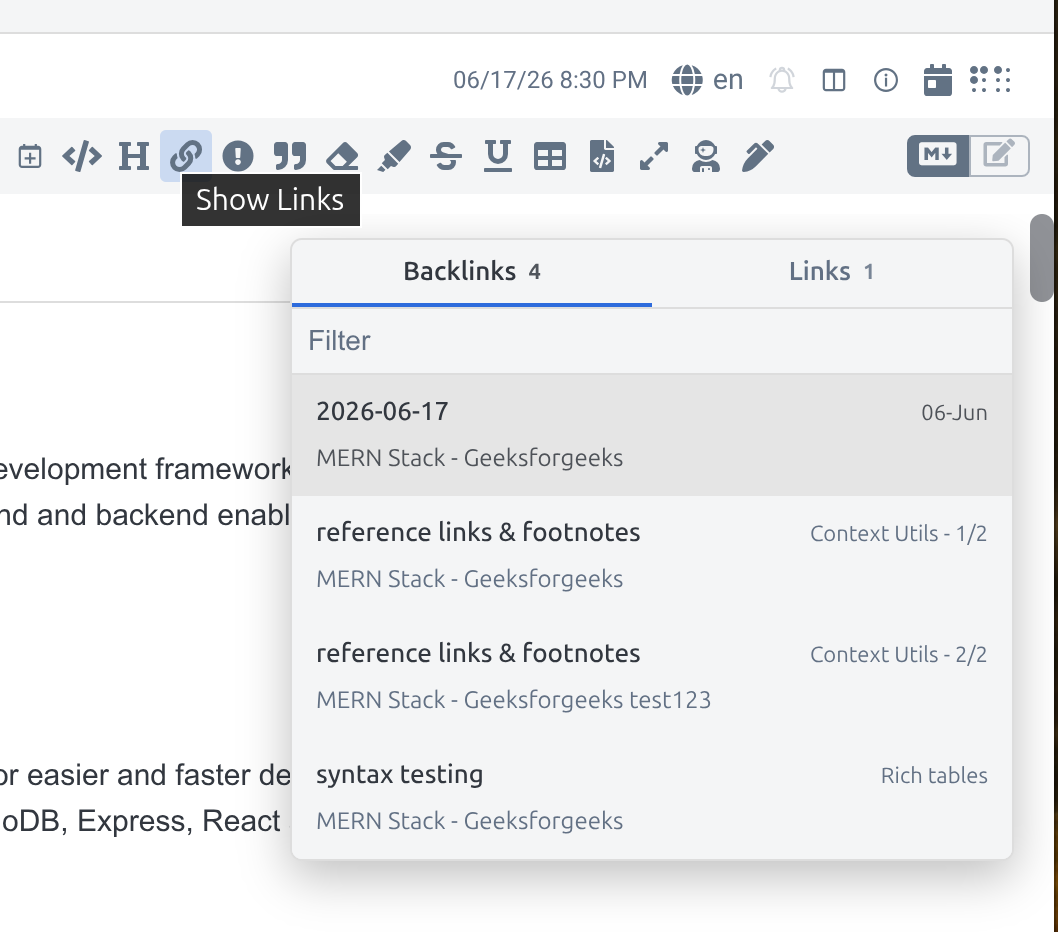
View and navigate backlinks and outgoing links in the markdown editor
[!note]
This plugin was created entirely with AI tools.
[!important]
This plugin only works in the markdown editor (editor view or split view). It does not work in the reading view or in the rich text editor. Codemirror 6 only, legacy editor is not supported.
Backlinks Navigator
A Joplin plugin for viewing and navigating backlinks and outgoing links in the Markdown editor.
Features
- Shows notes that link to the current note
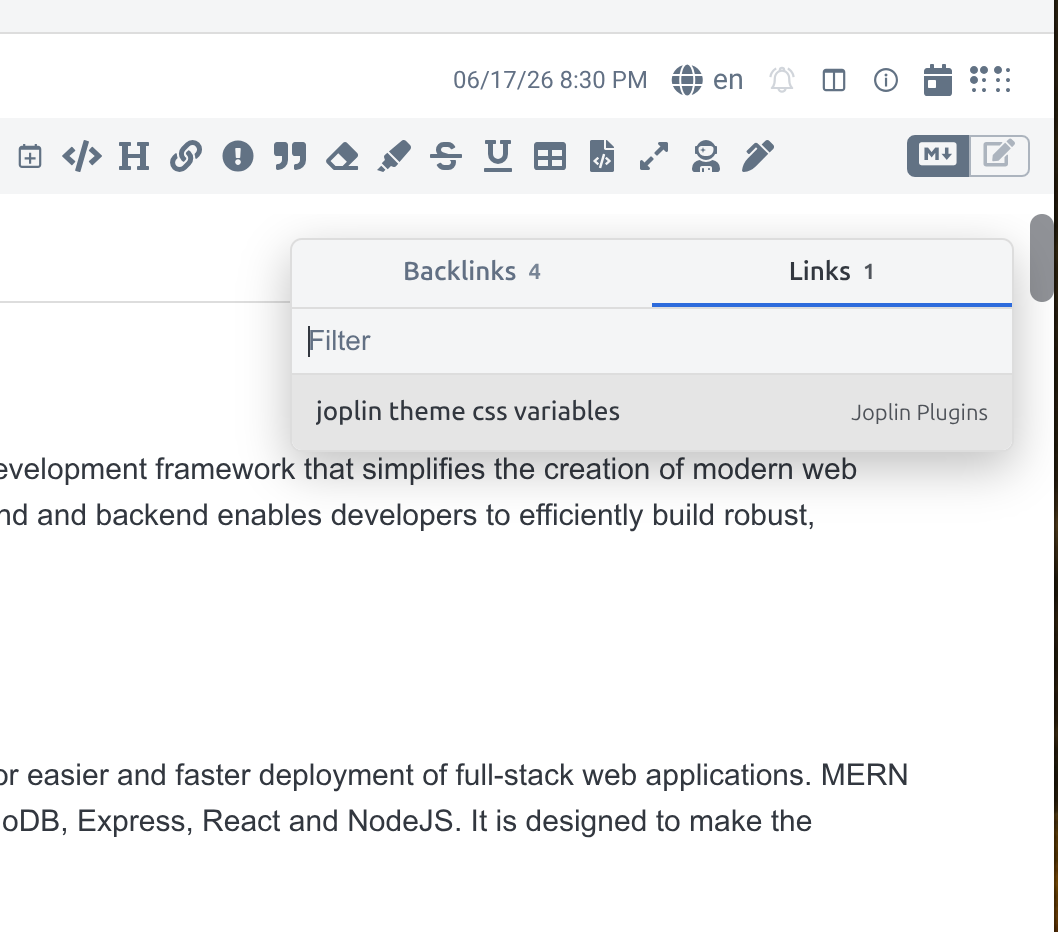
- Shows notes linked from the current note
- (Backlinks) Can show each link occurrence when a note links more than once, and scroll to occurance on navigation
- (Outgoing links) Links pointing to a specific anchor - a heading, or an explicit HTML anchor such as
<a id="in3b65"> - will show as a unique occurance, and scroll to that anchor on navigation
- Supports reference style note links
- Opens related notes from a compact floating panel in the markdown editor
- Filters links by note title
- Shows notebook, section, and link context when available
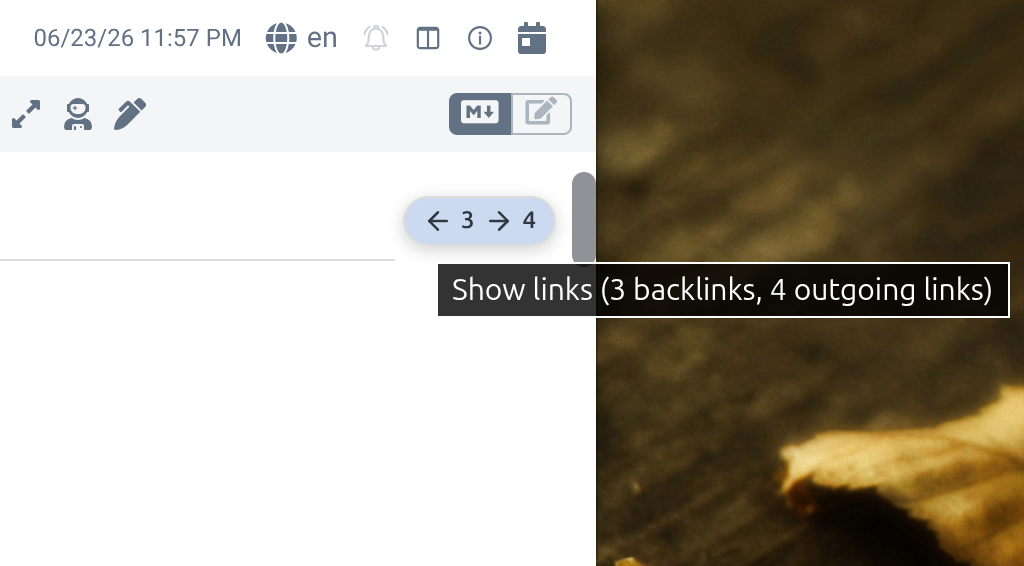
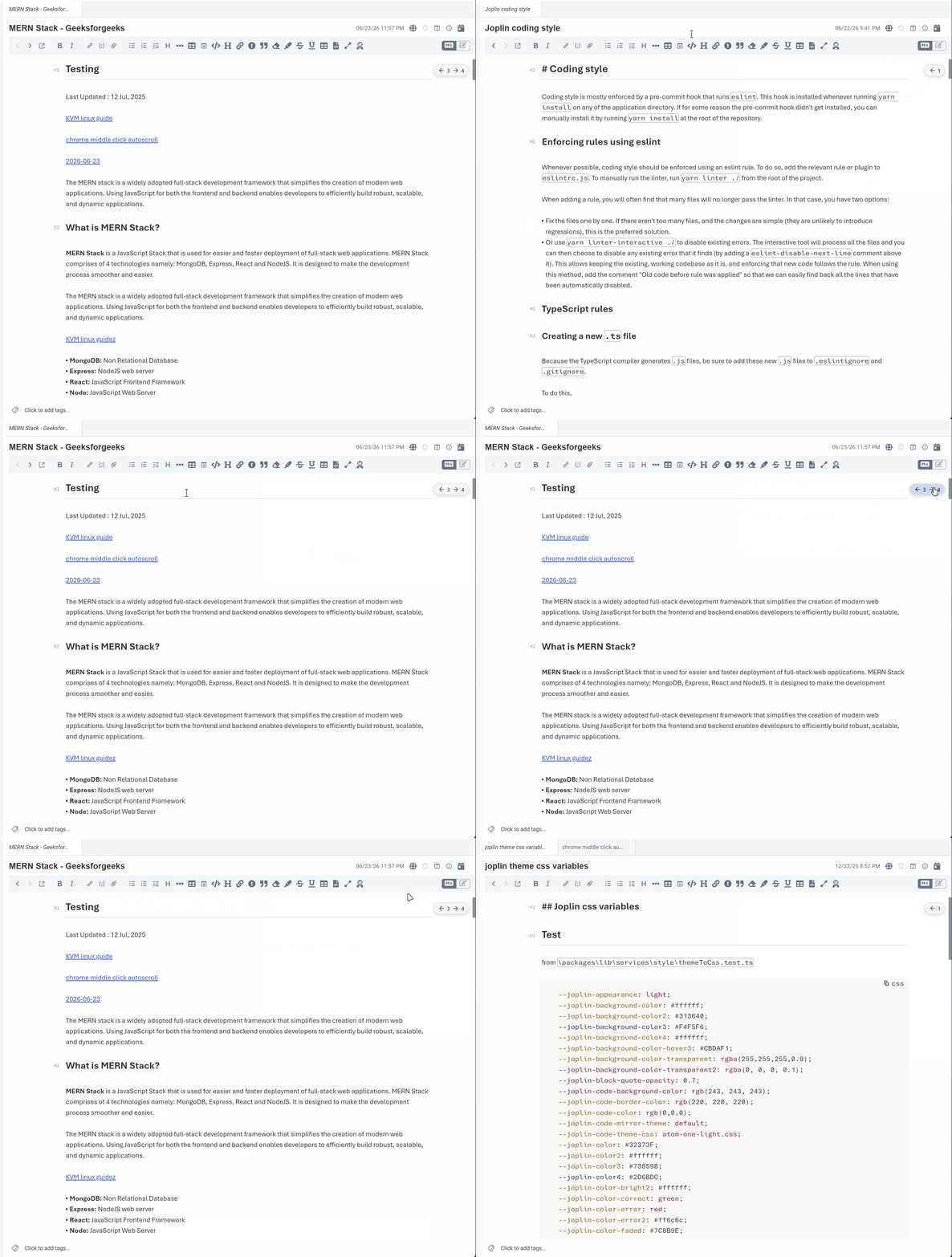
- Optionally shows a link count indicator in the editor (which can also be used to open the panel)
- Works on desktop and mobile
- Note: Scrolling to specific link locations on note switch has limitations on mobile (only works for outgoing links, no highlight effect).
Usage
Open the links panel from the note toolbar button (editor toolbar on mobile), editor indicator icon (if enabled in settings), the Edit menu, or the Show Links command. On desktop, the toolbar button is grayed out when the markdown editor isn't visible (Rich Text editor or viewer-only layout).
[!note]
There isn't a default keyboard shortcut, you can assign one under Tools | Options | Keyboard Shortcuts | "Show Links" command.
Click a backlink to open the note that links to the current note, or click an outgoing link to open the note linked from the current note.
If backlink context preview is enabled, it will show each link occurrence when a note links more than once, and clicking a backlink will scroll to the specific link occurance after switching notes. If backlink context preview is set to Note title only, it will only show one occurance for each backlink, and will not scroll after switching notes.
Any outgoing links referencing an anchor (pointing to a markdown heading or html anchor) will scroll to that heading or anchor on note switch.
Settings
- Panel width
- Panel max height
- Show link indicator - recommend using with a max editor width set in joplin settings | editor tab to avoid overlapping content
- Ignored note IDs - comma-separated note IDs to exclude from link results and counts
- Ignored notebook IDs - comma-separated notebook IDs to exclude from link results and counts, including their sub-notebooks. Right-click a notebook and choose
Toggle Backlinks Navigator ignore to add or remove it.
- Ctrl-click link behavior - open in a new window or in a Note Tabs tab (requires the Note Tabs plugin)
- Ctrl-Enter link behavior - open the selected link in a new window or in a Note Tabs tab (requires the Note Tabs plugin)
- Middle click link behavior - open the selected link in a new window or in a Note Tabs tab (requires the Note Tabs plugin)
- Backlink context preview
- Snippet shows preview text from the line containing the backlink. Nearest heading displays the heading nearest to the backlink.
- Outgoing link context preview
- Snippet shows preview text from the beginning of the linked note (or if the link has an anchor, the text below that heading, or the line the HTML anchor sits on).
- Enable debug logging
Limitations
- Scrolling to a specific backlink occurrence after note switch only works on desktop. It does not work when opening the note in a new window or pinning with Note Tabs.
Development
npm test
npm run lint
npm run format
npm install
npm run dist
The built plugin archive is created in publish/.