
Description
A Joplin plugin to provide table rendering and table editing in the Markdown editor.
Additional Information
| Links: | |
|---|---|
| Maintainers: | bwat47 |
| Version: | 1.13.3 |
| Minimum app version: | 3.3 |
| Downloads: This version: | 95 |
| Last updated: | 2026-10-10T07:44:17Z |
[!note] This plugin was created entirely with AI tools.
[!note] Joplin 3.7 (pre-release) now includes a basic table editor which can be enabled/disabled under Joplin Settings | Editor tab. Rich Tables will only work when the built-in table editor is disabled.
Rich Tables
A Joplin plugin to provide table rendering & table editing in the Markdown editor.
Features
Table Rendering
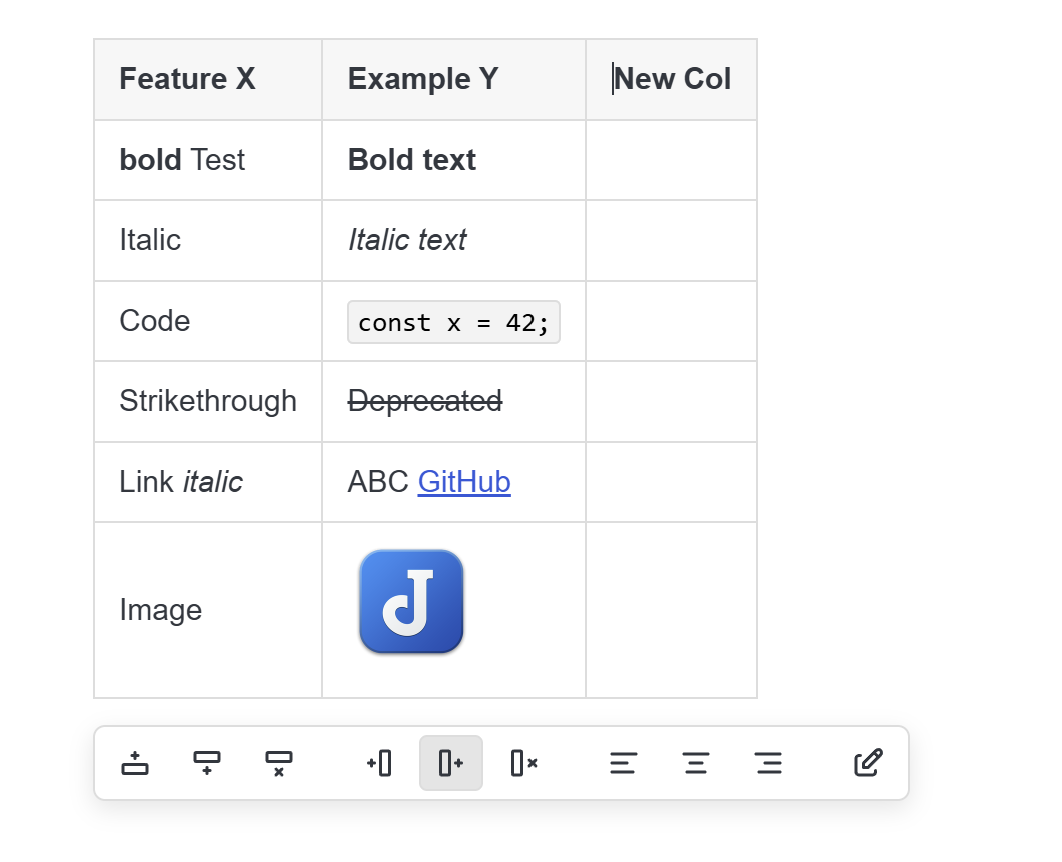
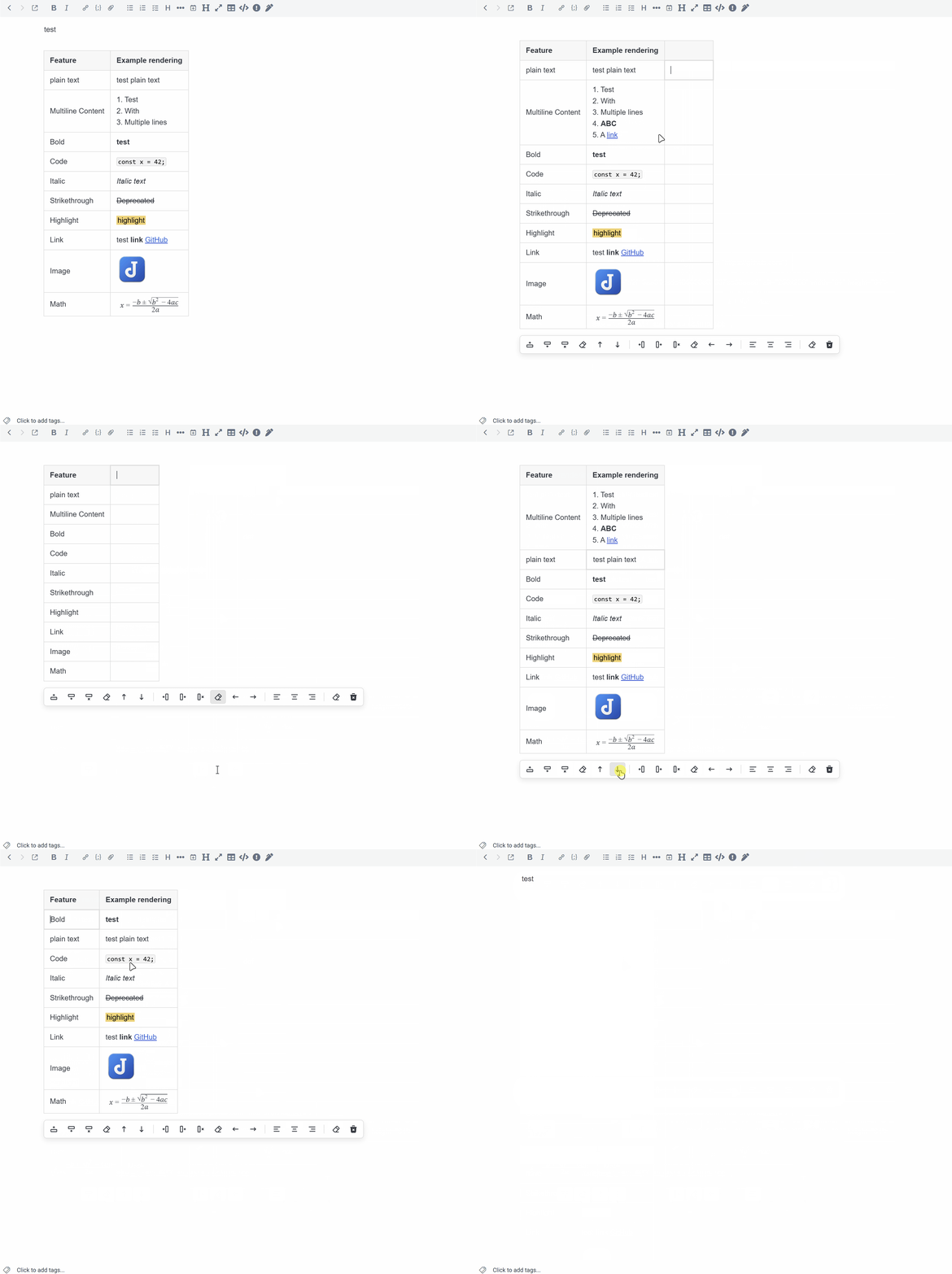
Tables are rendered as HTML in the markdown editor, allowing you to see the HTML formatted table without using the markdown viewer.
Table rendering includes rendering of inline markdown and image embeds.
[!note] Table rendering can be temporarily disabled by toggling "source mode" via toolbar button or keyboard shortcut.
Markdown Rendering
Supports syntax highlighting (while editing a cell) and rendering (cells not being edited) most markdown syntax supported by Joplin:
- Basic formatting: bold/italic/inline code/strikethrough/highlight(==mark==)/underline(++insert++).
- Inline HTML (Joplin 3.6 and newer), e.g.
<sup></sup>. - Links (markdown links, autolinks).
- Footnotes: Note that footnotes support is very basic. Table cells are rendered in isolation, which breaks markdown-it-footnote's footnote numbering, so the plugin just displays the exact footnote label that's defined in the footnote link (e.g.
[^1]). - Embeds (markdown and html image embeds, video embeds when you have joplin's video plugin enabled, youtube links will be rendered as video embed in joplin 3.6.1 or newer).
- Katex (math) - will be rendered, but not syntax highlighted when editing.
- Line breaks (html
<br>tags, rendered as line breaks while editing).
Table Editing
Provides table editing from the rendered HTML table similar to the Rich text editor. The following operations are supported:
- Create new table
- Editing table cells (with syntax highlighting for markdown)
- Adding/Deleting/Clearing rows
- Adding/Deleting/Clearing columns
- Moving rows (up/down)
- Moving columns (left/right)
- Changing column alignment (left/center/right)
- Clear table
- Delete table
- Sort table rows by the active column
- Note: Sorting works based on the raw markdown (e.g.
**bold**sorts beforebold)
- Note: Sorting works based on the raw markdown (e.g.
- Select rectangular ranges of table cells with the mouse or keyboard, then cut/copy/paste/clear/delete them (desktop only).
Table formatting/Boundaries
- Line breaks are automatically inserted above/below inserted tables.
- Line breaks are automatically added around existing tables as needed (triggered when interacting with a table or typing text immediately above/below the table).
- Tables are normalized to a consistent format (one space padding).
- The blank-line boundary around a rendered table is protected from incidental deletion.
Formatting commands
The cell editor updates the table cell text in realtime, and syncs cursor position/selection with the main editor, so Joplin's native formatting toolbar buttons/shortcuts work while editing tables (Bold Text, Italic Text, Inline Code, Insert Link).
Editor commands provided by plugins also work (as long as they don't touch content outside of the table cell being edited).
Undo/Redo
Fully supports undo/redo while editing tables (using the main editor's native Undo/Redo history).
Search integration
Table markdown is revealed while joplin search panel is active. When closing the search panel (and if current search result selection is inside a table), closing search will activate that table cell with the current search result selected.
Find next/previous (F3/Shift+F3, Ctrl/Cmd+G/Ctrl/Cmd+Shift+G) also works while the search panel is closed. If the next search result is inside a table cell, that cell is activated with the search result selected. Search shortcuts (including Ctrl/Cmd+F) also work from inside a table cell.
Interaction
The table editor provides a Context-aware toolbar with table manipulation controls. The toolbar will appear above/below the table being edited (automatically repositioning as needed). If the top/bottom of the table isn't visible, the toolbar will be pinned to the top/bottom of the visible viewport.
Keyboard
General keyboard controls for navigation/editing:
- Tab/Shift Tab: Cycle through table cells in order/reverse order. Tab on last row/column will create a new row.
- Arrow Keys: Navigate within text in table cell, navigate to next cell (based on arrow direction) when reaching cell boundary, and exit/enter tables on boundary cells (e.g. cursor in table cell on bottom row > down arrow > cursor moves to line below the table).
- Enter Key: Moves to next row, or creates new row on last row.
- Shift + Enter: Insert
<br>(line break).
Multi-cell selection
On desktop, rectangular ranges of cells can be selected in the following ways:
- Click and drag: Drag from one cell to another. When dragging from a cell being edited, text selection remains active until the pointer crosses into another cell.
- Shift + Click: Extend a selection from the active cell or the existing selection anchor to the clicked cell.
- Shift + Arrow: Start a selection from the active cell or extend an existing selection one cell at a time.
Selected cells can be cut, copied, pasted, cleared, or deleted. When pasting into a selection, a single cell or plain text fills the entire selection. Multi-cell clipboard data is tiled horizontally and vertically using every complete copy that fits; if the selection is not an exact multiple of the copied range, any unmatched trailing cells are left unchanged.
The below table editing commands can be assigned keyboard shortcuts, the defaults are below:
| Action | Shortcut |
|---|---|
| Insert Table | Alt + Shift + T |
| Insert Row Above/Below | Alt + Shift + Up / Down |
| Insert Column Left/Right | Alt + Shift + Left / Right |
| Delete Row | Alt + Shift + D |
| Clear Row | Alt + Shift + C |
| Delete Column | Ctrl + Alt + Shift + D |
| Clear Column | Ctrl + Alt + Shift + C |
| Move Row Up/Down | Ctrl + Alt + Up / Down |
| Move Column Left/Right | Ctrl + Alt + Left / Right |
| Align Left/Center/Right | Alt + Shift + Q / W / E |
| Source Mode | Ctrl + Shift + / |
Settings
-
Enable zebra striping
- Shade alternating table body rows using the current Joplin theme.
-
Show move row/column buttons
- Display move row and move column actions in the floating table toolbar.
-
Show clear row/column/table buttons
- Display clear row, clear column, and clear table actions in the floating table toolbar.
-
Show alignment buttons
- Display align left, center, and right actions in the floating table toolbar.
-
Show delete table button
- Display the delete table action in the floating table toolbar.
-
Show sort buttons
- Display the actions that sort table rows by the active column in the floating table toolbar.
-
Show insert table button
- Display the insert table button in the editor toolbar. Requires a restart to apply.
-
Show table source mode button
- Display the table source mode button in the editor toolbar. Requires a restart to apply.
Limitations
- The plugin only works with the Markdown Editor (codemirror 6). Legacy Editor/Rich Text Editor are not supported.
- Only supports markdown tables (GFM). Doesn't support HTML tables, multi-markdown table extensions, etc...
- Only supports top level tables (indented tables, tables in lists, tables in blockquotes aren't rendered).
- Does not support pretty formatting (full padding) for markdown tables. The plugin enforces a minimal format (one space padding around table cell content, similar to the output of the rich text editor). This is an architectural limitation to support the realtime sync between the cell editor and the main editor (allowing joplin's formatting commands to work smoothly).