Description
A powerful and comprehensive plugin for to-do repetition/recurrence
Additional Information
| Links: | |
|---|---|
| Maintainers: | thescriptingguy7 |
| Version: | 2.1.2 |
| Minimum app version: | 3.4 |
| Downloads: This version: | 534 |
| Last updated: | 2026-07-31T19:03:24Z |
Joplin Repeating To-Dos
A powerful and comprehensive plugin for to-do repetition/recurrence in Joplin.
NPM: https://www.npmjs.com/package/joplin-plugin-repeating-to-dos-v2
Table of Contents
Overview
When a recurring to-do is marked complete, this plugin immediately resets the alarm date to the next recurrence and unmarks it as completed — so your to-do list is always up to date without any manual work. To-dos you don't get around to need not be left behind either: tick one option on a to-do and a passed alarm is simply re-armed on the next occurrence instead of sitting there overdue.
Supported recurrence intervals: minute, hour, day, week, month, year
Special scheduling options:
- Weekly: repeat on specific weekdays (e.g. Mon/Wed/Fri)
- Monthly: repeat on a specific weekday of the month (e.g. the second Friday, the last Tuesday)
Stop conditions: repeat forever, stop after N repetitions, or stop after a specific date.
User Guide
Installation
The plugin is available in the official Joplin plugin repository:
- Open Joplin and go to Tools → Options (or Joplin → Preferences on macOS)
- Select the Plugins section
- Search for "Repeating To-Dos"
- Click Install and restart Joplin when prompted
Setting Up a Recurring To-Do
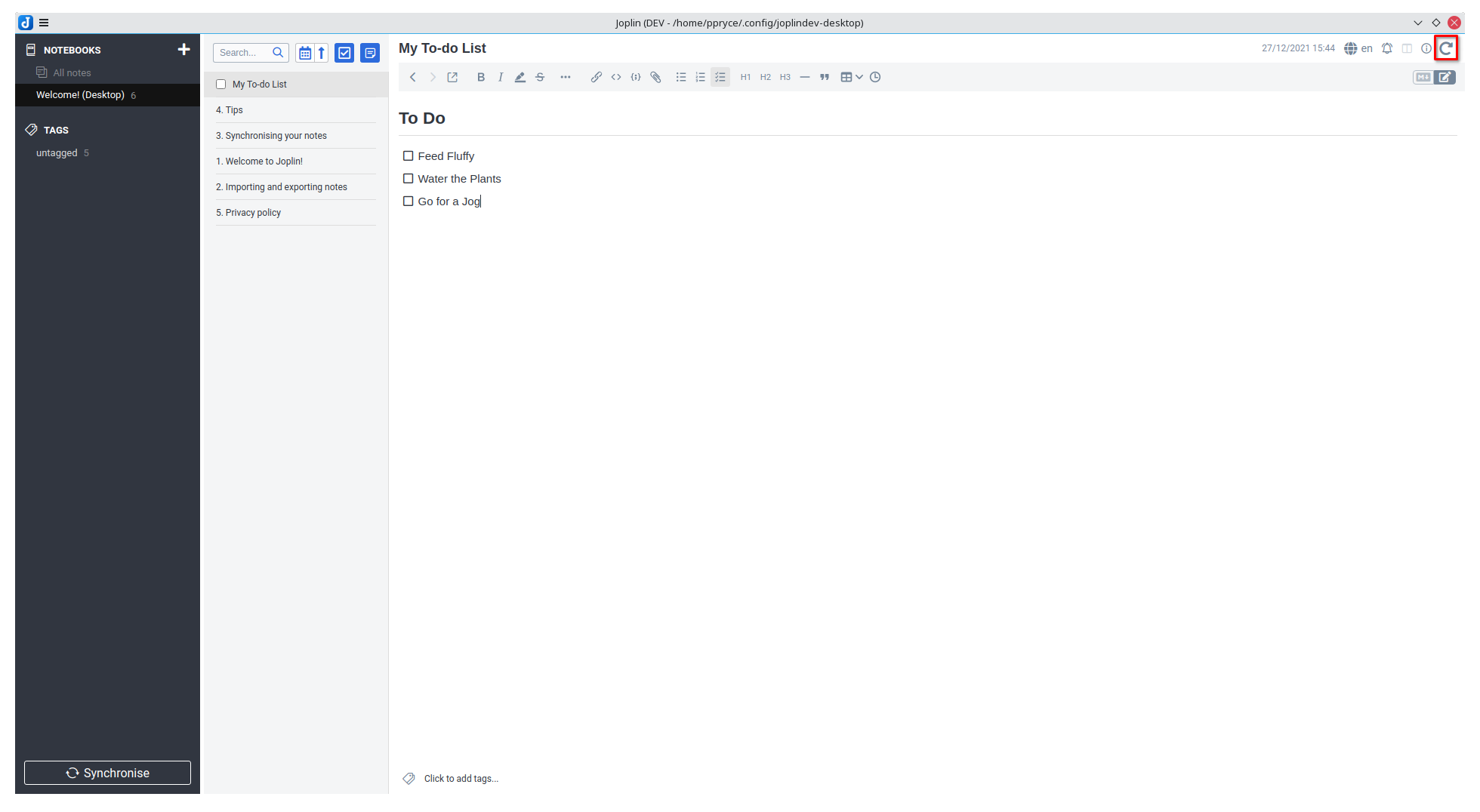
Step 1 — Open the recurrence dialog
On any note, click the recurrence icon in the note toolbar.
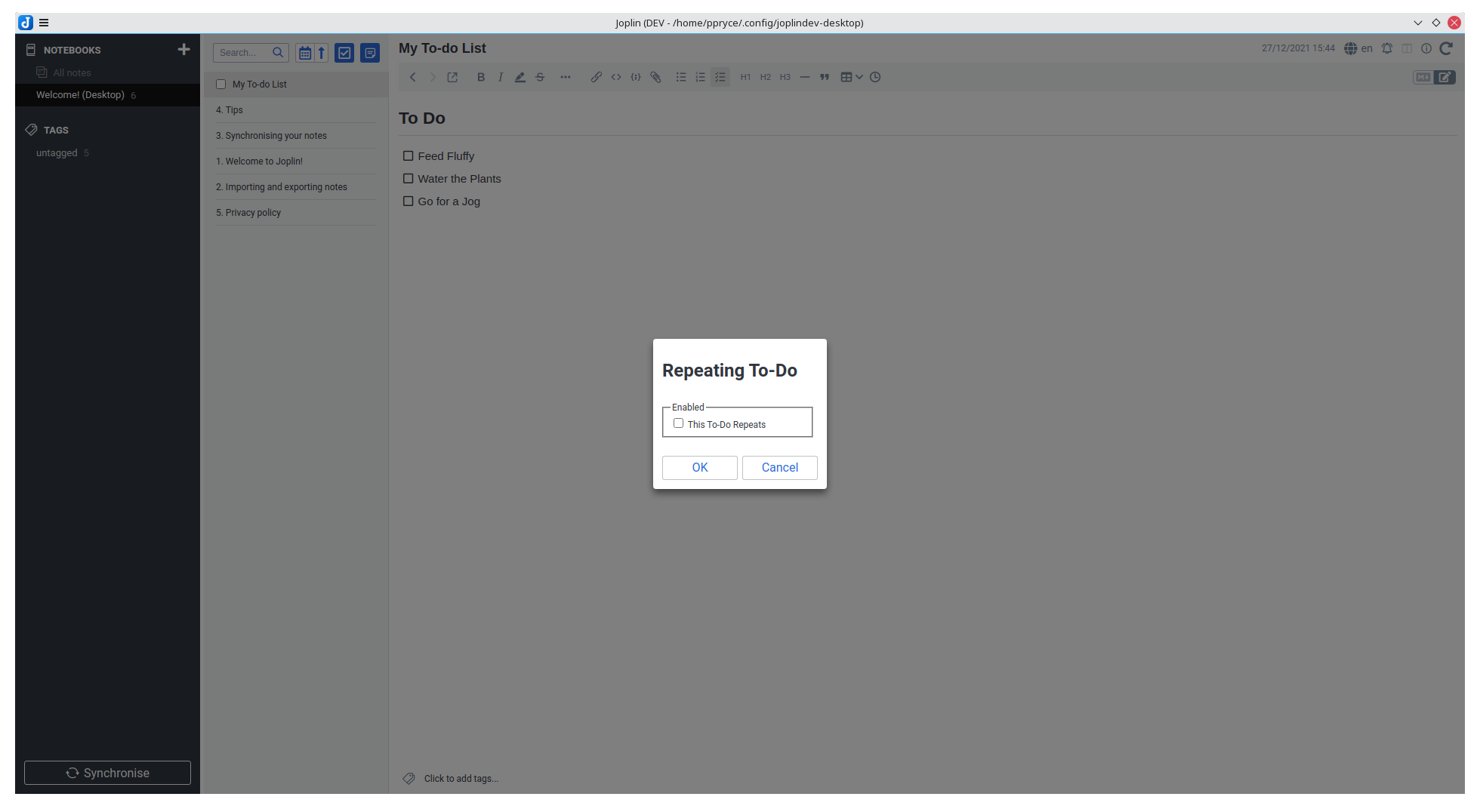
Step 2 — Enable recurrence
The recurrence dialog opens. Check the first checkbox to enable repeating for this to-do. Additional options appear once it is checked.
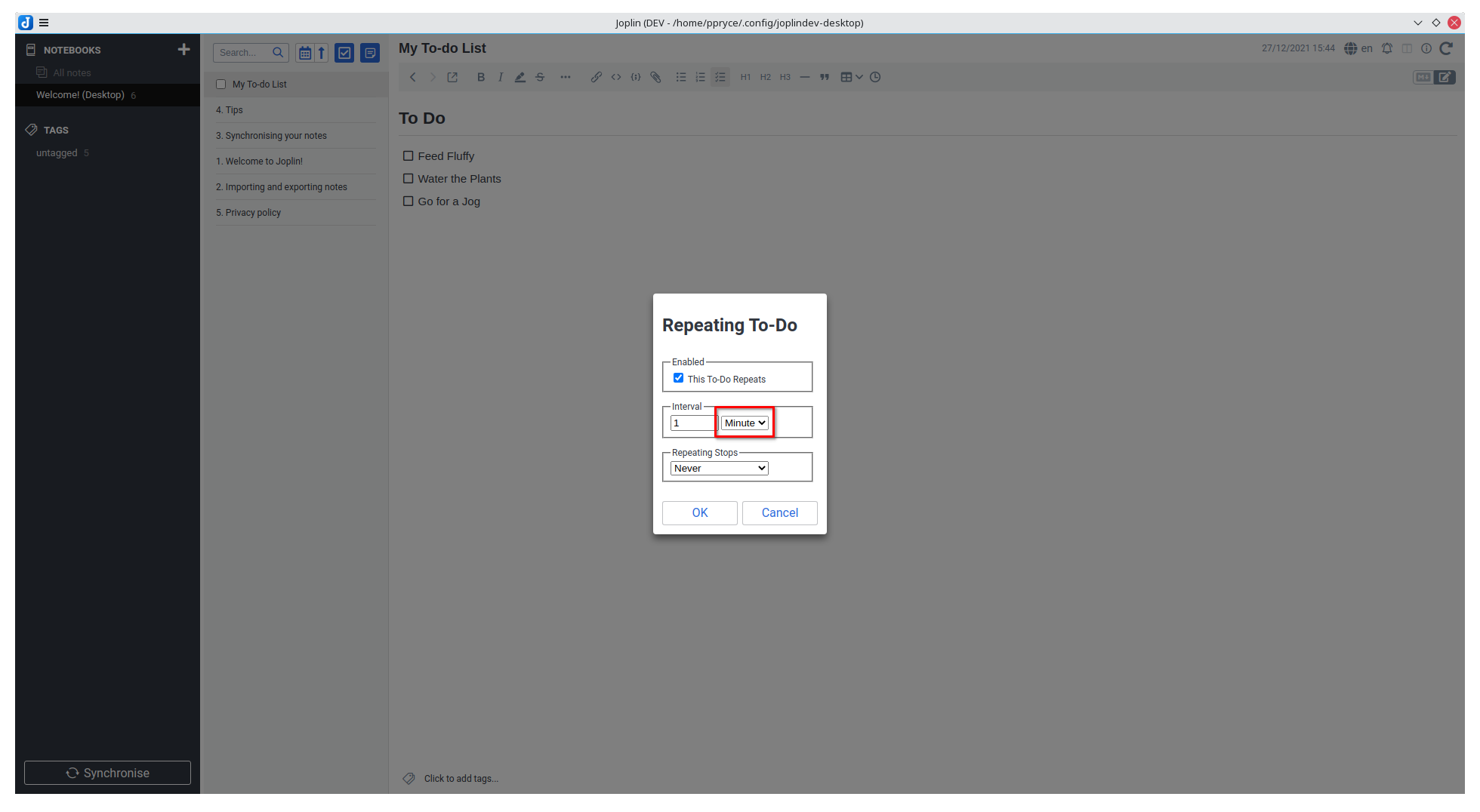
Step 3 — Set the interval
Choose how often the to-do repeats.
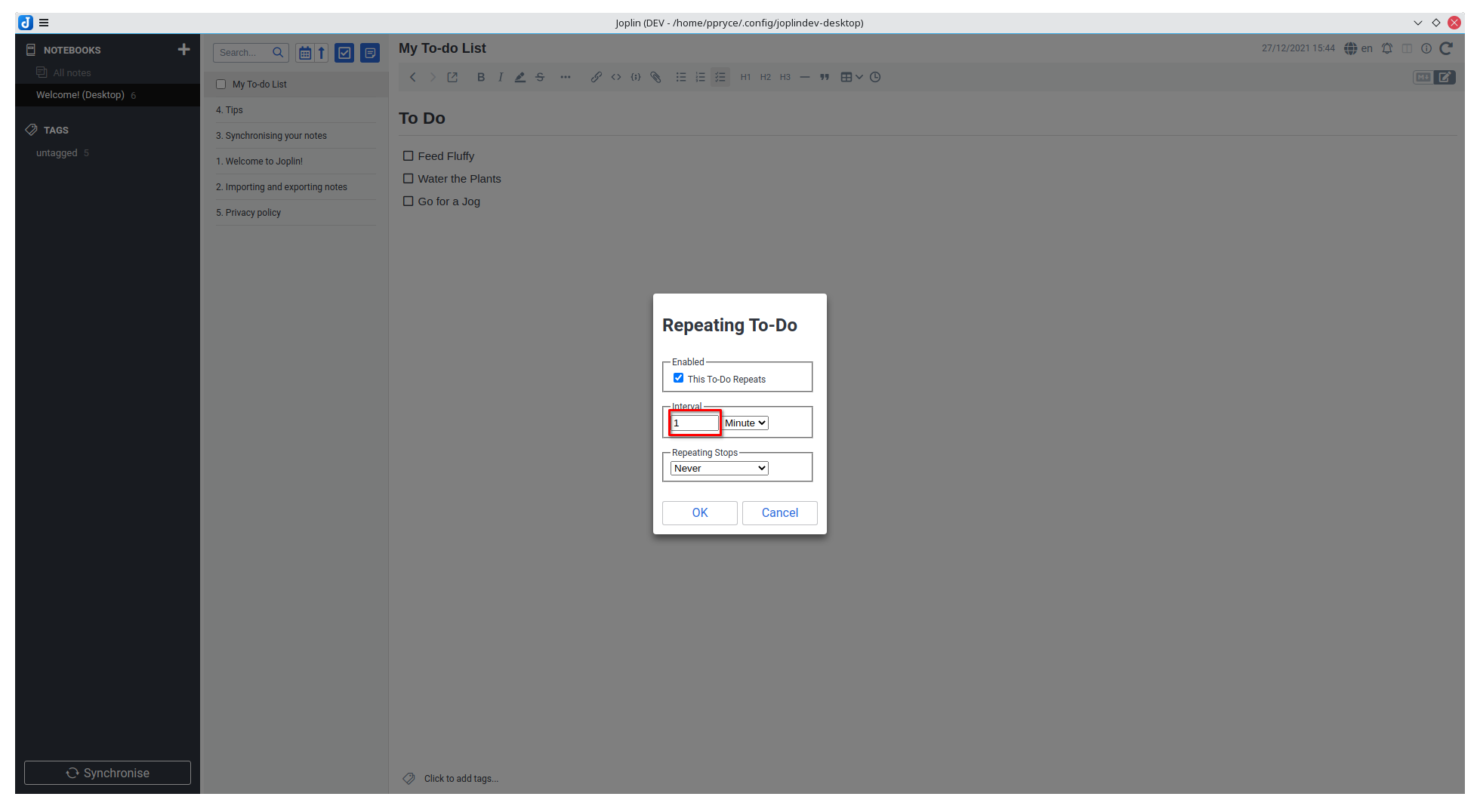
Set the multiplier (e.g. 2 with hours = every 2 hours, 3 with days = every 3 days).
Step 4 — Weekly: choose specific weekdays (optional)
When weeks is selected as the interval, you can pick which days of the week the to-do recurs on. Leaving all days unchecked repeats on the same weekday as the original alarm date.
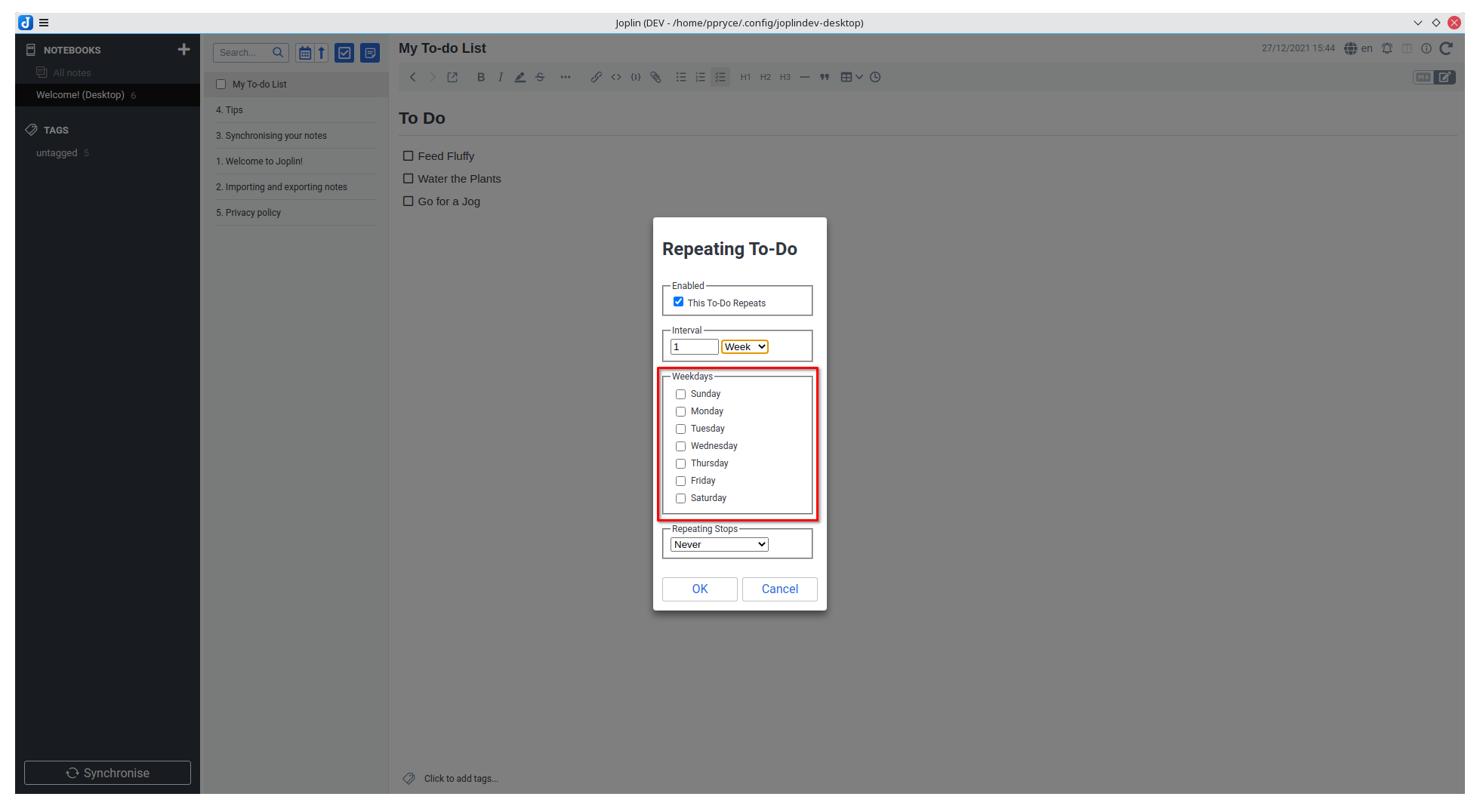
Step 5 — Monthly: choose a weekday of the month (optional)
When months is selected, you can specify a particular weekday of the month (e.g. the first Sunday, the last Wednesday). Leaving this unset repeats on the same calendar date each month.
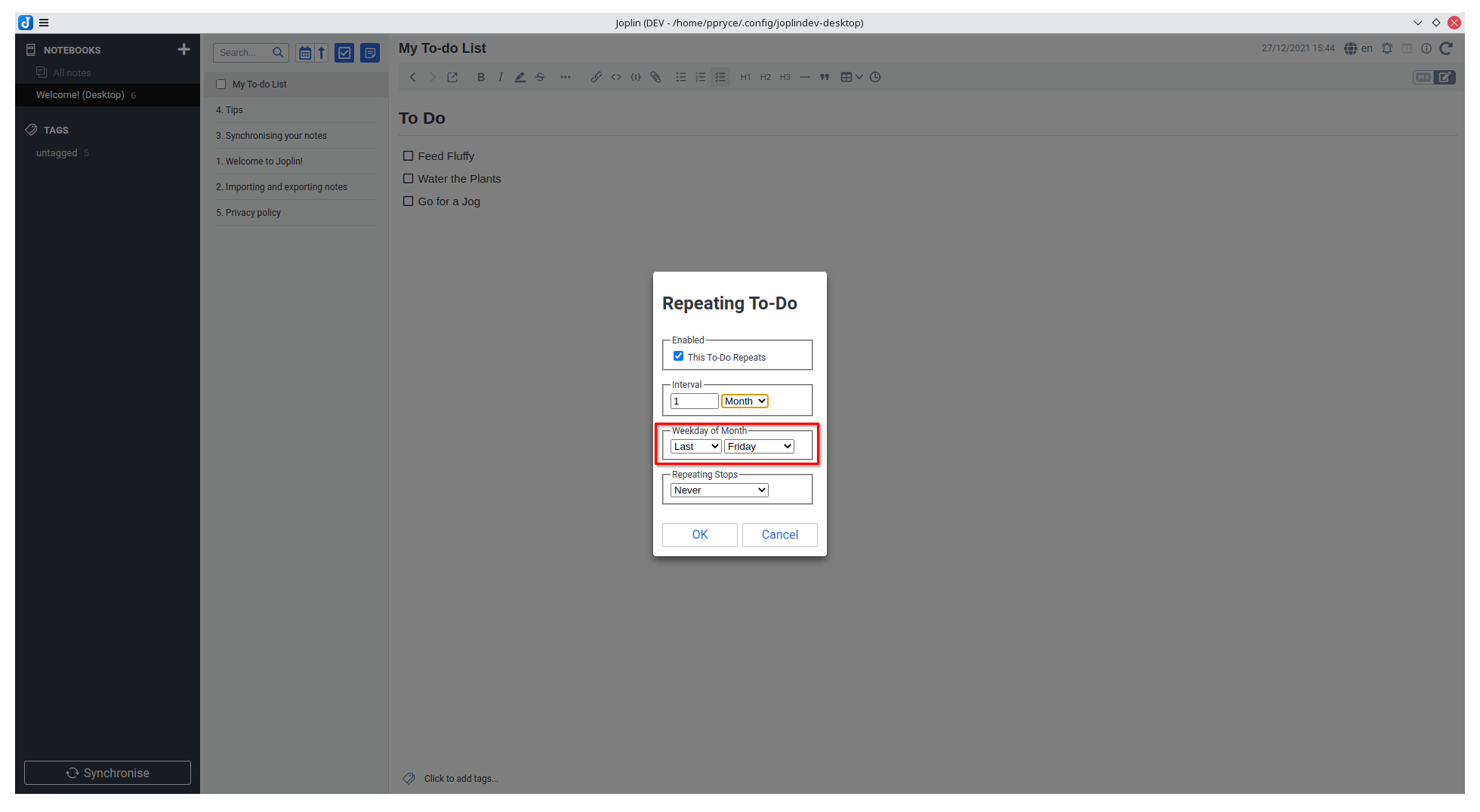
Step 6 — Set a stop condition
Never — repeats indefinitely (default)
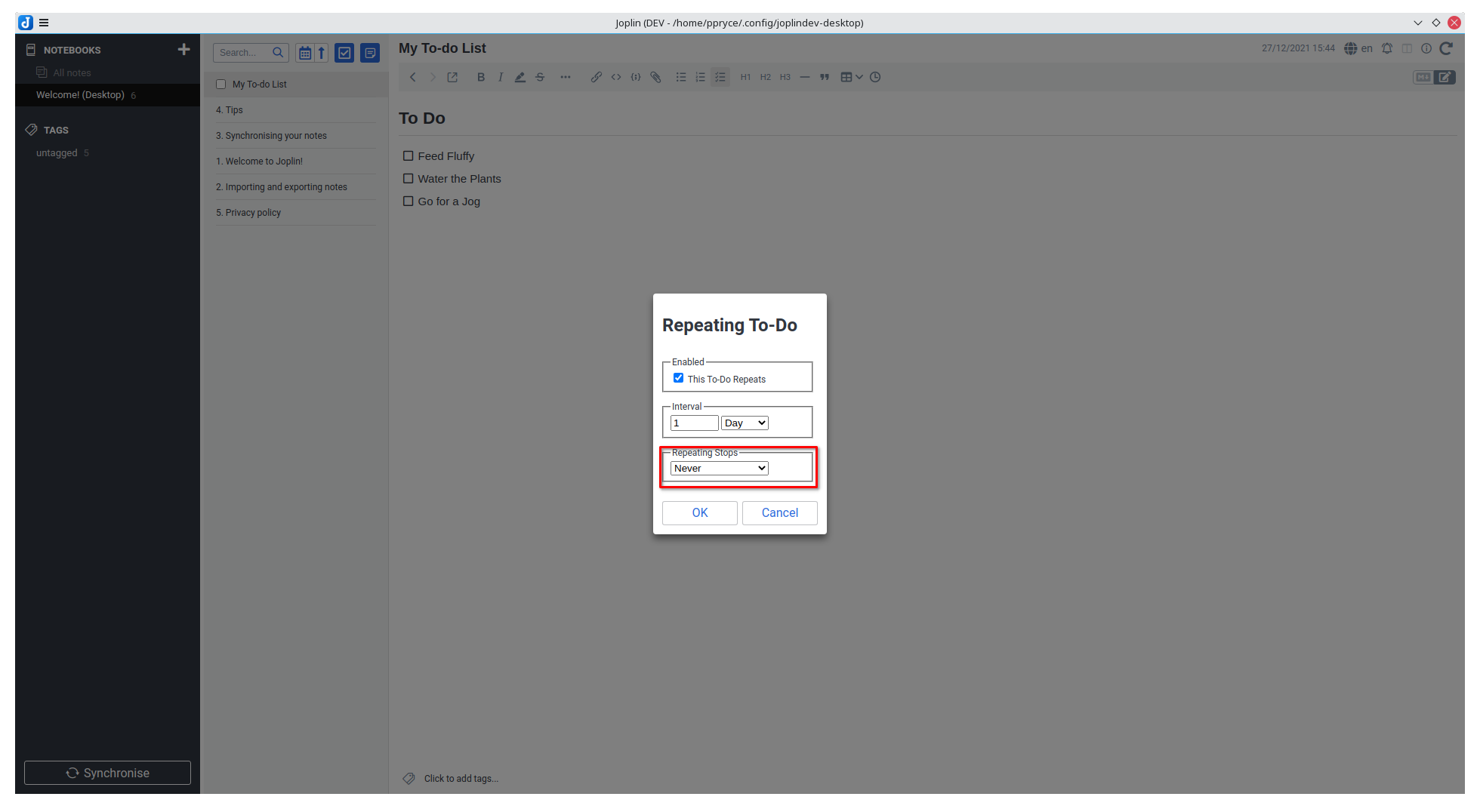
After N times — stops after a fixed number of completions
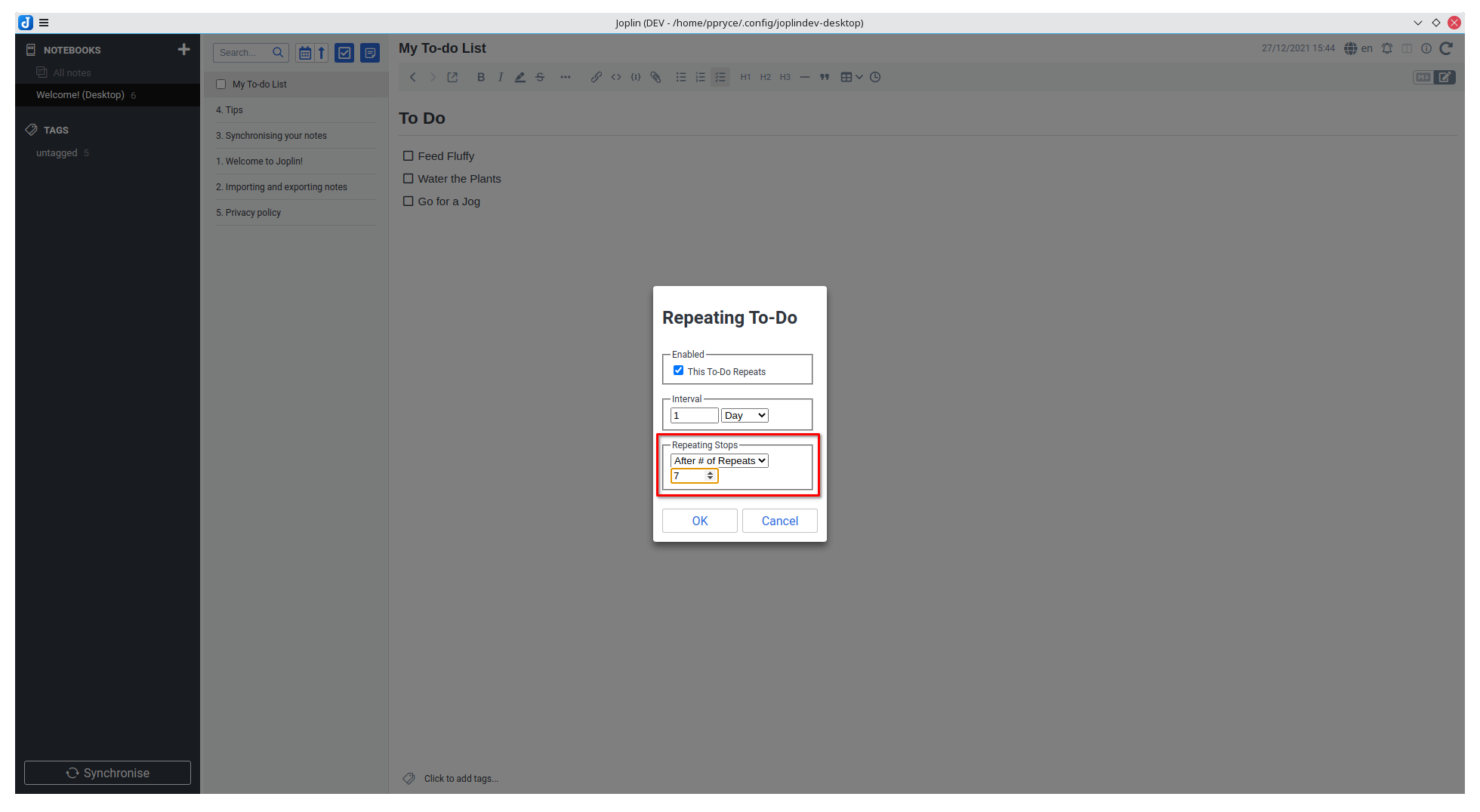
After a date — stops once that date has passed
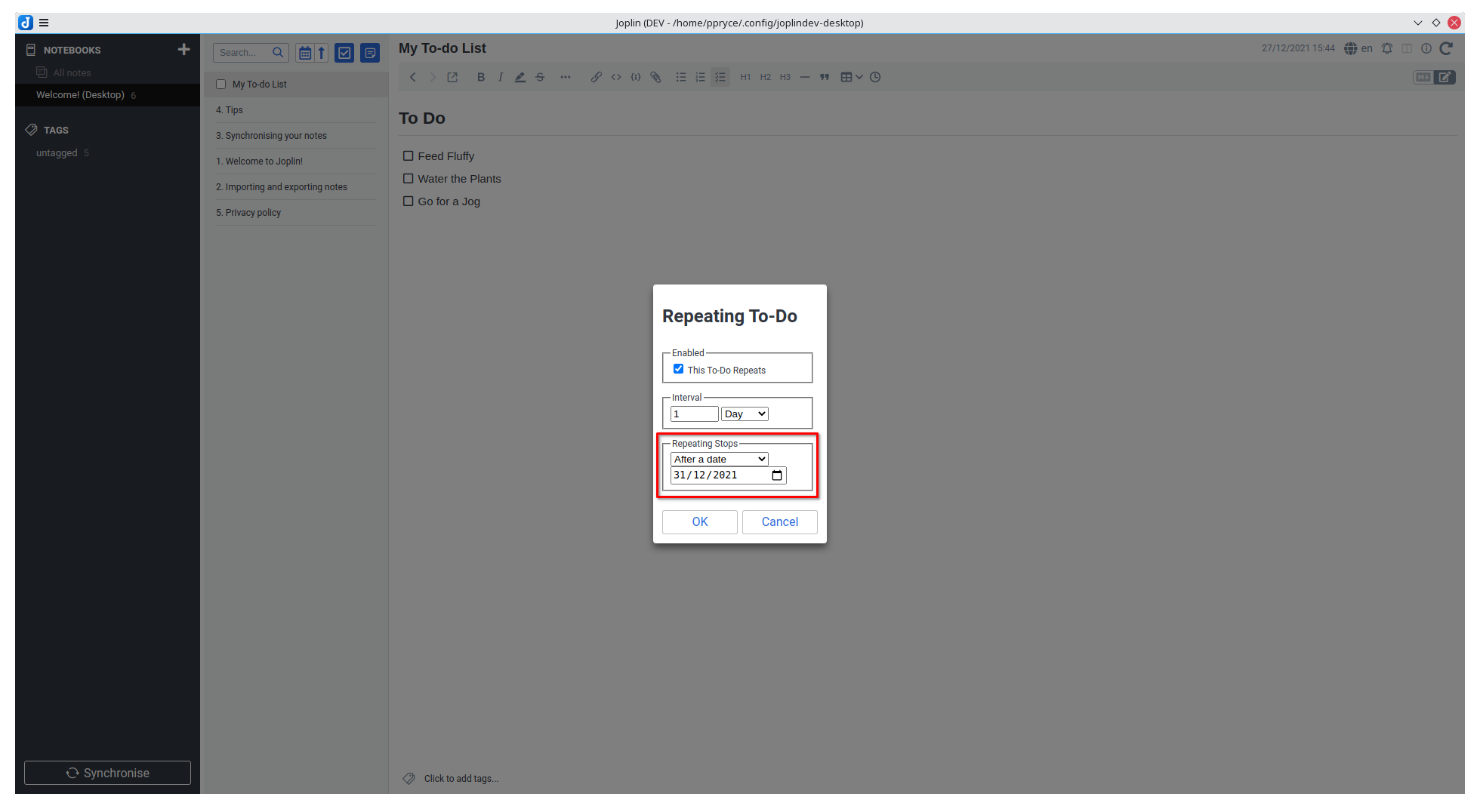
Step 7 — Save
Click OK to save. The recurrence is now active. It reschedules automatically the next time you mark the to-do complete — or, if you ticked Move the alarm on even when this To-Do is not done for this to-do, the next time its alarm passes without it being done.
Managing Overdue To-Dos
Access these options from Tools → Repeating To-dos:
| Menu item | What it does |
|---|---|
| Update All Recurrence Information | Manually re-scans every recurring to-do and advances any that were missed |
| Update Overdue To-Dos | Marks overdue to-dos complete and rolls their due date forward to the next occurrence past today |
| Reschedule Overdue To-Dos to Today | Keeps the to-dos open but moves their due date to today (preserving the original time-of-day) |
To-dos that have Move the alarm on even when this To-Do is not done ticked are already moved on automatically, so for those these commands are mostly a manual nudge. Note that Reschedule Overdue To-Dos to Today can land on a time that has already passed today, in which case the next automatic reset moves such a to-do on again.
Plugin Settings
Go to Tools → Options → Repeating To-dos to configure:
| Setting | Default | Description |
|---|---|---|
| Update frequency (seconds) | 30 | How often the safety-net sweep checks for missed recurring to-dos |
| Enable debug logging | Off | Writes detailed trace output to the developer console |
| Remove all recurrence settings from all to-dos | Off | A one-shot action: switch it on to clear the recurrence settings of every to-do at once. See below |
There is deliberately no global switch for the alarm-reset behaviour: it is set per to-do in the recurrence dialog (see Resetting the alarm without completing the to-do), so turning it on for one to-do never changes any of the others.
Removing all recurrence settings at once
Switching Remove all recurrence settings from all to-dos on clears the recurrence dialog settings of every to-do in one go. The plugin asks for confirmation first, then reports how many to-dos it cleared, and the switch turns itself back off — it is an action, not a state you leave on.
What it removes is only what the recurrence dialog stores. Your to-dos are kept exactly as they are: alarms, contents, sub-tasks and completion state are all untouched; they simply stop repeating. The removed recurrence settings cannot be restored afterwards, so use it when you want a clean slate.
Resetting the alarm without completing the to-do
Move the alarm on even when this To-Do is not done is an option on each individual to-do, in the recurrence dialog, and it is off by default. Off, a repeating to-do behaves like any other to-do: once its alarm passes it stays overdue until you tick it off.
Tick it for a to-do and, when its alarm passes while the to-do is still open, the plugin skips that occurrence and re-arms the alarm on the next one — so a "water the plants every day" reminder pops up again tomorrow instead of sitting overdue forever. Only the to-dos you tick it on are affected.
On the reset path the plugin deliberately does less than it does on completion:
| Completed | Alarm reset (not done) | |
|---|---|---|
| Due date / alarm moves to the next occurrence | ✅ | ✅ |
| To-do is re-opened | ✅ | — (it was never closed) |
| Sub-tasks are reset to unchecked | ✅ | — (your progress is kept) |
| Counts against an "after N times" stop condition | ✅ | ✅ |
If several occurrences were missed — Joplin was closed over the weekend, say — the to-do is skipped forward far enough that the new alarm always lands in the future. Missed alarms are caught by the alarm event when Joplin is running, and by the safety-net sweep on startup when it was not.
Leave the option unticked — the default, including for every recurrence created before the option existed — to keep the plain behaviour, where an overdue to-do stays overdue until you complete it.
How It Works
Scheduling Flow
Two things move a recurring to-do on to its next occurrence: completing it, or — for a to-do with Move the alarm on even when this To-Do is not done ticked — its alarm passing while it is still open.
When you mark a recurring to-do as complete, the plugin immediately:
- Looks up the recurrence settings for that note
- Calculates the next due date — the first occurrence that is still to come
- Updates the alarm date to the next occurrence
- Marks the to-do as incomplete again
- Resets any sub-tasks to incomplete
- Checks whether the stop condition has been reached
When an alarm passes on a to-do you have not done, steps 4 and 5 are skipped: the to-do stays open and keeps its sub-task progress, and only the alarm is moved forward.
Step 2 always lands on an occurrence in the future, skipping any that have already gone by. That is what makes short intervals work: a to-do repeating every few minutes is always ticked off later than its own alarm, so counting a single interval from the old alarm would set a new one in the past — overdue the moment it reopens, with no alarm left to fire.
flowchart TD
    A([To-do completed\nor alarm fired]) --> B{Is it a\nrecurring to-do?}
    B -- No --> C([Nothing to do])
    B -- Yes --> D{Has a\ndue date set?}
    D -- No --> C
    D -- Yes --> Q{Marked\ncomplete?}
    Q -- No --> R{Alarm passed and\nthis to-do opted in?}
    R -- No --> S([Leave it alone\nwaits for completion])
    R -- Yes --> T[Calculate first occurrence\nstrictly in the future]
    T --> F
    Q -- Yes --> E[Calculate first occurrence\nstrictly in the future]
    E --> F[Set due date\nto next occurrence]
    F --> G{Was it\ncompleted?}
    G -- No --> I[Check stop condition]
    G -- Yes --> H[Mark to-do incomplete\nand reset sub-tasks]
    H --> I
    I --> J{Stop condition\nreached?}
    J -- Yes --> K([Remove from recurring index\nstops repeating])
    J -- No --> L([Save updated settings\nwaits for next occurrence])
Next Date Calculation
The next due date depends on the chosen interval. For weekly and monthly intervals, extra logic finds the correct weekday.
flowchart TD
    A([Calculate next date\nfrom current due date]) --> B{Interval type?}
    B -- minute --> C[Add N minutes]
    B -- hour --> D[Add N hours]
    B -- day --> E[Add N days]
    B -- year --> F[Add N years]
    B -- week --> G[Add N × 7 days]
    G --> H{Specific weekdays\nconfigured?}
    H -- No --> I[Keep same weekday]
    H -- Yes --> J[Collect all configured\nweekdays this week\nand next week]
    J --> K[Pick the soonest one\nstrictly after today]
    B -- month --> L[Add N months]
    L --> M{Specific weekday\nof month set?}
    M -- No --> N[Keep same\ncalendar day]
    M -- Yes --> O[Find nth weekday\ne.g. 2nd Friday\nin target month]
    O --> P[Pick soonest valid date\nstrictly after today]

    style C fill:#d4edda
    style D fill:#d4edda
    style E fill:#d4edda
    style F fill:#d4edda
    style I fill:#d4edda
    style K fill:#d4edda
    style N fill:#d4edda
    style P fill:#d4edda
Stop Condition Logic
After each rescheduling, the plugin checks whether the to-do should ever recur again.
flowchart TD
    A([After rescheduling:\ncheck stop condition]) --> B{Stop type?}
    B -- never --> C([Keep recurring\nno change])
    B -- date --> D{Has the stop\ndate passed?}
    D -- No --> C
    D -- Yes --> E([Disable recurrence\nto-do will stay complete next time])
    B -- number --> F{Remaining\ncount ≤ 1?}
    F -- No --> G[Decrement\nremaining count]
    G --> C
    F -- Yes --> E

    style C fill:#d4edda
    style E fill:#f8d7da
Event-Driven Architecture
The plugin does not rely on polling alone. It reacts to Joplin events in real time, with a periodic sweep as a safety net for any missed events.
flowchart TD
    A([Plugin starts]) --> B[Listen for\nnote change events]
    A --> C[Listen for\nalarm trigger events]
    A --> D[Run initial sweep\nof all recurring to-dos]
    A --> E[Start periodic\nsafety-net sweep\nevery N seconds]

    B --> F{Note changed}
    F --> G[Debounce 500 ms\nper note]
    G --> H[Process to-do]

    C --> I{Alarm fired}
    I --> H

    E --> L[Sweep all recurring\nto-dos in index]
    L --> H

    H --> M{Recurrence\nconditions met?}
    M -- Completed --> N([Advance due date\nunmark complete\nreset sub-tasks])
    M -- Alarm passed, not done,\nto-do opted in --> P([Advance due date only\nto-do stays open])
    M -- Neither --> O([Skip])

    style N fill:#d4edda
    style P fill:#d4edda
    style O fill:#fff3cd
Storage: recurrence settings are stored in Joplin's note userData API (synced across devices). The recurring tag is maintained as a fast query index so the plugin can find all recurring notes without scanning every note.
Developer Guide
Project Structure
src/
├── index.ts                  # Plugin entry point — wires everything together
├── manifest.json             # Plugin metadata
├── core/
│   ├── commands.ts           # Registers Joplin commands (toolbar / menu actions)
│   ├── database.ts           # RecurrenceStore — reads/writes recurrence via userData API
│   ├── decorators.ts         # @Trace and @TryCatch method decorators
│   ├── joplin.ts             # Thin wrapper around the Joplin data API
│   ├── misc.ts               # Shared utility functions
│   ├── recurrence.ts         # RecurrenceManager — core scheduling logic
│   ├── settings.ts           # SettingsManager — plugin settings registration
│   └── timer.ts              # RecurrenceScheduler — event listeners + safety-net sweep
├── gui/
│   ├── dialog/
│   │   ├── dialog.ts         # Dialog host-side logic (open/close, result handling)
│   │   ├── dialog.html       # Dialog UI markup
│   │   ├── dialog.css        # Dialog styles
│   │   └── dialog_addon.js   # Dialog webview-side JS (runs inside the dialog iframe)
│   ├── menu.ts               # Tools menu registration
│   └── toolbar.ts            # Note toolbar button registration
└── model/
    └── recurrence.ts         # Recurrence class + serialization helpers
Getting Started
- Fork the repository on GitHub
- Clone your fork
git clone https://github.com/<your-username>/joplin-repeating-todos-plugin.git
cd joplin-repeating-todos-plugin
- Install dependencies
npm install
- Open the project in VS Code (or VSCodium)
Building
Compile TypeScript and bundle the plugin:
npm run dist
- Compiled output goes to
/dist - The installable
.jplplugin file is written to/publish
Testing
Run the unit test suite:
npm test
Tests live in test/ and use Jest. The test configuration is in jest.config.js and tsconfig.test.json.
For integration testing, launch Joplin in development mode and load the plugin from the /publish folder as a development plugin:
/path/to/joplin --env dev
In Joplin dev mode: Tools → Options → Plugins → Manage your plugins → Install from file, then select the built .jpl.
Enable debug logging in Tools → Options → Repeating To-dos to see detailed trace output in the developer console (Help → Toggle Developer Tools).
Architecture Overview
| Class | Responsibility |
|---|---|
RecurrenceStore |
Reads/writes recurrence settings to Joplin's userData API per note; maintains the recurring index tag; can clear the whole index in one go |
RecurrenceManager |
Core logic: processes a completed to-do (or a passed alarm on an open one), computes the next date, advances the alarm, handles overdue scenarios |
RecurrenceScheduler |
Wires up onNoteChange and onNoteAlarmTrigger Joplin events; runs a periodic safety-net sweep |
SettingsManager |
Registers the plugin settings section, restarts the scheduler when settings change, and runs the one-shot "remove all recurrence settings" toggle |
CommandManager |
Registers the four Joplin commands exposed in the toolbar and menu |
Recurrence (model) |
Holds all recurrence fields; implements getNextDate, getNextDateAfter, updateStopStatus |
Key design decisions:
- Advancement is event-driven (note change / alarm), not purely polling — this means the to-do advances the moment it is checked off, or the moment its alarm fires, not at the next sweep interval
- The safety-net sweep (default every 30 s) catches anything the event listeners may have missed (e.g. a completion that happened while Joplin was closed)
- Recurrence data is stored in
userData(not in the note body) so it survives note edits and syncs cleanly across devices - Legacy YAML frontmatter from older plugin versions is automatically migrated to
userDataon first access
Contributing
- Create a branch from
mainfor your feature or fix - Make your changes and add or update tests where relevant
- Run
npm run distto verify the build succeeds andnpm testto verify tests pass - Open a pull request against
mainwith a clear description of the change
Tags
joplin-plugin-repeating-to-dos-v2 joplin-plugin