Description
A unified sidebar that displays notebooks and notes together in a single tree view
Joplin Explorer
A unified sidebar plugin for Joplin that displays notebooks and notes together in a single tree view — like a file explorer.
中文说明
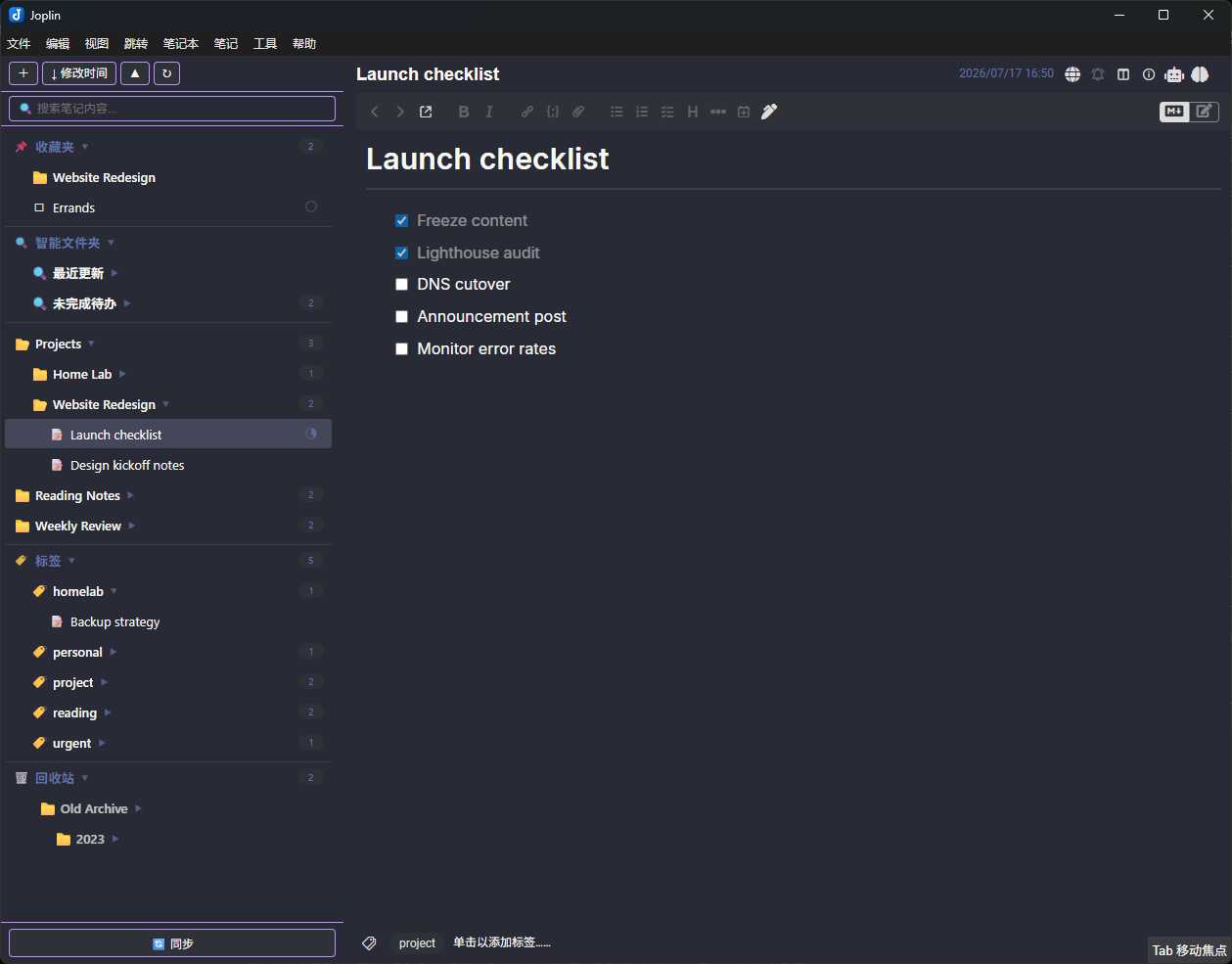
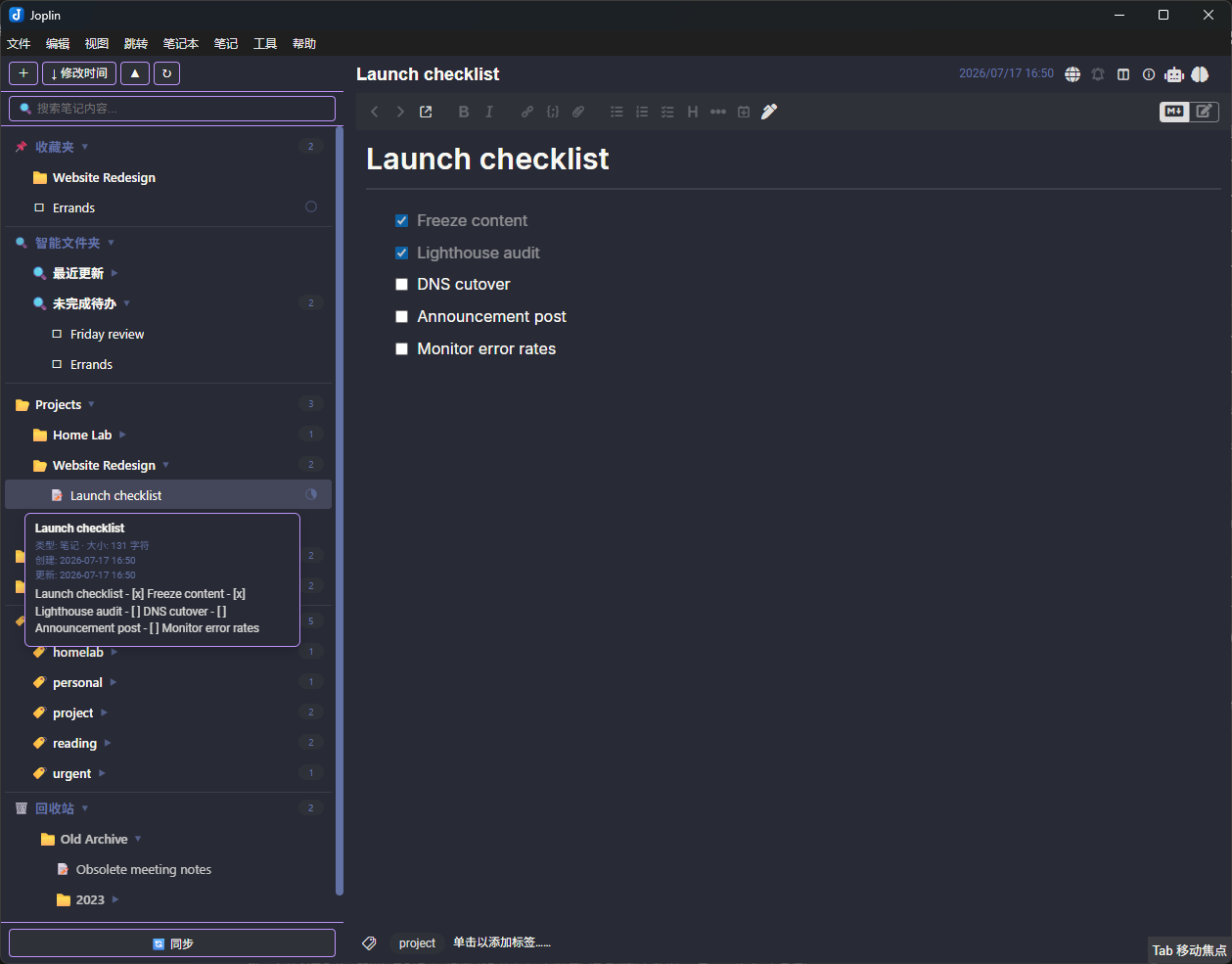
| Hover preview |
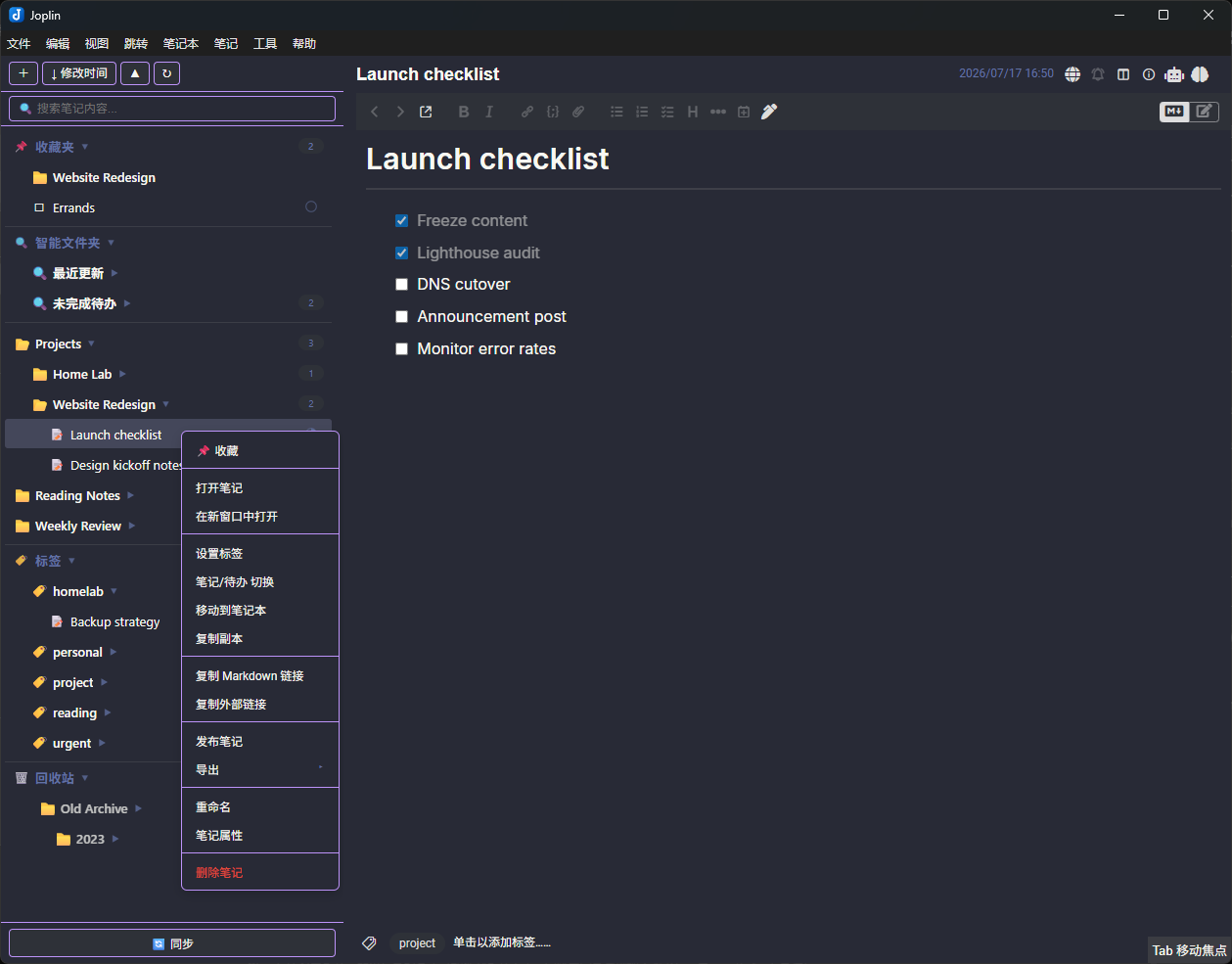
Context menu |
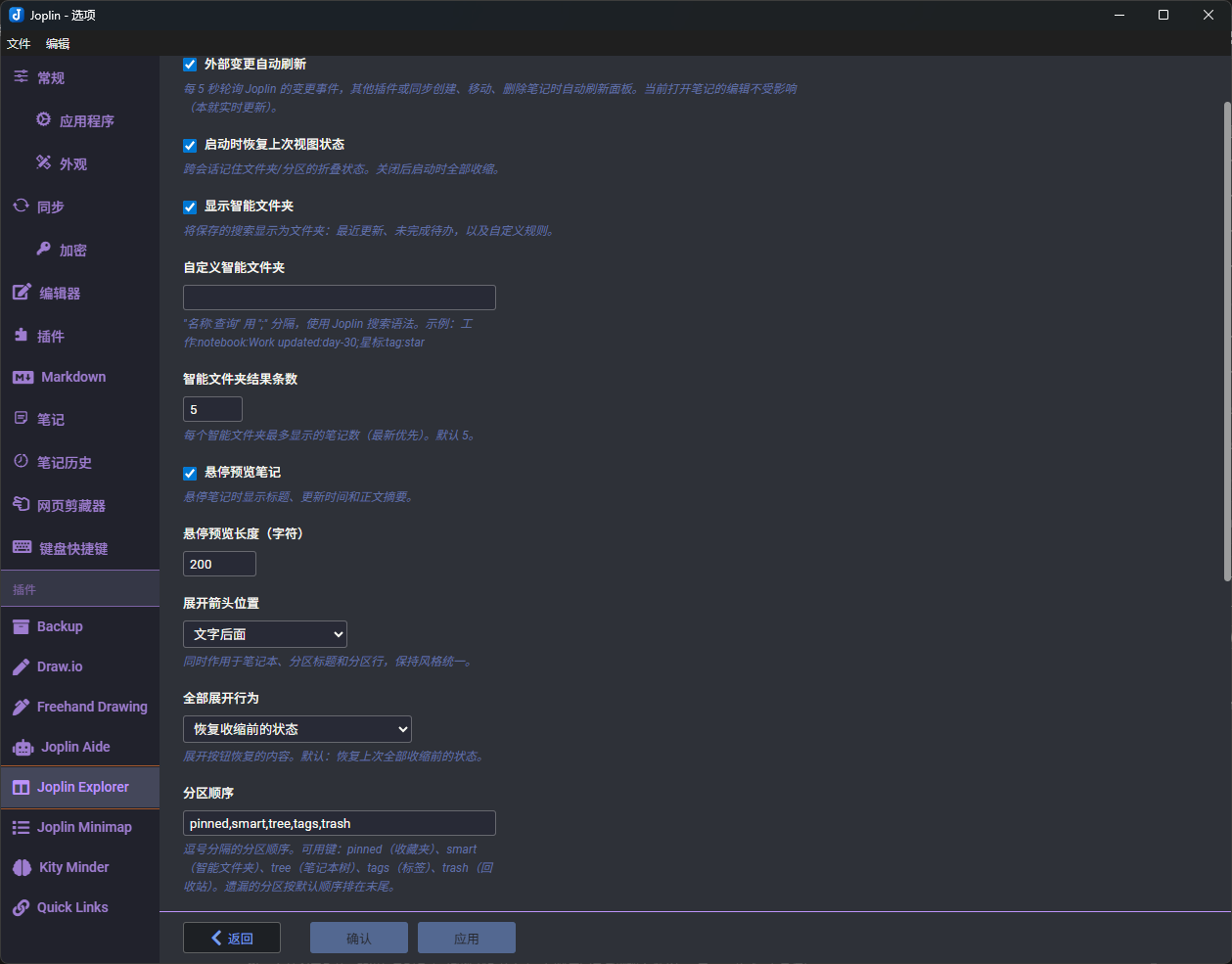
Settings |
 |
 |
 |
Features
- Unified Tree View — Notebooks and notes displayed in one collapsible panel
- Custom Icons — Shows emoji icons set in notebook settings; customize folder and pinned section icons via settings (emoji / image URL / data URI / local file path)
- Toggle Arrow Visibility — Hide expand/collapse arrows for a cleaner look
- Live Updates — Notes refresh in-place when their title or todo state changes
- Favorites (Pin) — Pin notes and notebooks to a collapsible section at the top of the tree; drag items to the pinned section to pin, drag within to reorder; persists across restarts
- Enhanced Search — Search notes, notebooks, and tags simultaneously with keyword highlighting; results grouped in collapsible sections; local title substring matching for partial queries (e.g. "8121R" finds "KY8121R")
- Smart Folders — saved searches shown as folders (Recently updated, Open to-dos, and your own). Tools > Manage smart folders edits them as a list, with a live match count per row so a typo shows before you save. Or try a query in the search bar and click Save as smart folder; right-click a smart folder to open its query in the search bar, edit it, rename or delete it
- Sort — Toggle between sorting by update time or title (ascending/descending)
- Context Menus
- Notebooks: pin/unpin, new note, new to-do, new sub-notebook, rename, export, delete
- Notes: pin/unpin, open, open in new window, copy Markdown link, duplicate, switch note/to-do type, toggle completed, rename, view properties, delete
- Drag & Drop — Move notes between notebooks, reorganize folder hierarchy; drag to empty area to create a new notebook; drag to pinned section to pin
- Sidebar Toggle — A toolbar button, a View menu entry and an assignable keyboard shortcut hide and show the panel, so you can reclaim the width without disabling the plugin
- Row Density — Row font size and row height are adjustable (Advanced settings), for fitting more of a large tree on screen
- Sync Button — Trigger synchronization with status feedback (syncing → done); becomes Cancel while a sync is running
- Auto Expand — Automatically expands to the currently selected note on startup
- Collapse All — One-click collapse all notebooks
- Scroll Position — Preserved when navigating between notes
- i18n — Supports English, Simplified Chinese, Traditional Chinese, Japanese, and Russian (follows Joplin's locale setting)
Install
From File
- Download
joplin-explorer.jpl from the latest release
- In Joplin, go to Tools → Options → Plugins
- Click the gear icon and select Install from file
- Choose the downloaded
.jpl file
- Restart Joplin
Usage
After installation, the Explorer panel appears on the side of the editor. You can:
- Click a notebook to expand/collapse it
- Click a note to open it
- Right-click for context menu actions (including pin/unpin)
- Drag notes or notebooks to reorganize; drag to the bottom zone to create a new notebook; drag to the pinned section to pin
- Use the toolbar at the top for quick actions (new notebook/note/to-do, sort, collapse all)
- Use the search bar to search notes, notebooks, and tags
- Click Sync at the bottom to trigger synchronization, or click it again while syncing to cancel
- Toggle the whole panel with the toolbar button, View → Toggle Explorer sidebar, or a shortcut you assign in Joplin's keyboard settings
Development
npm install
npm run dist
npm run dev
The built plugin is output to the publish/ directory. To test locally, set plugins.devPluginPaths in Joplin's settings to point to the publish/ directory.
Acknowledgements
Special thanks to @CJeffyB, whose steady stream of thoughtful bug reports and feature ideas shaped much of v1.5–v1.6 — and who generously bought the project a coffee on Ko-fi. ☕
Thanks also to @bwat47 for PR #30 and several sharp-eyed reports.
License
MIT