
Description
Create and edit Kanban boards directly in Joplin Markdown notes.
Additional Information
| Links: | |
|---|---|
| Maintainers: | txnam |
| Version: | 0.6.2 |
| Minimum app version: | 3.5 |
| Downloads: This version: | 284 |
| Last updated: | 2026-09-24T08:50:22Z |
JoplinKan
A colorful Kanban board that lives inside your Joplin Markdown note.
Organize tasks into columns, drag them into place, and keep notes beside each task. JoplinKan stores the board directly in the note body, so your work stays readable and editable without the plugin.
New in 0.6.2
This release brings the improvements from the 0.6 series together:
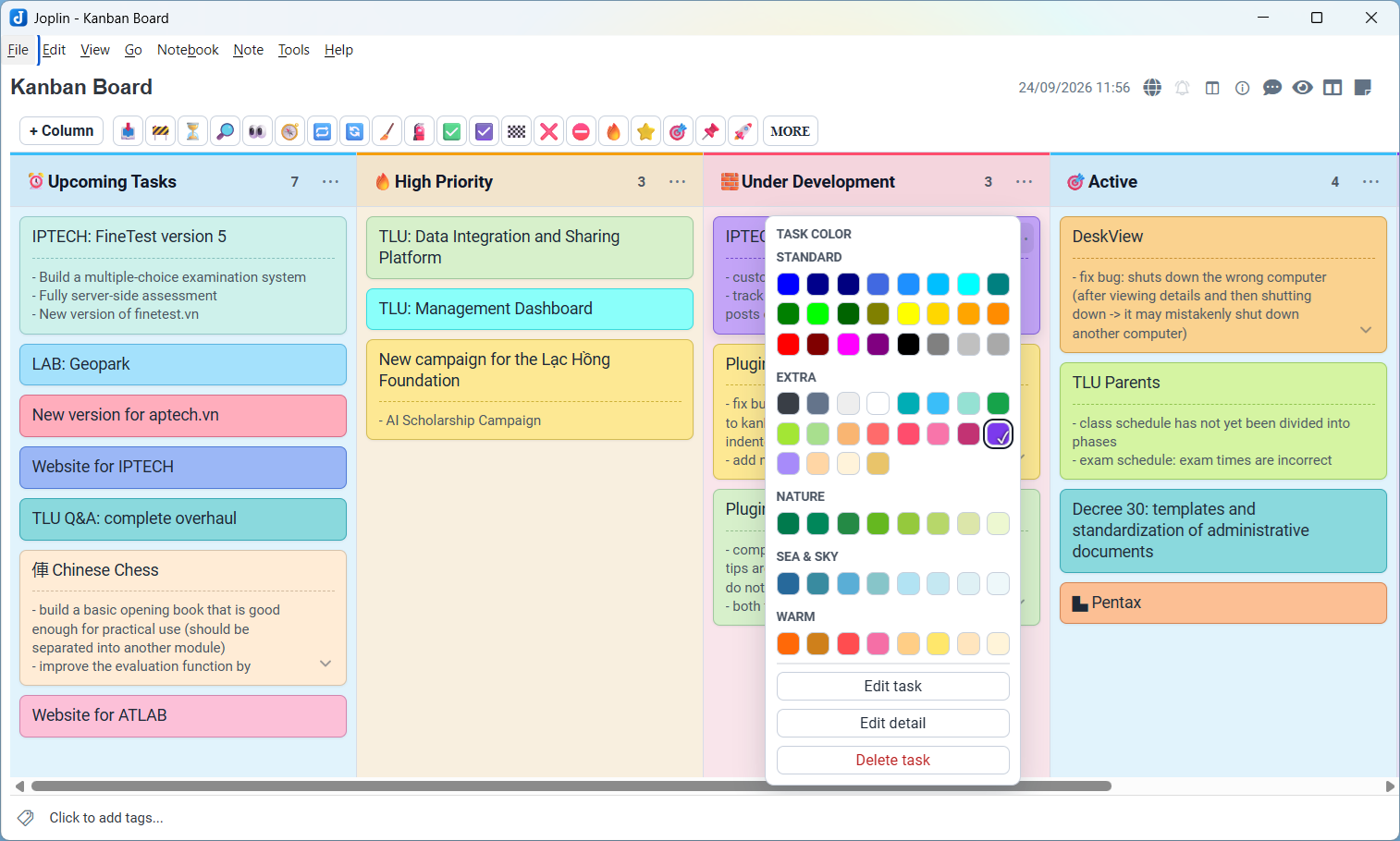
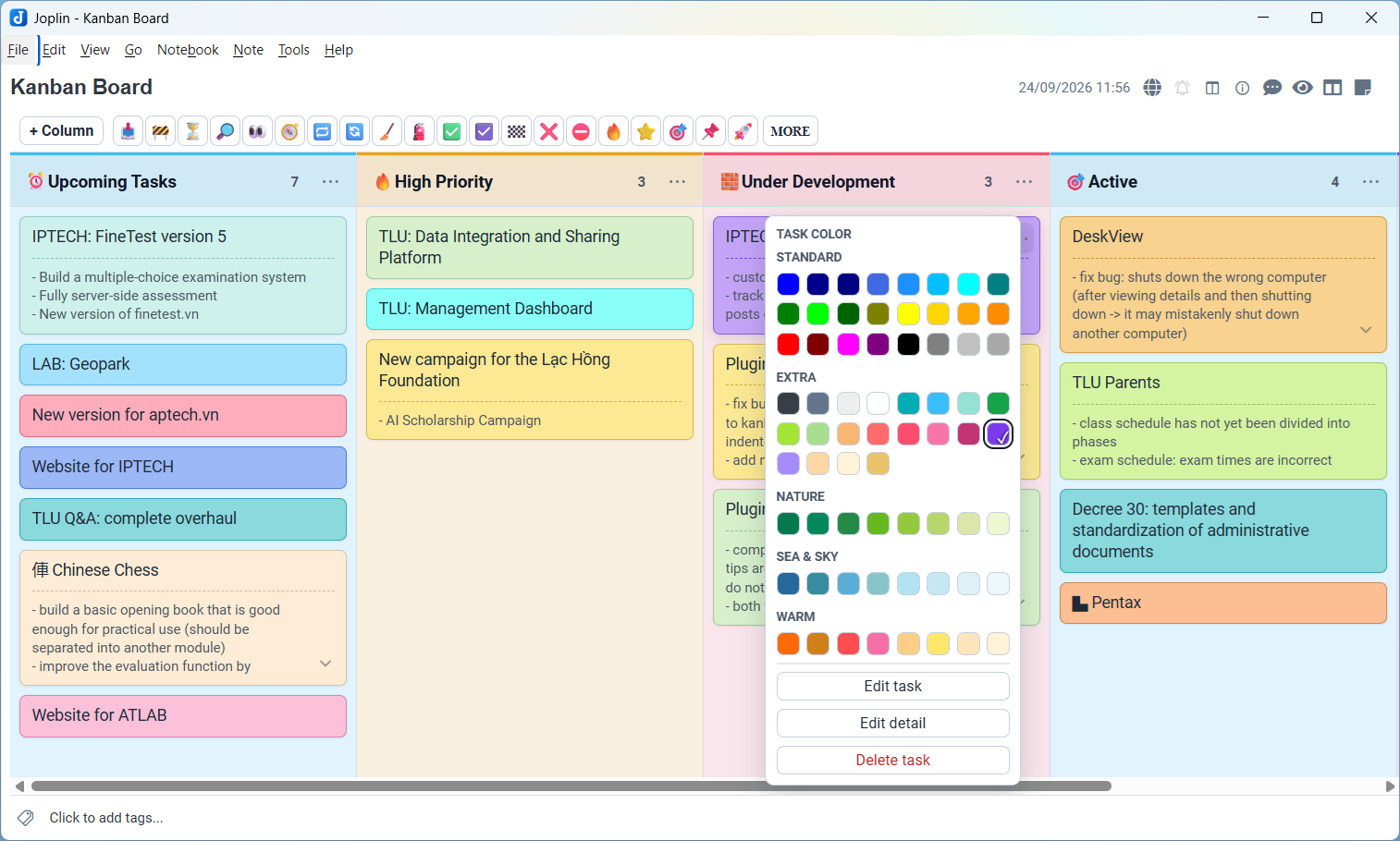
- 68 colors in five groups: Standard, Extra, Nature, Sea & sky, and Warm. Choose familiar colors such as Blue, Dark Blue, Navy, and Cyan, or softer shades inspired by nature. Swatches show the exact color; the board uses softly tinted backgrounds.
- Cleaner task details: common leading indentation is hidden while viewing and editing, with nested content preserved when saved to Markdown.
- Consistent line breaks: Enter in a detail paragraph remains a line break in rendered HTML. Ordinary text and bullets sit directly below the task in Markdown, without an extra blank separator.
- Compact detail controls: on screens at least 768px wide, a small corner chevron expands or collapses details beyond four lines without taking a separate row. Smaller screens show full detail.
- More reliable saves: edits are queued per note, including while switching notes. Failed saves retain the draft and offer retry; detected external changes offer recovery instead of silently overwriting the note.
See CHANGELOG.md for the full release history.
Install
On Joplin Desktop 3.5 or newer:
- Open Tools > Options > Plugins (the settings location may differ by platform).
- Search for JoplinKan and install it, or update an existing installation.
- Restart Joplin when prompted.
For manual installation, download the .jpl file from GitHub Releases, then use Install from file in Joplin's plugin settings. Newly published versions may take time to appear in the plugin directory.
Quick start
- Select the notebook where you want to keep the board.
- Choose Tools > JoplinKan > Create Kanban Board, or use the plugin's toolbar button.
- Rename the starter columns and add tasks from each column's menu.
- Drag tasks within a column or between columns; drag columns to change their order.
- Use a task's ... menu to change its color, edit its text, or choose Edit detail.
Changes save automatically. You can switch between the Kanban editor and Joplin's regular editor to work with the same note.
Board features
- Add, rename, delete, and color columns and tasks.
- Sort tasks A-Z or Z-A within a column.
- Keep multiline detail, nested lists, and code with a task.
- Copy Unicode symbols from the toolbar and paste them into titles or detail.
- Use light or dark appearance and independently scroll each column.
- Keep detail expansion while working in a board; reopening the note returns to the compact default on larger screens.
Your board is Markdown
A board uses H1 headings for columns, top-level list items for tasks, indented content for detail, and a kanban-settings block for identification. Colors use short markers such as [[#00008b]] or [[red]].
# In progress [[#27699b]]
- Prepare the release [[#ffce86]]
  - Review the changes
  - Check the build

# Done [[#007a4d]]
- Update the documentation

```kanban-settings
version: 1
plugin: joplinkan
defaultColumnColor: "#64748b"
defaultCardColor: "#ffffff"
```
Type detail normally. The plugin restores the surrounding list indentation and adds Markdown hard breaks (two trailing spaces) where a paragraph needs a visible line break. These technical spaces are hidden when the note is loaded into the detail editor. A separator is retained where Markdown needs it, such as before indented code or a table. Fonts, paragraph spacing, and multiple consecutive blank lines still depend on the renderer.
Existing H2-style tasks can still be read and are written as list items on the next save. Existing colors remain valid even when they are not listed in the palette. Opening a board or expanding detail does not rewrite the note; format updates happen when you edit and save the board.
Saving and recovery
- Saved means the latest change has finished saving.
- Retry save retries a failed write while keeping your draft.
- Save a copy preserves a conflicting draft as a new note in the same notebook.
- Reload note loads the current note after confirmation to discard the unsaved draft.
Draft recovery lasts while the plugin session remains alive. It does not guarantee recovery after a forced shutdown or replace Joplin's synchronization conflict handling.
Development
npm ci
npm test
npm run typecheck
npm run build
The build creates dist/ and these release artifacts:
publish/com.github.txnam.joplinkan.jplpublish/com.github.txnam.joplinkan.json
Point Joplin Development Mode to the plugin root directory. For a local mock webview, run node tests/preview.cjs after building and open http://127.0.0.1:4173. The preview does not connect to Joplin.
Plugin metadata is in src/manifest.json; screenshots are in docs/screenshots/ and icons in assets/. Keep manifest asset paths relative to the repository root with matching filename case.
Publishing
See the step-by-step publishing guide for npm publication, a GitHub release, and verification in the Joplin plugin directory.