Description
Reads your dated journal notes as a continuous timeline, and opens or creates today's entry in one click.
Additional Information
| Links: | |
|---|---|
| Maintainers: | xfuture603 |
| Version: | 1.4.0 |
| Minimum app version: | 3.2 |
| Downloads: This version: | 127 |
| Last updated: | 2026-08-15T16:33:14Z |
Journal Timeline
A Joplin plugin that reads your dated journal notes as a continuous timeline, and opens - or creates - today's entry in one click.
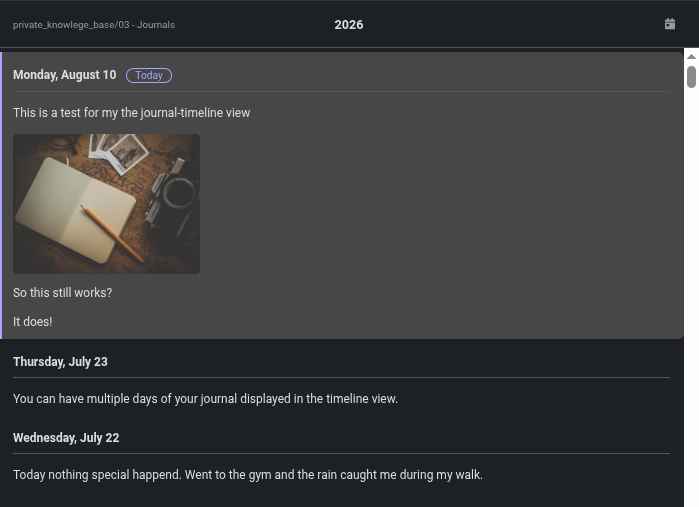
Any note whose title is a calendar date (YYYY-MM-DD, e.g. 2026-08-10) is treated as a
journal entry. Notes with other titles are ignored, so the notebook can hold indexes, templates
and other material alongside the journal itself.
Features
- Reads as a continuous journal: each entry shows its date as a heading - "Friday, 7 August" - followed by the note itself, rendered exactly as Joplin renders it. The heading at the top of the panel names the year you are scrolled to.
- Today is badged at the top of the list. If today's entry does not exist yet, a card offers to start it.
- Clicking anywhere in an entry opens that note in the editor, and whichever entry is open is highlighted - starting from nothing, so the panel opens without an entry already picked out. Selecting text and following links work as you would expect.
- Attachments appear as thumbnails so a photo cannot swallow an entry. Click one to expand it, or switch images off entirely.
- On this day shows what you wrote on this date in earlier years, in full, above the timeline - every past year at once, not just last year. It only appears when there is something to show.
- Missed a day? Pick it from the date button and the entry is created for you, correctly titled -
no hand-naming a note
2026-08-11to make it show up. - Keeps itself up to date as notes are created, edited, moved, deleted or synced - without losing your place.
Requirements
Joplin 3.2 or newer, desktop only.
Installation
Search for Journal Timeline in Joplin → Preferences → Plugins and click Install.
Usage
The panel appears in the sidebar the first time the plugin runs, and afterwards remembers whether you left it open or closed.
| Action | Where |
|---|---|
| Show or hide the panel | Toolbar button, Tools → Journal Timeline, or Ctrl/Cmd+Alt+J |
| Open today's entry | The pen button, or Tools → Journal Timeline |
| Open any other day | The calendar button - picks a day and writes the entry if it has none |
| Open an entry in the editor | Click anywhere in it |
| Follow a link in an entry | Click the link - notes open in Joplin, everything else in your browser |
| Expand or shrink an image | Click the image |
The panel is narrow by default. Drag its edge, or use View → Change application layout, to give the reader a comfortable width.
There is no refresh button: the timeline updates itself whenever your notes change, a sync finishes, or the date rolls over at midnight.
Settings
Preferences → Journal Timeline
| Setting | Default | What it does |
|---|---|---|
| Journal notebook | (create a new one) | Choose the notebook your journal lives in, from a list of every notebook you have. |
| Name for the new notebook | Journals |
Only used while the setting above is on + Create a new notebook…. Use / to nest it, e.g. Journals/Personal. |
| Entries shown | 30 |
How many recent entries to show, up to 365. Each is rendered in full, so higher values are slower. 0 shows everything. |
| Show images in entries | on | Turn off to hide attachments in the panel. Your notes are not changed - images still appear in the editor and note viewer. |
| Show "On this day" | on | Puts today's date in earlier years above the timeline. Only appears on days you have written about before. |
Using a journal you already have
If you already keep a notebook called Journals, the plugin adopts it the first time it runs
rather than creating a second one - your existing entries simply appear, with nothing to set up.
To use a notebook under a different name, pick it from the Journal notebook list.
Starting a new journal
Leave Journal notebook on Create a new notebook and set the name you want. The notebook is created the first time you add an entry, never merely by opening the panel - so you can change your mind without leaving an empty notebook behind. Once created, the setting switches to it automatically.
The setting remembers the notebook itself rather than its name, so renaming or moving your journal will not break it.
License
MIT