Description
Transcribes attached audio files using the OpenAI or Google Gemini APIs and creates a transcription note with the press of a button.
Joplin Audio Transcriber
A Joplin plugin that transcribes audio files attached to your notes using AI-powered transcription services.
https://github.com/user-attachments/assets/3c169203-0e95-4f92-b1e1-d0c37e41fe71
Features
- 🎙️ Audio Transcription - Transcribe attached audio files directly from your Joplin notes
- 🤖 Multiple AI Providers - Support for OpenAI Whisper and Google Gemini transcription APIs
- ⚙️ Customizable Settings:
- Select from multiple transcription providers
- Configure API keys securely
- Optional: specify a custom model
- Optional: set language for transcription
- Optional: add custom instructions via prompt
- 🔧 Extensible Architecture - Easy to add new transcription providers
- 📝 Seamless Integration - Transcribed text is appended directly to your notes
Installation
From Joplin Plugin Marketplace
[!IMPORTANT]
This plugin is not yet available in the official Joplin Plugin Marketplace. You can only install it from source for now.
From Source
- Clone this repository
- Install dependencies:
npm install
- Build the plugin:
npm run dist
- The built plugin will be in the
publish/ directory
- Install the
.jpl file in Joplin via Tools > Options > Plugins > Gear icon (top left next to Manage your plugins) > Install from file
Configuration
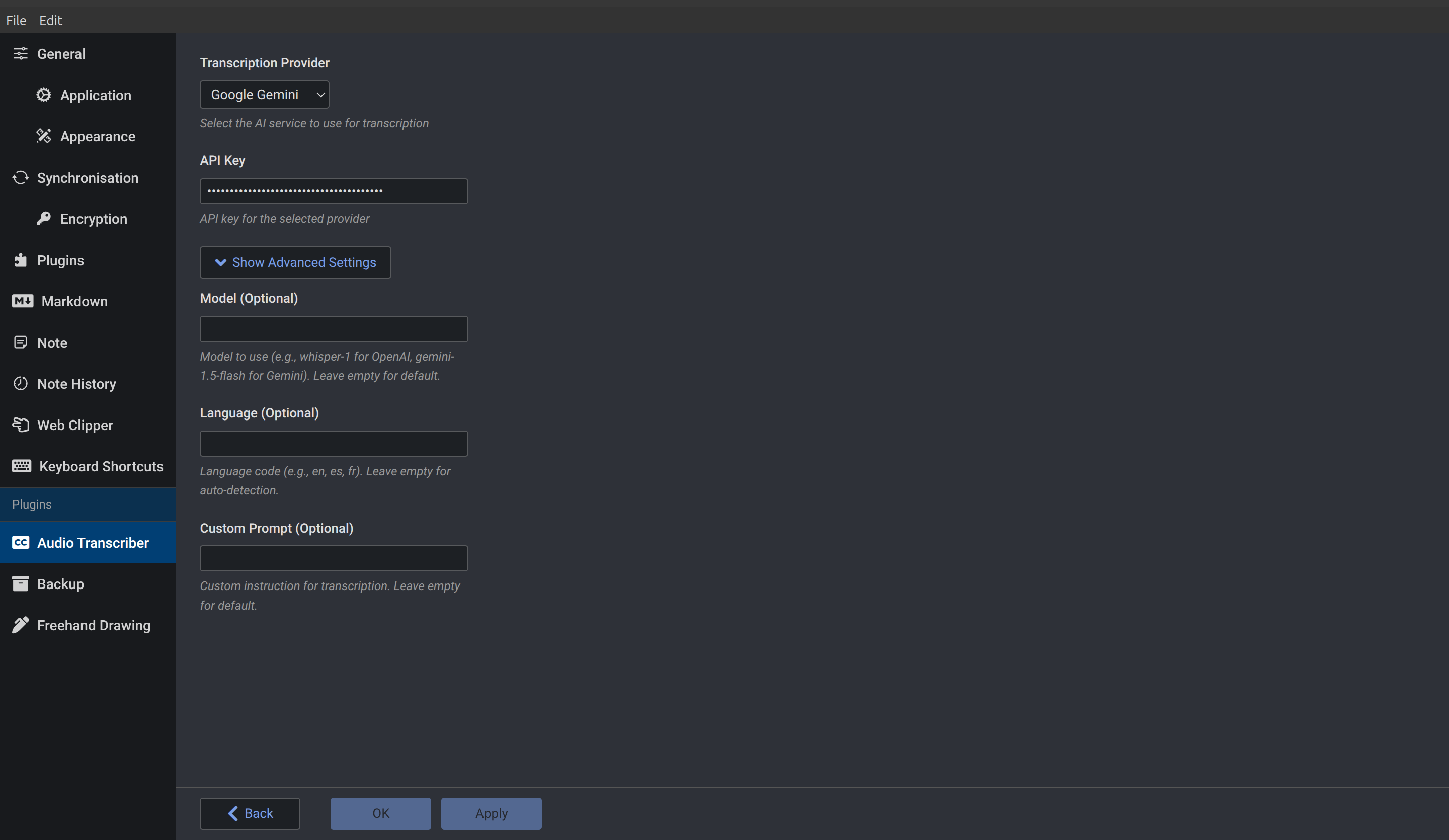
After installation, configure the plugin in Joplin settings:
- Open Tools > Options > Preferences
- Go to the Audio Transcriber section
- Configure the following:
- Transcription Provider: Choose between OpenAI or Google Gemini
- API Key: Enter your API key (stored securely)
- Model (optional): Specify a model (e.g.,
whisper-1 for OpenAI, gemini-1.5-flash for Gemini)
- Language (optional): Set language code for transcription (e.g.,
en, es, fr)
- Custom Prompt (optional): Add custom instructions for the transcription
Obtaining API Keys
OpenAI:
- Visit OpenAI API Platform
- Create an account and go to API keys
- Generate a new API key
- Copy and paste it into the Joplin settings
Google Gemini:
- Visit Google AI Studio
- Click Get API Key and create a new API key
- Copy and paste it into the Joplin settings
Usage
- Attach an audio file to a Joplin note
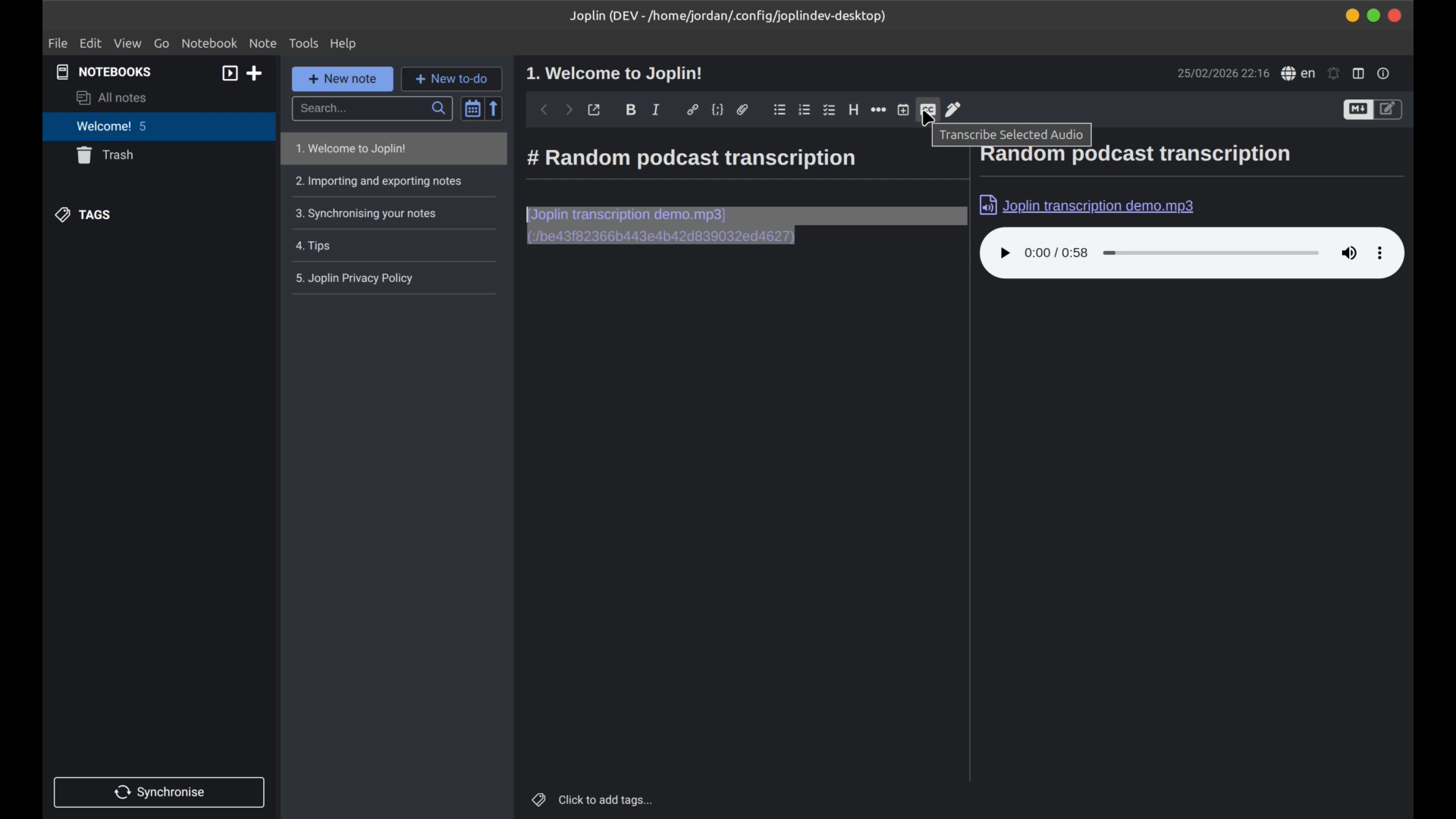
- Select the audio file link in your note (highlight the entire link e.g.
[filename](:/resourceId))
- Press the Transcribe Selected Audio button in the toolbar, or use the command palette (Ctrl/Cmd+Shift+P) and search for "Transcribe Selected Audio"
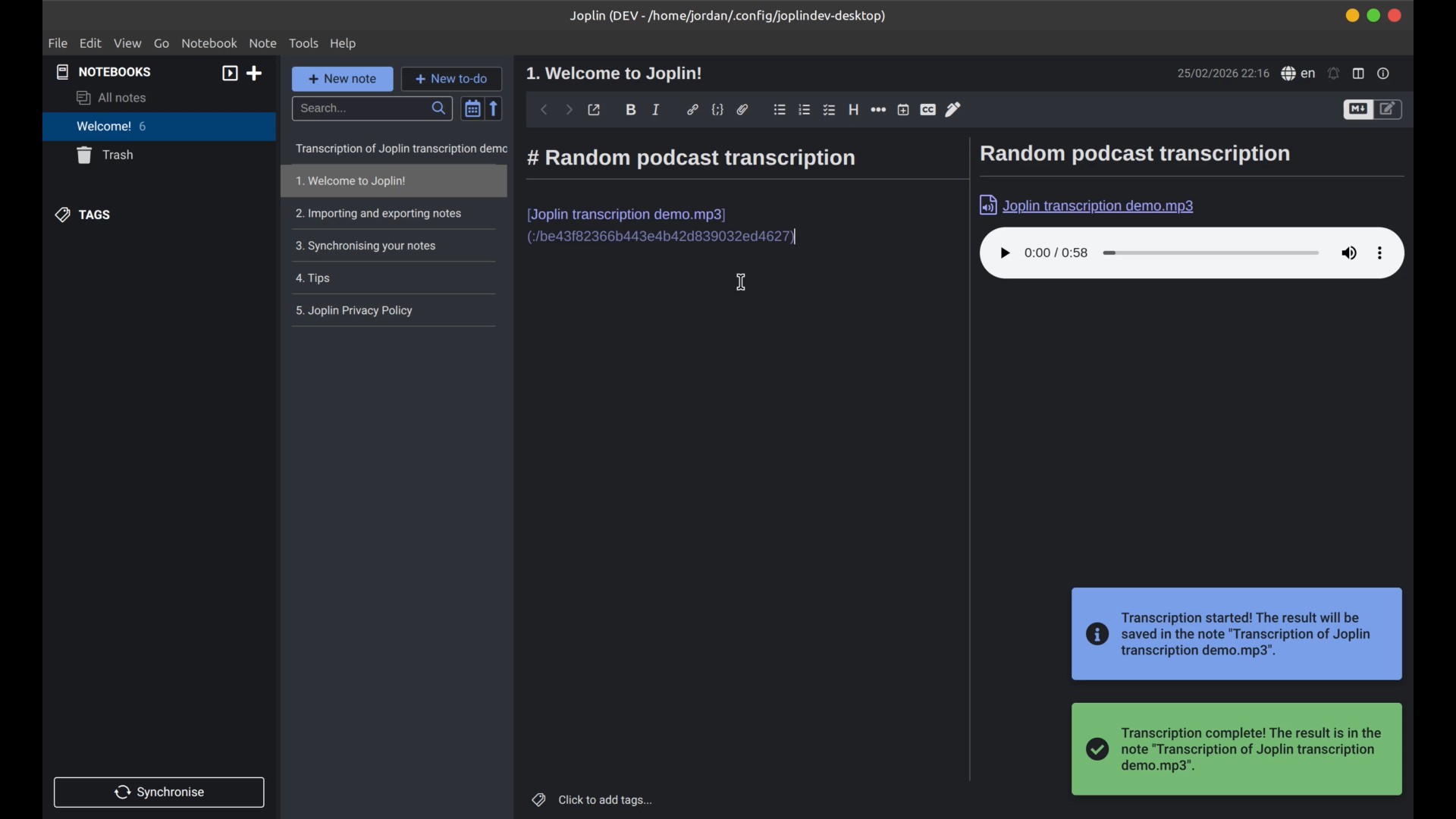
- Wait for the transcription to complete
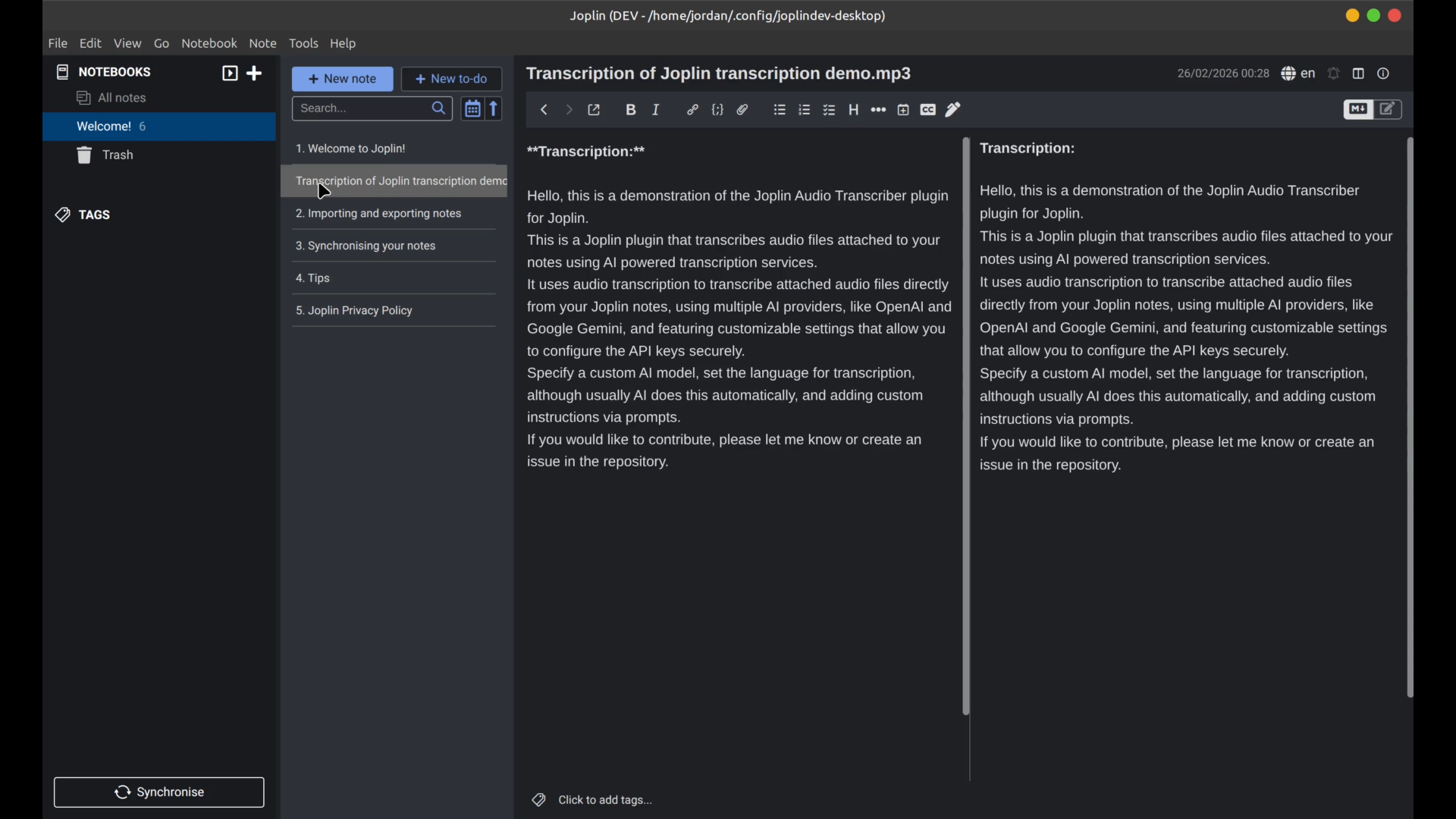
- The transcribed text will be appended to your note
Development
Interested in contributing? Start with the CONTRIBUTING.md guide.
For advanced topics like architecture and adding new transcription services, see the project wiki.
Quick Start
npm install
npm run dist
npm test
npm run lint
Troubleshooting
"Please select a valid audio file"
- Make sure you've attached an audio file to the note
- Select the file link (the
[filename](:/resourceId) markdown link)
- Audio formats supported: MP3, WAV, OGG, FLAC, AAC
"API error"
- Verify your API key is correct and has sufficient credits
- Check if your API key is still valid (not expired)
- Ensure your network connection is stable
"No transcription result"
- Try with a different audio file
- Check the Joplin console (Help > Toggle Console) for error messages
- Verify the audio file quality and duration
[!NOTE]
For further assistance, please open a new issue on the GitHub repository.
License
MIT © Jordan Voets
Contributing
We welcome contributions! Please see CONTRIBUTING.md for guidelines on how to contribute to this project.