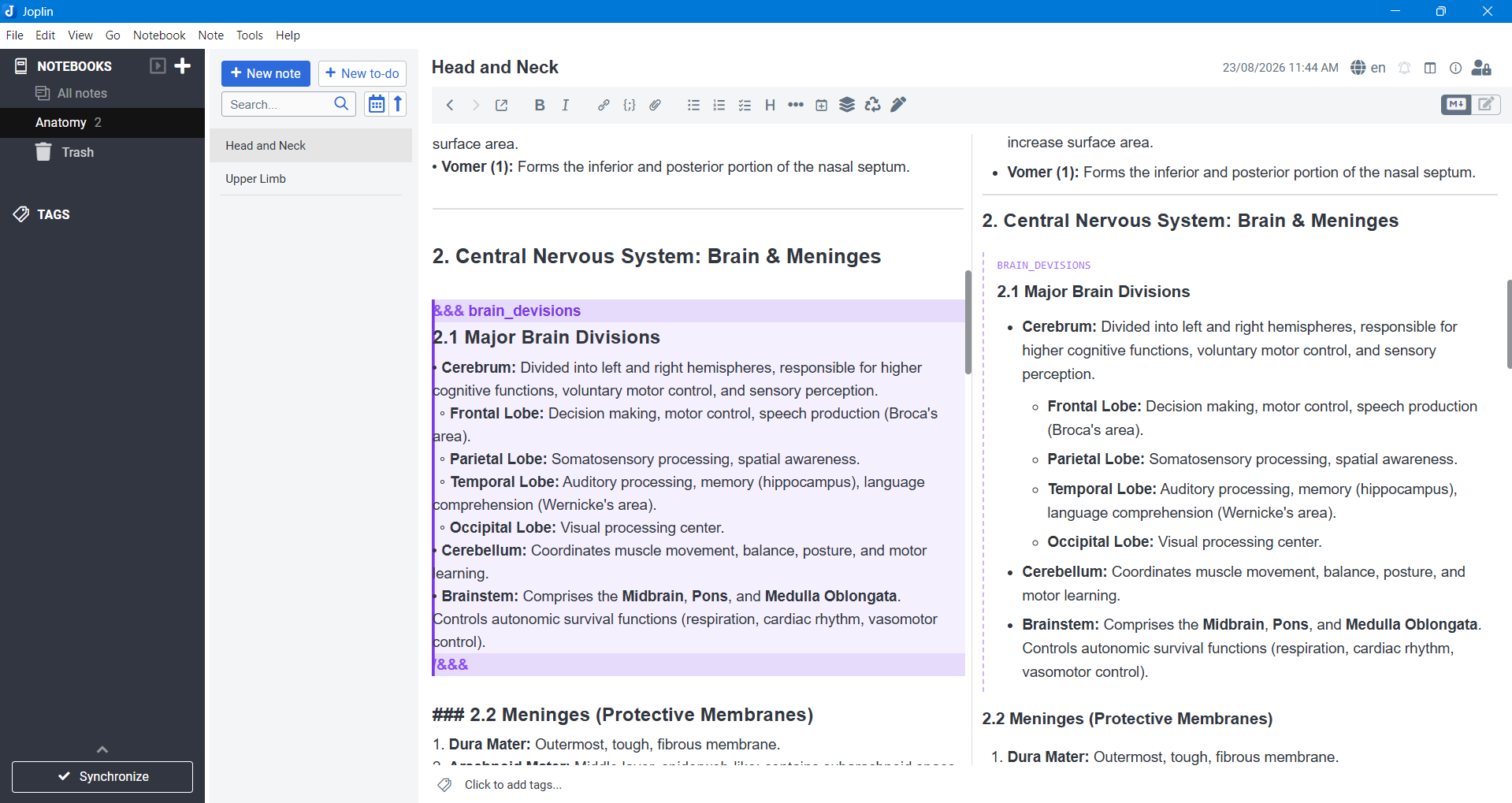
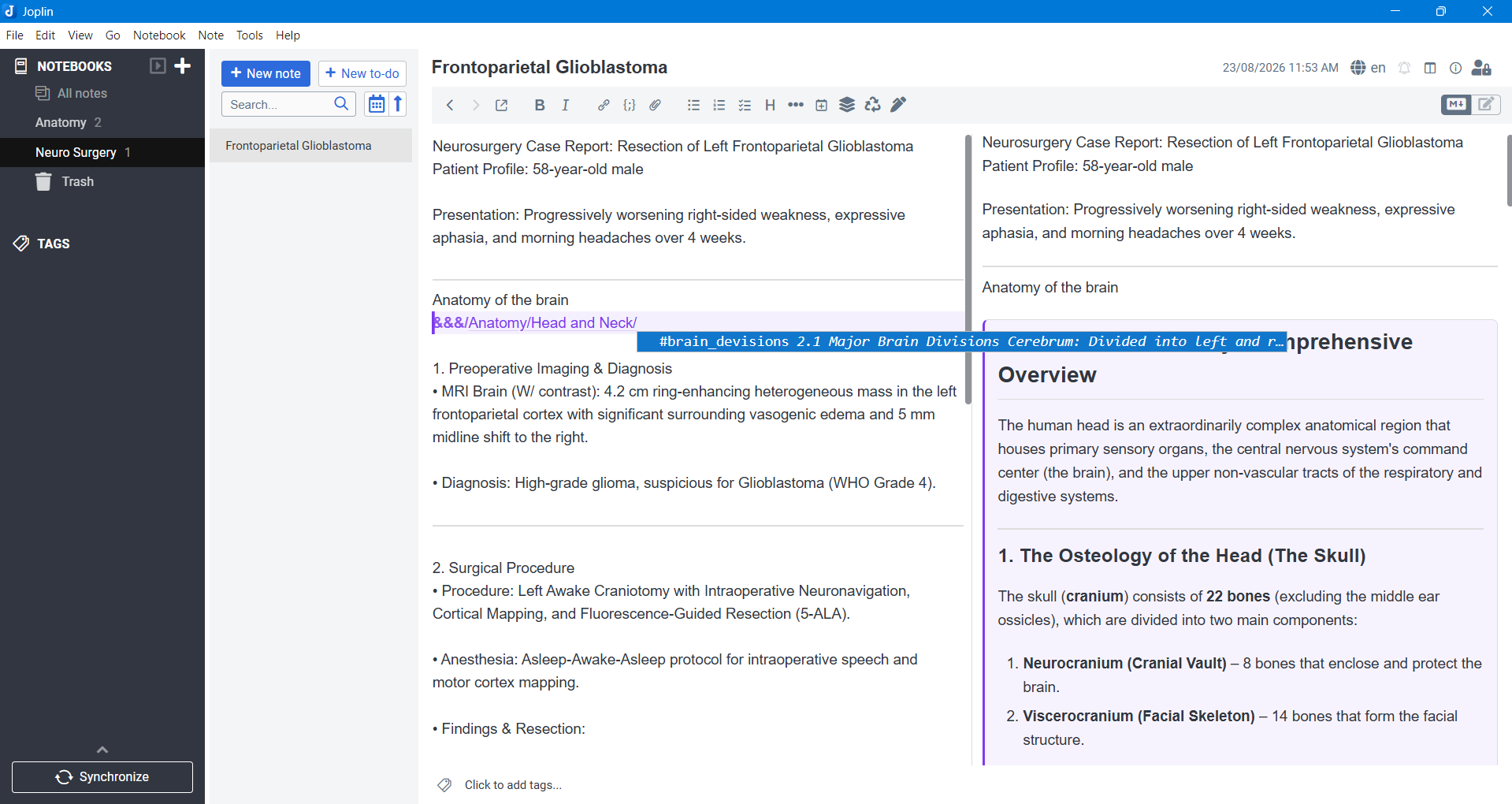
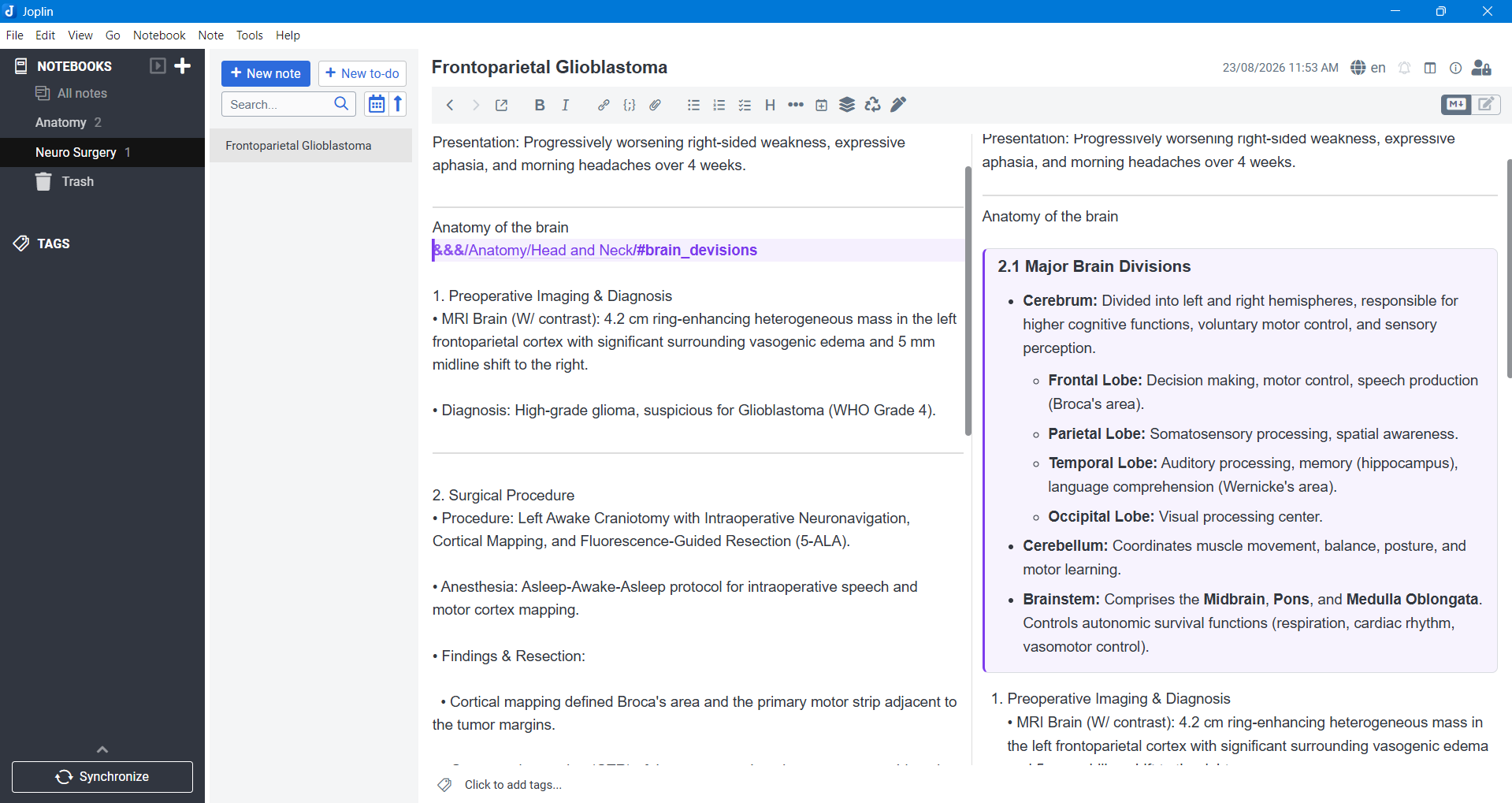
Write a section once and reuse it anywhere: mark it with `&&&` ... `/&&&`, then embed it in any note with `&&&/notebook/note/#section`.
| Links: | |
|---|---|
| Maintainers: | madusankabibile |
| Version: | 1.0.1 |
| Minimum app version: | 3.1.0 |
| Downloads: This version: | 46 |
| Last updated: | 2026-08-23T08:37:37Z |

Write something once, then use it in as many notes as you like. Mark a part of a note as shareable:
&&& brain Grey matter
The **brain** sits inside the skull and does the thinking.
/&&&
...then, in any other note, in any other notebook, type &&&/ and pick it:
&&&/anatomy/head/#brain
The note viewer draws the borrowed content in place, and keeps it current: edit the original and every note that reuses it follows along, without copies to chase or paste again.
Mark the part of a note other notes may reuse. It stays ordinary markdown, and the viewer marks it out quietly.
Type &&&/ and the drop-down walks notebooks, then notes, then the sections of
the note you landed on - with a preview of each.
One reference line in a note in another notebook, and the section is drawn in place - headings, lists and all, exactly as in the note it came from.
Search for Reuse Sections in Tools → Options → Plugins, or
install com.madusanka.reuseSections.jpl with Install from file. Requires
Joplin 3.1 or later on desktop, 3.2 on mobile.
There are exactly two things to remember.
&&& ... /&&& marks content other notes may reuse&&& <optional id> <optional label>
<contents>
/&&&
The id is what references point at, and the label is a human name for it:
&&& dosage Adult dosage
500 mg every 8 hours, with food.
/&&&
Leave the id out and the section is known by its position - section-1,
section-2, and so on - which is fine for a note with one shareable part:
&&&
Anything at all.
/&&&
Sections may be nested. An inner section can be reused on its own, and it also travels with the section that contains it.
&&&/... reuses it somewhere elseOn a line of its own:
| Reference | What it pulls in |
|---|---|
&&&/anatomy/head/#brain |
the brain section of the note head in the notebook Anatomy |
&&&/anatomy/head |
the whole note, minus the &&& markers |
&&&/medicine/anatomy/head/#brain |
the same, spelling out a nested notebook path |
&&&/id/a1b2…/#brain |
the same section, pinned to the note's id |
&&&/anatomy/head/#2 |
the second section of the note, whatever it is called |
A reference has to be alone on its line: see &&&/anatomy/head in the middle of
a sentence is left exactly as typed.
Type &&&/ in the markdown editor. A drop-down opens right where you are
typing - no dialog, no losing your place - and each / takes you one level
further in:
&&&/                     every notebook, and the notes you edited last
&&&/ana                  filters as you type
&&&/Medicine/            the notebooks inside Medicine, then its notes
&&&/Medicine/Anatomy/    the notes in Anatomy
&&&/Anatomy/Head/        the shareable sections of Head
&&&/Anatomy/Head/#brain  done
Arrow keys move, Enter takes the highlighted entry, Escape closes the list.
Picking a notebook adds its / and opens the next level straight away; picking
a note or a section finishes the reference.
The list knows what you are pointing at rather than counting slashes, so notebooks inside notebooks work as many levels deep as you like, and a note and a notebook of the same name never get confused.
Three commands are on the editor toolbar and under Tools → Reuse Sections for when you would rather not type:
&&& / /&&& and waits for you to name it.&&&/... on the clipboard, for
pasting wherever you like.Reused content is fetched when the note is drawn, not stored in it. Your note holds one line - the reference - and nothing else. So:
&&&/id/... style,
which does not care what the note is called or where it lives.Tools → Options → Reuse Sections
| Setting | Default | What it does |
|---|---|---|
| Show where reused content comes from | on | The source note and section, above the content |
| Colour around reused content | violet | Violet, blue, teal, green, amber, red, grey, an outline with no tint, or no box at all |
| Outline shareable sections in the viewer | on | Marks the parts of a note others can reuse |
| Fill in new references without waiting | on | Shows a brand new reference's content straight away, rather than when the note is next drawn |
| Follow references inside reused content | on | A reused section brings its own references along, three levels deep |
| Find notes that have moved | on | Falls back to a title search when a notebook path no longer matches |
| How new references are written | readable | Readable paths, or ids that survive renames |
Suggest notebooks, notes and sections as you type &&&/ |
on | Turn off to use the toolbar button and shortcut only |
| Highlight sections and references in the markdown editor | on | |
| Show the toolbar button | on |
Changing the last two takes effect when the note is reopened; the toolbar button needs a restart.
Borrowed content is not pasted in as finished HTML: the markdown itself is tokenized as part of the note that borrows it, by the same pipeline that draws the rest of that note. So your other plugins apply to it. An HTML Blocks card arrives as a card, a callout as a callout, maths as maths, a Mermaid diagram as a diagram - exactly as they look in the note they came from.
That works because Joplin lets a content script read its own plugin's settings synchronously while rendering. The plugin keeps the markdown behind the references in view in one of its own settings, and the renderer reads it from there.
The first time a reference is used - before the plugin has resolved it, or on a note that has just arrived from another device - there is nothing in that setting yet. The viewer fills the gap by asking the plugin directly, which gets you the content but without your other plugins applied to it. It sorts itself out the next time the note is drawn: type anything, or switch away and back.
In the markdown editor, &&& fences tint the section they open, the section id
is picked out, and a &&&/ reference is underlined with its #section part
highlighted, so it is obvious at a glance which lines are borrowed content and
which are yours.
npm install
npm run dist
npm test
publish/com.madusanka.reuseSections.jpl is the installable plugin.
npm test checks the fence and reference parsing, the section extraction, the
renderer used for borrowed content, the markdown-it rules as the viewer loads
them, and the drop-down - the last two against fixture notebooks in
tools/test/, so no Joplin profile is needed.
npm run icons regenerates images/ - the icon set and the promo tile are
drawn from signed distance fields by tools/generate-icons.js, with no image
dependencies.
src/
  index.ts                  plugin entry: settings, commands, the picker flow
  picker.ts                 HTML for the three picker steps
  reuse/
    syntax.ts               the fences and the reference format, shared by all
    types.ts                what travels between plugin, viewer and dialog
    render.ts               the HTML of an embed and of a section marker
    cache.ts                the setting the renderer reads borrowed markdown from
    resolve.ts              reference -> note -> content, and the data queries
    markdown.ts             the fallback renderer, for older Joplin versions
  markdownItPlugin/         viewer: the block rules, and the script that
                            fills embeds in
  codeMirrorPlugin/         editor: the drop-down, highlighting, commands
  dialog/                   the step-by-step dialog's own CSS and JS
tools/
  run-tests.js              npm test: the syntax, the renderer, the drop-down
  generate-icons.js         npm run icons: the icon set and the promo tile
MIT - see LICENSE.