Description
Enhanced CodeMirror 6 theme with styling for headings, code, links, GitHub alerts, blockquotes, and table rendering. Includes keyboard shortcuts for heading levels (Ctrl+1-6), inline math notation (Ctrl+$), and comprehensive table editing tools.
Additional Information
| Links: | |
|---|---|
| Maintainers: | rinchord |
| Version: | 2.0.5 |
| Minimum app version: | 2.8 |
| Downloads: This version: | 902 |
| Last updated: | 2026-02-22T07:43:50Z |
CodeMirror 6 Theme for Joplin
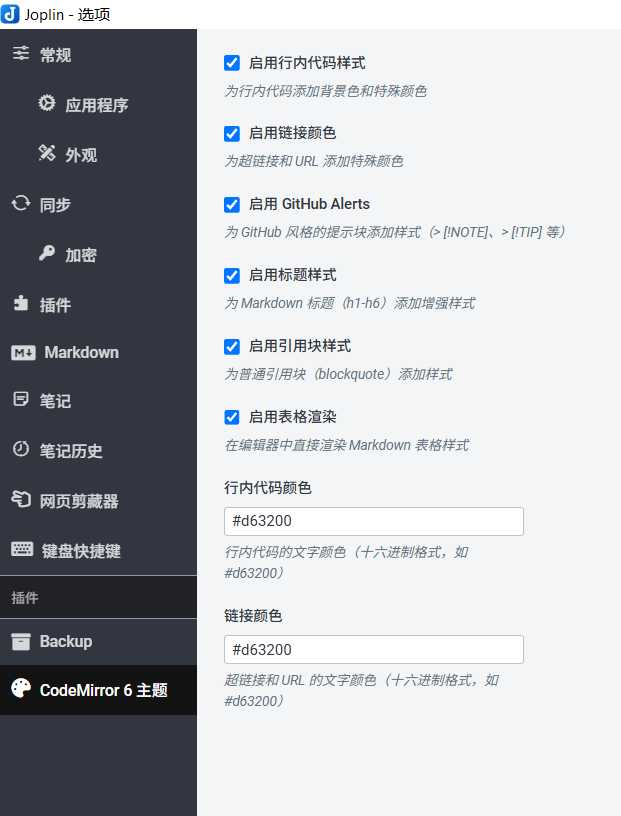
Enhanced editor styling and productivity features for Joplin notes. Support English and Chinese language.
The experience will be better when used with my newly released plugin.
Features
Inline Code Styling
Adds background color and custom text color to inline code blocks for better visibility.
Link Color Customization
Apply custom colors to hyperlinks and URLs throughout your notes.
GitHub Alerts
Full support for GitHub-style alert syntax in the editor:
> [!NOTE]- Blue info box> [!TIP]- Green tip box> [!IMPORTANT]- Purple important box> [!WARNING]- Orange warning box> [!CAUTION]- Red caution box
Enhanced Heading Styles
Improved visual hierarchy for Markdown headings (h1-h6) with custom font sizes, weights, and divider lines.
Blockquote Styling
Refined appearance for standard blockquote elements.
Heading Shortcuts
Quick keyboard shortcuts for toggling heading levels:
Ctrl+1throughCtrl+6- Toggle H1-H6 headings- Press once to add heading markers
- Press again on the same level to remove them
- Works on the current line where your cursor is positioned
Inline Math Shortcuts
Quick keyboard shortcut for adding inline math notation:
Ctrl+$- Toggle$symbols around selected text for inline math (LaTeX)- Select any text and press
Ctrl+$to wrap it with$...$ - Press again to remove the math notation
Table Editing Tools
Comprehensive table editing features accessible from the editor:
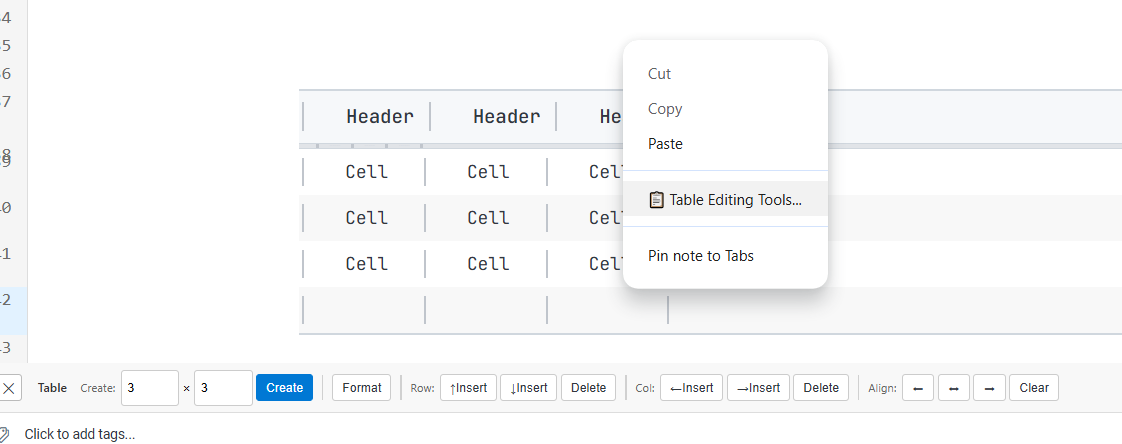
Ctrl+Shift+F- Format tableCtrl+Enter- Add row belowCtrl+Tab- Add column right- Access more table operations from the toolbar (right-click > Table Editing Tools)
- Tools include row/column insertion, deletion, moving, and text alignment
Configuration
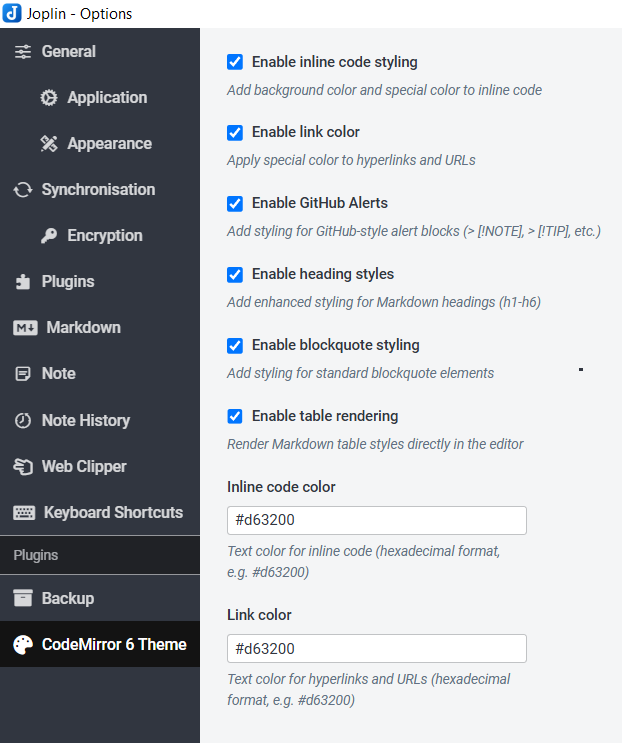
All features can be toggled in Settings → CodeMirror 6 Theme:
Feature Toggles
- Enable inline code styling
- Enable link color customization
- Enable GitHub Alerts
- Enable heading styles
- Enable blockquote styling
Color Customization
- Inline code color (hex format, default:
#d63200) - Link color (hex format, default:
#d63200)
Keyboard Shortcuts (可在设置中自定义)
- Heading shortcuts:
Ctrl+1throughCtrl+6 - Math inline notation:
Ctrl+$(default) - Table formatting:
Ctrl+Shift+F - Table row insertion:
Ctrl+Enter - Table column insertion:
Ctrl+Tab
Installation
- Download the latest
.jplfile from releases - In Joplin, go to Settings → Plugins
- Click the gear icon and select "Install from file"
- Choose the downloaded
.jplfile - Restart Joplin
Quick Start
Using Heading Shortcuts
- Position cursor on any line
- Press
Ctrl+1toCtrl+6to toggle heading levels - Press the same shortcut again to remove the heading
Using Math Notation
- Select any text
- Press
Ctrl+$to wrap it with$symbols - Press
Ctrl+$again to remove the notation
Using Table Editing Tools
- Right-click in the editor → "📋 Table Editing Tools..."
- A toolbar appears at the bottom with table operations
- Click the ✕ button to close the toolbar
- Use keyboard shortcuts:
Ctrl+Shift+F- Format tableCtrl+Enter- Add row belowCtrl+Tab- Add column right
Development
Build the plugin:
npm install
npm run dist
The plugin package will be generated in the publish/ directory.
For more development information, see GENERATOR_DOC.md
License
MIT