Description
Easily manage and schedule projects, integrating tasks directly with your knowledge base.
Joplin Projects Plugin

An advanced project management plugin for Joplin that turns your notes into a visual, interactive task dashboard. Organize, track, and manage your projects with Kanban, Timeline (Gantt), List, and Wiki views, all integrated within Joplin.
✨ Features
- Project-Based Organization: Group your notes and tasks into distinct projects, each with its own folder structure.
- Multiple Views: Switch between different perspectives to manage your work effectively:
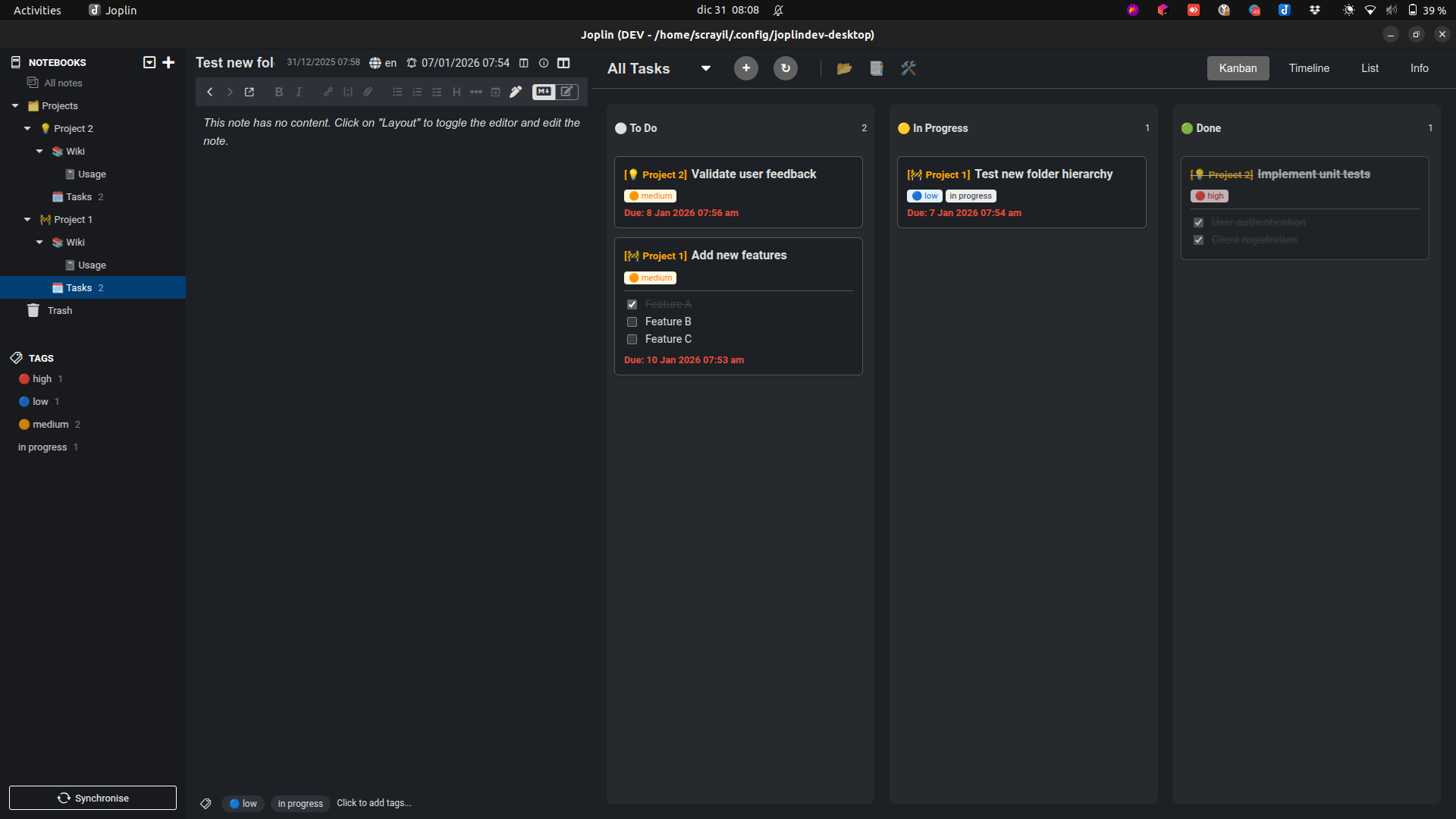
- Kanban Board: A drag-and-drop interface to move tasks between "To Do", "In Progress", and "Done" columns.
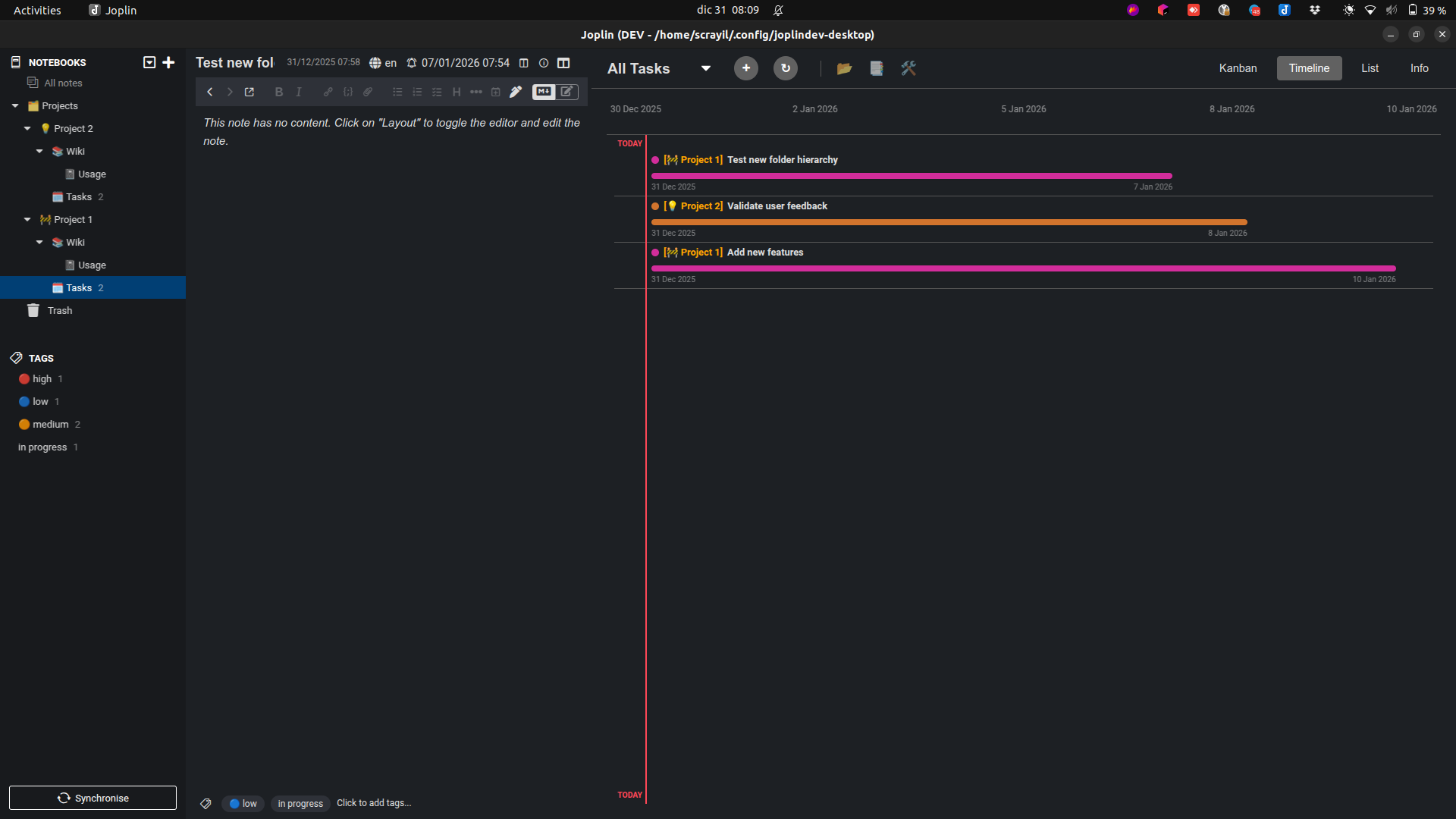
- Timeline View: An interactive Gantt chart with task dependencies, drag-to-reschedule, critical-path highlighting, and milestones.
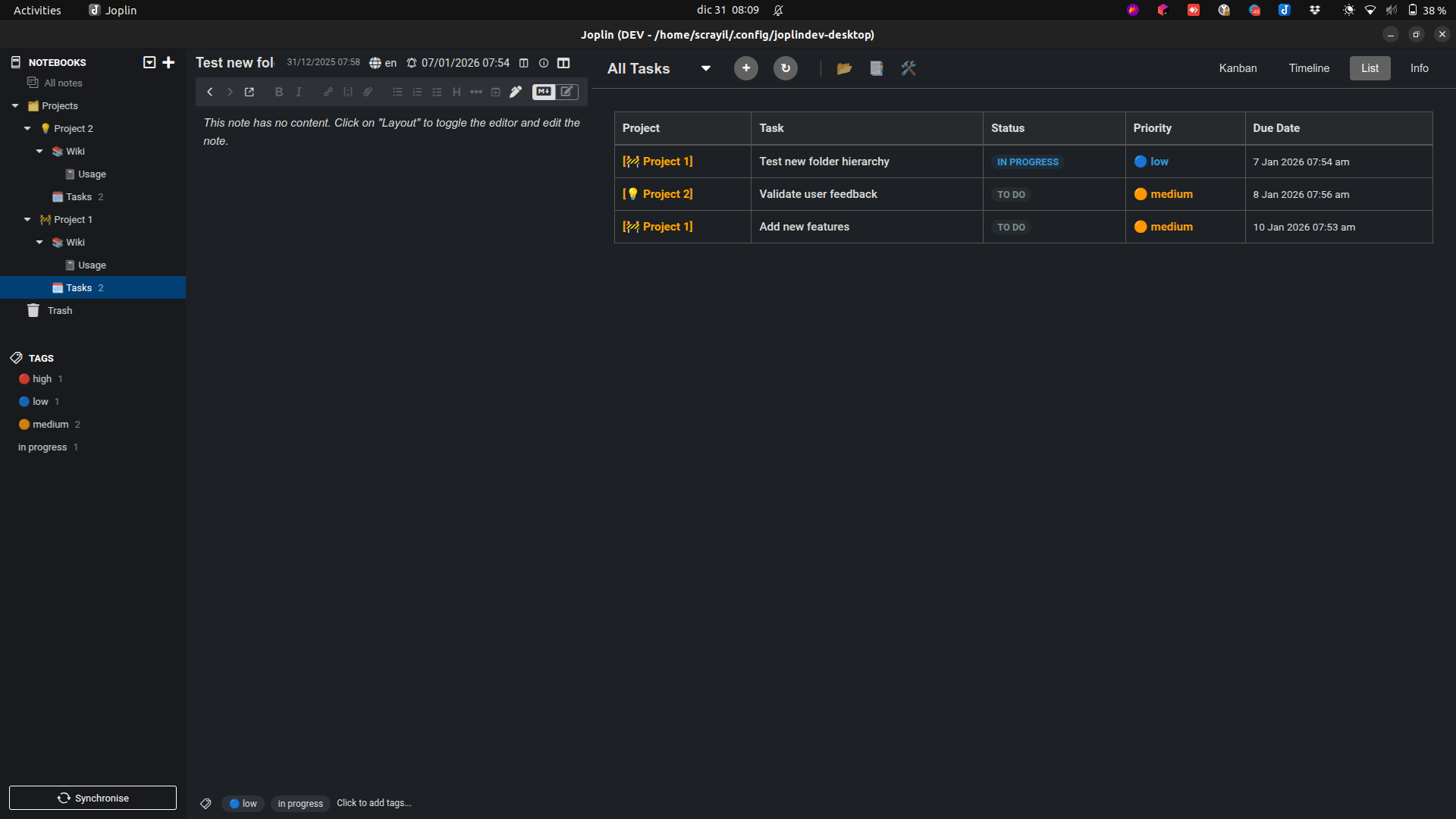
- List View: A clean table of all your tasks, ordered by the sort criterion you choose.
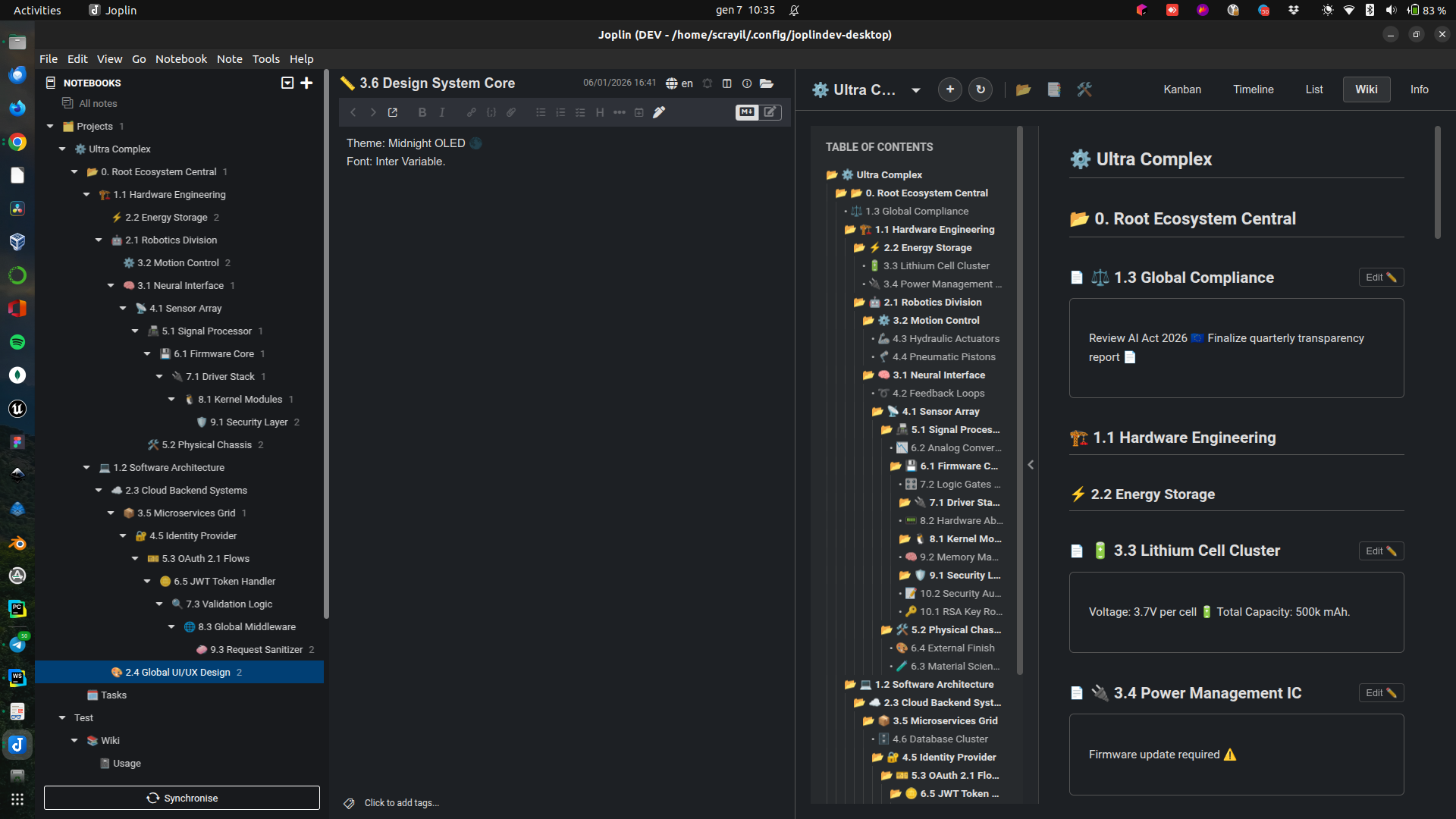
- Wiki View: Browse and read project documentation with Markdown support, type-aware resource icons, and an inline media player.
- Interactive Dashboard: A central hub to visualize and interact with all your tasks from every project.
- Urgency Filter: A dedicated toggle (🚨) to instantly filter the view and show only Overdue or Approaching tasks.
- Smart Task Recognition: Any to-do note inside a project's dedicated "Tasks" folder is automatically picked up by the dashboard.
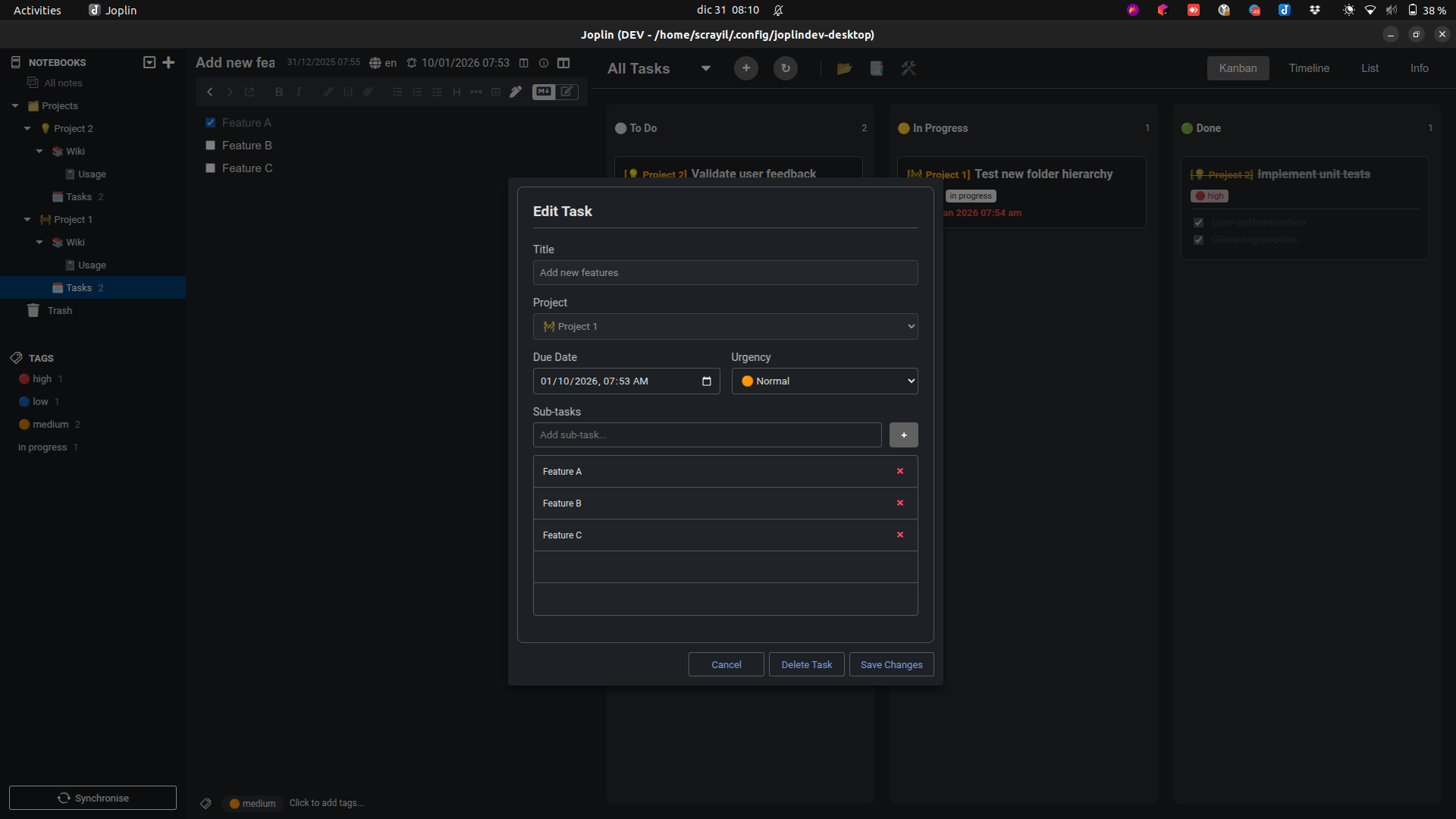
- Sub-task Management: Build and nest sub-tasks (markdown checkboxes) with drag & drop in the New / Edit Task dialog, and toggle them straight from the Kanban cards, with cascading logic that updates the whole hierarchy instantly. A read-only Fullscreen overlay lets you inspect deep hierarchies.
- Task Dependencies & Scheduling: Give tasks a start date and link them with FS/SS/FF/SF dependencies, then visualize and reschedule everything on the Gantt timeline, with critical-path analysis per project.
- Seamless Integration: Uses Joplin's native to-dos, tags, and folders. Your data remains in the standard Joplin format.
- Automatic Sync: The dashboard stays in sync with your notes in real-time.
🚀 Getting Started
Installation
- Open Joplin and navigate to
Tools > Options > Plugins.
- Search for "Projects" and click "Install".
- Restart Joplin to complete the installation.
Usage
1. Create Your First Project
The plugin organizes everything under a main 🗂️ Projects folder.
To create a new project:
- Click on
Tools > Create a new project.
- Or use the shortcut
Ctrl+N.
This will open a dialog where you can name your project and assign an icon. A new notebook with your project name will be created inside the 🗂️ Projects folder, populated with a default structure including a crucial Tasks sub-folder.
2. Add Tasks
A Task is simply a Joplin to-do note. For the plugin to recognize a task, it must be created inside the Tasks sub-folder of any of your projects.
3. Open the Dashboard
You can open the dashboard in several ways:
- Note Toolbar: Click the folder icon (
fas fa-folder-open) in the note toolbar.
- Menu: Go to
View > Toggle Project Dashboard.
- Shortcut: Press
Ctrl+Alt+P.
The Dashboard Views
The dashboard is the heart of the plugin and provides several ways to look at your tasks.
Kanban Board
- Visualize Workflow: See all your tasks as cards in "To Do", "In Progress", and "Done" columns.
- Update Status: Simply drag and drop a card from one column to another to update its status. Moving a task to "In Progress" adds an
In Progress tag. Moving it to "Done" marks the to-do as completed and checks off all its sub-tasks.
- Interactions:
- Double-Click: Opens an edit dialog to change the title, start and due dates, priority, and sub-tasks.
- Right-Click: Opens a context menu to Edit (GUI), Edit Text (Note), Delete, or Expand Subtasks.
- Check Sub-tasks: Expand, collapse, and toggle nested sub-tasks directly from the card; checking a parent completes its descendants, while unchecking a child clears its parents, all reflected instantly.
- Fullscreen Subtasks: Open the sub-task tree in a large read-only overlay to inspect deep hierarchies.
Timeline View (Gantt)
- Visualize Schedules: Each task is drawn as a bar from its start date to its due date, grouped by project. A red line indicates the current day.
- Reschedule by Dragging: Drag a bar to move it, or drag its edges to resize it. The task's start and due dates update instantly.
- Dependencies: Drag from a bar's start/end handle onto another task to link them. The dependency type (FS, SS, FF, SF) is derived from the connected handles; cross-project links and cycles are prevented.
- Critical Path: Toggle the critical-path view to highlight the longest chain of linked tasks per project.
- Milestones: Zero-duration tasks (same start and due date) are rendered as milestone diamonds.
- Progress: Each bar is filled in proportion to the share of completed sub-tasks, with the percentage shown inside the bar (tasks without sub-tasks show no fill).
- Navigation: The timeline opens centered on today. Jump to the first task, today, or the last task, zoom between Month, Week, and Day scales, and click a task row to scroll its bar into view (useful for overdue tasks sitting before today).
- Interactions: Double-click to edit, Right-click for the context menu.
List View
- Get a Quick Overview: A simple table showing all your active tasks.
- Flexible Sorting: Choose the order from the header
Sort dropdown: Due Date, Start Date, Priority (High 🔴 > Medium 🟠 > Low 🔵), or Created Time. The chosen criterion applies consistently across the Kanban, Timeline, and List views.
- Interactions: Double-click to edit, Right-click for context menu.
Wiki View
- Integrated Knowledge Base: Browse and read project documentation directly within the dashboard.
- Rich Rendering: Full support for standard Markdown, including Tables, Task Lists, and syntax-highlighted Code Snippets.
- Internal Links & Resource Icons: Links to other notes scroll straight to them within the Wiki (or open them in the editor when they live elsewhere), and attachment links are prefixed with a type icon (video, audio, PDF, or generic file).
- Inline Media: Video and audio attachments open in an embedded player without leaving the dashboard.
- Live Checkboxes: Ticking a checkbox in a rendered note is saved back to the source note.
- Adaptive Interface: Features a collapsible Table of Contents sidebar and a responsive reader whose width adapts fluidly to the available space and to your theme (Light/Dark).
- Offline Ready: All rendering and highlighting libraries are bundled, ensuring full functionality even without an internet connection.
Urgency & Deadlines
The dashboard provides immediate visual feedback for task deadlines across all views:
- 🔴 Overdue: Tasks that have missed their deadline appear with a Red background.
- 🟠 Approaching: Tasks due within the coming days appear with an Orange background.
- Configuration: You can customize the "Approaching" threshold (e.g., 3 days, 7 days) in
Tools > Options > Projects.
Custom Wiki Templates
This plugin allows you to enforce a standardized structure for every new project using customizable JSON templates.
Automatically generate a hierarchy of notebooks, folders, and pre-filled notes (like "Kickoff Checklist" or "Project Overview") whenever you create a project.
🎞️ Demo Video

Learn More
For detailed instructions on how to structure your JSON templates and examples, please refer to the Guide tab within the plugin's dashboard.
Recent changes
My official plugins

📄 License
Copyright 2026 Mattia Bennati
Licensed under the GNU GPL V2: https://www.gnu.org/licenses/old-licenses/gpl-2.0.html