Description
Calendar plugin for Joplin
Additional Information
| Links: | |
|---|---|
| Maintainers: | volodymyroliinyk |
| Version: | 1.6.3 |
| Minimum app version: | 3.3 |
| Downloads: This version: | 223 |
| Last updated: | 2026-03-21T16:38:44Z |
🗓️ My Calendar for Joplin




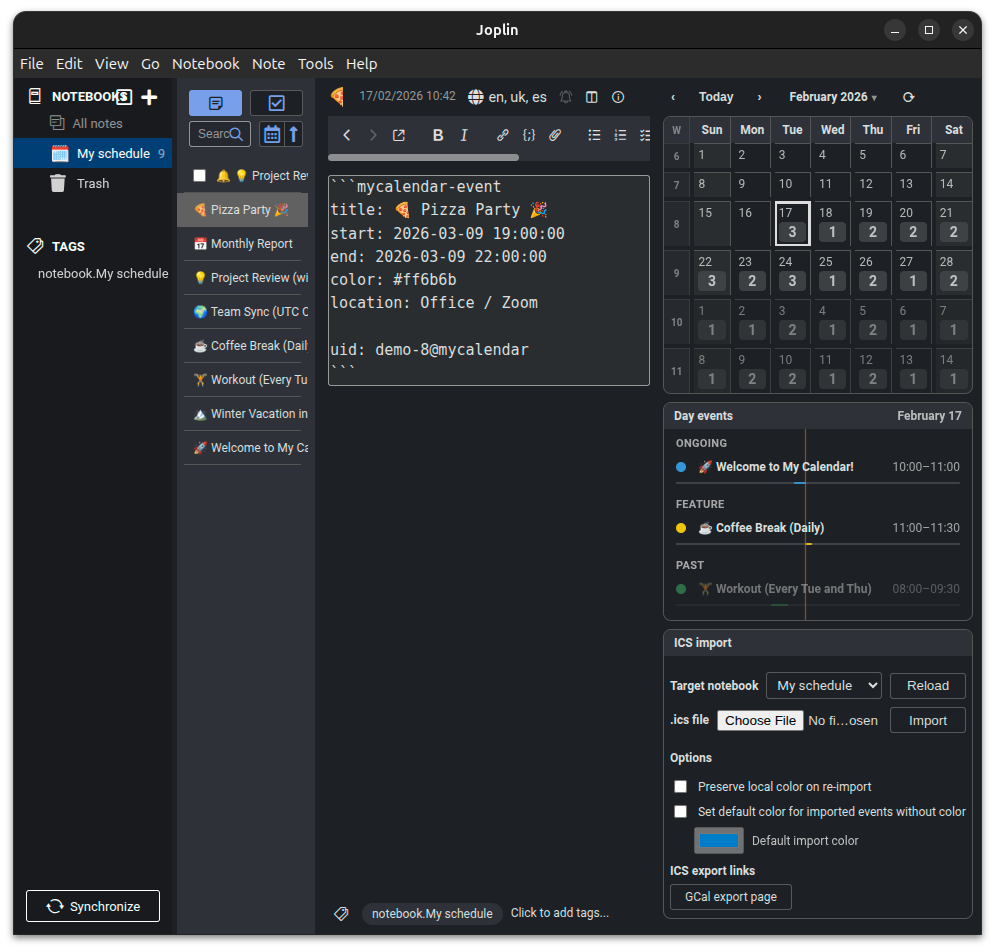
My Calendar is a powerful, flexible, and privacy-focused calendar plugin for Joplin. It turns your notes into calendar events, providing a unified view of your schedule directly within your favorite note-taking app.
| Light Mode | Dark Mode |
|---|---|
 |
 |
🌟 Key Features
- Integrated Monthly Calendar:
- Visual Grid: View your schedule with event bars and alarm indicators.
- Navigation: Quick jump to any date via the month/year picker.
- Quick Recovery: Use
⟳in the toolbar to clear cached events and instantly refresh the month.- Customization: Toggle week numbers and choose Monday or Sunday start.
- Smart Day View:
- Detailed Timeline: See a chronological list of the day's events with a current time indicator.
- Grouped Mode: Optional grouping into Ongoing / Feature / Past with dynamic reclassification.
- Interactive: Click events to open the corresponding note.
- Notes as Events:
- Simple Syntax: Turn any note into an event by adding a metadata block.
- Rich Details: Support for timezones, locations, custom colors, and recurrence.
- Robust ICS Import:
- Broad Compatibility: Import
.icsfiles from Google Calendar, Outlook, Apple, etc. - Recurrence: Full support for complex recurring event patterns.
- Smart Sync: Deduplicates events and preserves local changes like custom colors.
- Broad Compatibility: Import
- Native Alarms:
- System Notifications: Automatically converts calendar alarms into Joplin "Todo" notes, triggering native reminders on Desktop and Mobile.
- Security & Privacy:
- Sanitized: Protection against malicious Markdown/CSS.
- Local: Works with Joplin's existing sync; no external servers required.
📱 Platform Availability
While we strive for parity, some features are specific to the Desktop version due to platform-specific APIs.
| Feature | Desktop | Mobile |
|---|---|---|
| Monthly Calendar Grid | ✅ | ✅ |
| Smart Day View | ✅ | ✅ |
| Native Joplin Settings | ✅ | ✅ |
| ICS File Import | ✅ | ❌ |
| Quick ICS Export Links | ✅ | ❌ |
| Markdown Sanitization | ✅ | ✅ |
| Automatic Alarms (Todo generation) | ✅ | ✅* |
*Note: Alarms are generated/synced during the import process on Desktop. Once created as "Todo" notes, they will sync and trigger notifications on Mobile automatically.
🚀 Getting Started
1. Installation
- Open Joplin Desktop.
- Go to
Tools>Options(Windows/Linux) orJoplin>Settings(macOS). - Select
Pluginsand search forMy Calendar. - Click Install and restart Joplin.
2. Manual Event Creation
You don't need to import files to use the calendar. Simply add the following block to any note:
```mycalendar-event
title: Meeting with Team
start: 2026-02-04 10:00+02:00
end: 2026-02-04 11:30+02:00
color: #3498db
location: Conference Room B
```
The note will immediately appear on your calendar!
💡 Looking for more? Check the examples folder for more templates, including recurring events and all-day appointments.
📥 ICS Import System
The plugin features a robust import system designed for performance and reliability.
How to Import:
- Open the My Calendar panel.
- Select the Target Notebook where you want your events to be stored.
- Choose your
*.icsfile and click Import.
Smart Features:
- Deduplication: The plugin uses
UIDs from the ICS file. If you import the same file again, it will only update changed events or skip unchanged ones. - Local Color Preservation: By default, if you manually change the color of an imported event in Joplin, subsequent imports will preserve your custom color.
- Optimized Automatic Alarms: If an ICS event has a reminder, the plugin creates a linked "Todo" note in Joplin. These todos appear in your standard Joplin tasks and trigger native notifications. The sync process is smart: it only deletes outdated alarms and creates new ones, minimizing sync traffic.
- Improved Format Compatibility: Handles folded ICS lines, multiline descriptions, and escaped values more reliably.
🛠️ Advanced Syntax
Below is the full list of properties supported inside the ```mycalendar-event block:
| Property | Status | Description | Example |
|---|---|---|---|
start |
Required | Start date and time. Mandatory for the event to appear. | 2025-12-18 10:00+02:00 |
title |
Optional | Display name. If omitted, the Joplin note title will be used. | Meeting |
end |
Optional | End date and time. If omitted, the event is treated as a point in time (0 duration). | 2025-12-18 11:30+02:00 |
tz |
Optional | Timezone (IANA). | America/Toronto |
color |
Optional | Hex color for the event bar. | #e74c3c |
location |
Optional | Location string. | Home Office |
description |
Optional | Extra details (auto-sanitized). | Check project status. |
repeat |
Optional | daily, weekly, monthly, yearly |
weekly |
repeat_interval |
Optional | Frequency (e.g., every 2 weeks). | 2 |
repeat_until |
Optional | End date for recurrence (e.g., wrap up series). | 2026-12-31 |
byweekday |
Optional | Specific days for weekly repeat. | MO,WE,FR |
bymonthday |
Optional | Day of the month for monthly repeat. | 15 |
all_day |
Optional | Set to true for all-day events. |
true |
🕒 Supported Time & Timezone Formats
The calendar supports several ways to specify the time and timezone of your events:
-
With UTC Offset (Recommended) Explicitly define the time and its relation to UTC. This time will be automatically converted to your current device's timezone.
start: 2026-02-04 10:00+02:00 -
With
tzProperty (IANA) Specify the time and the exact IANA Timezone name. The plugin will handle the conversion based on daylight saving rules.start: 2026-02-04 10:00 tz: America/Toronto -
Floating Local Time If no offset or
tzis provided, the time is considered "floating" and will be shown exactly as written, regardless of the device's timezone settings.start: 2026-02-04 10:00
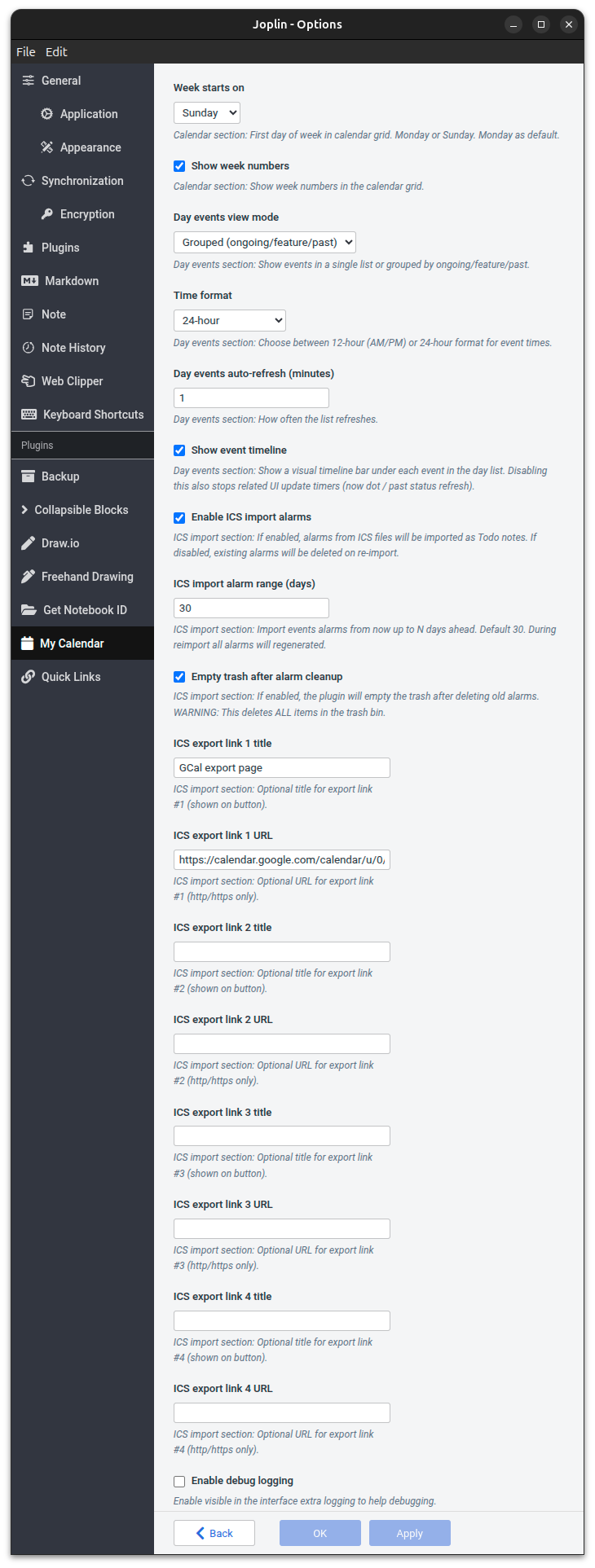
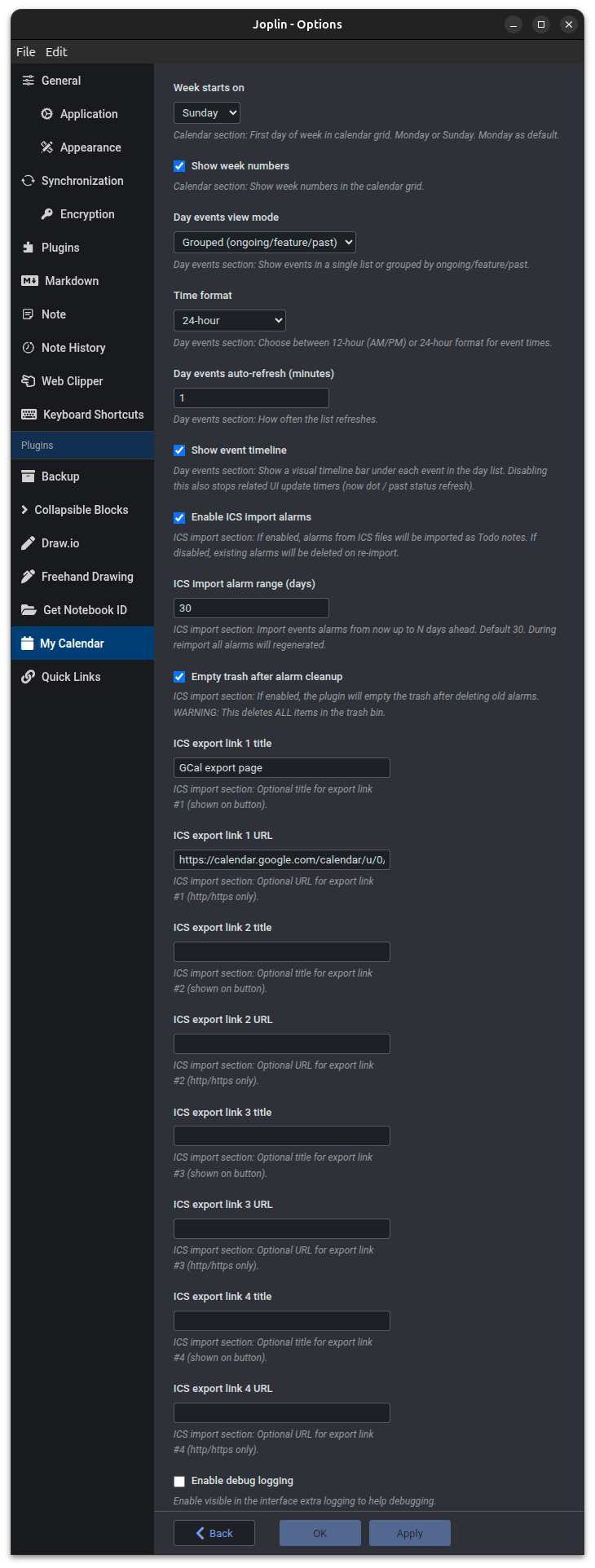
⚙️ Settings
Customize your experience in the Joplin Settings (Tools > Options > My Calendar):
Calendar
- Week starts on: Choose between Monday (default) or Sunday for the calendar grid.
- Show week numbers: Toggle the display of week numbers alongside the calendar grid. (Default: Disabled).
Day events
- Day events view mode: Show events as one list, or grouped into Ongoing / Feature / Past with auto-moves as time changes. (Default: Single list).
- Time format: Choose between 24h (default) or 12h (AM/PM) format for event times.
- Day events auto-refresh: Set the interval (in minutes) for how often the day's event list updates. (Default: 1 min).
- Show event timeline: Show a visual timeline bar under each event in the day list. Disabling this also stops related UI update timers. (Default: Enabled).
ICS Import (Desktop only)
- Enable ICS import alarms: If enabled, alarms from ICS files will be imported as Todo notes. If disabled, existing alarms will be deleted on re-import. (Default: Disabled).
- ICS import alarm range: Define how many days into the future (up to 365) the plugin should scan and generate native Joplin reminders from your ICS files. (Default: 30 days).
- Empty trash after alarm cleanup: If enabled, the plugin will empty the trash after deleting old alarms. **WARNING **: This deletes ALL items in the trash. (Default: Disabled).
- ICS export links: Add up to 4 quick-access links to your favorite calendar exporters (e.g., Google Calendar Export URL). These will appear as convenient buttons in the import panel.
Developer
- Enable debug logging: Activates a visible log box and extra console output to help troubleshoot any issues.
Settings Interface
| Light Theme | Dark Theme |
|---|---|
 |
 |
👨💻 Development
Commands
npm run build: Compile the project.npm pack: Create the.jpldistribution file.npm run pre-pack: Run the pre-pack validation flow.npm test: Run the extensive test suite (350+ cases).npm run lint: Check code style and common patterns.pkill -f jest || true;pkill -f node || true;rm -rf node_modules/.cache;rm -rf ~/.cache/jest;npx jest --clearCache: Cache cleaning.
Automation Scripts
The project includes helper scripts in the scripts/ directory to streamline development and release processes.
scripts/pre-pack.sh
Ensures code quality before packaging. By default it runs the linter (failing on warnings), the full test suite, and
then creates the package. Security fixes via npm audit fix --force are optional and must be enabled explicitly.
npm run pre-pack
To include forced audit fixes before validation:
npm run pre-pack -- --audit-fix
scripts/release.sh
Automates the entire release workflow: bumps version, syncs manifest, tags, pushes, and publishes to NPM.
bash ./scripts/release.sh [patch|minor|major];
scripts/update-demo-ics.py
Automatically shifts dates in the demo ICS file to start from today. Useful for refreshing screenshots.
./scripts/update-demo-ics.py;
scripts/check-tests.sh
Verifies that tests have passed recently (within the last hour) before allowing critical operations.
bash ./scripts/check-tests.sh;
scripts/preview-changelog.sh
Previews the changelog generation in dry-run mode without modifying files.
bash ./scripts/preview-changelog.sh [patch|minor|major];
Development Workflow
For a detailed guide on branch naming, commit message formats, and the release process, please see the * *Development Workflow Guide**.
Security First:
The code implements strict sanitization to ensure that imported calendar data cannot execute arbitrary Markdown or break the Joplin interface.
❤️ Support
If you find this plugin useful, please consider supporting its development. Your donations help me dedicate more time to maintaining the project and adding new features.
- Donate via PayPal - support the development of My Calendar.
Every coffee counts. Thank you! ☕
📜 Changelog
Detailed changes for each release are documented in the CHANGELOG.
📄 License
Copyright (c) 2024-2026 Volodymyr Oliinyk. Licensed under the MIT License. See the LICENSE file for details.