
Turn Joplin notes into Slidev presentations!
| Links: | |
|---|---|
| Maintainers: | moritzf |
| Version: | 0.3.4 |
| Minimum app version: | 3.5.11 |
| Downloads: This version: | 52 |
| Last updated: | 2026-08-12T21:51:27Z |
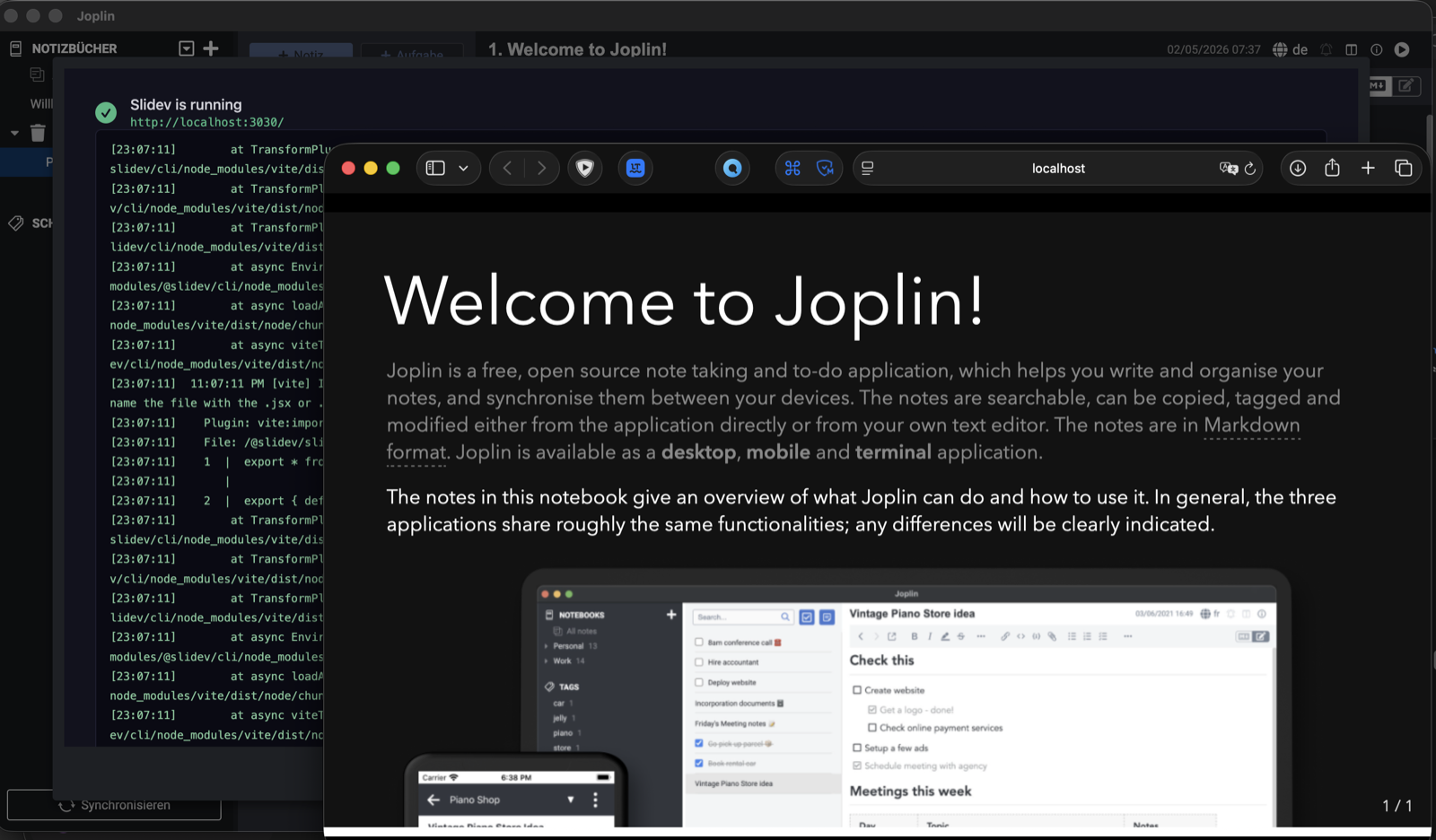
Create and present Slidev slide decks directly from Joplin notes.
Write your slides in Joplin, start a local Slidev presentation, open presenter or overview mode, install Slidev themes/addons, and export decks to PDF, PowerPoint, PNG, or a portable Markdown/resources bundle.
3.5.11 or newer.The plugin installs Slidev into Joplin's plugin data directory. Your notes are not moved, and Joplin remains the place where you edit slide content.
View -> Start Slidev Presentation.Slides, Presenter, or Overview.On first start, setup can take a little while because npm installs Slidev and the default themes. Later starts reuse the local workspace.
Use normal Slidev Markdown in a Joplin note:
---
theme: seriph
title: My Presentation

---

# First Slide

Hello from Joplin.

---

# Second Slide

- Works with Slidev Markdown
- Uses your note frontmatter
- Can include Joplin attachments
If a note already has Slidev frontmatter, the plugin respects it. Settings such as default theme, color schema, aspect ratio, and line numbers are only injected when the note does not already define that option.
The Slide number setting controls whether slides show a page counter and where it appears. Override it per presentation with the slideNumber frontmatter key:
slideNumber value |
Effect |
|---|---|
| (empty/absent) | Use the plugin setting or Slidev default |
none |
Hide the page counter |
top-left |
Show the page counter in the top-left corner |
top-right |
Show the page counter in the top-right corner |
bottom-left |
Show the page counter in the bottom-left corner |
bottom-right |
Show the page counter in the bottom-right corner |
The Progress bar setting controls whether slides show a progress bar and whether it appears at the top or bottom. Override it per presentation with the slideProgressBar frontmatter key:
slideProgressBar value |
Effect |
|---|---|
| (empty/absent) | Use the plugin setting or Slidev default |
none |
Hide the progress bar |
top |
Show the progress bar at the top |
bottom |
Show the progress bar at the bottom |
---
theme: seriph
slideNumber: bottom-right
slideProgressBar: bottom

---
Write presenter notes using Slidev's HTML comment syntax:
# Slide With Notes

Visible slide content.

<!--
These notes appear in Presenter mode.
-->
Edit notes in Joplin. Notes edited inside Slidev's live UI are temporary and are not written back to Joplin.
Joplin resource links such as :/resourceId are exported into the local Slidev workspace automatically.
<audio controls> players.<video controls> players.Media embedding can be enabled or disabled per media type in the plugin settings.
The startup dialog shows the Slidev server log and, once ready, offers:
Open in Browser: normal slide view.Presenter: speaker view with presenter notes.Overview: grid view of all slides.Close: stops the local Slidev server.The Initial Slidev view setting controls what opens automatically. Choose None (use dialog buttons) if you prefer to start the server without opening a browser window.
Advanced remote access settings map to Slidev's dev-server CLI options:
Enable Slidev remote access: passes --remote so Slidev listens on the public host and enables remote control.Presenter remote password: passes --remote=<password> and requires the password before presenter mode can be opened.Enable Slidev remote tunnel: passes --remote --tunnel to open a Cloudflare Quick Tunnel for sharing the local server over the internet.Slidev remote bind address: passes --bind <address> when remote access is enabled. Leave empty to use Slidev's default 0.0.0.0.Enable Presenter-controlled navigation in advanced settings to keep the public slide view locked to the presenter. Viewers cannot advance slides locally; presenter mode and tunnel entry controls still drive the shared presentation.
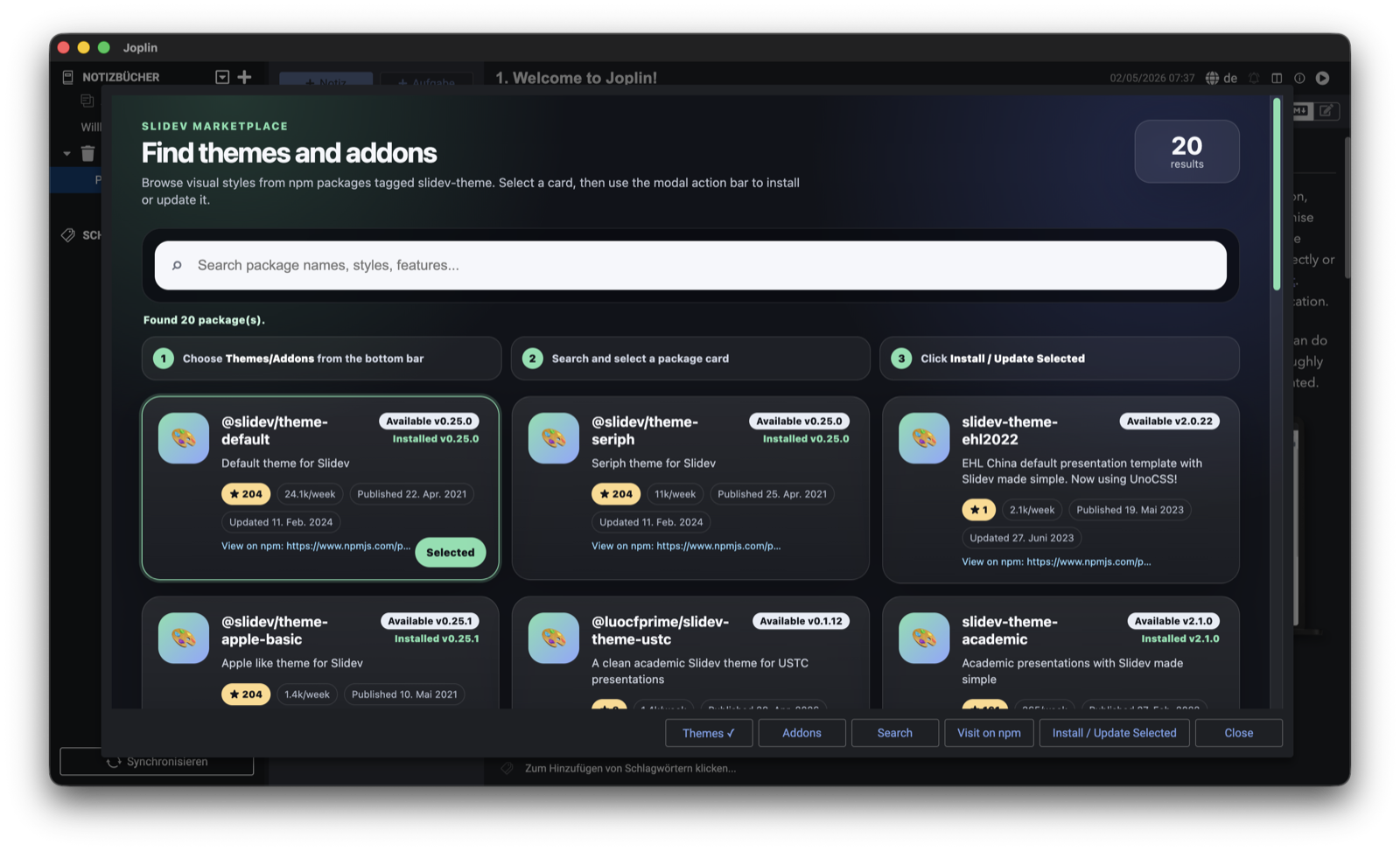
Use Tools -> Manage Slidev Themes/Addons to browse npm packages tagged for Slidev.
The store shows:
To install a package:
Tools -> Manage Slidev Themes/Addons.Themes or Addons from the dialog buttons.Install / Update Selected.Installed themes can be used immediately in note frontmatter, for example:
---
theme: seriph

---
Restart Joplin only if you need the installed theme list in settings to refresh.
Select a single note and use Joplin's export action. The plugin adds these formats:
Slidev PDFSlidev PowerPointSlidev PNG imagesSlidev Markdown with resourcesPDF, PowerPoint, and PNG exports use Slidev's CLI exporter. The first export may install playwright-chromium into the plugin's Slidev workspace because Slidev requires it for browser-based rendering.
The Markdown/resources export writes a processed slides.md and copied resources. It does not run Slidev's browser exporter.
Open Tools -> Options -> Slidev Integration in Joplin.
Default port: Preferred local Slidev server port. If busy, the plugin tries following ports.Default Slidev theme: Theme used only when a note does not set theme:.Initial Slidev view: Automatically open Slides, Presenter, Overview, or nothing.Color schema: Use Slidev default, auto, dark, or light when missing from the note.Aspect ratio: Use Slidev default, 16:9, 4:3, or 1:1 when missing from the note.Code line numbers: Show or hide code line numbers when missing from the note.Slide number: Show a page counter (e.g. 3 / 10) and choose its position.Progress bar: Show a thin progress bar and choose top or bottom position.Open Slidev workspace: Opens the local workspace folder in your file manager.Hide toolbar button: Removes the note toolbar button while keeping the menu command.Embed audio/video/PDF attachments: Controls whether those attachment types are embedded in slides.Advanced settings are available for wake lock, selectable text, Slidev context menu, overview snapshots, and Markdown compatibility fixes.
This is expected. The plugin installs Slidev and default themes into its local workspace on first use.
Make sure Node.js and npm are installed and visible to Joplin. On macOS, GUI apps sometimes have a smaller PATH than your terminal. Starting Joplin from a terminal can help diagnose environment issues:
open -a Joplin
Install the theme through Tools -> Manage Slidev Themes/Addons, or use a theme already installed in the Slidev workspace. Explicit theme: frontmatter in a note always wins over the default theme setting.
Change Default port in the plugin settings. The plugin also checks the next 100 ports after the configured value.
Close the Slidev startup dialog to stop the server. If Joplin crashed, restart Joplin so the plugin can clean up orphaned Slidev processes.
Install dependencies:
npm install
Type-check:
npm run tsc
Build the installable plugin archive:
npm run dist
The build writes the .jpl file to publish/de.moritzf.slidev-integration.jpl.
For local testing with an isolated Joplin profile:
npm run build-and-run
For debugging with Electron remote debugging enabled:
npm run build-and-debug