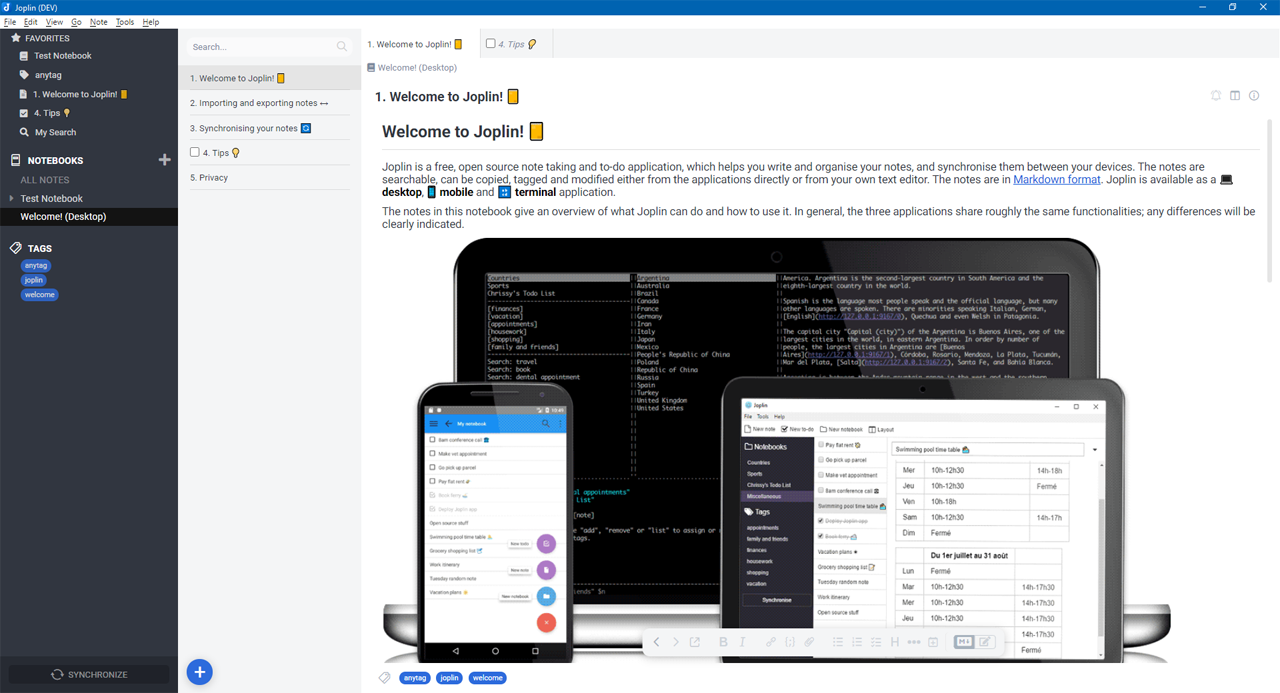
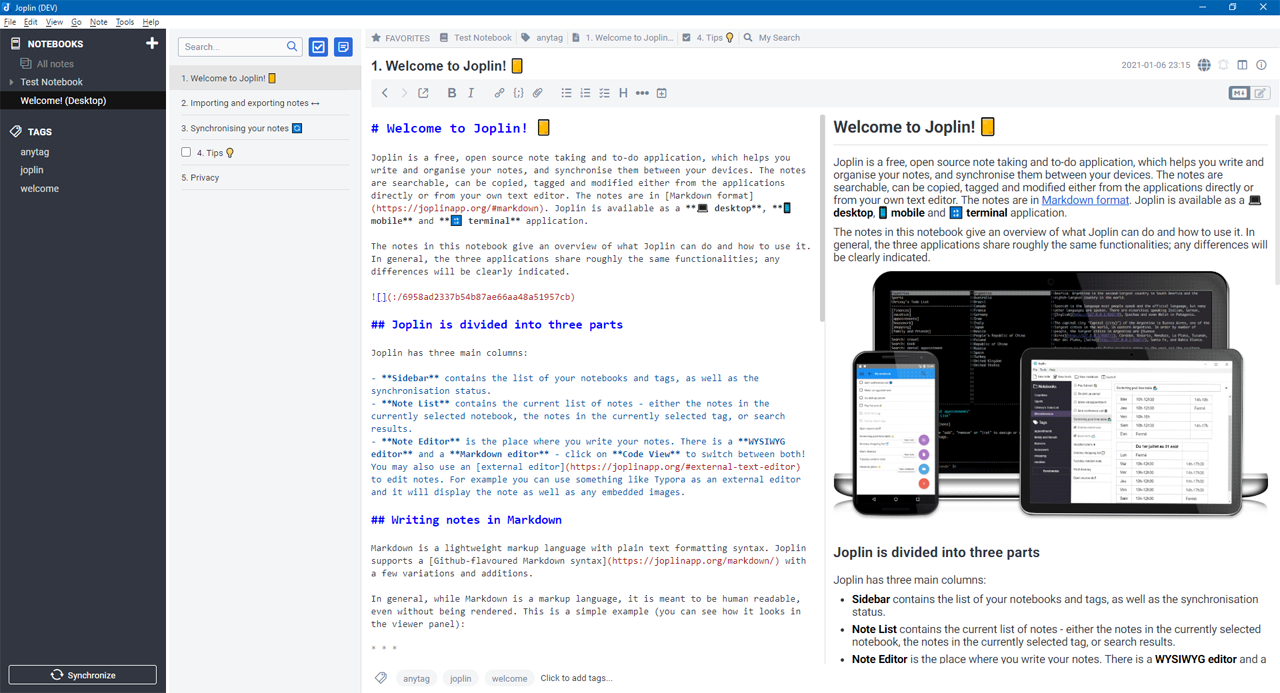
Save any notebook, note, to-do, tag, or search as favorite in an extra panel view for quick access.
| Links: | |
|---|---|
| Maintainers: | aronhack2018 |
| Version: | 1.6.0 |
| Minimum app version: | 2.1.5 |
| Downloads: This version: | 1003 |
| Last updated: | 2026-06-25T16:33:22Z |
Fork notice — This is a maintained fork of benji300/joplin-favorites by ARON-HACK. Original work © 2021 Benjamin Seifert, MIT licensed. See License.
Favorites is a plugin to extend the UX and UI of Joplin's desktop application.
It allows to save any notebook, note, to-do, tag, or search as favorite in an extra panel view for quick access.
:warning: CAUTION - Requires Joplin v2.1.5 or newer
Cmd/Ctrl+1 through Cmd/Ctrl+9)
NOTE - The used UI theme on this screenshot can be downloaded here.
Tools > Options > Plugins*.jpl) from hereTools > Options > PluginsInstall plugin and select the previously downloaded jpl fileTools > Options > PluginsDelete to remove the plugin completely
By default the panel will be on the right side of the screen, this can be adjusted by:
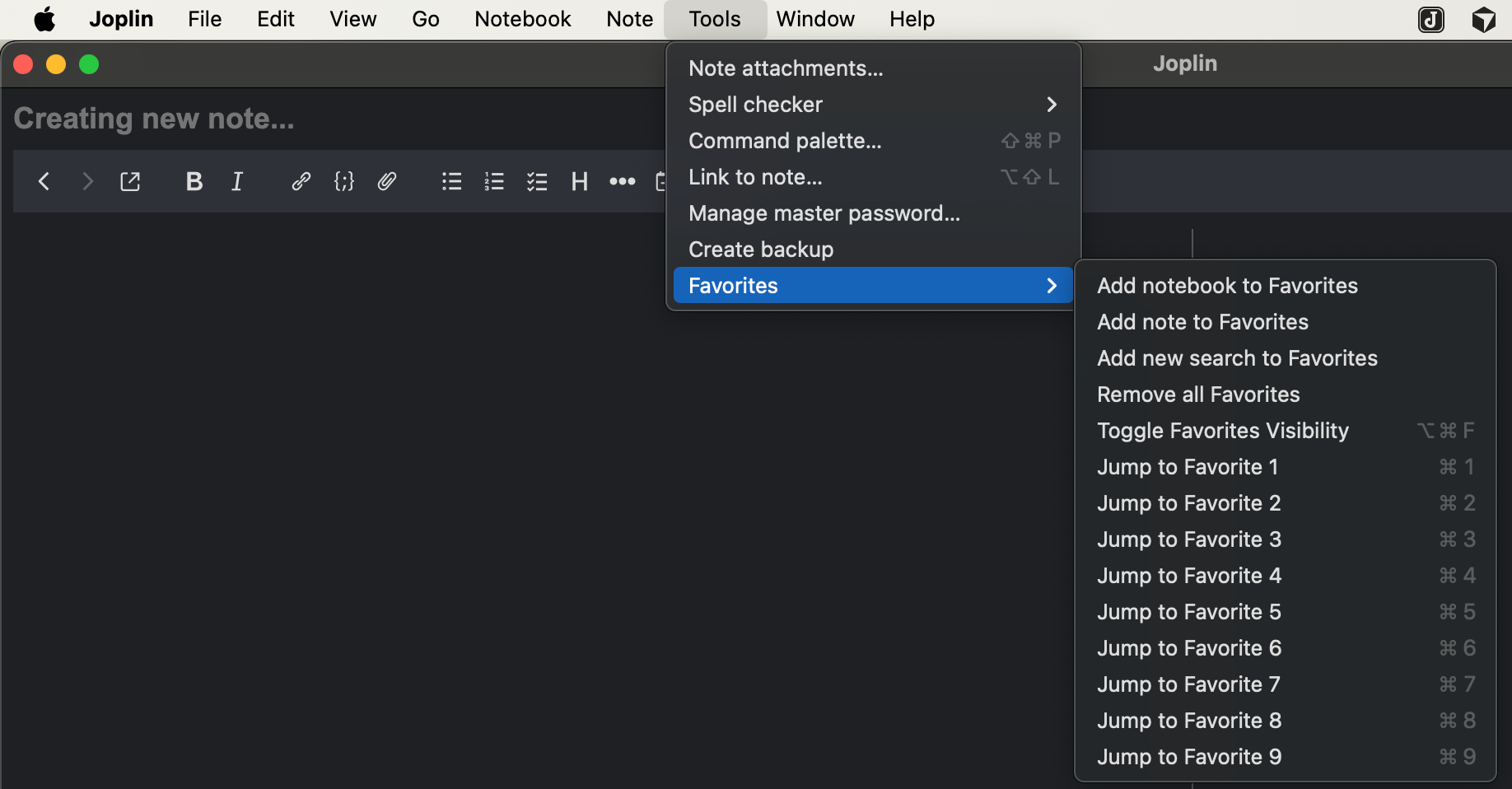
View > Change application layout400px, it automatically switches from horizontal to vertical layoutESC to save the layout and return to normal modeTo add a new favorite to the panel, you have to trigger the corresponding command
Selected notebooks, notes or to-dos can also be added via drag & drop into the panel
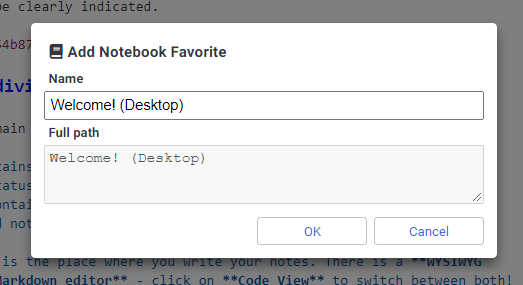
The Edit favorite before add option lets you choose whether or not to edit the name before adding a new favorite
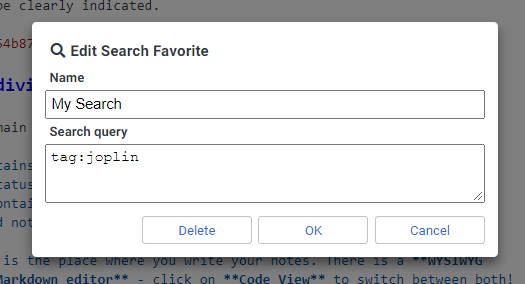
Right click on one of the favorites to open the edit dialog
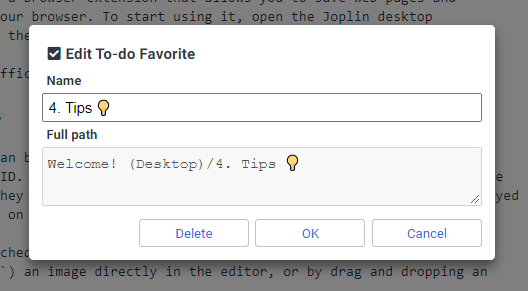
For searches, you can also edit the search query in the dialog
Rename favorite by clicking the rename icon on the right side in the vertical layout
Right click on a favorite to open the edit dialog (see screenshots above) and press Delete to remove it
Remove favorite by clicking the delete icon on the right side in the vertical layout
Remove all favorites at once via the Remove all Favorites command
Currently favorites for searches are not fully supported. Due to restrictions of the App it is not possible to open the global search with a handled search query. To open a saved search follow this workaround:
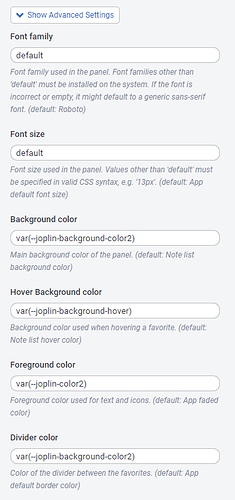
Add search to Favorites commandEnterIf you placed the favorites panel in the sidebar above or below the notebooks and tags (as shown here), you may also want to customize the look of this panel to match the sidebar. To do this, you can apply the following settings in the plugin advanced options. This will make the panel look the same as the actual sidebar, regardless of the app theme. Just copy and paste the following values:
var(--joplin-background-color2)var(--joplin-background-hover)var(--joplin-color2)var(--joplin-background-color2)Then you're settings should look like:
:warning: CAUTION - After changing the style of the favorites panel as described above, a small white border will appear below the panel. It is created by the App, not the plugin. Pleas see here for details.
This plugin provides additional commands as described in the following table.
| Command Label | Command ID | Description | Menu contexts |
|---|---|---|---|
| Add notebook to Favorites | favsAddFolder |
Add favorite for selected notebook | Tools>Favorites, FolderContext, Command palette |
| Add note to Favorites | favsAddNote |
Add favorite for selected note(s) | Tools>Favorites, NoteListContext, EditorContext, Command palette |
| Add tag to Favorites | favsAddTag |
Add favorite for selected tag | TagContext |
| Add search to Favorites | favsAddSearch |
Add favorite with entered search query | Tools>Favorites, Command palette |
| Remove all Favorites | favsClear |
Remove all favorites | Tools>Favorites, Command palette |
| Toggle Favorites panel visibility | favsToggleVisibility |
Toggle panel visibility | Tools>Favorites, Command palette |
| Jump to Favorite 1 | favsJumpToFavorite1 |
Quick jump to first favorite | Tools>Favorites, Command palette |
| Jump to Favorite 2 | favsJumpToFavorite2 |
Quick jump to second favorite | Tools>Favorites, Command palette |
| Jump to Favorite 3 | favsJumpToFavorite3 |
Quick jump to third favorite | Tools>Favorites, Command palette |
| Jump to Favorite 4 | favsJumpToFavorite4 |
Quick jump to fourth favorite | Tools>Favorites, Command palette |
| Jump to Favorite 5 | favsJumpToFavorite5 |
Quick jump to fifth favorite | Tools>Favorites, Command palette |
| Jump to Favorite 6 | favsJumpToFavorite6 |
Quick jump to sixth favorite | Tools>Favorites, Command palette |
| Jump to Favorite 7 | favsJumpToFavorite7 |
Quick jump to seventh favorite | Tools>Favorites, Command palette |
| Jump to Favorite 8 | favsJumpToFavorite8 |
Quick jump to eighth favorite | Tools>Favorites, Command palette |
| Jump to Favorite 9 | favsJumpToFavorite9 |
Quick jump to ninth favorite | Tools>Favorites, Command palette |
Keyboard shortcuts can be assigned in user options via Tools > Options > Keyboard Shortcuts to all commands which are assigned to the Tools>Favorites menu context.
In the keyboard shortcut editor, search for the command label where shortcuts shall be added.
The plugin provides 9 quick jump shortcuts to access your favorite items directly:
Cmd+1 through Cmd+9 to jump to favorites 1-9Ctrl+1 through Ctrl+9 to jump to favorites 1-9These shortcuts work for all favorite types (notebooks, notes, to-dos, tags, and searches). If no favorite exists at a particular position, the shortcut simply does nothing when pressed.
The shortcuts are pre-configured and appear in Tools > Options > Keyboard Shortcuts, where you can customize them if desired.
This plugin adds provides user options which can be changed via Tools > Options > Favorites (Windows App).
NOTE - If
defaultis set for an advanced style setting, the corresponding default color, font family, etc. will be used to match the common App look.
NOTE - In case color settings shall be overwritten, they must be specified as valid CSS attribute values, e.g.
#ffffff,rgb(255,255,255), etc.
Contributions to this plugin are most welcome. Feel free to open a pull request or an issue. Make sure to use conventional commit messages if you're creating a pull request.
The npm package of the plugin can be found here.
If you want to build the plugin by your own simply run npm run dist.
To update the plugin framework, run npm run update.
See CHANGELOG for details.
Copyright (c) 2021 Benjamin Seifert (original author) Copyright (c) 2026 Aron Wu (ARON-HACK fork)
MIT License. See LICENSE for more information.