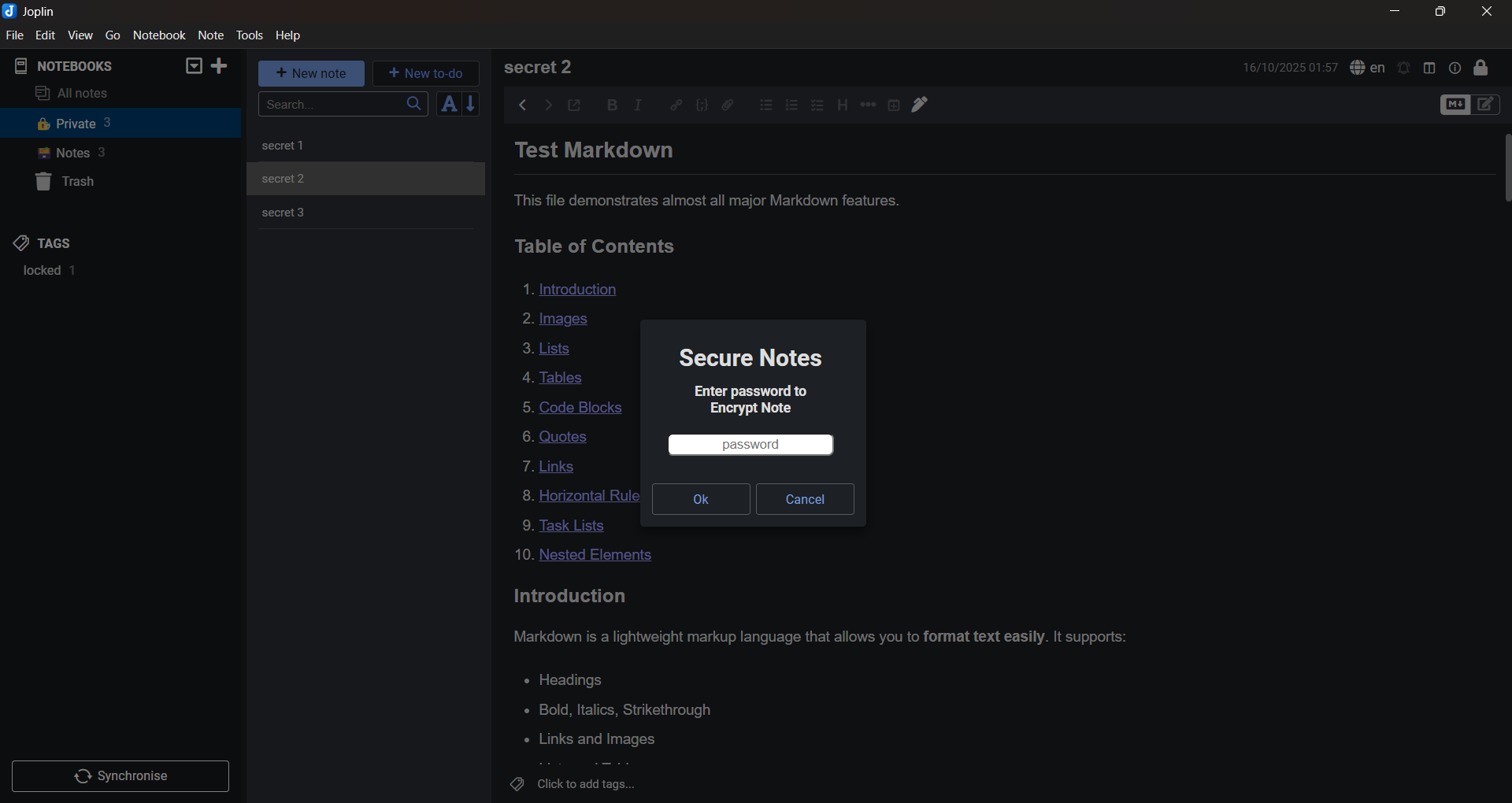
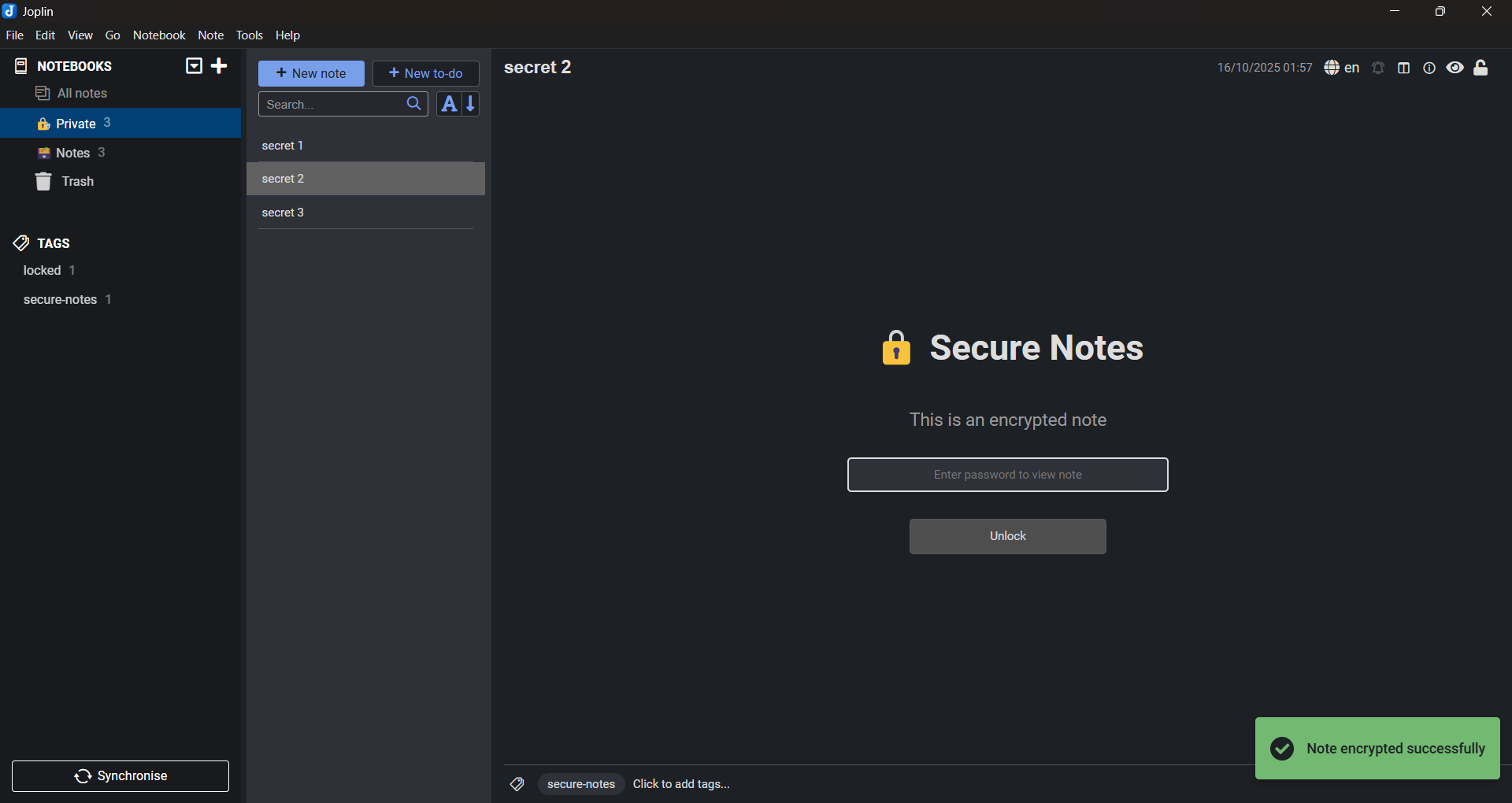
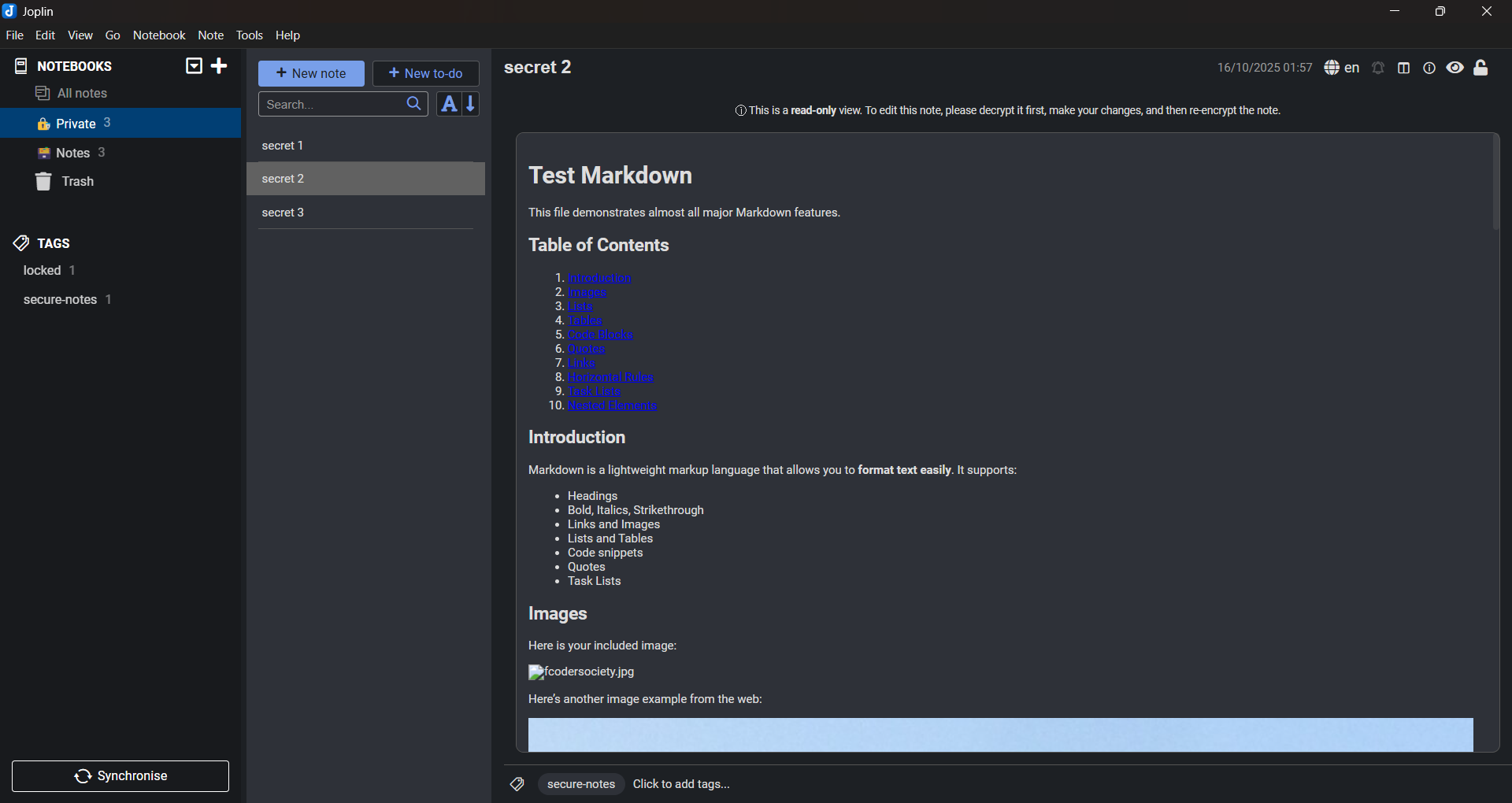
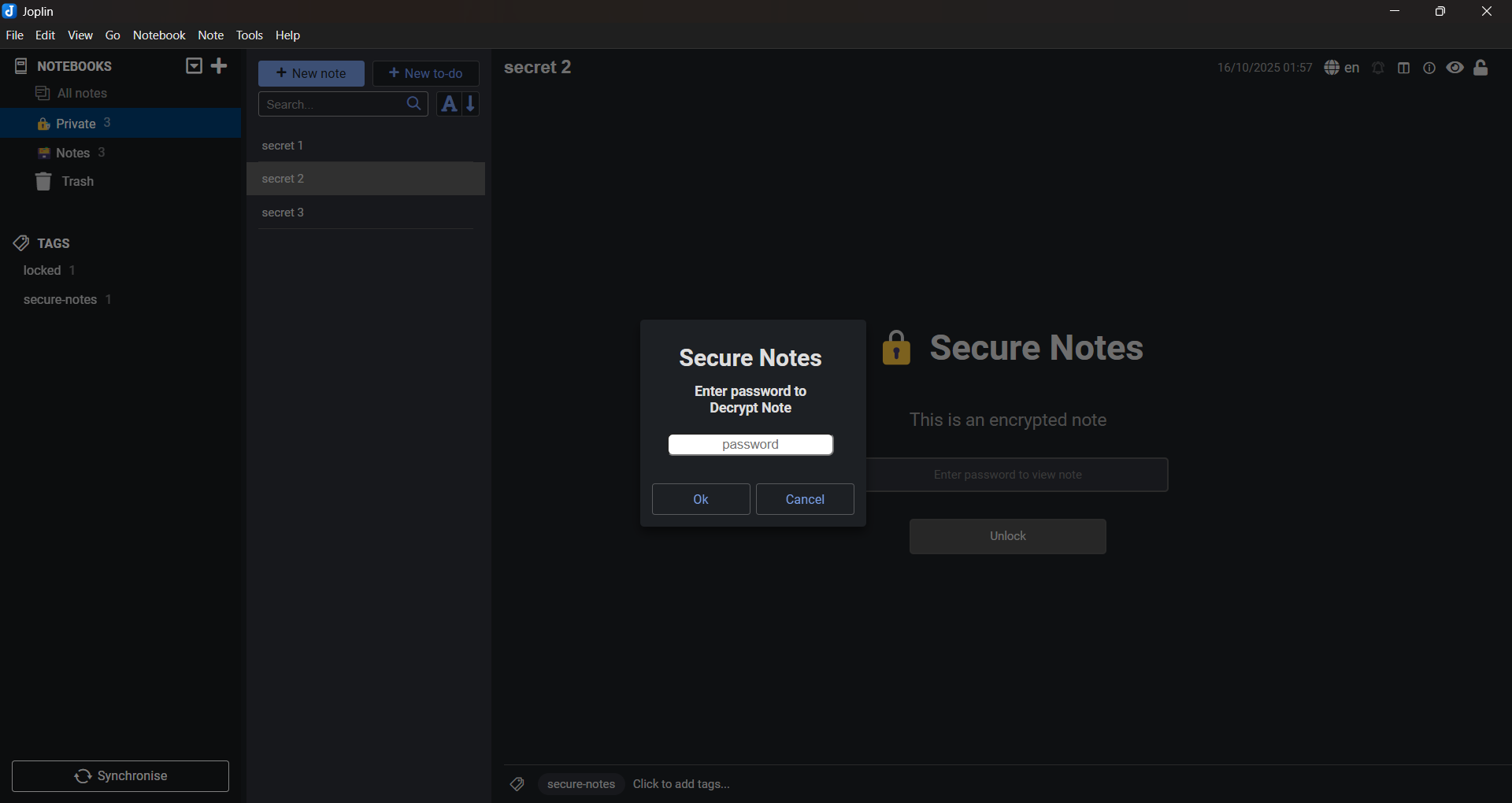

Plugin to password protect and encrypt your Joplin notes (maintained fork with Joplin 3.x compatibility fix).
| Links: | |
|---|---|
| Maintainers: | marcsant |
| Version: | 3.0.0 |
| Minimum app version: | 3.6 |
| Downloads: This version: | 7 |
| Last updated: | 2026-11-23T22:59:44Z |
Secure Notes Enhanced is a maintained fork of cipherswami/joplin-plugin-secure-notes that lets you password-protect and encrypt your Joplin notes locally. It ensures your sensitive information stays private — only you can unlock and read your data.
In modern Joplin Desktop 3.x builds, the original Secure Notes plugin (v2.2.6) suffers from a frustrating bug in SecureView (temporary in-memory viewing):
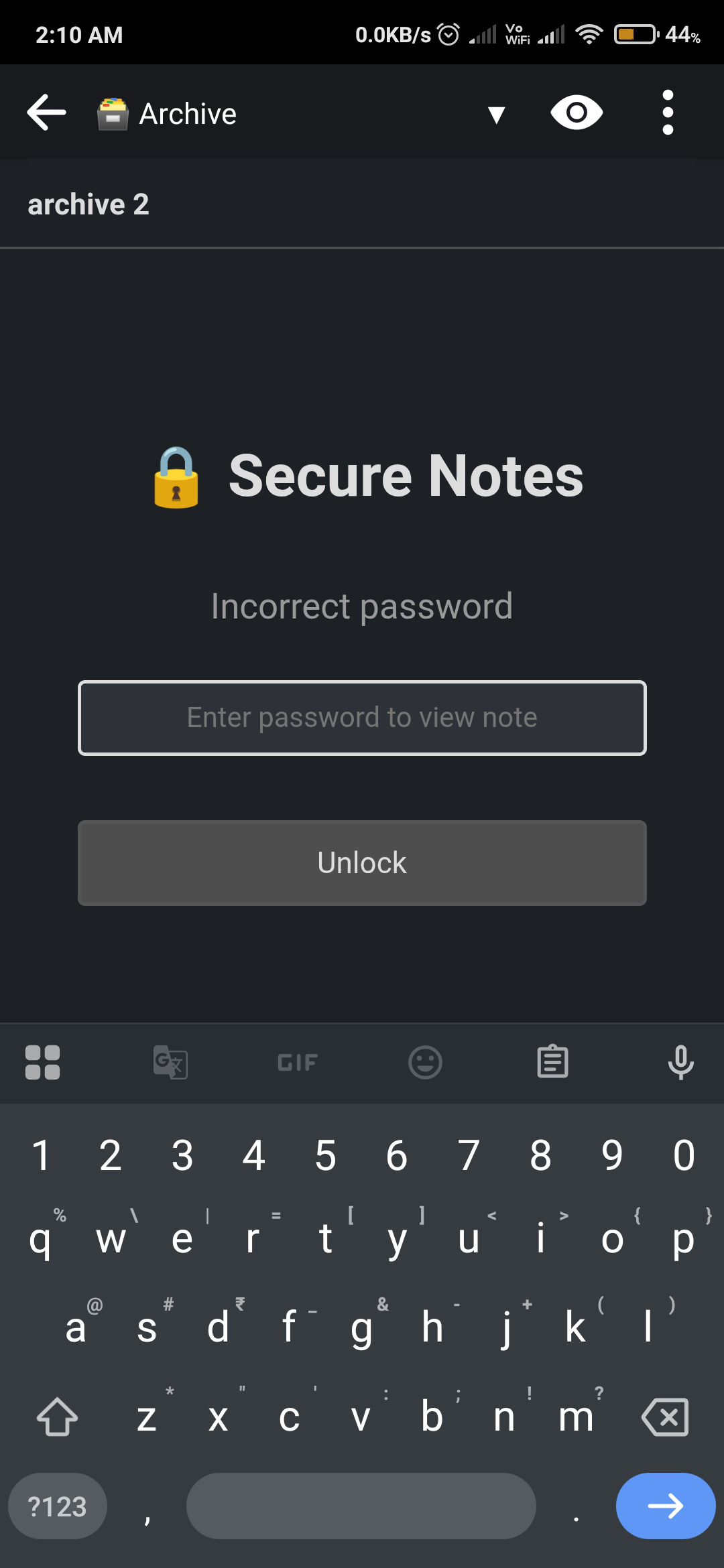
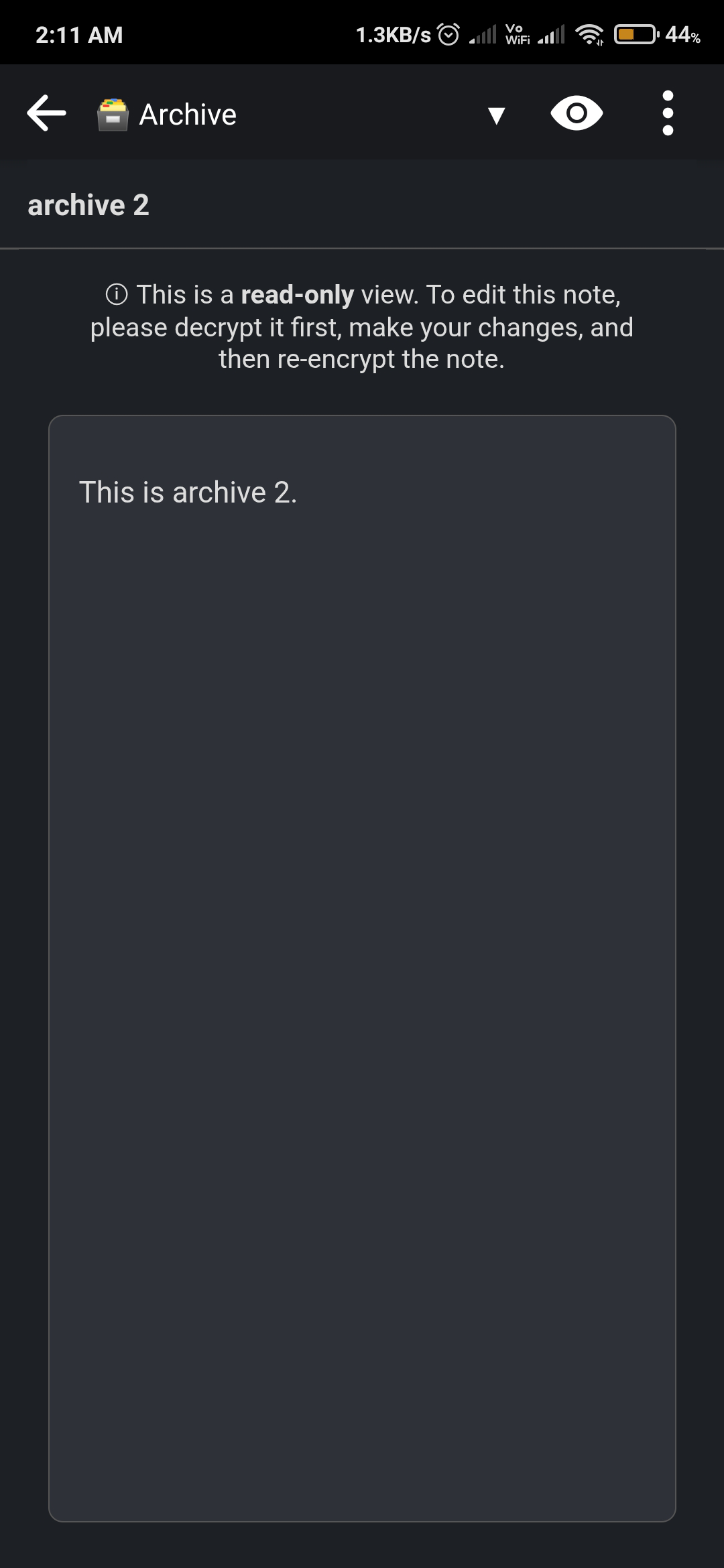
Enter Password to View Note) loads normally in the Markdown Viewer, but when you type your password and click Unlock (or press Enter), nothing happens — no error toast, no input shake, and the note never unlocks. The only clue is an unhandled exception hidden in Electron DevTools (Error: Invalid field: "*").validateField) and began rejecting the '*' field wildcard in joplin.data.get(). While permanent decryption (Tools > Secure Notes > Decrypt Note) already passed explicit fields (['id', 'body']), handlePasswdSubmit in src/index.ts still requested { fields: ['*'] }, causing inline unlocking to fail silently before decryption could run.cipherswami/joplin-plugin-secure-notes) stopped publishing releases at v2.2.6 (with an unreleased v3.0.0 draft on main that still carries the same bug), leaving Joplin 3.x users unable to preview encrypted notes without permanently decrypting them.Secure Notes Enhanced fixes handlePasswdSubmit to explicitly request ['id', 'title', 'body'], restoring full SecureView decryption on modern Joplin builds while keeping 100% compatibility with notes already encrypted using the SecureNotes CodeFenced format (v2.2.6+).
[!IMPORTANT] The v3.x series removes the Editor API and format migration code. The plugin now solely relies on the Content Scripts implementation.
Breaking change: Support for the legacy JSON encryption format (v1.x) has been removed. Notes encrypted with v2.2.6+ (
SecureNotesCodeFenced format) remain 100% compatible. If you have notes encrypted with the old JSON-based format, migrate them using v2.2.6 before upgrading to v3.x.
NO RECOVERY – If you forget your password, your encrypted notes are permanently lost. There’s no way to recover or reset it. Please keep backups of anything important.
NO WARRANTIES – This plugin is provided "as is" without any guarantees. While it uses industry-standard AES encryption, no system is 100% secure. The author is not liable for data loss or security issues.
Use at your own risk. By using this plugin, you accept these terms.
Build the plugin package file (.jpl):
git clone https://github.com/MarcSant71/joplin-plugin-secure-notes-enhanced.git
cd joplin-plugin-secure-notes-enhanced
npm install
npm run dist
Then in Joplin, Go to Tools → Options → Plugins → Install from file
Select the generated .jpl file from the publish/ directory
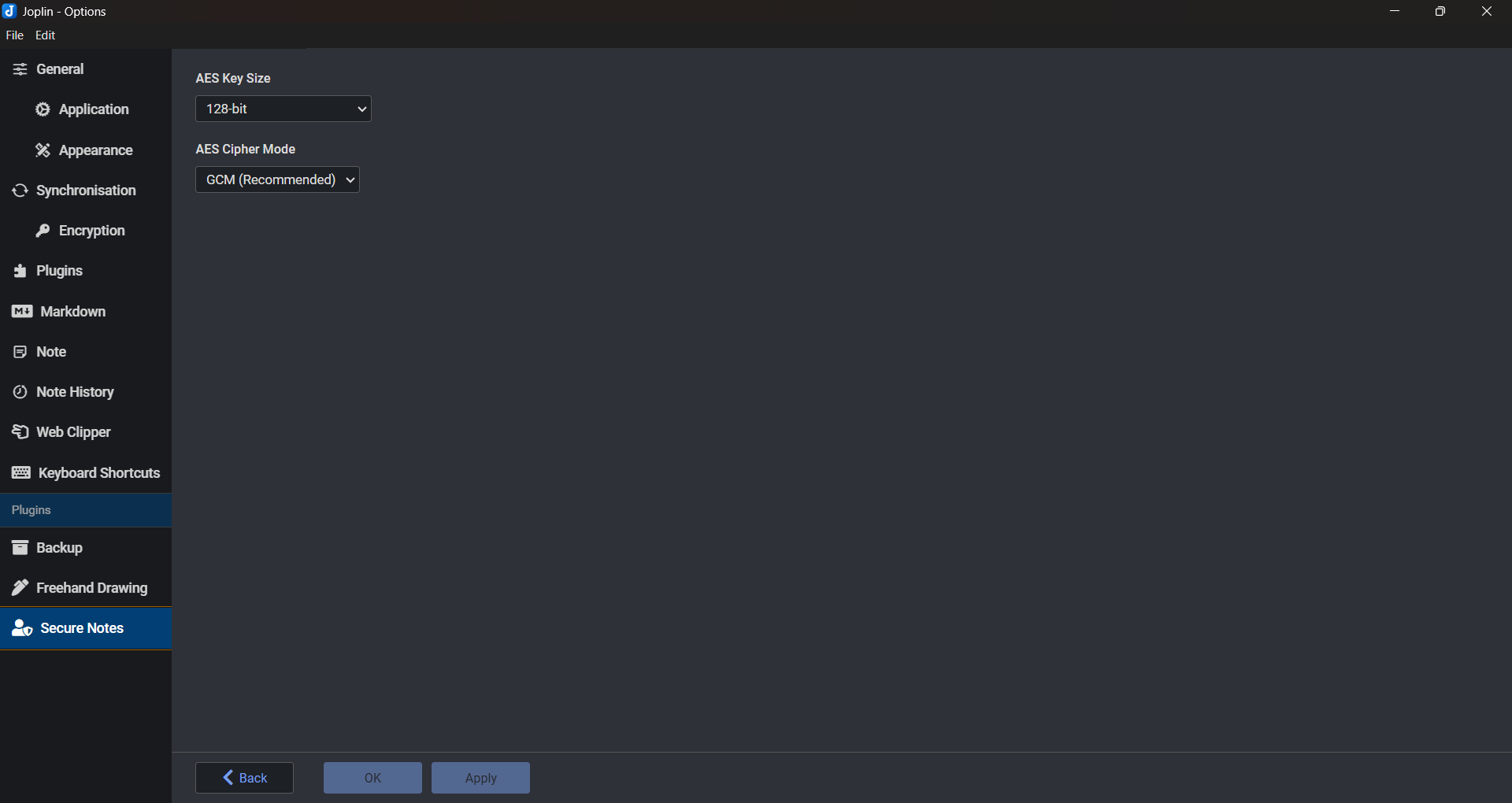
Tools > Secure Notes > Encrypt Note.Tools > Secure Notes > Decrypt Note.Access plugin settings via Tools > Options > Secure Notes
[!NOTE] Changing encryption settings only affects newly encrypted notes. Previously encrypted notes will use the settings that were active when they were encrypted.
Q: What happens if I uninstall the plugin?
A: Encrypted notes will remain encrypted. Reinstall the plugin to decrypt them.
Q: Are encrypted notes searchable?
A: No, encrypted content cannot be searched until the note is decrypted.
Q: Are resources in my notes encrypted?
A: This plugin only encrypts your note contents. Resources like images, attachments are not encrypted because they’re just hyperlinks not the actual files themselves.
Q: Can I encrypt all my notes or notebook at once?
A: Currently, the plugin encrypts notes individually. Batch encryption may be added in future versions.
See the full project history in CHANGELOG.
This project is licensed under the MIT License. See the LICENSE file for more details.
Contributions are welcome! Visit the GitHub repository to submit pull requests or suggest new features.