
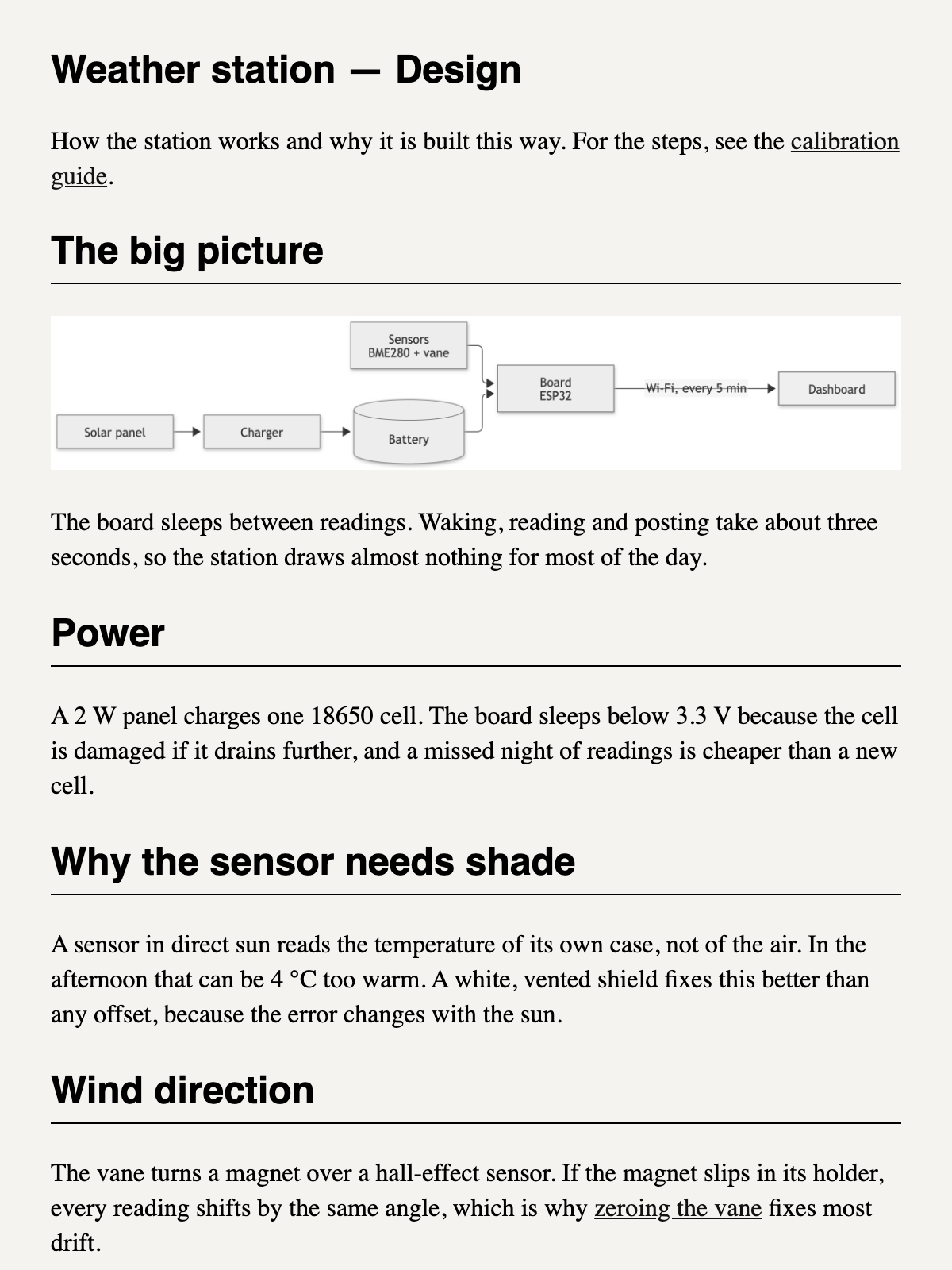
Export a notebook or linked notes as one HTML or EPUB book, with Mermaid diagrams and images
| Links: | |
|---|---|
| Maintainers: | mohitgoel188 |
| Version: | 1.0.0 |
| Minimum app version: | 3.7 |
| Downloads: This version: | 0 |
| Last updated: | 2026-11-02T13:19:17Z |
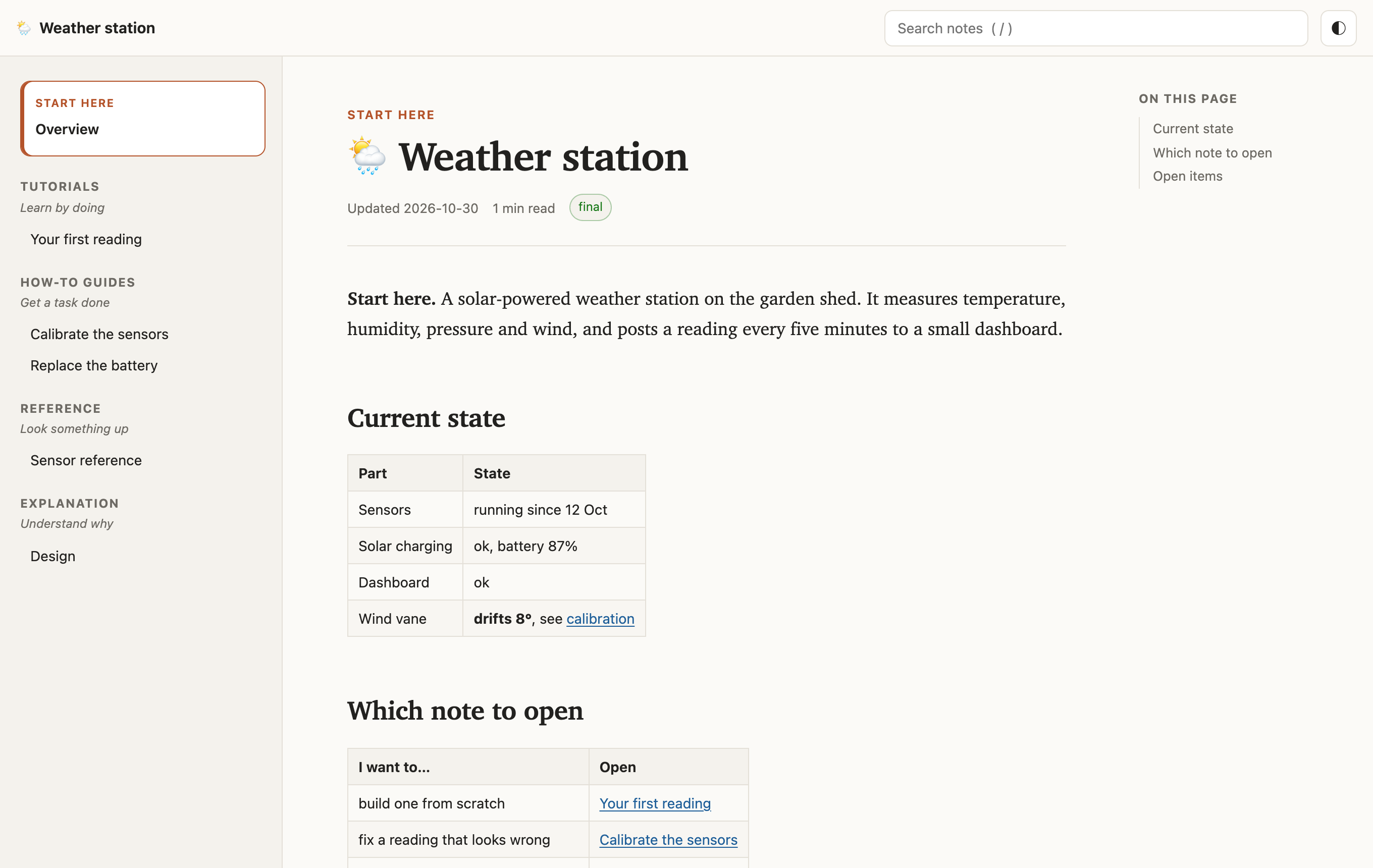
Export a notebook, or a set of notes that link to each other, as one self-contained HTML page or one EPUB book for an e-reader (Kindle with KOReader, Kobo, phone readers).
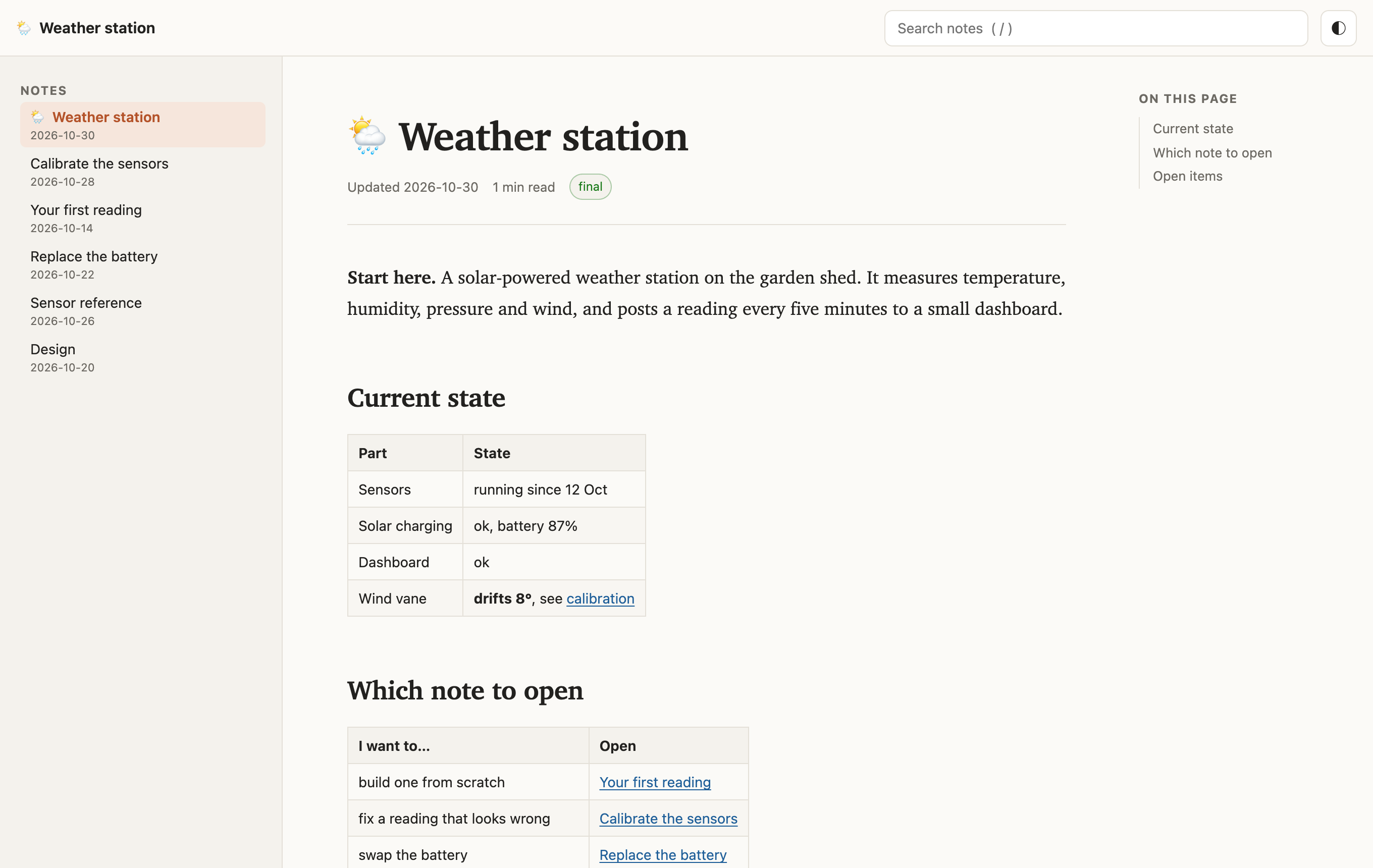
All screenshots show a made-up "Weather station" notebook of six linked notes.
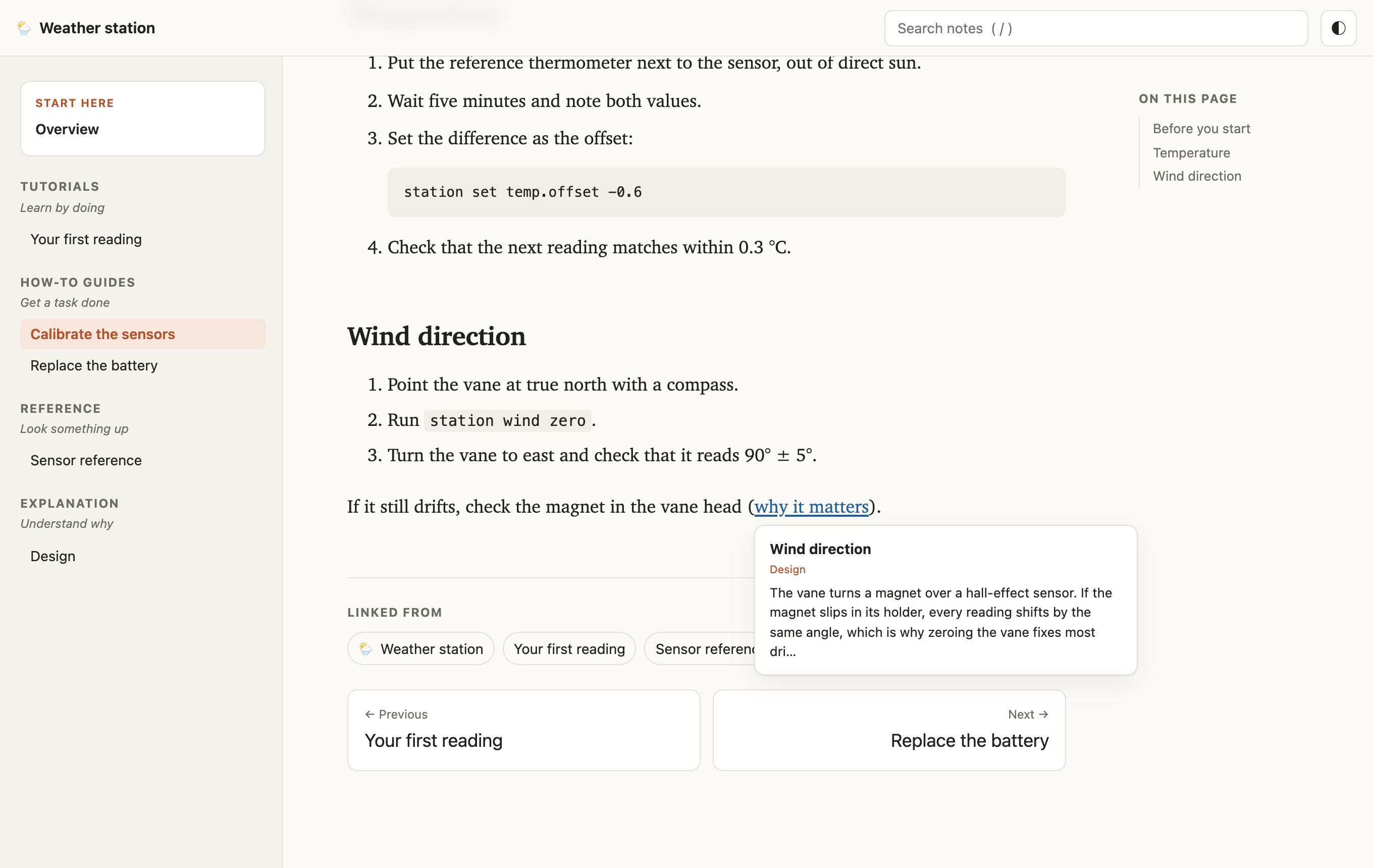
[x](:/id#anchor), the Note Link System {#anchor} syntax), jumps to
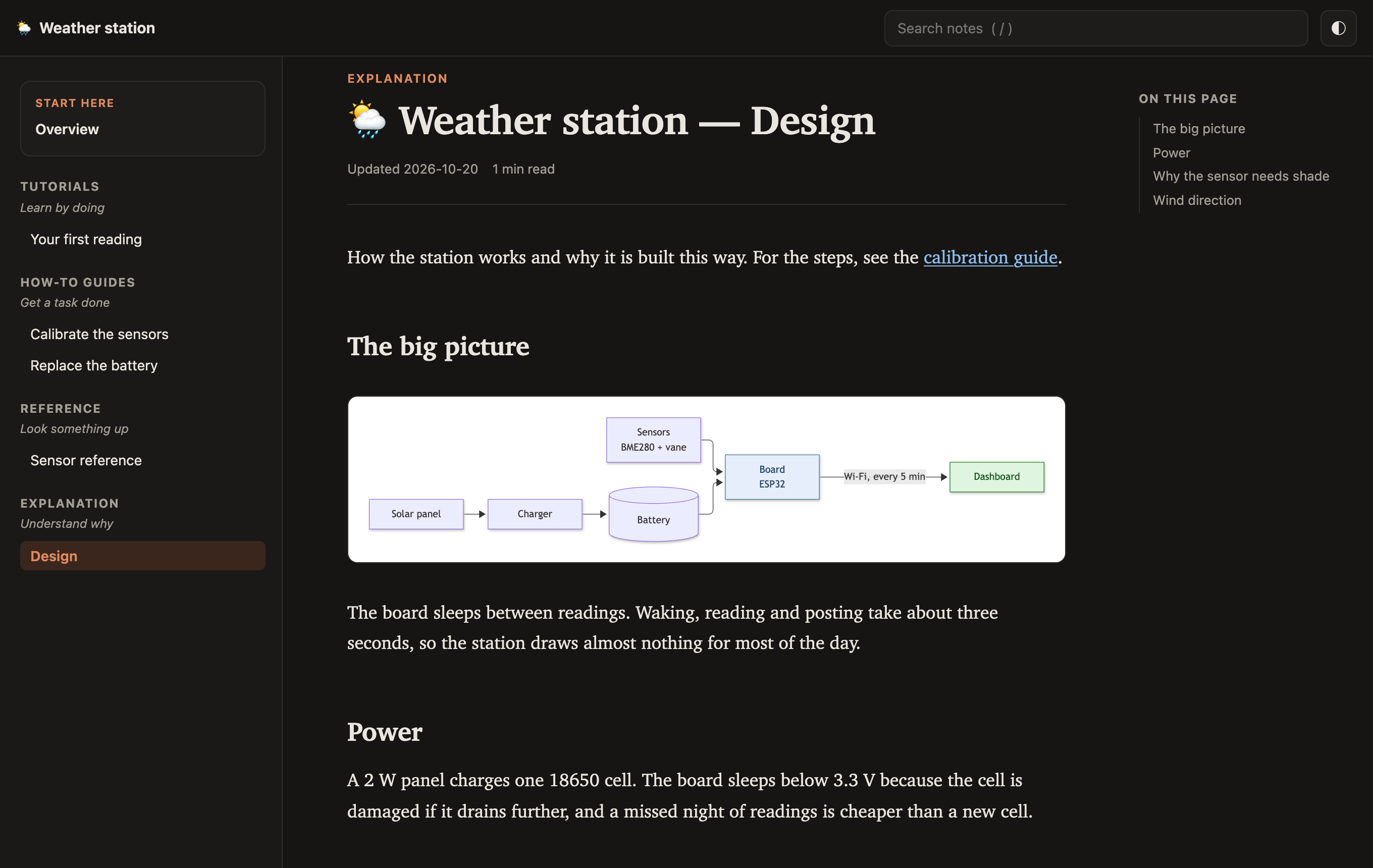
the right place in the export.Diagrams and dark mode. Mermaid diagrams are drawn into the page, so the file needs no internet connection. The theme follows your system, or the toggle at the top right.
Links between notes. Hover a link to preview the section it points to. Each note ends with the notes that link to it and previous / next links.
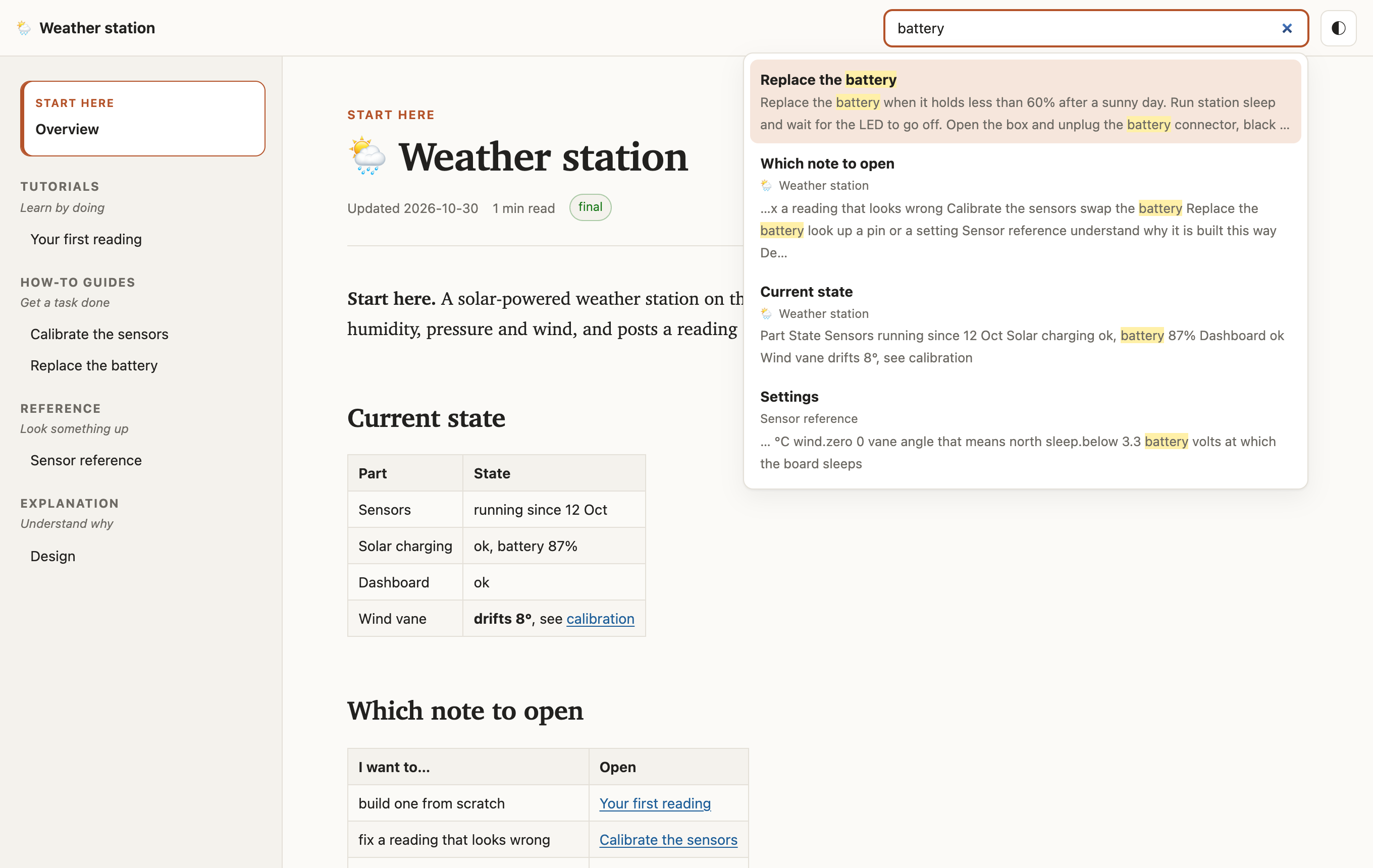
Search. Type in the search box (or press /) to search every heading and paragraph in
the book.
Blog layout. Notebooks without Diátaxis tags get one list of notes with their dates.
On a phone, the sidebar folds behind a menu button.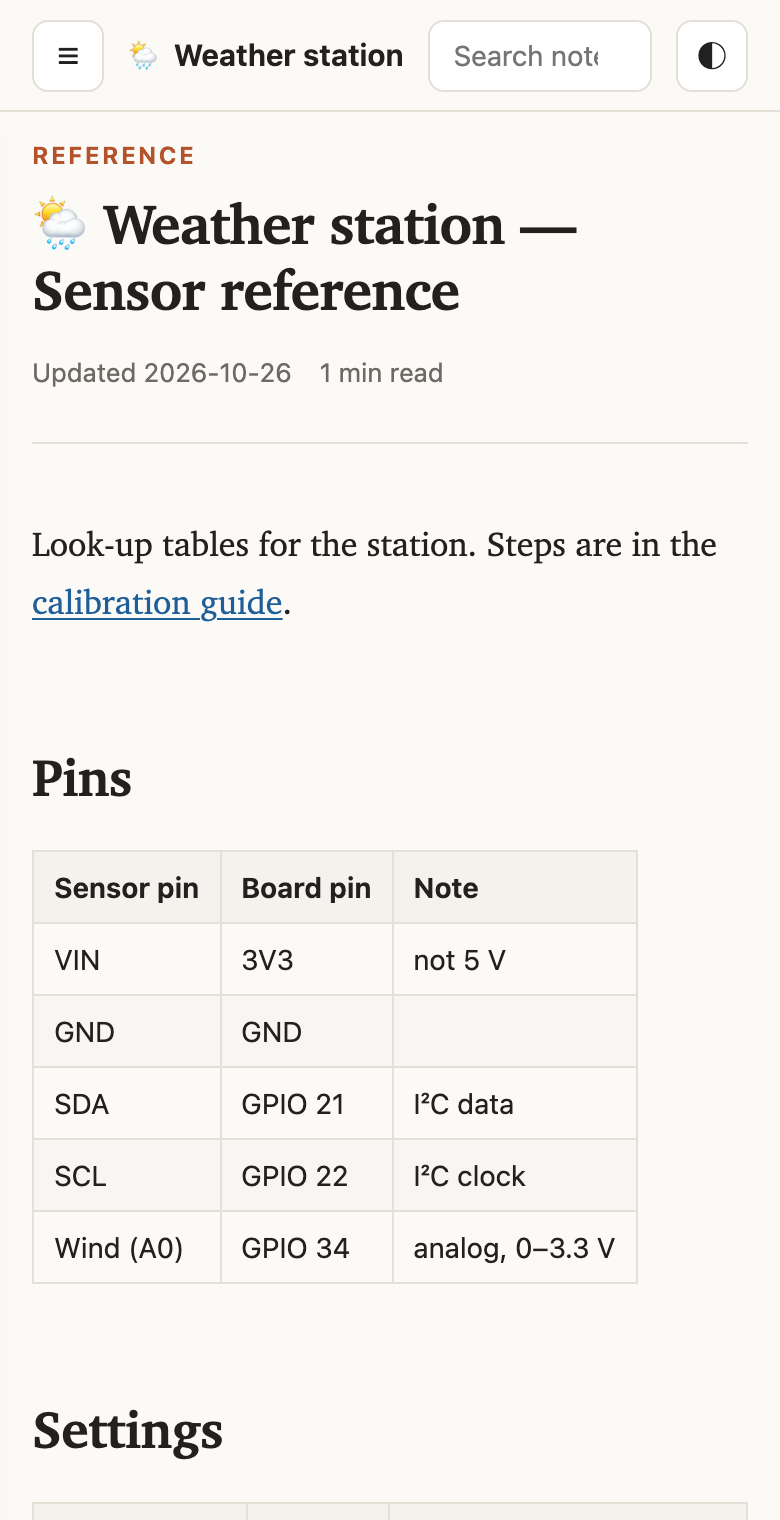 |
EPUB keeps the text plain, so the e-reader's own font and size apply. Diagrams become images. (Shown here in a browser, in greyscale.) |
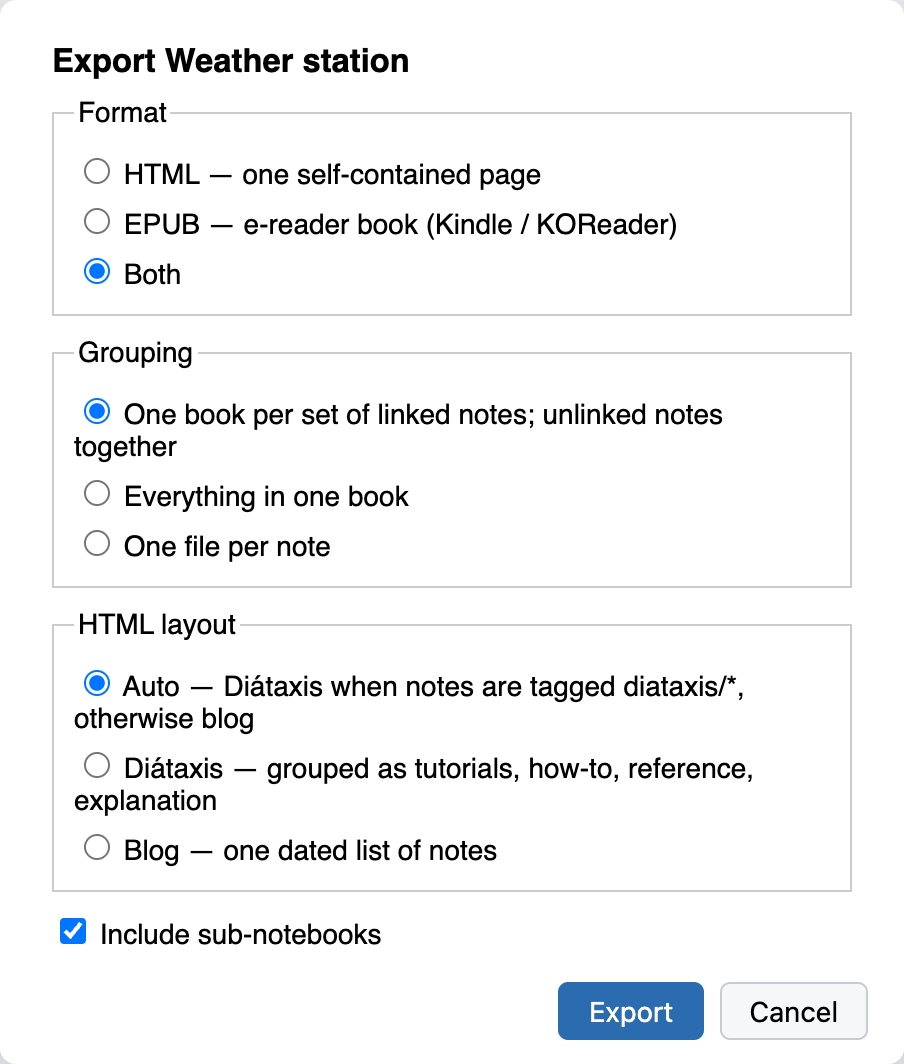
Choose the format (HTML, EPUB or both) and how to group notes:
| Grouping | Result |
|---|---|
| Linked sets (default) | One file per set of linked notes, plus one for unlinked notes |
| Everything in one book | One file for the whole selection |
| One file per note | One file per note |
For HTML, also choose the layout of the sidebar:
| HTML layout | Result |
|---|---|
| Auto (default) | Diátaxis if any note in the book has a diataxis/* tag, otherwise Blog |
| Diátaxis | Notes grouped by what the reader needs (see below) |
| Blog | One list of notes, each with its last-updated date |
Books are saved to the folder set in Settings → Book Export (you are asked the first time). Links to notes outside the export open the note in Joplin (HTML) or show its title (EPUB).
Diátaxis is a framework for technical documentation. It sorts writing by what the reader needs at that moment. The Diátaxis layout groups the sidebar the same way:
| Group | Reader needs to… | Tag |
|---|---|---|
| Tutorials | learn by doing | diataxis/tutorial |
| How-to guides | get a task done | diataxis/how-to |
| Reference | look something up | diataxis/reference |
| Explanation | understand why | diataxis/explanation |
A note's type comes from its tag first. Without a tag, words in the title decide: runbook,
checklist or test plan mean how-to, glossary or schema mean reference, and design
or architecture mean explanation (the full list is in src/core/diataxis.ts). Notes that
match nothing go under Other notes. In a linked set, the hub note (the one with the most
links) is pinned at the top as Start here.
Diátaxis works best when each note is written as exactly one type. The layout only groups notes; it does not split a note that mixes them. For more on writing in each type, see diataxis.fr.
npm install
npm test        # unit tests (vitest) for the core in src/core
npm run dist    # builds publish/<id>.jpl
src/core holds the export logic with no Joplin dependency (grouping, link rewriting,
rendering, Diátaxis classification, HTML and EPUB assembly) and is fully unit-tested.
src/core/html holds the reader's stylesheet and script. src/*.ts is the Joplin glue,
and src/webview is the diagram renderer that runs in the progress dialog.
See GENERATOR_DOC.md for building and publishing.
npm run updateVersion          # bumps the patch version in package.json and src/manifest.json
git commit -am "chore: release v$(node -p 'require("./package.json").version')"
git tag -a "v$(node -p 'require("./package.json").version')" -m release
git push --follow-tags   # pushes annotated tags only, hence tag -a
The tag starts the publish workflow. It checks that the tag
matches both version numbers, runs the tests, publishes to npm with provenance (npm
trusted publishing, so no token is stored), and attaches the .jpl to a GitHub release.
Joplin lists the new version within about an hour.
MIT. Bundles mermaid (MIT).