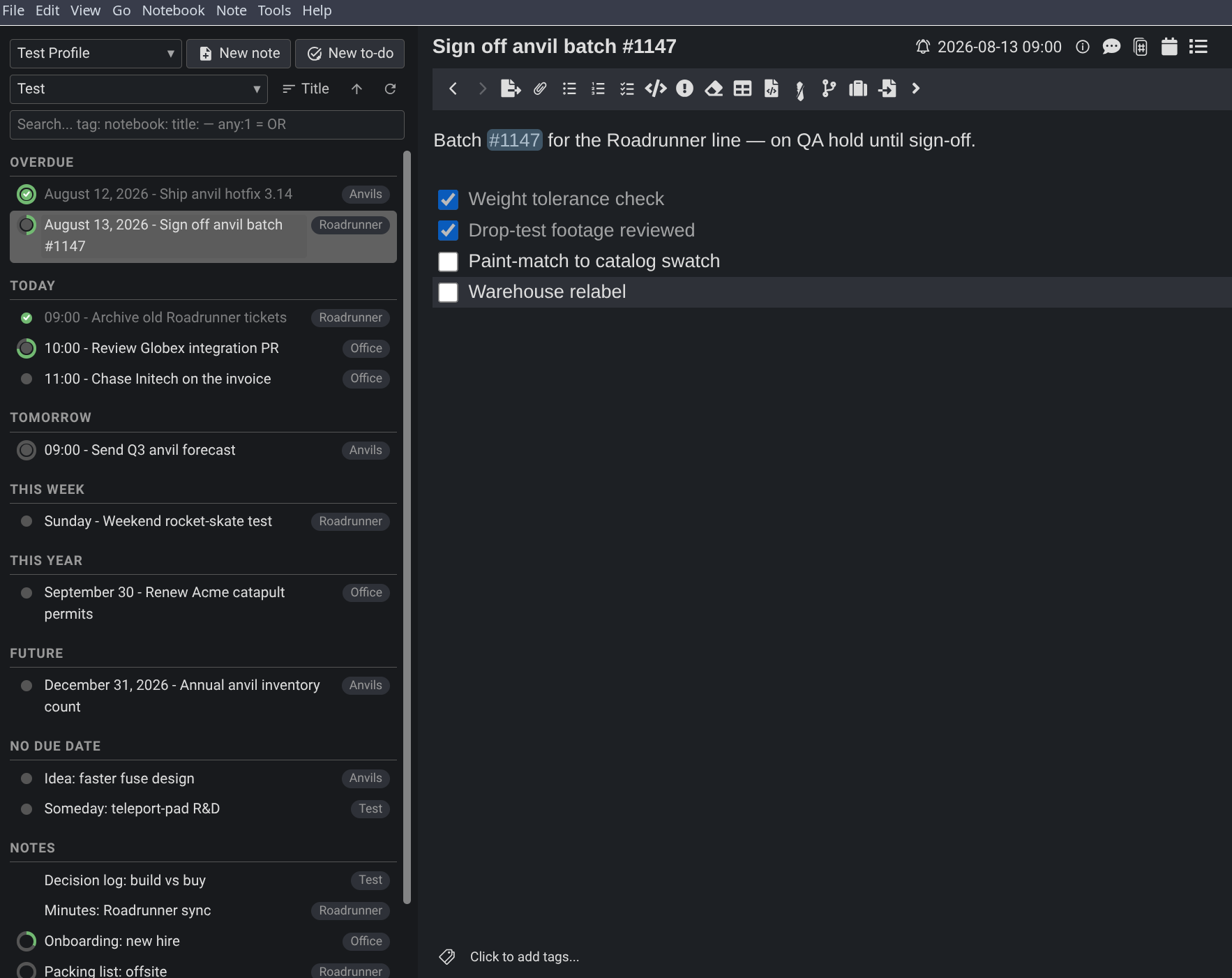
A tasks-and-notes command center panel: due dates with drag and drop and a calendar picker, checkbox progress rings, notebook and search filters, view profiles, and notebook management - on desktop and mobile.
| Links: | |
|---|---|
| Maintainers: | pmslava |
| Version: | 2.10.0 |
| Minimum app version: | 2.9 |
| Downloads: This version: | 67 |
| Last updated: | 2026-10-28T17:10:54Z |
One panel for your to-dos, notes, and the checkboxes inside them, grouped by when they are due.
Cockpit is a single Joplin panel built to replace the notes and notebooks sidebars. It gathers every to-do, every note, and the checkboxes inside them into one view, grouped by due date — so it is your plan and your whole archive at the same time. Switch it between an Overdue / Today / This Week rundown, a flat list with one heading per day, a plain ungrouped roll-up, a month calendar, or a week planner. It is built for one thing: deciding what to do right now.
One panel: every to-do and note grouped by due date, a progress ring on each row counting the checkboxes inside it.
One screen gives you the whole picture. A profile is a whole saved view — its format, filters, search and sorting — so switching profiles switches everything in one step. Narrow the list by notebook, or by anything Joplin's own search understands. Reschedule by dragging a to-do onto a day, or open the date picker for an exact time. The same file runs on Android.
Views · Due dates · Search and filtering · Selecting rows · Profiles · Works with Whereabouts · Works with Jot · Appearance · Settings · On Android
In Joplin, open Settings (Configuration on Android) → Plugins, search for "Cockpit", and click Install. This works on both desktop and Android.
To install the file by hand instead, download io.github.pmslava.cockpit.jpl from the releases page and use Plugins → Install from file; both platforms use the same file.
Cockpit needs Joplin 2.9 or newer on desktop and 3.3 or newer on mobile.
Interval is the default. It sorts everything into named horizons — Overdue, Today, Tomorrow, This Week, This Month, This Year (or Next Week / Next Month / Next Year — see below), Future, No Due Date — and labels each row with just as much date as its group needs: a time under Today, a weekday under This Week, a full date under Overdue. Each group covers only the time the groups above it have not already taken, so a period whose remaining days are all covered is replaced by the next one: on a Saturday the week is already spent, and you see Next Week instead of This Week. The same goes for Next Month in the last days of a month and Next Year through December.
Date gives one heading per calendar day, each row prefixed with its due time. Basic does no grouping at all: a single list of titles, for a profile that wants a plain roll-up rather than a schedule.
Month draws a calendar with a coloured dot per to-do on each day — done, due or overdue — capped per profile with a "+N" overflow so a busy day cannot distort the grid. Every cell carries a screen-reader label naming the day, its count and how many are outstanding. Click a day to list it beneath the grid as ordinary tickable rows; click it again to close.
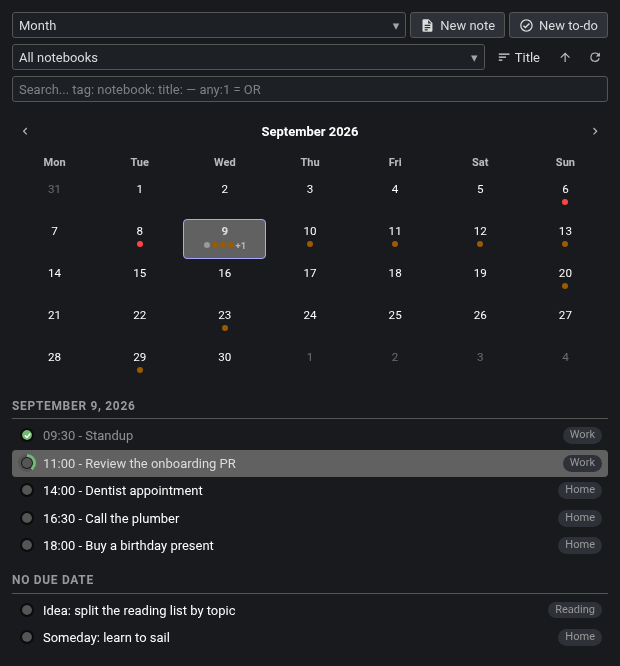
The month calendar: a dot per to-do, done, due or overdue, with the picked day listed underneath.
Week gives one section per day, each to-do a card carrying its due time and notebook on the head line and the title below.
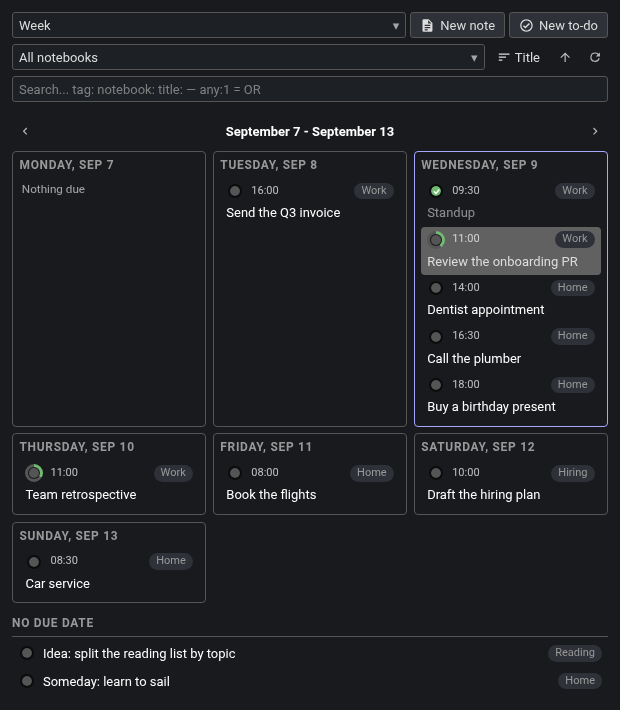
The week planner: one section per day, each to-do a card with its due time and notebook.
Both calendar views keep undated to-dos in their own "No Due Date" section beneath, so a calendar never silently drops them. Arrows step a month or a week, and clicking the title returns to today; where you navigated to lasts for the session and is not written into the profile.
Regular notes appear in their own "Notes" group, before or after the to-dos, per profile. On a large collection each group draws only its first rows — the Notes group its 1,000 most recently updated notes, each group of to-dos its first 1,000 in its own order, and all the to-do groups together at most 2,000 rows (the week planner's day columns aside): an equal share each when there are a few large groups, whole groups in order when there are many, with one line saying how many more to-dos the later groups hold — and a "show more" button under each that adds the next 1,000 rows, or the next 2,000 rows' worth of groups. Dates, weekdays and times are rendered in your own locale, and each profile chooses the shape: year 2022 or 22, month January / Jan / J / 01, day 9 or 09, weekday Monday / Mon / M, and 24-hour or AM/PM.
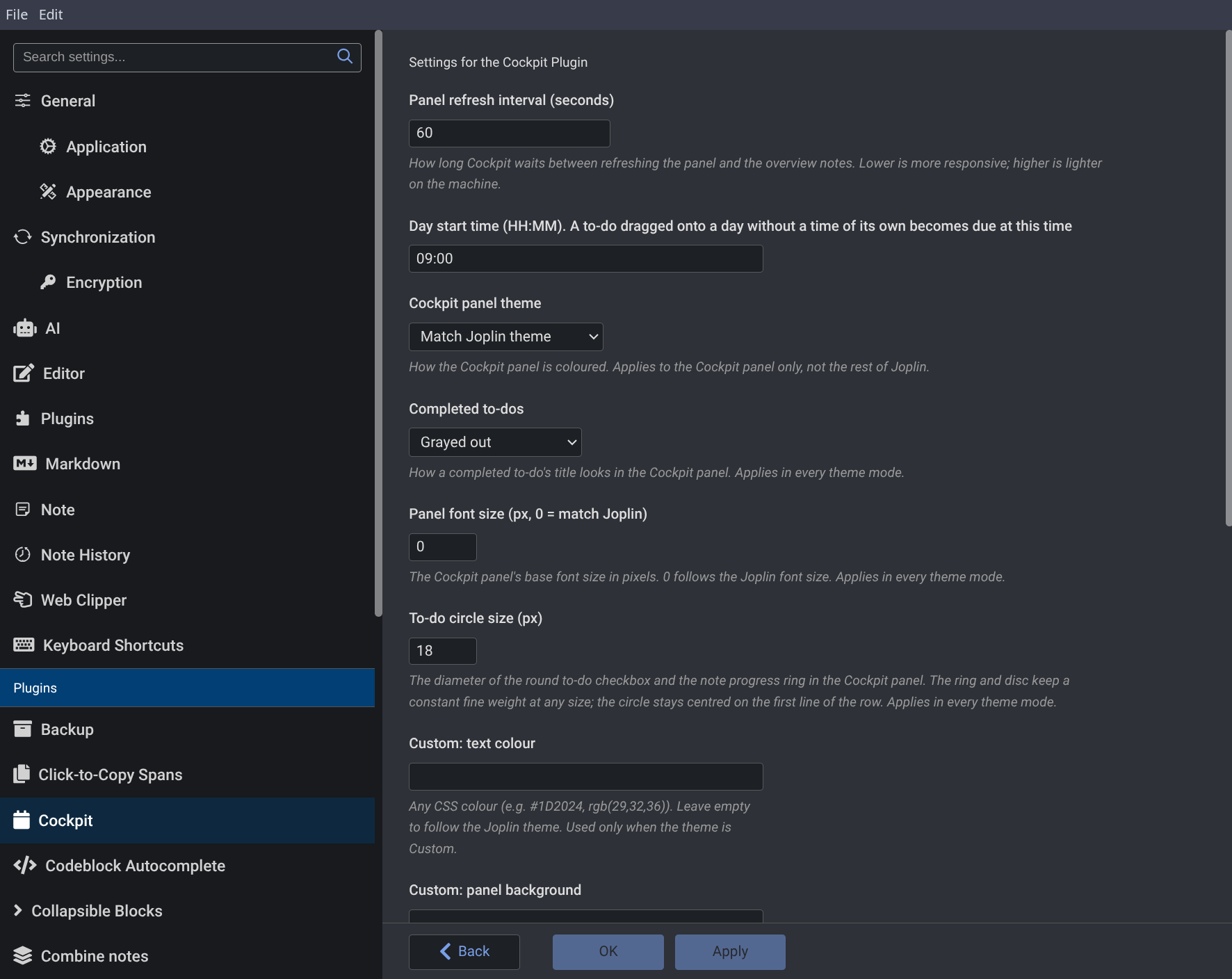
Drag a to-do onto a calendar day, a week-planner day or a list heading to reschedule it. Onto Today or Tomorrow it becomes due that day; onto a period group — This or Next Week, Month or Year — it becomes due on the first day of that group, the earliest day it names rather than its deadline; onto No Due Date its alarm is cleared. Drop into the gap between two rows and it lands midway between its new neighbours; drop several and the interval is divided into equal shares in the order you dragged them. That works at a group's edges too, including inside Overdue. While you are dragging, holding the pointer near the top or bottom edge of the list scrolls it, so a heading or a day that is off screen can be reached without letting go. A to-do dragged onto a bare day gets the day start time, 09:00 unless you change it. On Android the same thing is done with a finger: hold a to-do for half a second for its menu, keep holding and move it up or down to drag it — an insertion line follows you between the rows, a banner says where it will land, and letting go outside the list cancels.
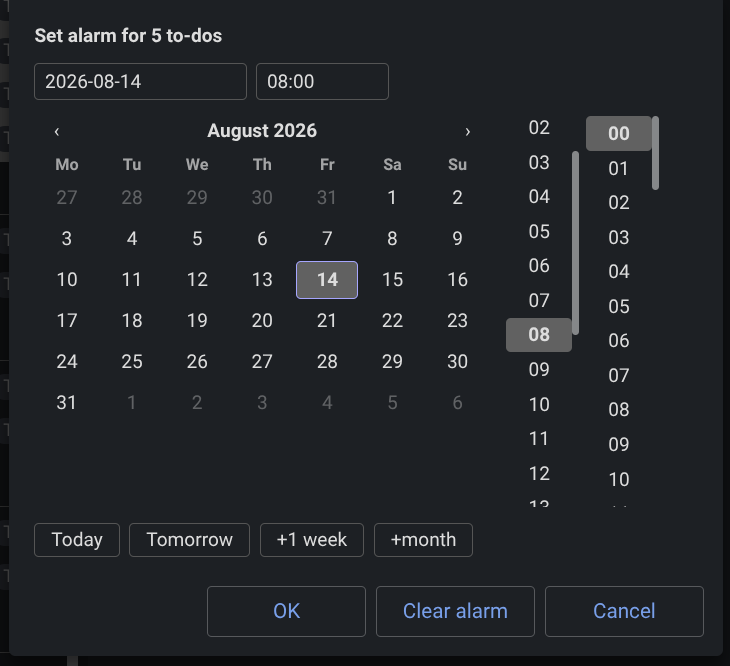
For an exact time there is the picker: a YYYY-MM-DD date field, an HH:MM time field, and a month grid starting on the profile's first day of the week, with scrolling hour and minute columns pinned flush with it. Two rows of buttons sit above. The first is absolute — Today, Tomorrow, Weekends (the nearest Saturday), Next Monday. The second accumulates as you press it: +hour, +day, +week, +month(day) for the same weekday next month, +month(date) for the same day-of-month, clamped.
The date picker with three to-dos selected: quick buttons above, calendar and time columns below, and the line that says what the two modes will do.
With several to-dos selected the picker offers "Keep each to-do's own schedule" — the default, where every to-do shifts from its own time — or "Same date & time for all", and a line above the footer spells out what will happen. "Clear alarm" removes the due date from every selected to-do.
Right-click a to-do's circle, or long-press it on touch, to open the picker for that to-do, or for the whole selection if it is part of one. Right-click a group heading — "Today", "No Due Date", a week-planner day — to select everything under it and open the picker for the lot.
On desktop the same picker can be put on the alarm bell in Joplin's own note title bar, so a to-do open in the editor gets it without going through the panel — see Settings.
The circle on each row doubles as a ring showing how many of the checkboxes inside that note are ticked, with a "3/7 checkboxes done" tooltip. It is display-only in both directions: filling the ring does not complete the to-do, and completing the to-do does not fill the ring. A note with no checkboxes inside shows a plain disc instead.
Regular notes carry the same ring when they hold checkboxes — with nothing to tick, since a note has no due date and no completion — and no circle at all when they do not. Clicking a to-do's circle completes or un-completes it, and the panel shows the new state at once rather than waiting for Joplin's search index; a failed write rolls back.
The circle is 16 to 36 px, set in the settings; the ring keeps a constant fine weight at any size.
The search field takes anything Joplin's search takes — words, tag:, notebook:, title:, negations — applied on top of the profile's own criteria and committed with Enter. Start a query with any:1 to match any term instead of all; the profile's own filters still apply on top. Emptying the field restores the unfiltered view by itself, however it was emptied.
Typing tag:, notebook: or title: opens a list of matching values — tags and notebooks from data the panel already carries, note titles fetched as you type — and picking one inserts it, leaving the rest of the query byte-for-byte untouched.
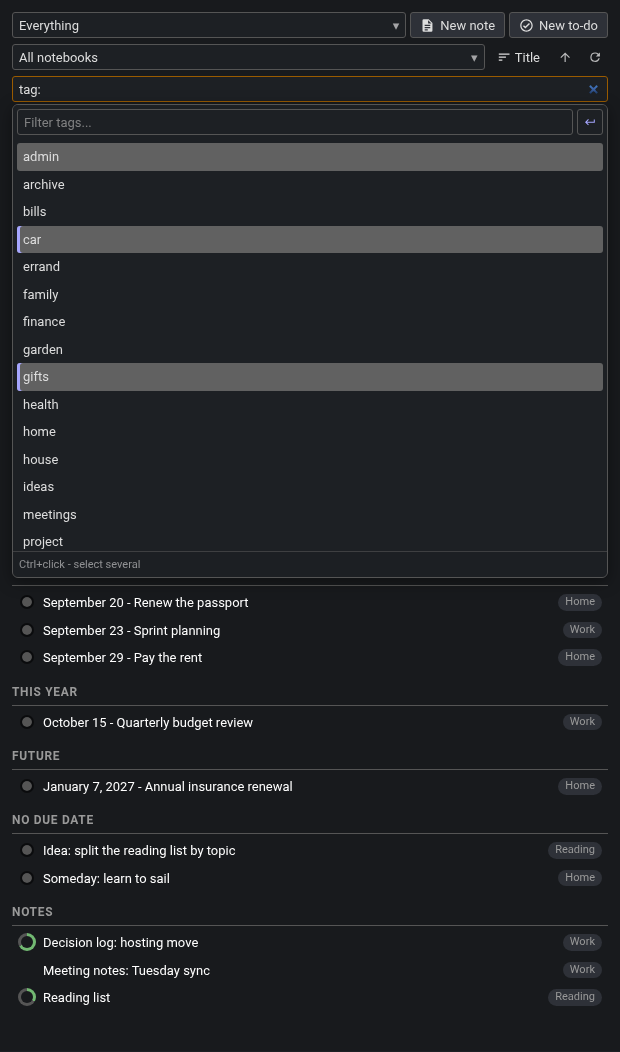
Typing tag: opens the value list: filter it, mark several with Ctrl+click, and the apply button inserts them together.
The list is about fifteen rows tall and scrolls, with its own filter box pinned above it. Mark several values — Ctrl/Cmd+click on desktop, a 500 ms press-and-hold then plain taps on touch — and an apply button inserts them together. Marks are held by value, so narrowing the list or clearing the filter never loses them, and Escape unwinds one step at a time: marks, then filter text, then the list.
When a search matches nothing inside the current filters, Cockpit runs one unfiltered search and shows up to fifteen hits under "Results outside current filters". Those rows open on a click but cannot be selected, dragged or acted on in bulk. Only if that is also empty does it look inside the notebooks you have excluded, under "Results in excluded notebooks". Only when both come up empty does it say there are no matches anywhere.
Excluded notebooks are named in the settings, and are hidden from Cockpit everywhere — search results, panel rows, checkbox counts, the overview notes and the notebook picker — sub-notebooks included. Entries are resolved to notebook ids and tracked by id, so renaming or moving an excluded notebook keeps the exclusion working, and a Parent/Sub path disambiguates notebooks that share a name.
The field shows both halves of what it points at — Lab / Joplin (fdfd6c06e6f549df944a4fb442e1f318): the name you recognise, and the whole id Cockpit is really tracking, so a setting aimed at the wrong one of two same-named notebooks says so at a glance. The id is printed in full because a shortened one reads as a different id; a long entry simply scrolls in the box. You go on typing whatever is easiest — a name, a Parent/Sub path or a full id — and Cockpit rewrites each entry into that form. A name it cannot match is left exactly as you typed it, with no id, so a typo stays visible. Where the id is the part that still matches (you renamed the notebook in Joplin and never re-typed the setting), the id wins and the name shown catches up. A notebook genuinely called Budget (deadbeef) is not mistaken for one: brackets are read as an id only when what is in them is the start of an id that exists.
An excluded notebook can never become the panel's notebook filter, by any route: not from the dropdown, which does not list it; not from another plugin's command, which is refused with a notice; and not from a profile that stored it before it was excluded, which starts at "All notebooks" for the session while keeping its own saved notebook untouched. Exclude the notebook the panel is currently filtered to — or delete it in Joplin — and the filter returns to "All notebooks" on the spot. This is also why New note and New to-do ask where to create whenever the header says "All notebooks" (unless they open Jot's form, which has a notebook field of its own): the filter and the label can never disagree.
The notebook dropdown lists every notebook by its full path, with a filter box pinned at the top; typing narrows it and Enter picks the first match. It offers every notebook, not only the ones the current to-dos live in. Every row also carries the notebook it lives in: click that pill to filter to it, right-click it to move the note somewhere else, hover it for the full path.
Beside the notebook dropdown sit four one-press filters. The first shows or hides completed to-dos; the other three go by the checkboxes inside an item, to-dos and notes alike: at least one still open (a partly filled ring), all of them ticked (a full ring), or none at all (a plain disc). All four start pressed, and releasing one hides what it names; release all three checkbox filters and the list is empty. Pressed, the completed button shows what the profile's four completed switches allow, or every completed to-do when the profile has them all off. Like the notebook and the search, the filters change the view, not the profile, and the profile's name on the picker shows an asterisk while the two differ. A checkbox filter needs the checkboxes of every item it could show, so the first time one is released on a large collection Cockpit reads them in batches, with a line above the list saying how many are left; each note is read once per session, so pressing again later is instant and only a note edited since is read again (the counts are not kept across restarts, so a filter released at startup reads them again). The overview notes are never filtered by them.
How items sharing a due time — and the Notes group — are ordered is a profile setting, set in the profile editor: by title (natural, case-insensitive), by updated or by created date, ascending or descending.
On desktop, Ctrl+click adds a row and Shift+click takes a range. A selection can mix to-dos and regular notes freely — a to-do is a note, so every batch action applies to both. With several rows selected, Escape leaves exactly one selected, the last row you actually selected, rather than clearing the lot; and it reaches the selection only when nothing else is open, since a menu, dropdown or suggestion list wins Escape first.
Right-clicking a row opens Cockpit's own menu: Open, Quick edit…, Switch between note and to-do type, Tags…, Move to notebook…, Duplicate, Copy Markdown link, Copy note ID, Delete note. Quick edit… opens Jot's form over the row's title, type, notebook, tags and due date, and saves what you change without opening the note; the row updates at once. It needs the Jot plugin (see Works with Jot) and is desktop only: a long press on mobile opens the same menu without it.
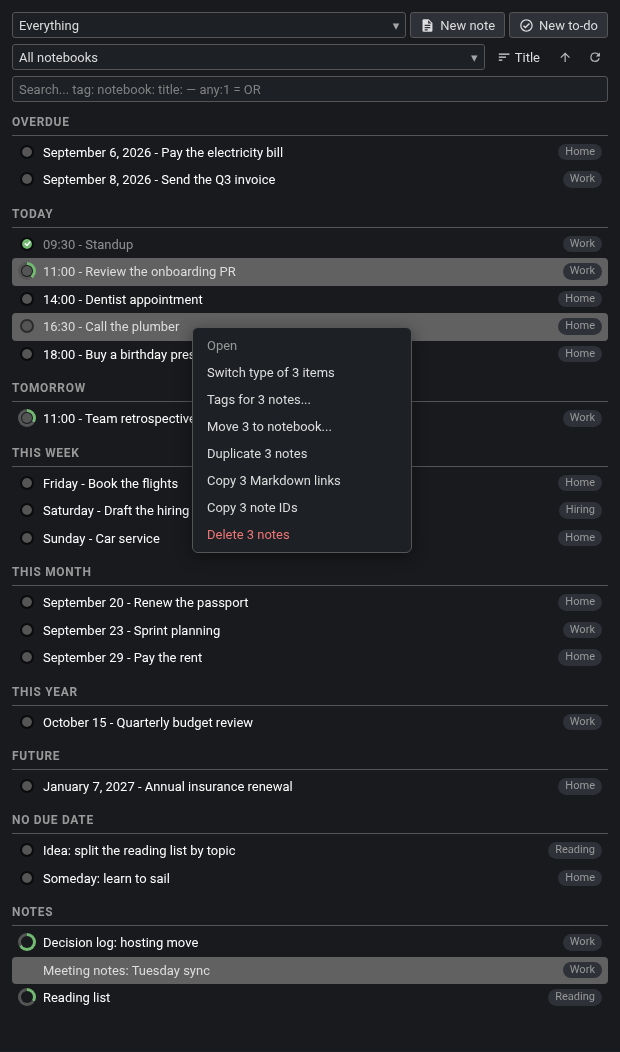
Three rows selected — two to-dos and a note — and every entry in the menu says how many it will act on.
Right-click inside a multi-row selection and every capable entry is retitled with the count — "Delete 6 notes", "Switch type of 3 items", "Copy 4 Markdown links" — so a mistaken batch is visible before the click; the single-only Open and Quick edit… grey out rather than disappearing. Dragging a mixed selection onto a date, dropping it between rows or setting an alarm on it applies to the to-dos in it, in selection order; the notes ride along and are left out of anything time-based.
Copy Markdown link and Copy note ID copy one per line for a selection, with square brackets in titles escaped exactly as Joplin does. If a runtime has no clipboard the panel says so in its own toast rather than a blocking dialog.
Any click on a row opens the note in the main editor; double-clicking its title opens it in its own Joplin window, on desktop. Whichever note the editor is showing is highlighted in the panel, however it was opened — from a Cockpit row, the note list or a link — and that highlight never joins a drag or a batch action. A text selection dragged out of the note editor keeps extending across the panel instead of stopping at its edge.
A profile stores the display format, the search criteria, which completed to-dos count, which items show by the checkboxes inside them, whether notes are listed and where, the notebook filter, the panel search text and the sorting — so switching profiles switches the whole view in one step.
Every row of the notebook dropdown carries rename, move-under-another-notebook and delete buttons, and a "+ New notebook…" entry sits at the bottom. Deleting asks first and moves the notebook and its notes to the trash.
A click on New note or New to-do creates the note in the notebook the panel is filtered to and opens it in the editor; with "All notebooks" selected it asks which notebook first. Joplin's own "when creating a new note" title-or-body preference is honoured. A right-click opens the form of Jot, a separate quick-capture plugin, instead (see Works with Jot), with the type already chosen and the panel's notebook filled in — under "All notebooks" none is, and Jot's own default applies. It never asks with the picker, since the form has a notebook field of its own. Hover either button and its tooltip says what a click and a right-click will do, following the two settings below.
Both are settings, New note and New to-do: click and New note and New to-do: right-click, and each offers the same three: the editor, a new Joplin window and Jot. With the new window the note is created exactly as for the editor, then opened in a window of its own, as double-clicking a row's title opens one; on a Joplin without the new-window command it opens in the editor instead. On mobile the buttons work as they always have: a tap creates the note and opens it, under "All notebooks" the panel's own notebook overlay asks where first, and neither setting is read.
Asking which notebook, "Move to notebook" and "Move notebook under…" all open the same notebook picker: a scrolling list of every notebook by its full path, with a filter box pinned above it and the notebook you are currently in already selected ("Move notebook under…" starts on "(top level)" instead, so a bare OK can never move a notebook under itself). The box takes focus as the dialog opens, so you can simply type — any part of the path, in any case — and the list narrows as you go. The up and down arrows walk what is left of it and wrap around, Enter takes the highlighted row (the first match, if you have just typed), a click selects a row and a double-click selects and confirms in one go. The selection always follows the filter, so it is never left on a notebook you can no longer see; filter down to nothing and there is simply no answer to confirm. Escape clears the filter first and closes the dialog on the second press. The list is drawn by Cockpit rather than by the operating system, so it follows the theme — scrollbar included. The dialog opens at a fixed height, a little under two-thirds of the panel's own, so it sits high on the screen and holds still: the list scrolls inside it and narrowing the list never resizes the window under your cursor.
Move, tag and duplicate run Joplin's own dialogs on desktop — the native tag dialog with its autocomplete and common-tags behaviour, Joplin's move dialog, Joplin's duplicateNote. On mobile Cockpit does each itself: the notebook picker it draws, filter box and all, a comma-separated tag field prefilled with the note's current tags (attaching and detaching exactly the difference), and a field-by-field copy into a fresh note in the same notebook. Moving a whole selection of rows at once always uses Cockpit's own picker, on both platforms.
Whereabouts puts a small notebook chip under the note title. With Cockpit installed the chip also drives the panel: a left click points the panel at that notebook, a double click reveals the note in the panel — filtering to its notebook if it is not already listed, and pinning it below the list as a read-only row when the active profile cannot show it at all (a plain note in a to-dos-only profile, say). The revealed row is scrolled into view and flashes briefly. Neither plugin needs the other: without Cockpit the chip is silent, without Whereabouts nothing here changes.
If the note lives in a notebook you have excluded in Cockpit's settings, the chip still behaves sensibly rather than pointing the panel somewhere it will not show: a left click leaves the filter alone and says the notebook is excluded, and a double click reveals the note by pinning it below the list, as it does for anything else the active view cannot list.
Both plugins reach into Joplin's note title bar, and they do not collide: Whereabouts mounts its chip below the title, while Cockpit's two title-bar settings touch only the alarm bell inside Joplin's own button row (.note-title-info-group) — matched by the bell's own icon, so the other buttons in that row keep their appearance and their clicks — and the chip never enters that row. Run both with everything switched on and each does its own thing.
Jot is a separate plugin for quick capture: a small form for a title, a line or two of text, the notebook, tags and a due date, which creates the note or to-do without opening it unless you ask it to, so you stay in the note you were in. It has its own ways in — Ctrl+Shift+J, Tools › Jot…, the editor's right-click on highlighted text, and typing ++ in the editor — and an edit mode that changes a note's title, type, notebook, tags and due date without opening it, writing only what changed.
With Jot installed, Cockpit calls it from two places, on desktop. A right-click on New note or New to-do opens Jot's form with the button's type and the panel's notebook, and the click setting can send a plain click there too — see Notebooks and notes. Quick edit… in the row menu opens Jot's edit mode on that row; Jot puts the same form in Joplin's own note list as "Edit with Jot…", so this is that form, reached from the panel. Jot writes the note, and Cockpit reads its change feed the moment the form saves, so the new row appears, or the edited one changes, at once rather than at the next refresh. Cancel the form and nothing happens.
Neither plugin needs the other. Without Jot, the first press that calls it in a session says so, once:
Cockpit: this needs the Jot plugin, which is not installed. Install "Jot" from Settings › Plugins, or change the "New note and New to-do" settings.
A create button then does what a click does by default — it creates the note and opens it in the editor — on that press and every one after it, and Quick edit… does nothing. Without Cockpit, Jot is simply Jot.
On mobile Cockpit does not call Jot: a tap on New note or New to-do creates and opens as it always has, and Quick edit… is not in the long-press menu. Jot's own typed ++ trigger in the editor is the way into it there.
Give a profile the id of a note and Cockpit keeps that note filled with the profile's list as Markdown — a heading per group, each to-do a checkbox linked back to itself — so the plan is readable in any Joplin client, including ones that cannot show the panel.
It is rewritten only when the content actually differs, so an unchanged list does not create a note revision on every refresh, and Cockpit ignores its own writes rather than looping on them. A month or week profile writes the date-grouped list rather than a grid, which stays readable and clickable in a note.
A button in the header starts a sync — or cancels one in progress — and spins while it runs. Its tooltip reports when the last sync finished, how long it took and whether it had errors; on mobile a long press shows that as a toast, since touch has no hover. Sync start and completion repaint the panel immediately, and one bounded catch-up pass follows so items a sync pulled in appear without waiting for the periodic refresh.
Ticking a to-do, creating one, switching an item between note and to-do, or a change made elsewhere in Joplin all appear in the panel at once.
A profile switch draws the list first and fills the progress rings in behind it, nearest the top of the view first, so a long list is usable before every ring is counted. A background refresh leaves the list where you left it; only a deliberate change of view returns it to the top.
Joplin syncs notes, never plugin settings, so profiles normally have to be built again on every device. Cockpit can carry them in a note instead. It is off until you turn it on: leave the setting empty and everything stays exactly as it is, on this device only.
Setting it up is one field, and it is the same field on every platform. Open Settings › Plugins › Cockpit and type Joplin Cockpit Plugin Settings into Settings note.
Type the title before the note has synced down and the second device makes a note of its own, because there is nothing yet to find. Cockpit watches for that on the next few syncs and tells you when a second note of that name turns up, so you can paste the id of the one you want to keep into the field. Syncing first avoids it entirely.
Copying the first device's field text across instead — Joplin Cockpit Plugin Settings (310b413d415e40a0a80a883c65bda866) — never makes a second note, even before the sync: that text can only have come from a note that already exists, so Cockpit says it cannot find it yet and connects the moment it arrives.
There is also a Cockpit: Connect settings note command in the command palette. It is the same three steps and the same rules; the field is the one to reach for.
What travels: your profiles, the custom panel CSS, the theme and its colours, the completed-to-do style, the day start time and the excluded notebooks. What stays per device: the font and circle sizes (a phone and a 27-inch monitor want different ones), the refresh interval, the toolbar button, the two title-bar options, the two New note and New to-do settings, and which profile is currently selected.
By default the panel takes its colours from the live Joplin theme. It can instead be pinned to Light, Dark, Solarized Light, Solarized Dark, Nord, Aritim Dark or OLED Dark — the Cockpit panel only, not the rest of Joplin.
The same list, same Joplin, two Cockpit themes: Match Joplin on the left, Nord on the right. Seven presets ship in all, plus six custom colour fields.
A Custom mode exposes six colour fields — text, panel background, menu/popup background, to-do checkbox, progress-ring fill and divider — each taking any CSS colour, with anything left empty still following the Joplin theme.
A completed to-do's title can stay normal, or be greyed out, struck through, or both. The panel's base font size can be pinned between 1 and 32 px, or left at 0 to follow Joplin's, and the to-do circle set between 16 and 36 px. On desktop, Tools › Cockpit › Set Panel CSS opens an editor for CSS applied to the panel, injected after the theme so it always wins.
Cockpit's settings live in Joplin's own Settings › Plugins › Cockpit.
Name (id), with the notebook's whole id in the brackets. See Search and filtering.Joplin Cockpit Plugin Settings here and Cockpit creates that note, or connects to the one that has already synced in from another device. A note id or a link to it works too. Once connected the field reads Joplin Cockpit Plugin Settings (310b413d415e40a0a80a883c65bda866) — the note's name and its whole id, which is how Cockpit tells two notes of the same name apart — and follows the note if you rename it. Empty by default, which keeps everything on this device. See Sync your settings between devices.One .jpl serves both platforms; it detects the platform at runtime. On mobile Cockpit is a tab inside Joplin's own plugin-panel screen and uses Joplin's own button rather than a toolbar button of its own.
Every picker — the notebook picker, the tag editor, the date picker, the whole profile editor — is drawn as a touch overlay inside the panel itself, because a plugin dialog on Android is always drawn behind the panel. The notebook overlay has the same filter box the desktop dialog does, pinned above its rows, and Enter selects the first notebook still showing; it is deliberately left unfocused, so the list is not covered by the keyboard before you have asked for it. A half-second press on a row, a group heading or a to-do's circle opens the same menus a desktop right-click does, and to-do rows gain an explicit "Move to date…" entry since an 18 px circle is a hard touch target. Rows get roughly 40 px hit areas, and the create buttons drop to icons so the header can give its width to the profile picker.
That same half-second hold also arms a drag behind the menu it opens: keep the finger down and move it up or down and the menu closes and the row lifts, to be dropped in the gap between two rows, or onto a group heading, a calendar day or a week-planner column, exactly as a mouse drag does on desktop. Releasing over anything else cancels; a hold you release without moving just leaves the menu open; and a sideways move is left to Joplin's own side-menu swipe.
Android can restart the panel's webview under load, so Cockpit keeps the scroll position, an open picker and an in-progress search — the typed query, the open dropdown and its marks — on the plugin side and rebuilds them.
Settings sync is set up on Android exactly as it is on desktop, in the same one field: open Settings › Plugins › Cockpit and type Joplin Cockpit Plugin Settings into Settings note. If a desktop device made the note already, sync first so it is here to be found; if not, the phone makes it.
Desktop-only: Ctrl/Shift multi-select and the batch actions that follow from it, double-click to open in a new window, the create buttons' right-click, their two settings and Quick edit…, custom panel CSS, the note-toolbar button, and the Ctrl+Shift+H shortcut that toggles the panel.
Cockpit registers two commands with no menu item of their own, for other plugins (or the command palette) to call. Both take a plain id string, ignore an id that no longer resolves, and never throw back at the caller.
| Command | Argument | What it does |
|---|---|---|
cockpit.filterByNotebook |
a notebook id; "" or no argument |
Points the panel at that notebook, exactly as picking it in the notebook dropdown does. "" (or no argument) clears the filter back to all notebooks. An unknown id is ignored rather than treated as a clear. The saved profile is not changed. Works on desktop and mobile. |
cockpit.revealNote |
a note id | Shows that note in the panel: a hidden panel is shown first, then the note is shown where it already is, or the filter switches to its notebook and the typed search is cleared, or — when the active profile cannot list it at all — it is pinned below the list as a read-only "Revealed" row. The revealed row is scrolled into view and flashed. The pin goes when you switch profile, change the notebook, commit a search, reveal something else or open the row. Desktop only: on mobile the panel is a tab in Joplin's own plugin-panel screen, which is yours to open and close, so a reveal there does nothing. |
npm install
npm run dist
The build writes publish/io.github.pmslava.cockpit.jpl. The same file serves both platforms.
Profiles from the older sqlite3 database — including the one under the plugin id Cockpit used to be published under, as Agenda — and custom CSS from the old custom.css file are imported once into plugin settings, leaving the originals untouched. Profiles saved before the completed-period switches existed inherit their old all-or-nothing setting. The import runs on desktop only; the settings themselves are stored the same way on both platforms.
If this plugin is useful to you, support the work: GitHub Sponsors for monthly or one-time sponsorship, or Ko-fi for a one-off tip by PayPal or card without an account. All options: pmslava.com/support.
Cockpit began as a fork of Agenda by BeatLink and TheScriptingGuy (MIT). The panel, dialogs, and most behaviour have since been reworked, but the profile system and overview notes trace back to their work. The idea of aggregating all your scattered work into one live view came from the Inline Tag Navigator plugin by alondmnt, though Cockpit built it on Joplin's core to-do functionality rather than inline tag syntax.
MIT. See LICENSE.