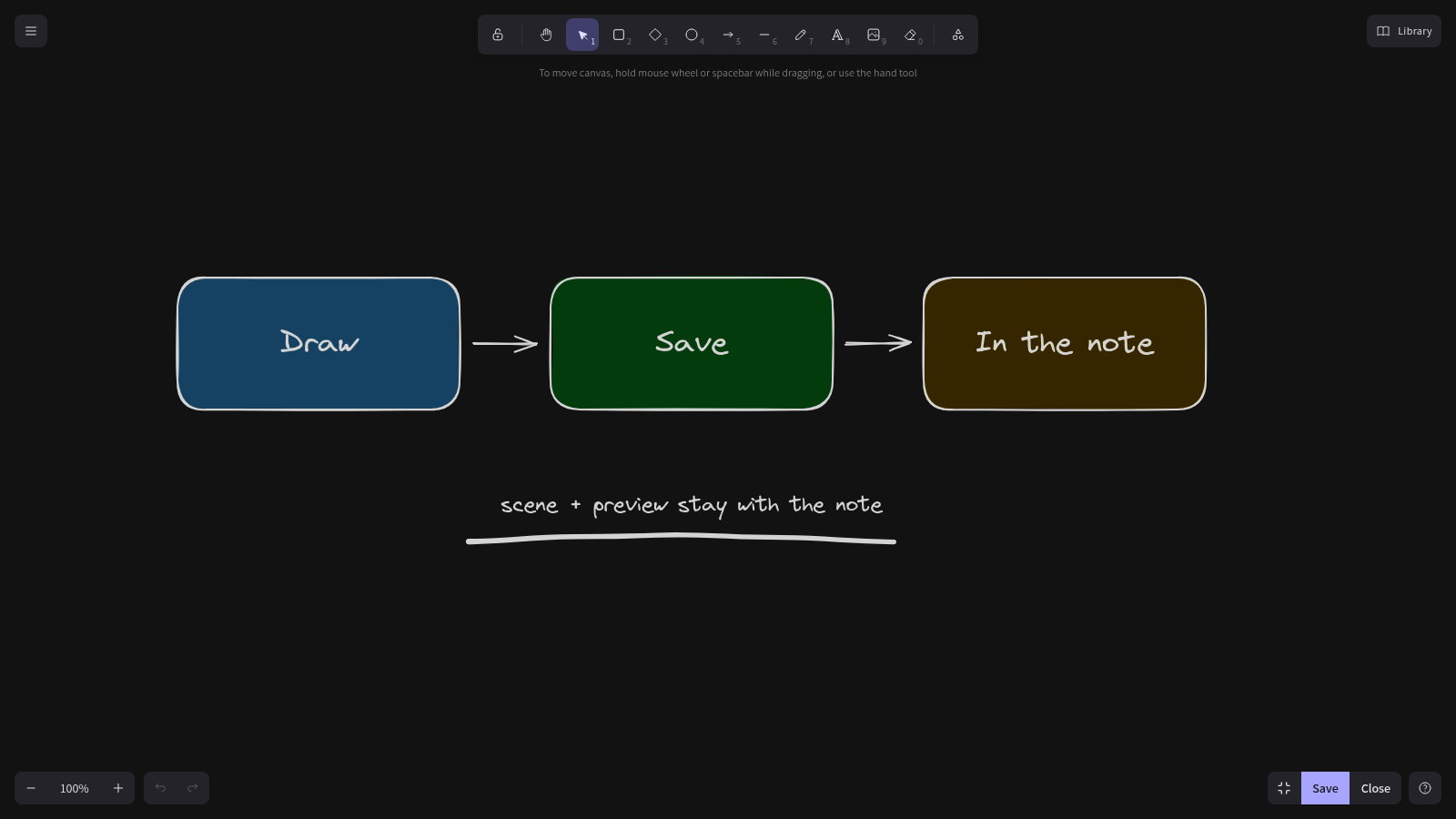
Excalidraw drawings in your notes: create and edit hand-drawn sketches, diagrams and whiteboards without leaving Joplin, with light and dark theme support and editing straight from the editor. Continuation of joplin-excalidraw-v2 (neagix) and joplin-excalidraw (artikell).
| Links: | |
|---|---|
| Maintainers: | pmslava |
| Version: | 3.0.3 |
| Minimum app version: | 3.3 |
| Downloads: This version: | 55 |
| Last updated: | 2026-09-13T15:09:49Z |
Excalidraw drawings in your Joplin notes: draw, edit, copy and share hand-drawn sketches and diagrams without leaving Joplin.
Click the pencil button on the editor toolbar, draw, and close the dialog. The drawing is inserted at the cursor as a normal image.
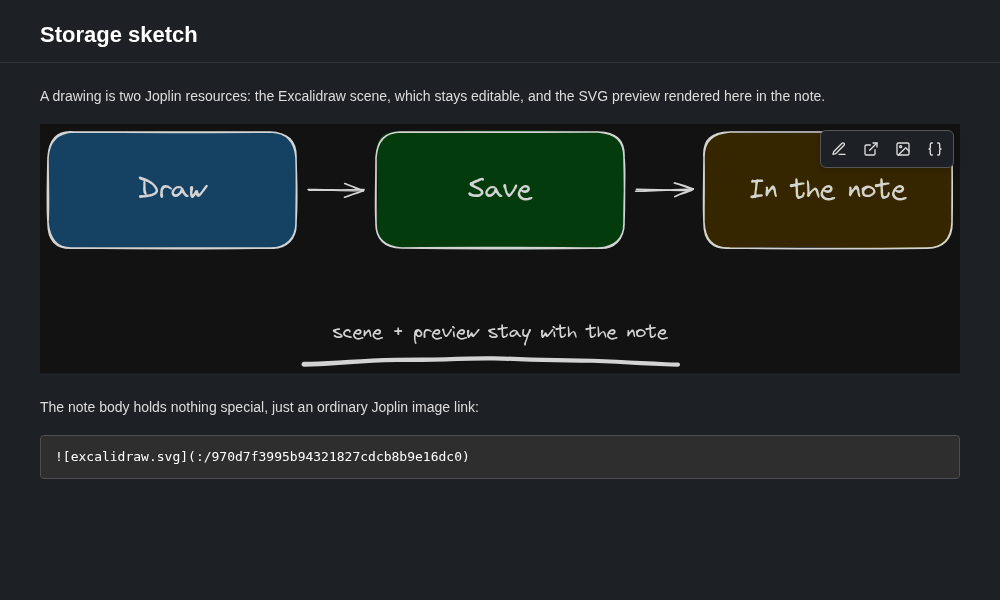
Hover a drawing in the Markdown viewer and a small island appears in its top-right corner with four buttons:
{} Copy as JSON — see Copying.
In the Rich Text editor and in HTML notes nothing is injected (the extra markup would be saved into the note, or would always be visible) — double-click a drawing to edit it there.
Put the cursor on the line holding a drawing in the Markdown editor and right-click: the same four actions appear at the bottom of the editor's context menu. They only show up when the current line actually holds a drawing.
Tools → Excalidraw groups every command in one submenu: Add Excalidraw drawing, Edit Excalidraw drawing, Edit Excalidraw drawing in new window, Copy Excalidraw drawing as image, Copy Excalidraw drawing as JSON. From the menu they act on the drawing on the cursor's line, then the selection, then the note's only drawing.
The bottom right of the canvas holds one small bar with Save, Close and a full-size toggle, instead of Joplin's button band under the dialog — in both sizes, and out of the way of Excalidraw's own toolbars. Escape still closes the editor too.
The toggle next to Save expands the editor to the whole Joplin window and back — no margin round the drawing. The last choice is remembered, and the Open the editor full size setting decides how the editor opens the first time.
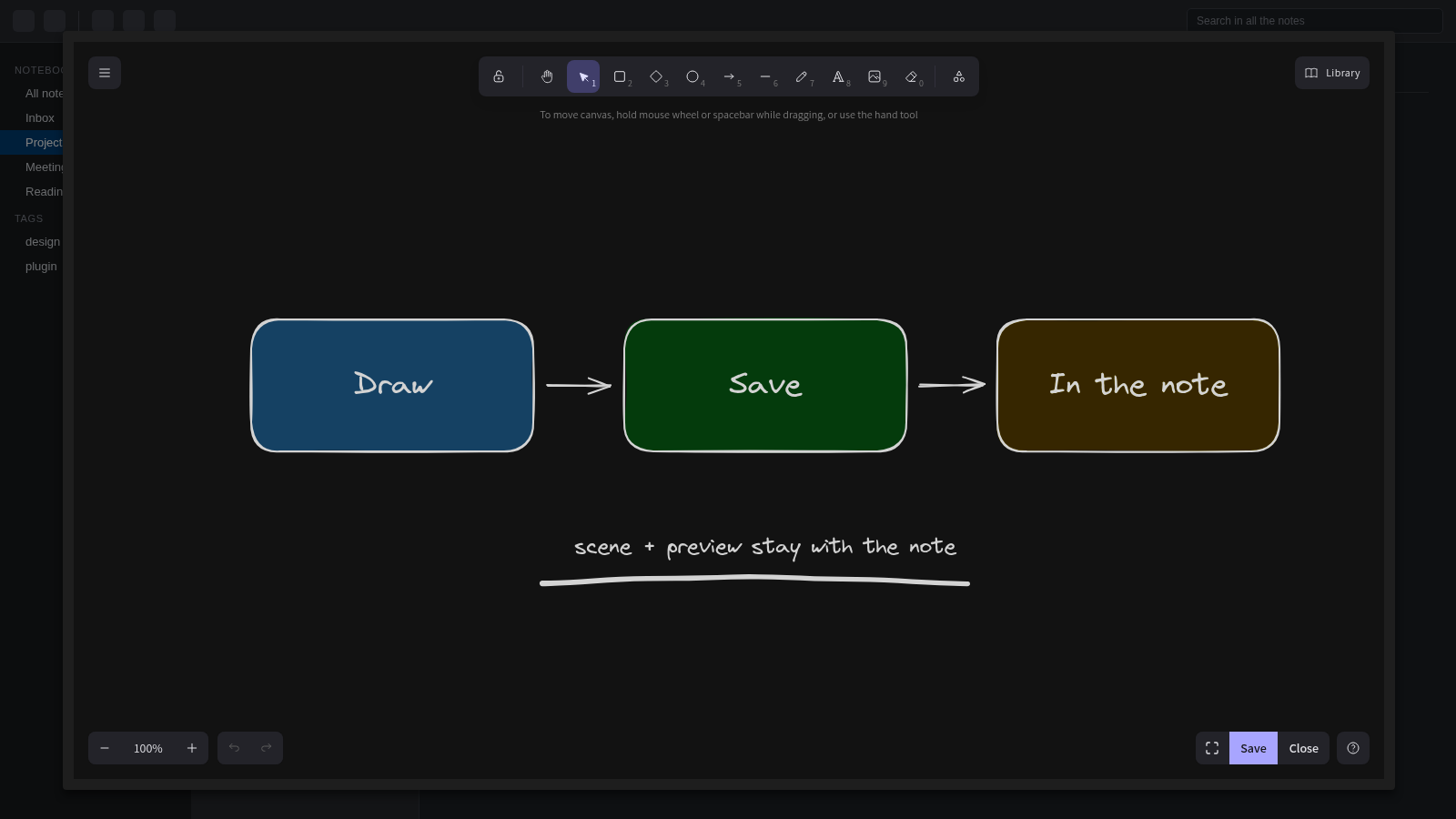
Saving a drawing refreshes its image in place, so you see the new version without reopening the note — in every window. A window that was not the one you saved from catches up as soon as you click back into it, and an image that happened to load while Joplin was rewriting the drawing's file retries itself instead of staying a broken icon.
Edit in a new window opens the note in a second Joplin window and puts the editor there, so you can read or type in the note while you draw. Existing drawings only — a new drawing has to insert a link into the note body, and the first window would overwrite it. Two different drawings can be open at once; the same drawing can only be open in one editor.
[!WARNING] Close the editor with its own Close button (or Escape), not the window's title bar. Joplin gives a plugin no notice when a window is closed, so closing the window loses any unsaved changes.
If the editor ever opens in the wrong window, Joplin lost the focus race: open the note in a new window yourself (Note → Open in new window) and click Edit there — that is always deterministic, because the focus is yours.
Copy as image puts a PNG on the clipboard, ready to paste into a chat, a mail or another app. Joplin's own Copy image works in the viewer but does nothing for a drawing in the Markdown editor — it decodes the resource with Electron's native image code, which cannot read SVG (joplin#15878) — so the plugin rasterises the drawing itself, at 2× for crisp pasting on HiDPI screens. Dark drawings copy dark.
Copy as JSON puts the drawing on the clipboard as text, in Excalidraw's own clipboard format — the JSON Excalidraw itself writes when you copy elements. Paste it into excalidraw.com, into Obsidian's Excalidraw plugin, or into another drawing here, and you get editable elements — movable, editable shapes — not a picture of them. Images inside the drawing travel with it.
Three settings under Tools → Options → Excalidraw:
Each drawing is two Joplin resources:
.json resource — the Excalidraw scene, the editable source;.svg resource — the preview that Joplin renders in the note.The note body itself holds nothing special, just an ordinary Joplin image link:

The two resources are paired by their titles (excalidraw-<json resource id>.json and
excalidraw-<json resource id>.svg), so the drawing survives sync and export like any other
attachment.
This plugin is the continuation of joplin-excalidraw-v2
by neagix, which is no longer maintained (last commit October 2025), itself a fork of
joplin-excalidraw by artikell.
[!IMPORTANT] Disable or uninstall the old plugin first. Your drawings are ordinary note attachments, not something a plugin owns, so disabling or removing a plugin never touches them. With both plugins enabled you get two sets of buttons on every drawing, two pencil buttons on the toolbar and two Tools → Excalidraw submenus — and because Joplin does not namespace content-script ids, an Edit click can be handled by the other plugin's editor.
 links and the
excalidraw-<id>.json / .svg resource pairs are read unchanged. Nothing is converted or
rewritten on install.) still show a
Convert to v2 🔄 button. The converted copy starts with a placeholder preview — open it
once and save to get a real one. The original v1 resource is left untouched, so other notes
referencing it are unaffected.See GENERATOR_DOC.md for the code generation instructions.
npx yarn@1.22.22 install
npm run dist
npm run dist writes the release package to publish/ (a .jpl archive and its manifest
.json).
For development you can point Joplin straight at the build output: Tools → Options →
Plugins → Show advanced settings, and add this repository's dist/ directory.
[!CAUTION] Not compatible with the Freehand Drawing plugin, it causes glitches when both are enabled.