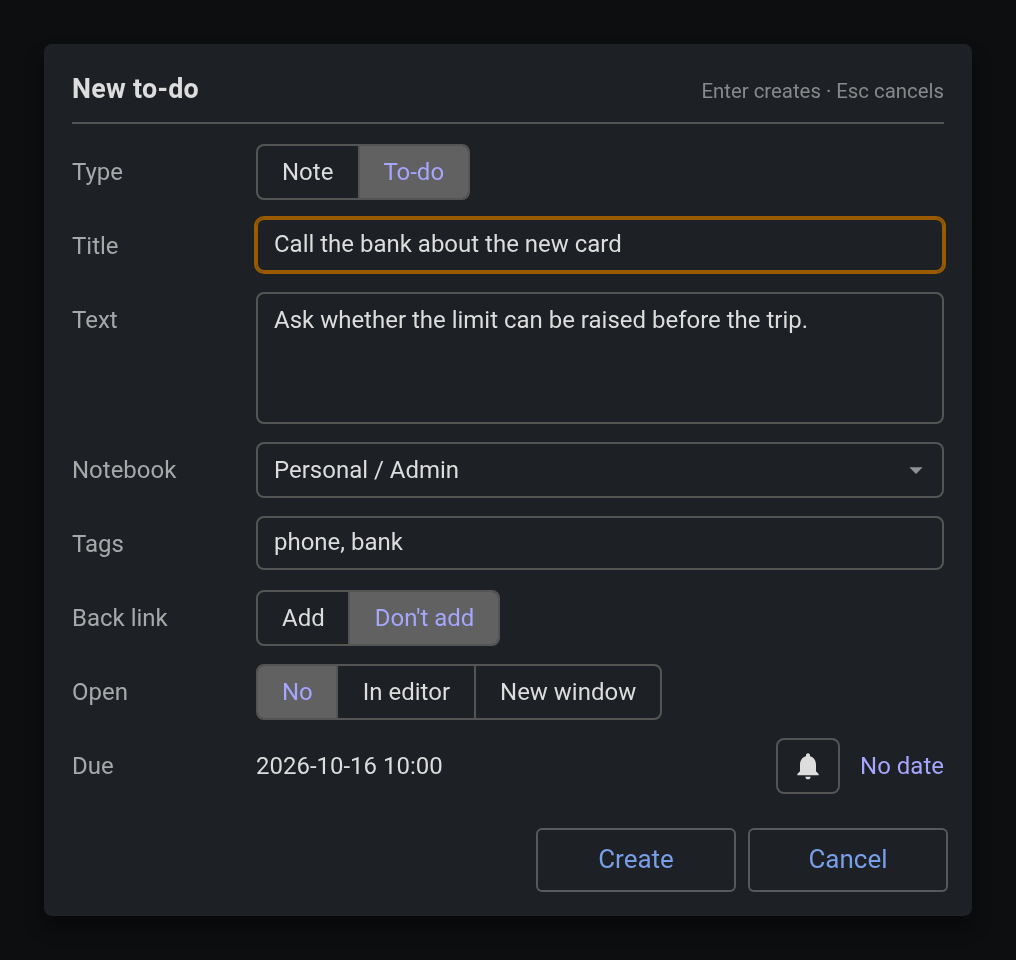
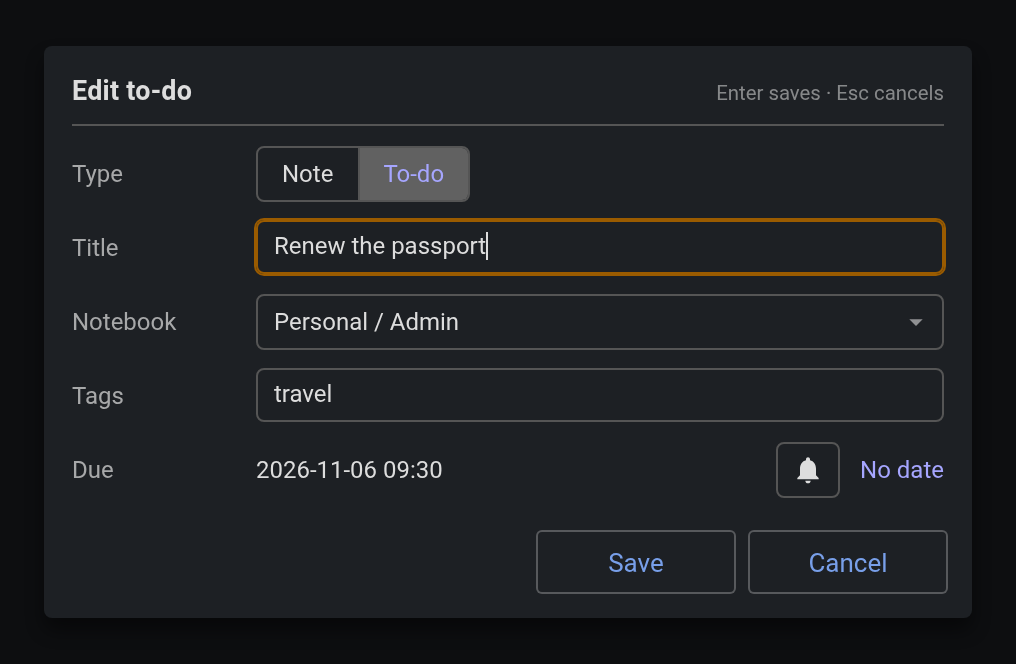
Quick capture of a note or to-do without leaving the one you are in. A small form for the title, a line or two of text, the notebook, tags and the due date, opened by a shortcut, from highlighted text, or by typing ++ in the editor. The note is created where you say, and you stay where you were.
| Links: | |
|---|---|
| Maintainers: | pmslava |
| Version: | 0.2.2 |
| Minimum app version: | 3.1 |
| Downloads: This version: | 0 |
| Last updated: | N/A |
Quick capture of a note or to-do without leaving the one you are in.
While you read or work in one note, Jot opens a small form for the title, a line or two of text, the notebook, tags and the due date, creates the note from it, and does not open it. You stay where you were. Joplin's own New note and New to-do create an empty note and open it, and Back lands at the top of the note you were reading; Jot exists so that never happens.
The desktop is tested; Android is not yet, see the known limits below.
In Joplin, Settings › Plugins › search for Jot and install it. Or download io.github.pmslava.jot.jpl from the releases page and use Settings › Plugins › Install from file.
Tools › Jot…, with Ctrl+Shift+J as its shortcut on every platform (change it under Options › Keyboard Shortcuts).
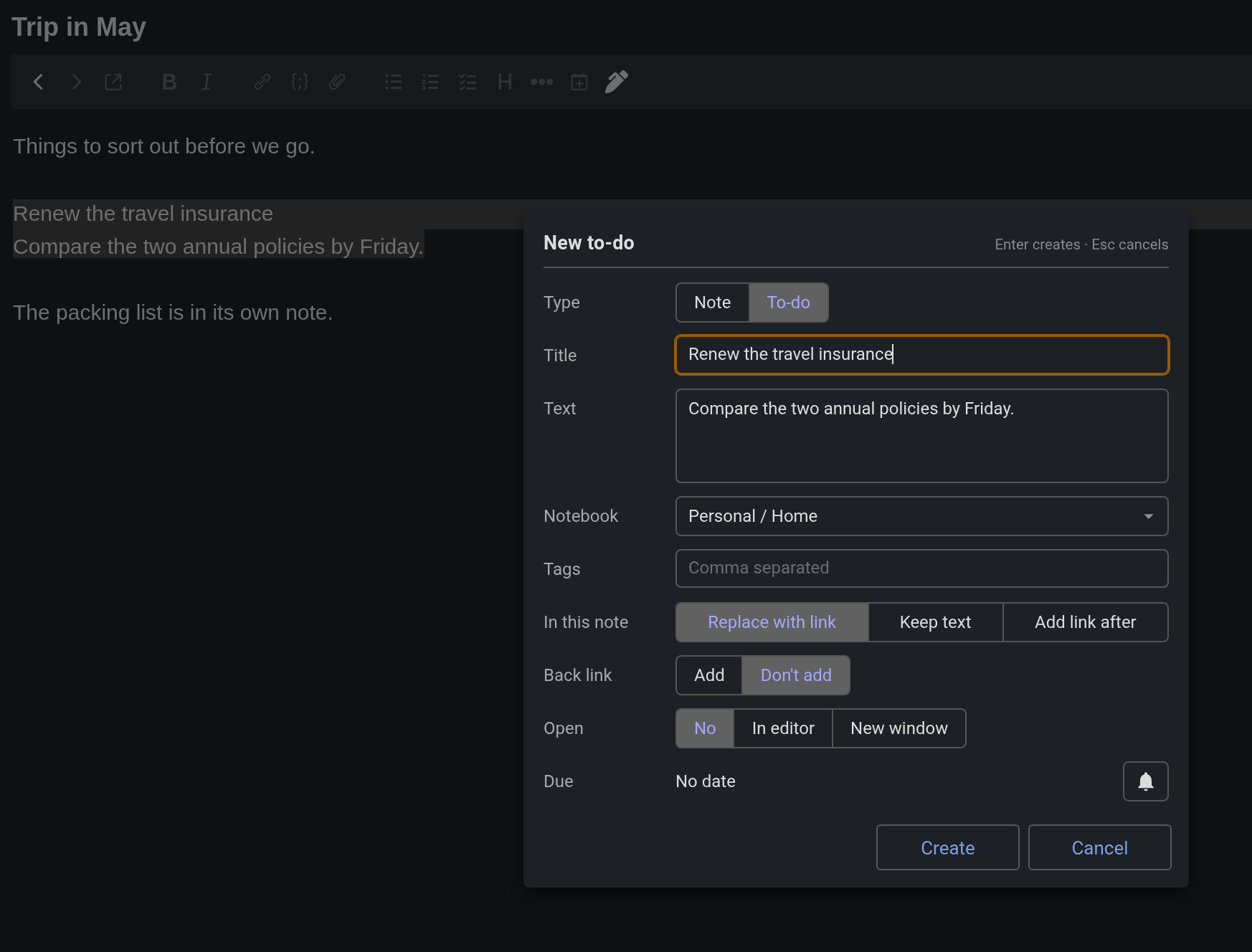
Jot from the selection… in the editor's right-click menu. The first line of the highlighted text becomes the title and the rest the text. The shortcut does the same when text is highlighted.
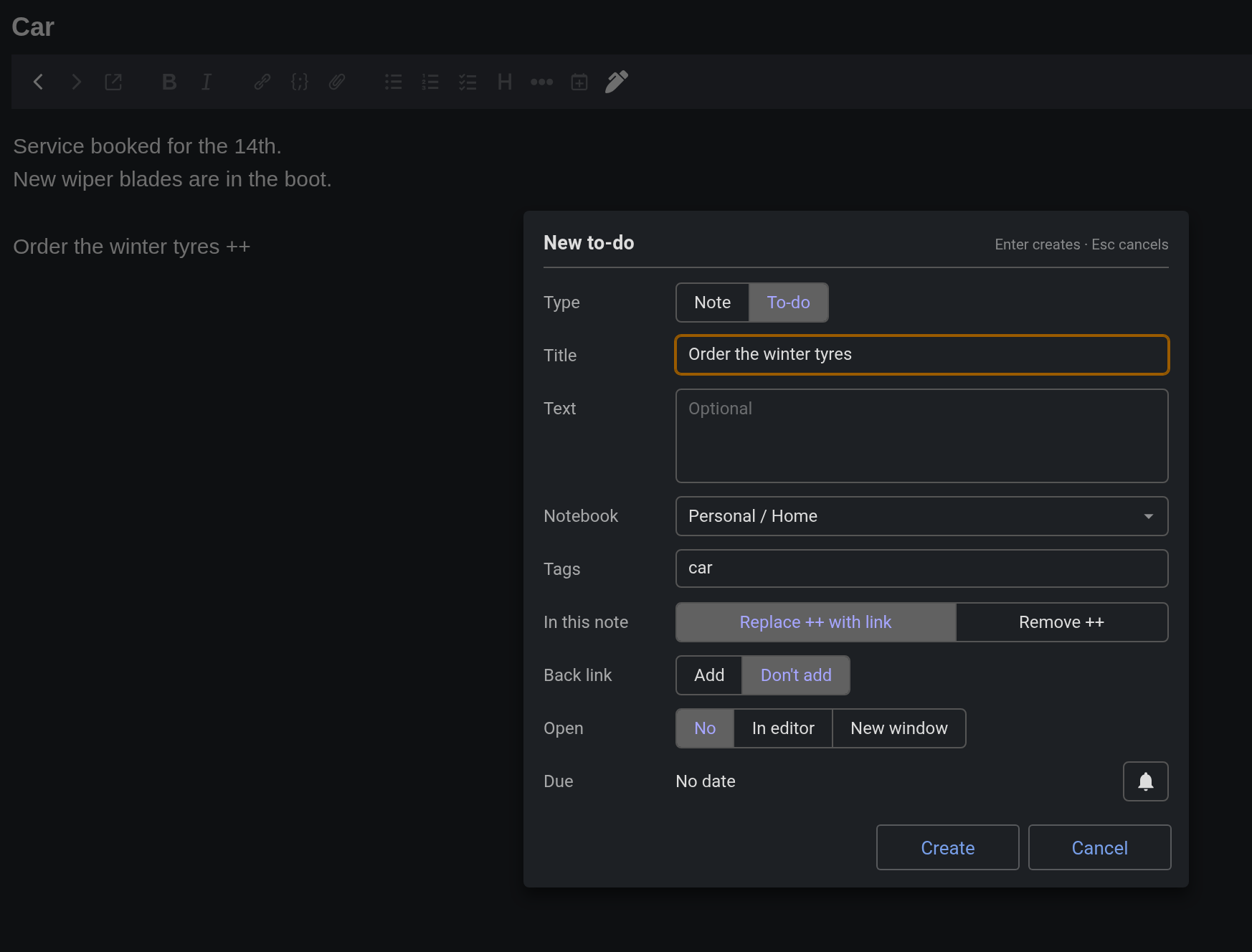
Typing ++ at the start of a line or after a space in the Markdown editor. The trigger is a setting; empty turns it off. It never fires inside a word (C++), on a paste, or twice for the same occurrence: cancel the form once and that ++ is left alone.
The Jot button in the note toolbar, the feather icon.
Edit with Jot… in the note list's right-click menu: the same form prefilled with the note's title, type, notebook, tags and due date. Save writes only what you changed, and the note is never opened.
Type, Title, Text, Notebook, Tags, then the choices, and Due last. The title is focused when the form opens, so typing a title and pressing Enter is all a capture needs; Enter creates from anywhere in the form except the Text, where it is a new line, so a date picked with the mouse is followed by Enter as well; with the title still empty, Enter keeps the form open and puts the cursor back in the title. Every choice is one line of buttons you click or move through with the arrow keys:
++: Replace ++ with link (the default) or Remove ++. Each starts on its setting.Jot tells two kinds of note apart. A quick note is one you start with nothing highlighted, from the shortcut, the menu or the toolbar button: a reminder to deal with later. A note from text in a note is one you start from highlighted text or by typing ++: it belongs with the note it came from. By default:
Each of these is a setting, so a quick note can be just the shortcut, a title and Enter, and a note from text can come out ready, with no clicks. Notebook and Tags filter a list as you type, and Enter picks the highlighted row.
Title and Tags grow with what they hold, up to three lines; past that they scroll, and the scrollbar shows there is more. Tab into either puts the cursor at the end, ready to add to it; a click puts it where you click. Enter in them never starts a new line, and a pasted line break becomes a space.
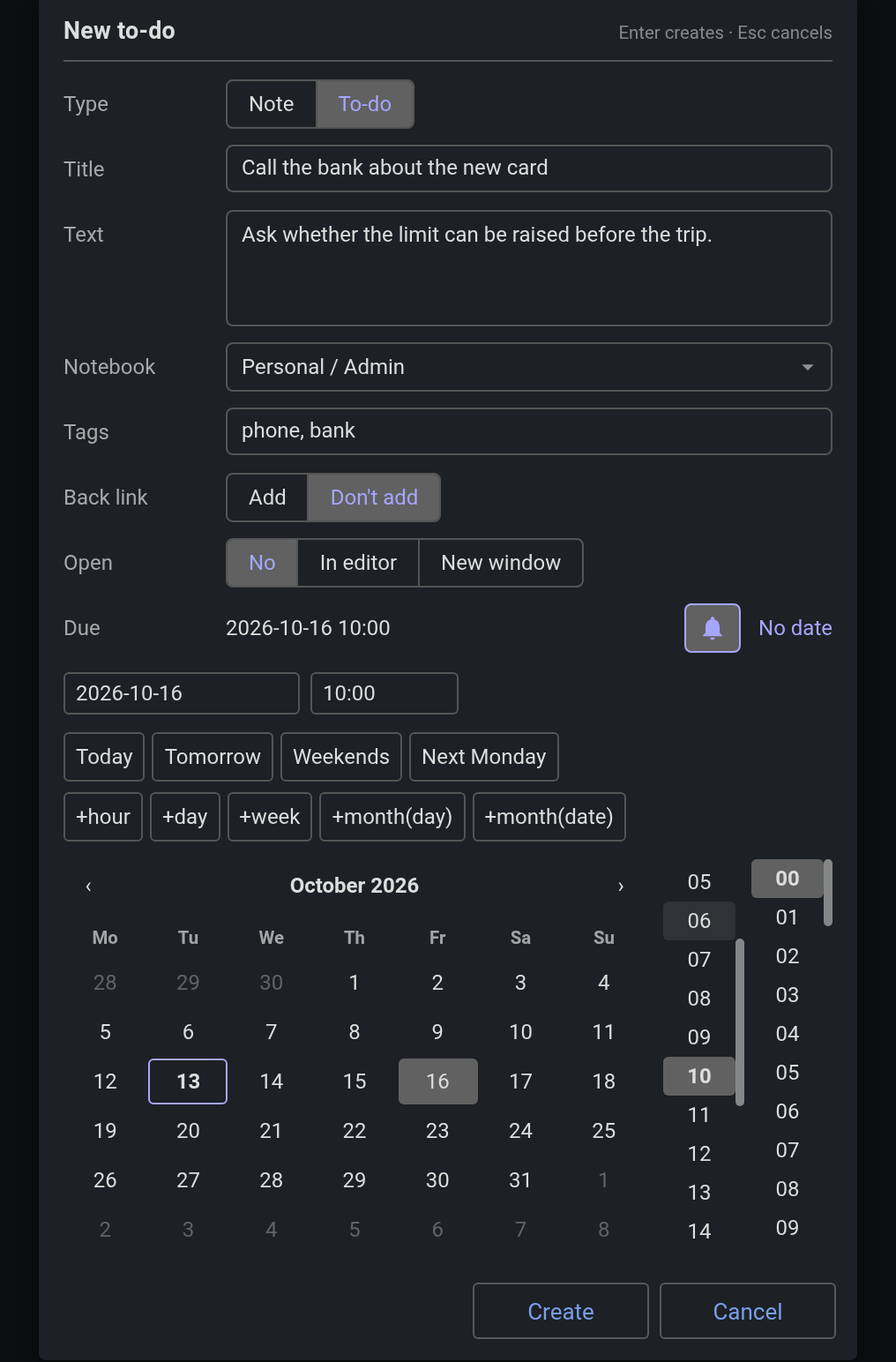
Due shows the date and time beside a bell. The bell unfolds Cockpit's date picker, the calendar, the time columns and the quick buttons, and every pick writes into the row at once. A to-do whose date is picked before its time starts at the day start time.
Create writes the note and opens it only if Open says so. Cancel, or Escape, writes nothing. A form with no title and no text creates nothing. An empty title with text takes the first line of the text as the title.
Settings › Plugins › Jot:
Parent {note_type}: {note_link} by default. The placeholders are Copy Note ID's, for the note you are in: {note_link}, {note_title}, {note_id}, {note_type} (to-do or note), {notebook_name}, {notebook_path} (such as Work/Projects) and {notebook_id}. So Extracted from: {note_link} works too.++ after a space fires inside a code block too. Cancel once and that occurrence is left alone.joplin.commands.execute('jot.open', args): with { mode: 'new', type, title, body, notebookId } it opens the form with those presets and resolves { id, opened }, or null on Cancel; with { mode: 'edit', noteId } it opens edit mode and resolves { id, changed }, the list of fields written, or null. With no arguments it behaves as the shortcut.
npm install
npm run dist
npm test runs the harness; npm run test:e2e runs the Playwright suite over an isolated Joplin AppImage under xvfb. The plugin file is publish/io.github.pmslava.jot.jpl.
The idea of a note from highlighted text comes from Convert Text To New Note by ambrt. The capture use case comes from xiaofeng's request in the Cockpit forum thread. The date picker is Cockpit's. MIT.