
Description
Live typeset PDF preview and LaTeX export for academic writing.
Additional Information
| Links: | |
|---|---|
| Maintainers: | wernerbhertzog |
| Version: | 0.19.0 |
| Minimum app version: | 3.3 |
| Downloads: This version: | 0 |
| Last updated: | N/A |
Joplin Scholar

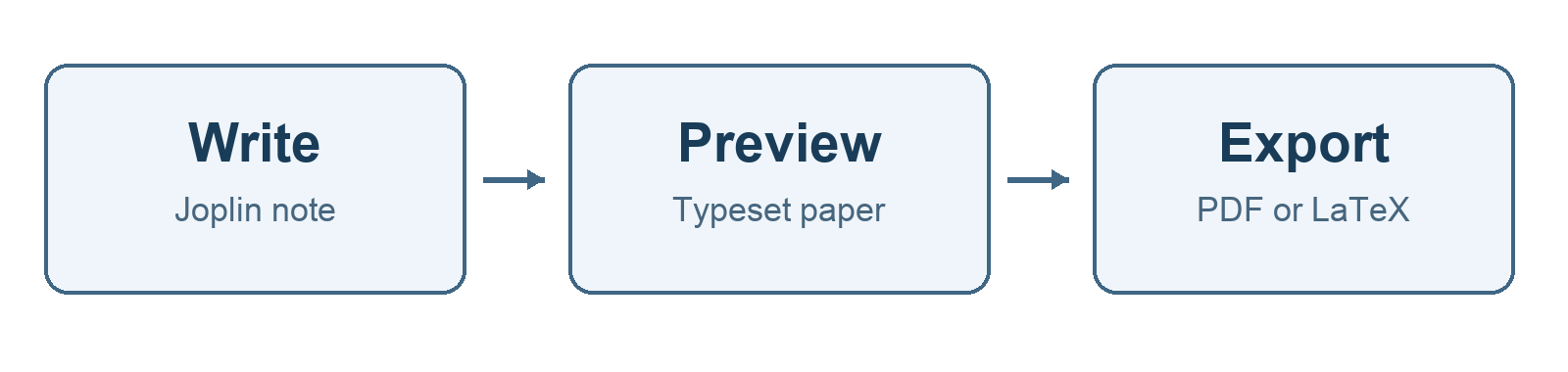
A desktop Joplin plugin for writing academic papers in Markdown. Scholar builds a live, typeset PDF preview as you write and can export PDF or LaTeX using Pandoc and a LaTeX engine installed on your computer.
Scholar supports abstracts; authors and affiliations; footnotes; captioned figures and tables; contents, figure and table lists; Pandoc citations; Zotero integration; and bundled citation styles. The preview supports text selection, zoom, and opening a snapshot in your default PDF viewer.
Install and set up
- Install Joplin Desktop 3.3 or later, Pandoc, and a LaTeX distribution that supplies
xelatex(such as MacTeX, TeX Live, or MiKTeX). You can set executable paths in Settings → Joplin Scholar if they are not found. On macOS Homebrew users can install Pandoc withbrew install pandoc. - If Joplin Scholar is available in Joplin's plugin directory, search for it under Settings → Plugins, install it, and restart Joplin. Alternatively, download
joplin-scholar.jplfrom the latest GitHub release, then use Settings → Plugins → Plugin tools → Install from file. Quit and restart Joplin. - Select a note. Use the Toggle Joplin Scholar logo button in the note toolbar to open or hide the panel. The same command is available through View → Toggle Joplin Scholar. Use View → Change application layout to move the panel next to your editor.
- Pause after editing for the preview to rebuild. Refresh forces a rebuild. Scroll normally to move through the paper. Hold Shift while scrolling to zoom, or use the minus and plus buttons; click the percentage to return to fit-to-width. The preview scales immediately and sharpens nearby pages in the background. You can select and copy the PDF's text directly from visible pages. Errors appear in the panel and the last successful preview for that note remains visible.
Open PDF opens a temporary snapshot of the current preview in the system's default PDF viewer. A snapshot does not update as you edit; open it again for a newer preview. Use Export → PDF or Export → LaTeX to save a permanent export. Scholar asks for a parent folder, then creates a new, uniquely named paper folder inside it. Each LaTeX export includes any Joplin image attachments it references in an assets folder. Compile the exported .tex from the folder containing the .tex file. Exports never overwrite an existing folder.
Click Detach and then Open Scholar window in your browser to move the live preview and its controls into a separate, resizable window, for example on another monitor. Allow pop-ups for the local page if your browser blocks it. The preview continues to update after you edit or switch notes in Joplin. Click Return to Joplin, or close the preview window, to restore the panel. The temporary connection stays on your computer and closes when the preview closes; the browser window uses its own default colours rather than Joplin's theme. The first browser tab can be closed after the preview window opens.
Try the example paper
Select a notebook and click Example paper in the Scholar panel. Scholar creates and opens a new note in that notebook, with a real image attachment. The paper explains and demonstrates authors, an abstract, contents lists, figures and tables, math and equation references, footnotes, citations, bibliography styles, the preview, and export. Explore its Markdown beside the PDF preview, then edit your copy. Clicking the button again creates another independent copy; existing notes are never overwritten. The example is also available as Markdown, its image, and a sample PDF. When using the Markdown outside the button, import the image as a Joplin attachment and replace its relative image path with Joplin's attachment link.
The example includes inline reference records and an explicit empty bibliography: [] in its YAML. Together these tell Scholar to use the embedded references regardless of the global bibliography setting, so Zotero is not required for the example. A working Pandoc and LaTeX installation is still required for the PDF preview. For your own papers, remove or change the embedded reference records and bibliography field when switching to a Zotero library or bibliography file.
Document styles
Choose Document style above the preview. The selection applies to the PDF preview, PDF export, and LaTeX export, and is saved with the selected note as Joplin user data. It syncs with the note but is not included in a plain Markdown export. Default / note settings preserves Pandoc's normal defaults and the note's own metadata. The other presets provide starting points:
| Preset | Layout |
|---|---|
| Standard article | Article, 11 pt, 1-inch margins, 1.15 line spacing |
| Double-spaced manuscript | Article, 12 pt, 1-inch margins, double spacing |
| Compact article | Article, 10 pt, 0.75-inch margins, single spacing |
| Report | Report class, 11 pt, 1-inch margins, 1.15 line spacing; top-level headings become chapters |
| Standard book | book, 11 pt |
| KOMA-Script book | scrbook, 11 pt |
| KOMA-Script report | scrreprt, 11 pt |
| Memoir book | memoir, 11 pt |
| ClassicThesis | scrbook with the classicthesis package |
| Tufte book | tufte-book, with Pandoc citation processing |
| KOMA-Script article | scrartcl, 11 pt |
| APA 7 manuscript | apa7 manuscript mode |
| Elsevier article | elsarticle preprint mode |
| IEEE journal article | IEEEtran journal mode |
| ACM manuscript | acmart manuscript mode, with publisher branding disabled |
| REVTeX physics manuscript | revtex4-2 APS preprint mode |
| Springer Nature journal | sn-jnl basic journal style |
The publisher-style choices use the actual LaTeX classes and adapt Scholar's authors and abstract to their title-page commands. They are starting points for drafting, not a guarantee of submission compliance: journals and conferences may require additional metadata, country fields, class options, source files or a different bibliography workflow. For example, the ACM preview does not invent an author's country or conference details. Check the target venue's current instructions. Citation style remains a separate choice; selecting a publisher layout does not automatically select or enforce its citation rules.
The book and report presets turn top-level Markdown headings into chapters. An Abstract heading is typeset as an unnumbered chapter where the book class has no abstract environment. ClassicThesis uses the actual package with Pandoc's fonts instead of requiring the template's own fonts; Tufte disables its letterspacing and built-in bibliography to support Scholar's authors and citations. These are drafting layouts, not complete university-specific thesis templates. They require the corresponding TeX packages to be installed; exported LaTeX also requires those packages.
Install the corresponding class in your TeX distribution if it is missing. Springer Nature's sn-jnl.cls is not part of many TeX installations: download the official journal article template, unzip it, and set Springer Nature class file in Scholar settings to the extracted sn-jnl.cls. Alternatively, install the class in your TeX search path. Scholar copies this class alongside an exported .tex so the export can compile independently of the original path. Springer Nature's class files remain subject to their own terms.
IEEE journal mode uses two columns, while Pandoc's multipage tables require one column: Scholar places tables on full-width single-column pages, then resumes the two-column layout. Put IEEE tables outside lists and block quotes. Other classes use their own layouts and may move figures or tables according to LaTeX's normal float rules.
To customise a paper, add Pandoc YAML fields such as documentclass, classoption, fontsize, geometry, or linestretch to the note: explicit YAML fields take precedence over the corresponding preset values. If the note sets any individual margin field (such as margin-left), the preset's margins are omitted so Pandoc can apply the note's margin settings. A different YAML documentclass bypasses the selected publisher adapter. A configured custom Pandoc LaTeX template takes precedence over Scholar's publisher adapters and may ignore selected layout settings; ensure that template supports the chosen class and author metadata.
Document options
Open Document options for the current note to choose continuous line numbers, affiliations below the authors or at the end, line spacing, section numbering, and A4 or US Letter paper. Each defaults to the selected document style. Changes apply to the preview, PDF, and LaTeX exports and are saved as Joplin user data with the note, not in plain Markdown exports. An explicit linestretch, numbersections, or papersize in YAML takes precedence over the corresponding option. Line numbering requires the lineno TeX package.
Most publisher-specific classes and custom templates control their author layout. For these, leave affiliation placement at Style default; switch to a general style to place affiliations at the end. The ACM class also controls line spacing. Publisher templates can impose other layout requirements, so inspect the result and follow the journal's instructions.
Document metadata and authors
Open Document metadata in the Scholar toolbar to edit the title, subtitle, date, authors and affiliations. The title field shows the Joplin note title by default; if you change it and save, the new document title is written to YAML without renaming the note. Clearing the document title returns to the note-title default. Use Full YAML to edit any other field, including keywords, abstracts, bibliographies, inline references and custom metadata. Click Save metadata to write the changes into the YAML at the start of the note. Existing unrelated metadata and comments are preserved where possible; inspect the YAML after complex edits. The default note title remains linked to the note and is not copied into YAML unless you edit it.
Add each author in order, with one affiliation per line. Shared affiliations receive the same number in the PDF. Use the arrows to change author order, select any corresponding authors, and enter their emails if desired. You can also specify author and affiliation URLs or author notes. The PDF and generated .tex use the selected document style's author commands. A custom Pandoc template must render the author variable, and journal-specific templates may require further adjustment.
The same data can be edited directly as Pandoc or R Markdown YAML at the very start of the note:
---
title: My paper
author:
  - name: Alice Smith
    affiliations:
      - Example University
      - Research Institute
    email: alice@example.org
    corresponding: true
  - name: Bob Jones
    affiliation: Example University
---
Both author and authors are accepted. A single author can be a string, or authors can be a list of strings or detailed records. R Markdown title footnotes work, for example author: Jane Doe^[Example University, jane@example.org]. Detailed records also accept R Markdown's url and affiliation_url fields as links; when an author has multiple affiliations, affiliation_url applies to the first. An email is shown as the corresponding author's contact when corresponding: true is set. Title footnote contents are treated as plain text. The plugin reads these metadata fields; it does not run R or apply R Markdown's output setting. A frontmatter title is used for the paper title; otherwise Scholar uses the Joplin note title.
Authors previously saved by older versions are shown in the panel. Saving metadata copies them into the note's YAML; until then, existing saved authors remain available to previews and exports. Save metadata while the note is open in Joplin's Markdown editor: Scholar checks the live editor before changing its front matter so unsaved writing is not overwritten. If the note is still being saved, wait and try again. If metadata changes elsewhere while you have a panel draft, copy the draft and use Reload metadata before saving. Edits to the same field in both the guided fields and Full YAML must be saved one at a time. Switching to the rich-text editor may alter YAML.
Joplin's own note properties, including its internal author, note timestamps, tags, and source URL, are separate from Scholar's paper metadata. Scholar does not automatically synchronize them with YAML. Joplin's Markdown with Front Matter importer/exporter uses some of the same field names for note properties, and its importer ignores unsupported fields. Do not assume a round trip through that format will preserve all Scholar metadata; keep a copy of your original note and check the imported result.
Footnotes
In the Scholar toolbar, open Footnote, enter its text, and click Copy footnote. Paste the copied text in your note at the point where you want the footnote number. The note contains a readable marker such as {{fn: A source or comment.}}; Scholar converts it into a numbered LaTeX footnote in the preview and exports. The marker can also be typed or edited directly in the rich-text or Markdown editor. The copy tool supports a single paragraph of text without braces.
GitHub-style and Pandoc footnotes are also supported in the Markdown editor:
A claim with a footnote.[^source]

[^source]: Details about the source.
Pandoc also supports ^[An inline note.]. Reusing the same reference label produces a separate numbered LaTeX footnote at each occurrence. Joplin's rich-text editor may alter standard Markdown footnote markup when it saves a note, so the Scholar marker is preferable when switching editors. Markers in code blocks and inline code are kept as literal text.
Abstract
Add a heading named Abstract in either Joplin editor, followed by the abstract text. In Markdown, for example:
## Abstract

This paper examines …

## Introduction
Scholar converts the first such heading and the text after it into a LaTeX abstract, stopping at the next heading or a table-of-contents marker. Formatting, mathematics, and citations inside the abstract are processed normally. This affects Scholar's preview and exports; the note itself remains ordinary Joplin Markdown. Custom LaTeX templates must provide an abstract environment.
Nested lists
Markdown bullet and numbered lists can be nested up to 20 levels in the preview and exports. For lists deeper than four levels, Scholar uses the LaTeX enumitem package, normally included in a full LaTeX installation. Exported LaTeX for these notes includes the same list configuration. Very deep outlines have less room for text on each line.
Mathematics and equation references
Use dollar signs or TeX delimiters for inline and displayed mathematics:
The energy is $E = mc^2$ or \(E = mc^2\).

\[
E = mc^2
\]
For numbered equations and references, Scholar accepts bookdown-style labels and references in the Markdown editor:
As shown in equation \@ref(eq:energy), mass and energy are related.

\begin{equation}
E = mc^2 (\#eq:energy)
\end{equation}
The label may also appear inside a $$ ... $$ display; Scholar numbers that display when a label is present. References become LaTeX \eqref commands, so the number is in parentheses and updates automatically. Each label must be unique and every reference must have a matching numbered equation; Scholar reports missing or duplicate labels in the preview. Code examples remain literal. The preview and PDF resolve references automatically; when compiling an exported .tex file, run LaTeX at least twice. The syntax is processed by Scholar and Pandoc without running R. Custom LaTeX templates need the amsmath package for \eqref. Joplin's rich-text editor may alter mathematical markup, so use its Markdown editor when writing equations. With TeX delimiters enabled, \( and \[ start math rather than represent literal escaped punctuation.
Table of contents
Put [toc] on a line by itself where you want the table of contents. Joplin Scholar also accepts Joplin's [[toc]], [[_toc_]], and ${toc} variants. The preview and exported PDF list the document headings. LaTeX exports include the table of contents in the same position; compiling the .tex may require two LaTeX runs to populate its entries. Markers in code blocks remain literal.
Figures and tables
Use Joplin's table tool or write a Markdown pipe table in the note. Add a caption using the Pandoc syntax shown below.
Attach or paste an image in Joplin. In the Markdown editor, put the image on its own, with a blank line before and after, and write its caption inside the brackets. Keep the attachment ID Joplin generated:

Pandoc turns this into a numbered figure with a caption. The bracket text also serves as the image's default alternative text; Pandoc supports a separate alt attribute if needed. Scholar copies attached images into the exported LaTeX folder. The attachment must be downloaded on this computer.
Pandoc pipe tables can have a caption immediately before or after the table:
| Year | Value |
|------|------:|
| 2024 | 10    |

Table: Observed values
Put [lof] and [lot] on their own lines where you want the list of figures and list of tables. These lists include captioned figures and tables, and are separate from [toc]. Scholar renders them in the preview and PDF; an exported .tex file may require multiple LaTeX runs to populate them. Keep Pandoc syntax in the Markdown editor: Joplin's rich-text editor may change captions, list markers, and table formatting. Scholar does not yet provide automatic figure/table cross-references.
LaTeX may move figures to a later page when they do not fit. If pending figures appear after the references, put \clearpage on its own line immediately before the references heading in the Markdown editor; LaTeX will place the waiting figures before starting the references on a new page.
Choosing citations from Zotero
- Install Better BibTeX for Zotero and keep Zotero open.
- In Settings → Joplin Scholar → Bibliography source, select Zotero directly. If the setting is Automatic, Scholar uses an existing bibliography file or note metadata first, then Zotero if neither is set.
- In the Scholar toolbar, open Cite and click Choose from Zotero. In Zotero’s picker, search and choose one or more sources; locators such as page numbers are supported. When the picker closes, paste the copied citation into your note. Add a
## Referencesheading at the end if you want to label the list. - Scholar retrieves the cited items from Zotero locally and generates the reference list in the PDF. Choose a citation style from the visible Citation style dropdown. Click Refresh after editing records in Zotero.
The picker and reference lookup communicate with Zotero's Better BibTeX service on this computer. The picker copies the Pandoc citation to the clipboard rather than changing the note directly, so you choose exactly where to paste it. Cancelling leaves the clipboard unchanged. In direct mode, Scholar looks up the cited keys in My Library; a numeric library ID can be entered in settings to use one group library instead. Citations from multiple libraries in the same document and nocite: @* are not supported in direct mode; use a bibliography file for those cases. Joplin’s rich-text editor may alter Pandoc citation syntax, so check the resulting preview and consider using the Markdown editor for citations.
Academic references
Choose a style from Citation style above the preview. The plugin bundles APA 6 and 7, MLA, Chicago, Harvard, IEEE, NLM/Vancouver, AMA, ACS, ASA, APSA, ACM, AIP, CSE, Nature, Science, Cell, NEJM, Bluebook, OSCOLA, and other styles; no download is needed. The selection is saved as Joplin note data and syncs with the note; it does not modify the Markdown text. Default / configured CSL uses the CSL path in Scholar settings, or Pandoc's default style if none is set.
As in R Markdown, a csl field in the note's YAML metadata overrides the panel selection. Use an absolute path to a .csl file, or one of Scholar's built-in names:
---
title: My paper
csl: apa
---
Built-in identifiers include apa, mla, chicago-author-date, chicago-notes-bibliography, harvard, ieee, vancouver, ama, and acs. Scholar's short names are a convenience specific to the plugin; for portability to R Markdown, provide a CSL file and a path that exists in the R Markdown project. The dropdown is disabled while a note's YAML contains csl; edit or remove that field to change it there. The bundled styles are from Citation Style Language, under CC BY-SA 3.0; authors and style metadata are included in each style.
Alternatively, provide a local .bib or CSL JSON bibliography under Settings → Joplin Scholar, or an absolute bibliography path in the note's YAML metadata. A bibliography file can be used without Zotero running; the file must contain the items you cite. Use Pandoc citation syntax such as [@smith2023]. The plugin also accepts a Pandoc-compatible LaTeX template. Scholar settings apply to all notes; a frontmatter title, if present, overrides the Joplin note title.
Limitations
This prototype handles one selected note at a time. Joplin features such as links to other notes, diagrams, plugins, complex rich-text formatting, and citation entry are not automatically converted; verify the result. Imported HTML notes and some Joplin-specific Markdown may not convert correctly. Image attachments need to be downloaded locally. Older LaTeX installations may ignore image alt text; update your LaTeX packages if accessible image descriptions are required. Generated LaTeX is a starting point, not guaranteed to conform to a publisher's template. Citations are rendered by Pandoc rather than exported as editable BibLaTeX commands. Pandoc or the PDF engine may access the network for remote resources or packages depending on your configuration. Pandoc and TeX compilation process the contents of your note; only use trusted notes and templates.
Build
Building requires Node.js 20 or later, npm, and a tar command. From a checkout:
npm ci
npm test
npm run build
The installable plugin is publish/joplin-scholar.jpl, accompanied by publish/joplin-scholar.json for the Joplin plugin directory. The build generates src/styles/styles.json from the checked-in CSL files. Build outputs and dependencies are not committed.
The default tests cover plugin behavior and use a simulated Pandoc. To also run the real Pandoc and PDF integration tests on macOS with MacTeX, set SCHOLAR_TEST_PANDOC to the Pandoc executable before running npm test; those tests currently expect XeLaTeX at /Library/TeX/texbin/xelatex. To run the optional browser preview test, set SCHOLAR_TEST_BROWSER to a compatible Chromium executable. Both sets of tests are skipped when their respective environment variables are absent.
License
The plugin source is licensed under MIT. The bundled citation styles are licensed under CC BY-SA 3.0, with author and attribution details in each CSL file. The packaged plugin also includes licenses for PDF.js and YAML.