Description
Visualize the connections between Joplin notes.
Additional Information
| Links: | |
|---|---|
| Maintainers: | treymo |
| Version: | 1.6.0 |
| Minimum app version: | 2.13 |
| Downloads: This version: | 864 |
| Last updated: | 2026-09-01T05:43:50Z |
Link Graph UI for Joplin
Link Graph UI draws a force-directed graph of the links between Joplin notes. Nodes are notes, and edges are the links between them.
Joplin 2.13 or later runs the plugin on the desktop, and Joplin 3.0.3 or later runs it on mobile. An Android emulator running Joplin 3.6.22 verified the mobile panel. No iOS test has run.
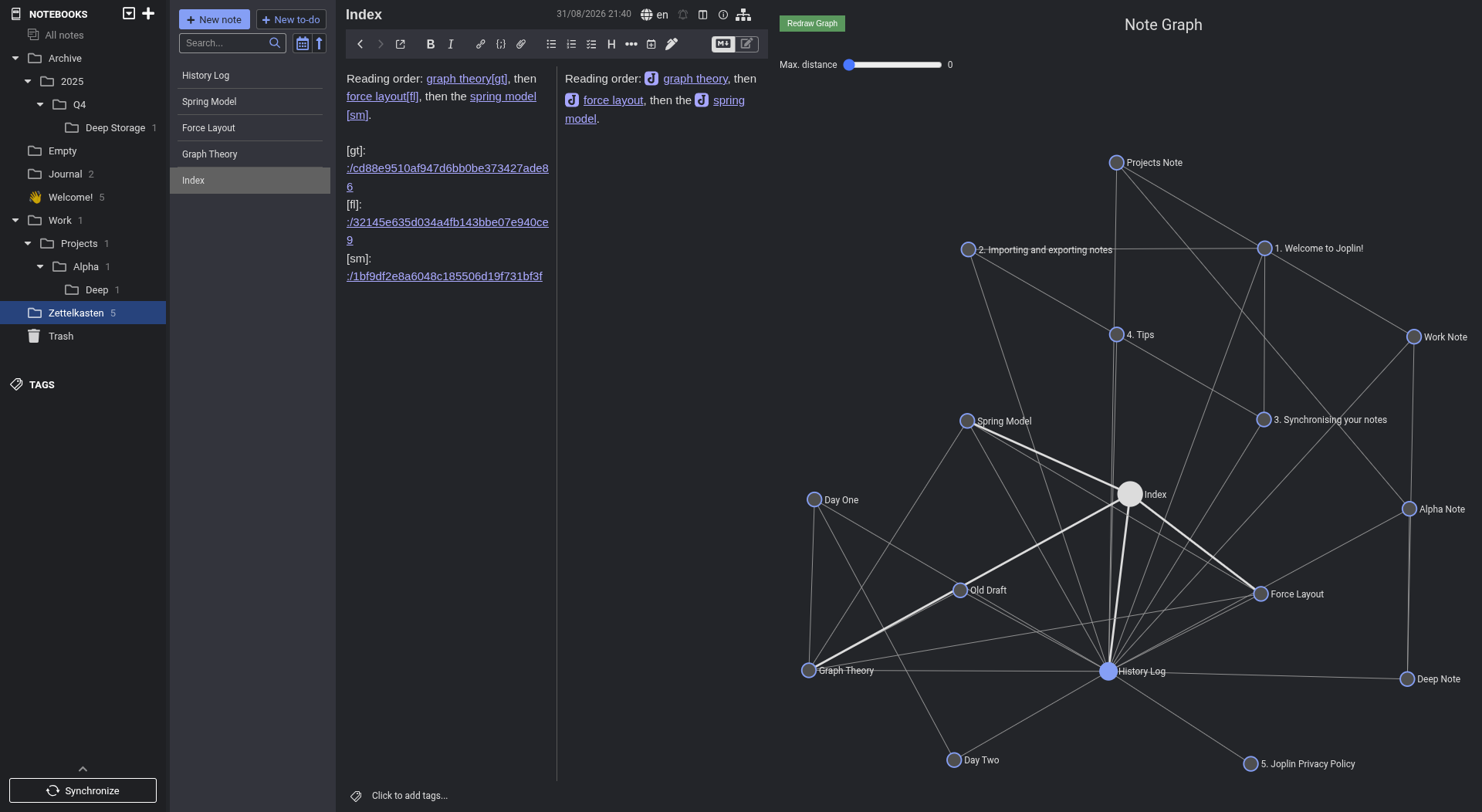
Opening and closing the panel
- The Show/Hide Graph View button on the note toolbar shows and hides the panel.
- View > Show/Hide Graph View runs the same command, and F8 is its keyboard shortcut.
Reading the graph
- Clicking a node opens that note in the editor.
- Hovering a node highlights its links and lists its tags.
- The scroll wheel zooms the graph, from 0.1 times to 10 times.
- Dragging the background pans the graph.
- The graph refreshes when a note gains, loses, or retargets a link.
- The Redraw Graph button rebuilds the graph on demand.
Max degree of separation
The Max degree of separation setting decides what the panel graphs. At 0 the panel graphs the whole vault. Above 0 the panel traverses outward from the selected note and stops after the chosen number of link jumps. The panel then styles every node and edge by its distance from the selected note. The Max. distance slider at the top of the panel sets the value, from 0 to 5.
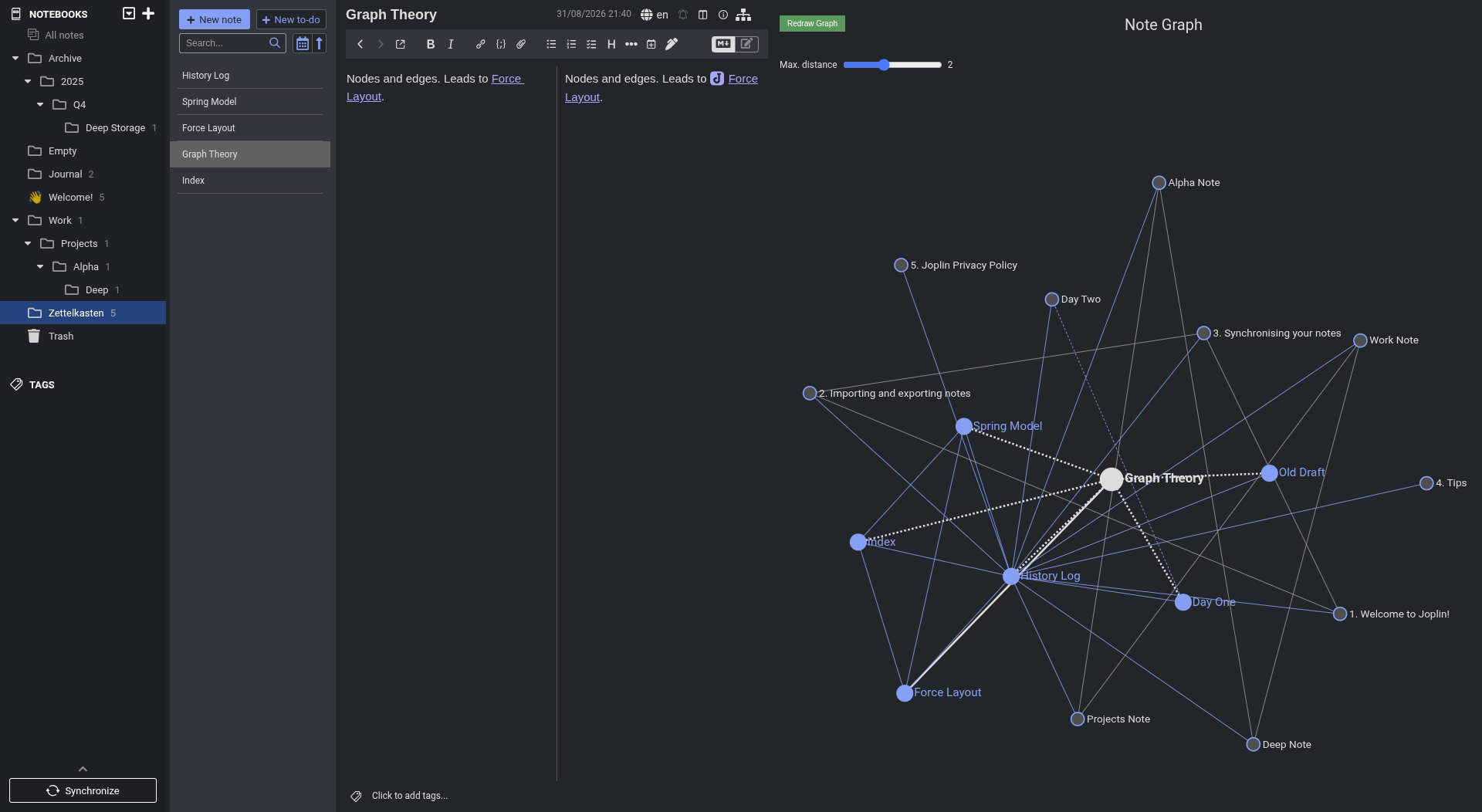
Settings in Tools > Options > Graph UI
- Size of the node label font sets the size of the note title drawn beside each node.
- Distance between nodes sets the resting length of every edge, so a larger value spreads the graph out.
- Max nodes in graph caps the number of notes drawn. The most recent notes take priority.
- Should notes in the filtered notebooks be included or excluded? decides whether the notebook list names what the graph draws or what it omits.
- Notebooks names to filter takes the notebook names and notebook identifiers the filter matches, separated by commas.
- Filter child notebooks extends the notebook filter to the descendants of the listed notebooks.
- Include note back-links for selected note adds the notes that link to the selected note. The setting applies to a graph traversed from the selected note.
- Note titles to exclude from backlinks names the notes whose backlinks the graph ignores. A history log then stops pulling the whole vault into the graph.
- Show note link direction arrows puts an arrowhead on each edge, pointing at the destination note.
Release notes
The 1.6.0 release notes list every change since 1.5.0.
Related plugins
Joplin Backlinks and Quicklinks pair with Link Graph UI for Zettelkasten note-taking.
Development
- Check out the Git repository.
- Run
npm installinside the repository to install the dependencies. - Run
npm run distto build the plugin. Joplin loads the plugin fromdist/. - Start Joplin in dev mode,
which uses a separate profile and leaves the real notes untouched. Help > Copy
dev mode command to clipboard gives the command for the installed build. The
command is the Joplin executable with
--env dev. - In that Joplin, open Tools > Options > Plugins > Advanced. Set Development
plugins to the path of the repository, not the
dist/directory. - Restart Joplin. Settings > Plugins lists Link Graph UI once it loads.
After a source change, run npm run dist again and restart Joplin.
Run the tests with npm test, or npm run test:watch while working.
Vendored generator files
api/, webpack.config.js, and GENERATOR_DOC.md come from generator-joplin,
currently version 3.7.2. Refresh them by unpacking a newer release and copying
the template files over.
npm pack generator-joplin@<version>
tar -xzf generator-joplin-<version>.tgz
cp -r package/generators/app/templates/api package/generators/app/templates/webpack.config.js .
Do not run npm run update. The script installs a floating generator-joplin
globally, and it overwrites devDependencies with the template's older pins.
@types/node drops from 22 to 18, copy-webpack-plugin from 14 to 11, and
tar from 7 to 6.